
MockFlow for Slack
Create MockFlow boards from Slack with AI, from a channel's messages, a Slack canvas or huddle notes, and share them in channels with a live preview.
MockFlow for Slack turns conversations into boards without leaving Slack. Ask for a launch plan and get a board posted to the channel, turn a busy thread into a visual summary, or convert huddle notes into a board the team can build on.
Install MockFlow for Slack
Go to MockFlow for Slack and click Add to Slack.
Choose your Slack workspace and click Allow.
Connect your MockFlow account when asked: sign in, or create a free account on the same page.
MockFlow appears under Apps in Slack. Its Home tab shows whether your account is connected, with Connect MockFlow account if it is not.
Create a board with AI
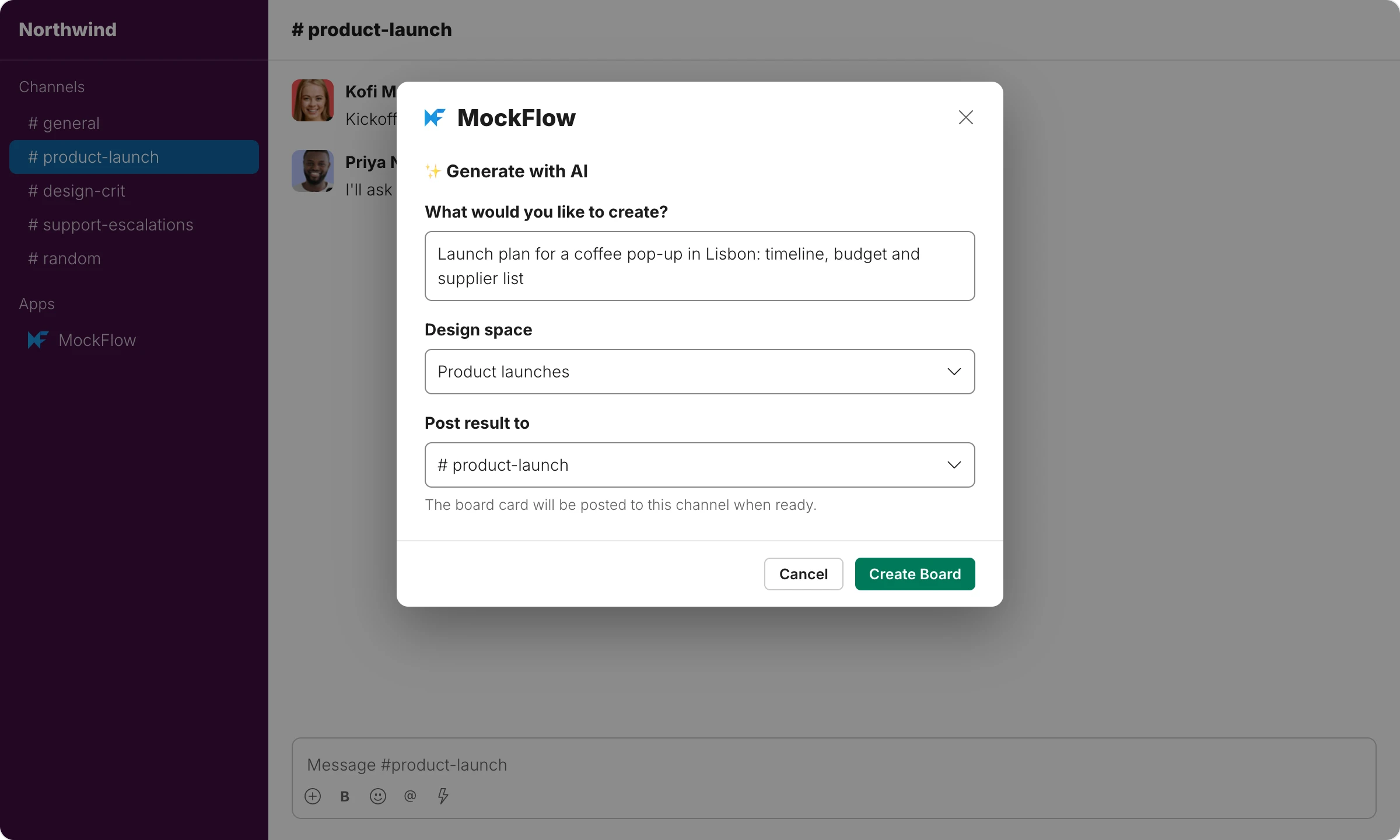
In any channel, open the shortcuts menu (the lightning icon in the message field) and choose MockFlow's Generate with AI.
Under What would you like to create?, describe the board, for example Launch plan for a coffee pop-up in Lisbon: timeline, budget and supplier list.
Choose the Design space for the board and the channel under Post result to, then click Create Board.
MockFlow lets you know it is working, then posts the board to the channel.
More ways to create a board
Create blank board: an empty board in the space you choose, posted to the channel.
Visualize channel messages: turns a channel's recent conversation into a board. Add what to visualize, or leave it blank to summarize the latest messages.
Convert Slack Canvas: turns the channel's Slack canvas into a board, in the way you describe.
Boards are created in the space you pick. The list shows spaces you own and spaces where you are an editor or an admin.
Share boards in channels
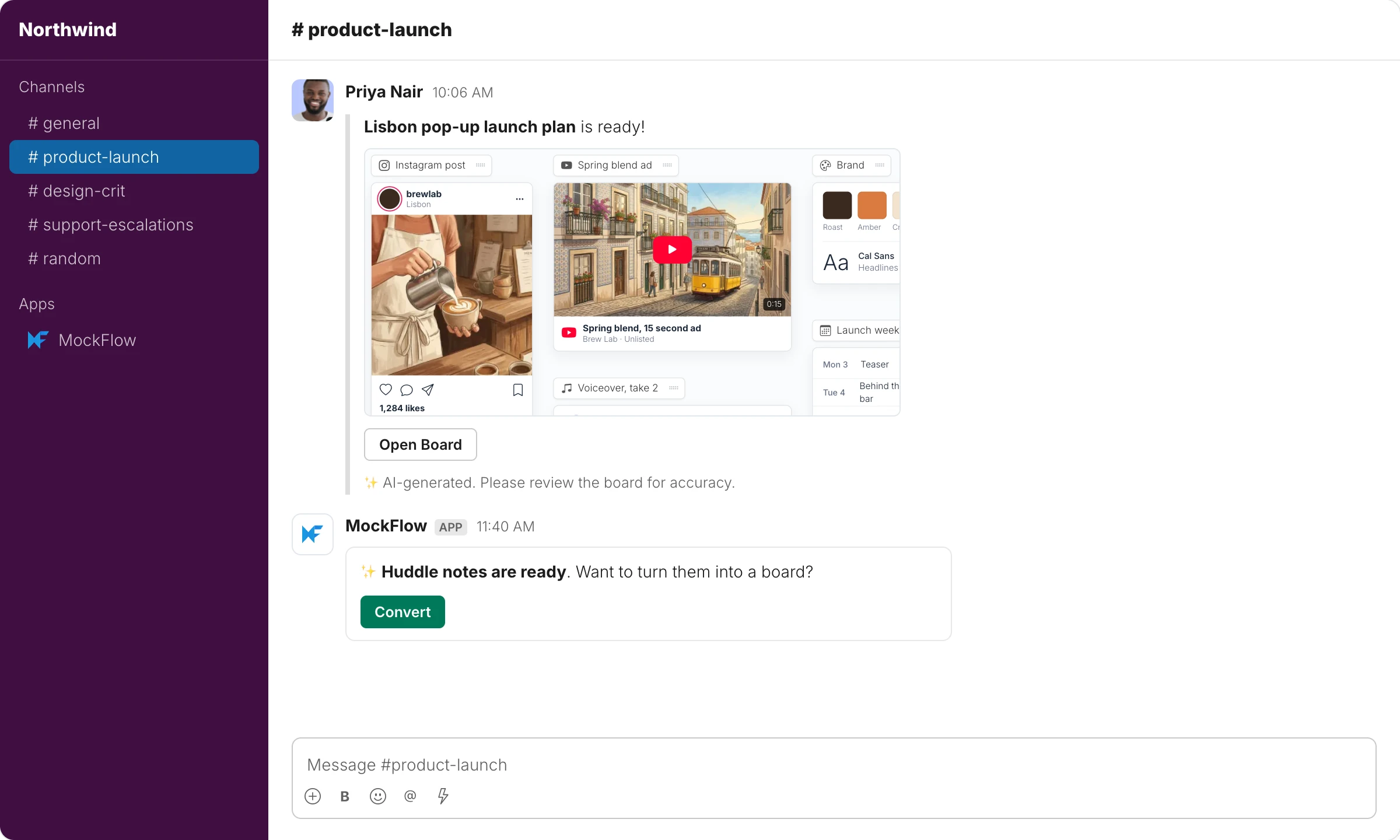
Each new board is posted to the channel as a card with a preview and Open Board. Boards generated with AI carry a reminder to review them for accuracy. When teammates open the board, they are added to its space so they can work on it.
Pasting any MockFlow board link in Slack shows a preview with the board's name, when it was last edited and an Open Project button.
Turn huddle notes into a board
When a Slack huddle ends with AI notes, MockFlow offers to turn them into a board in the huddle's thread. Click the button, choose the space and create the board.
Choose your notifications
On the MockFlow Home tab in Slack, turn notifications on or off for Comments on your boards, AI Generation when a board is ready, and Space Activity.
What is not available on the Basic plan
On the Basic plan you can create up to three boards in total, and AI boards use AI credits from your monthly allowance. Plus and Max include unlimited boards and more AI credits, along with many other features, such as team chat on boards. See MockFlow pricing for details.