
I can't sign in to MockFlow
Fix Authentication Failed when signing in to MockFlow: use the right sign in method, reset your password, sign in with SSO or enter your two-factor login code.
When MockFlow cannot sign you in, it shows Authentication Failed. Try again! The cause is almost always the sign in method, the password, or a company sign in policy.
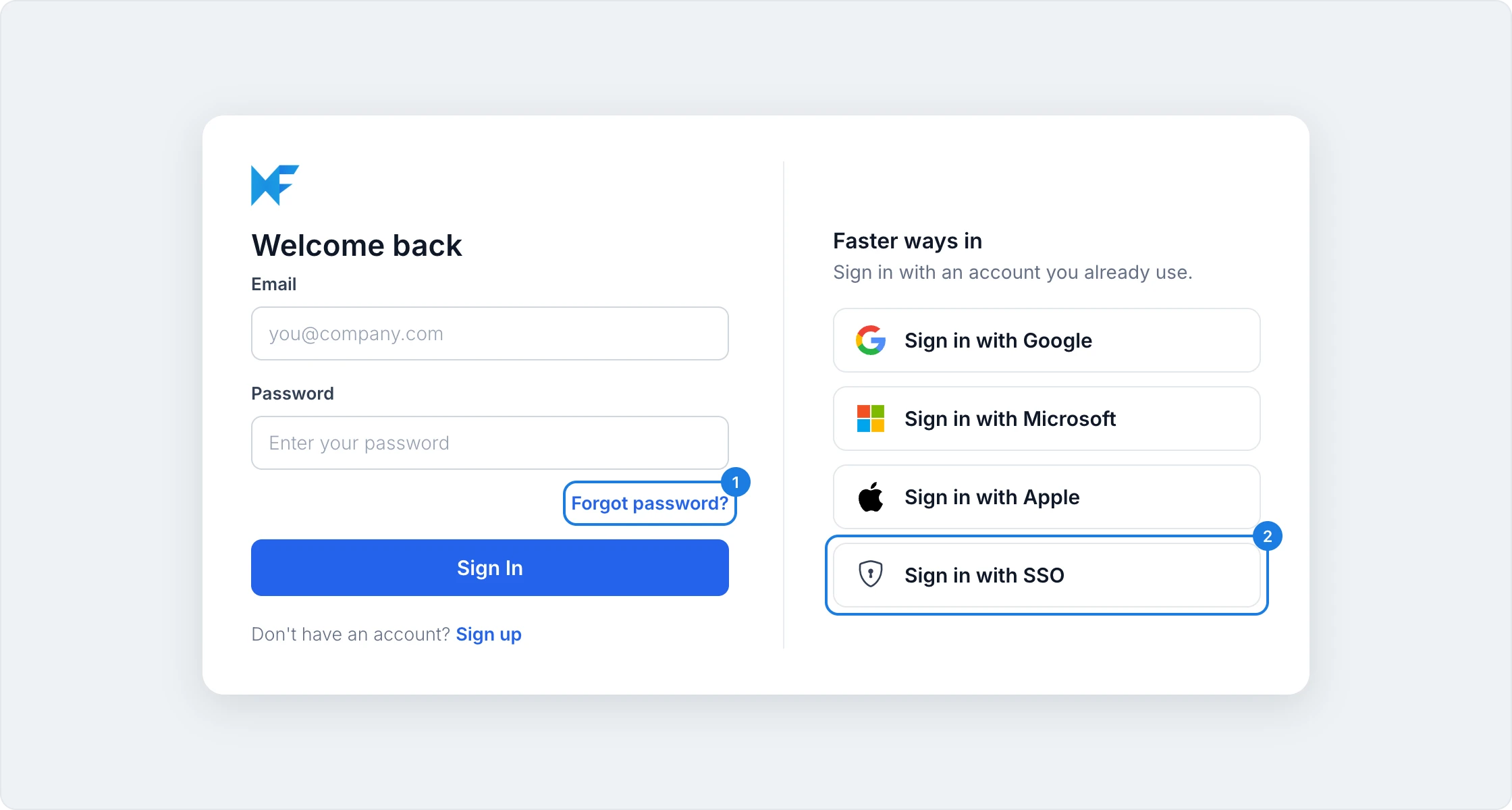
Use the same method you signed up with
If you created your account with Google, Microsoft or Apple, your account may not have a MockFlow password. Click Sign in with Google, Sign in with Microsoft or Sign in with Apple under Faster ways in, using the same account you signed up with. See Create your account and sign in.
Reset a forgotten password
In the Welcome back window, click Forgot password? (1).
Enter the email address of your account and click Send reset link.
Open the email from MockFlow, check your spam folder if it is not in your inbox, and follow the link to choose a new password.
Your company signs in with SSO
If your team license requires single sign-on, members and admins cannot sign in with a password, and a password sign in fails. Click Sign in with SSO (2), enter your work email address and sign in on your organization's page. See Set up single sign-on (SAML).
Enter your login code
If two-factor authentication is on for your account, MockFlow emails a login code after your password and asks you to enter it. Type the 6-digit code from the latest email. To get a new code, sign in again. See Turn on two-factor authentication for your team.
Still can't sign in
Check that your browser allows cookies for mockflow.com, then try again in a private window.
Make sure you use a supported browser. See Supported browsers and other requirements.
Email support@mockflow.com with the email address of your account and the sign in method you use.