
Share a space with a public link
Create a public link for a space and choose which of its boards anyone with the link can view, without signing in or joining the space.
A space link is a public web address for a space. Anyone with the link can view the boards you choose, without signing in or being invited, which makes it a simple way to share a portfolio, a client presentation, a set of specs or a workshop outcome. People who need to comment or edit should be invited to the space instead, as described in Invite people to a space.

Create a space link
In the workspace sidebar, point to the space, click its settings button and choose Create space link. The Space link dialog opens.
Type a name for the link after app.mockflow.com/space/, such as the space or client name. A link name needs at least 5 characters and can use letters, numbers, hyphens and underscores.
Under Boards on this link, turn on each board that visitors should see.
Click Create link. The dialog shows Public link is on.
Click Copy link and share it.
Only the owner and admins of a space can create its link. Boards in Private boards cannot be shared with a public link.
Choose which boards are public
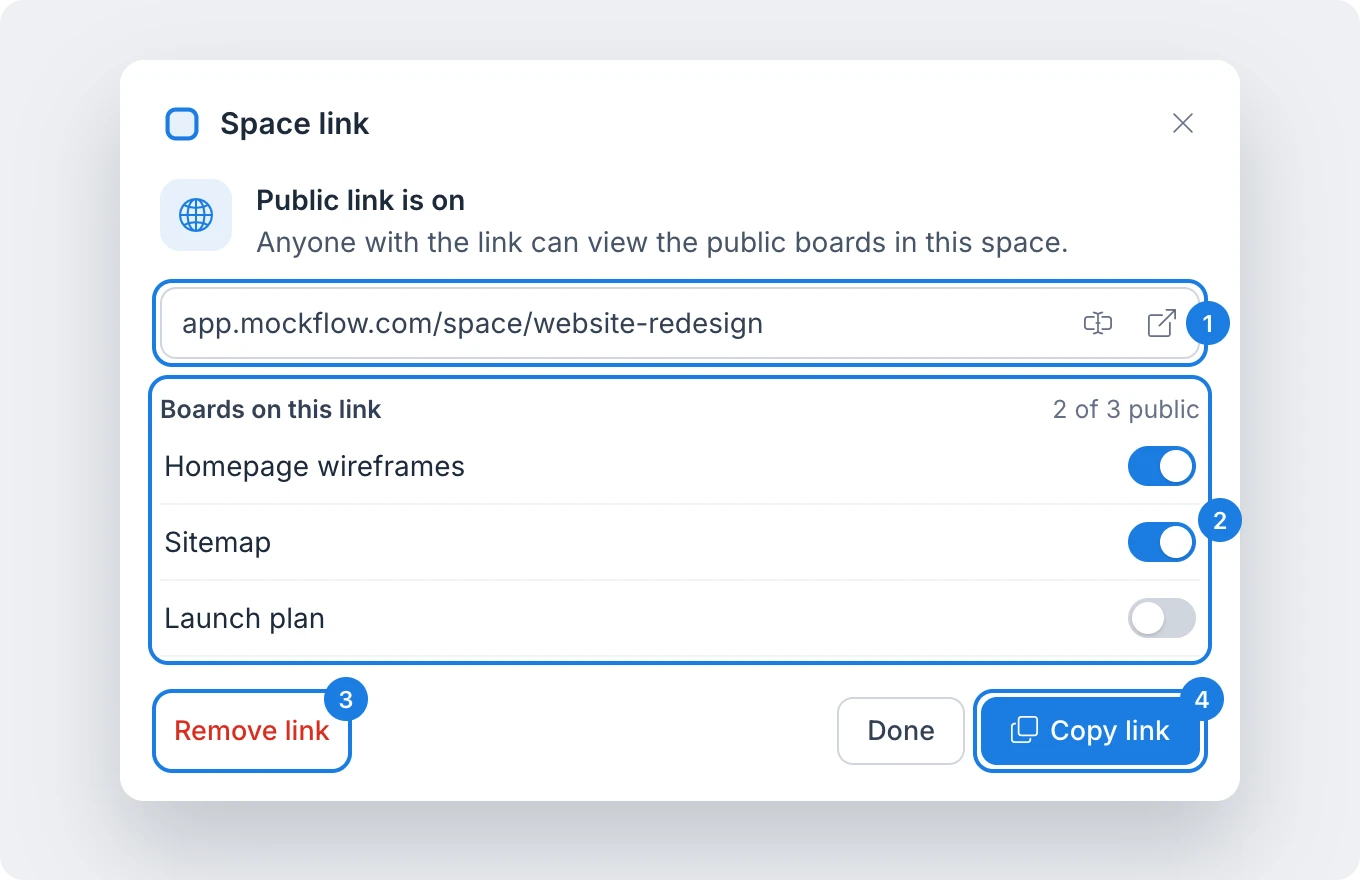
To change the link later, choose View space link from the space's settings menu.
Link address (1): the public address of the space. Use the buttons beside it to change the link name or to open the link in a new tab, the way visitors see it.
Boards on this link (2): each switch shows or hides one board, and the count shows how many boards are public. A change is saved as soon as you flip a switch. A board you turn on also becomes public on its own link.
Remove link (3): turns the space link off. Boards you turned on stay public on their own links, so turn off their switches first if you want to stop sharing them completely.
Copy link (4): copies the address to share in an email, a chat or a document.
New boards added to the space stay private until you turn them on, so visitors see only what you choose.
What visitors see
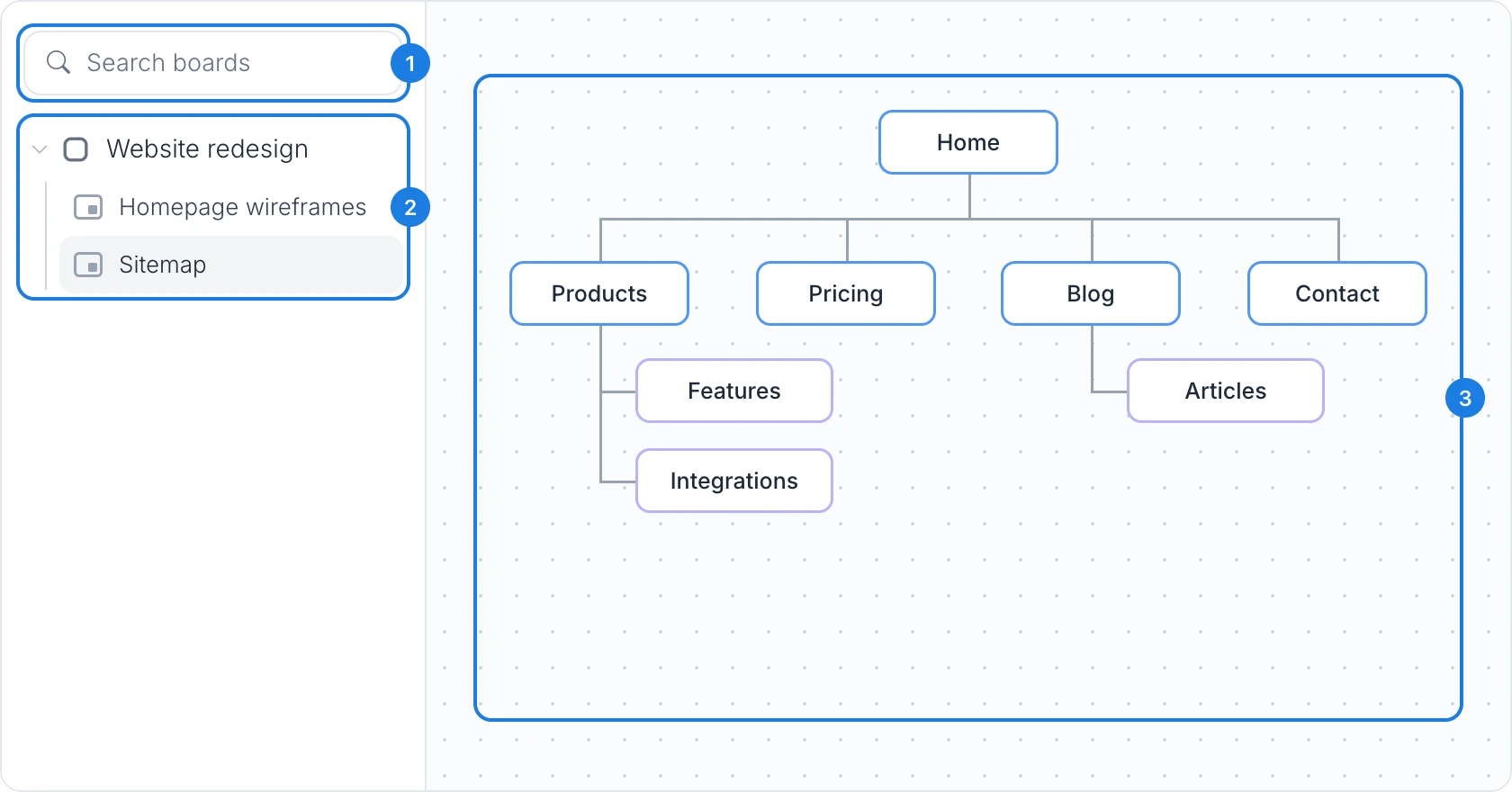
When someone opens a space link, they see the public boards of the space in a sidebar, with Search boards (1) to find one by name and the list of boards (2). The board they choose opens beside the list (3), where they can look around it but not change it. If no boards are turned on yet, the page shows No public boards yet.
What is not available on the Basic plan
Space links are not available on the Basic plan. When a Basic account creates one, MockFlow shows Public links are available on the Plus plan. A space link that already exists keeps working, and you can still remove it. Space links, public board links and many other features, such as live presentation mode and editor roles, are available on Plus and Max. See MockFlow pricing for details.