
File mode: a private whiteboard on your computer
Save boards as .board files on your Mac or PC instead of in the cloud. Nothing is uploaded, no connection is needed, and each file holds its pages, images and revisions.
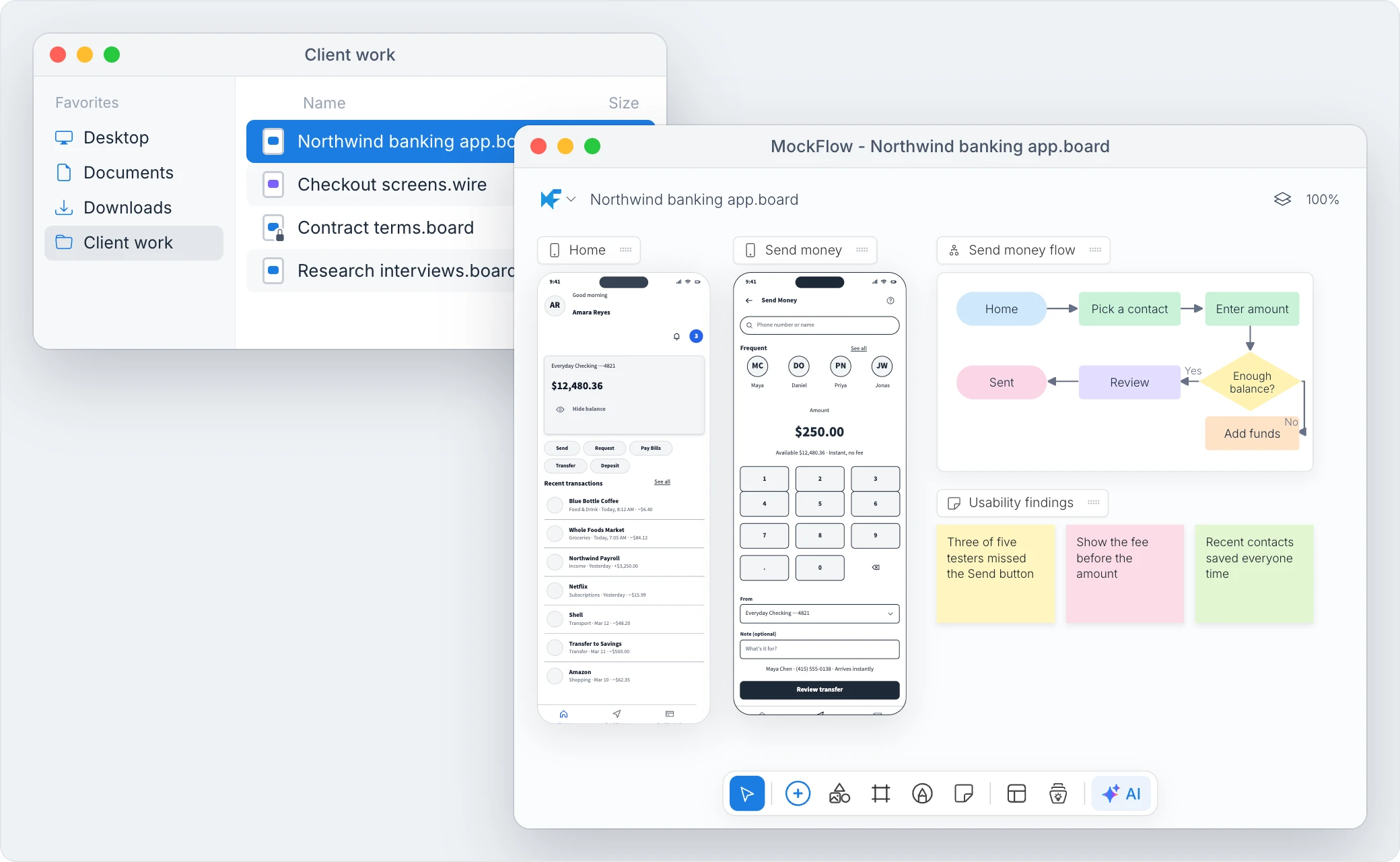
File mode turns the MockFlow desktop app into a private whiteboard on your computer. A board in file mode is a .board file in a folder you choose, like a document. It is never uploaded to MockFlow's servers, and you can open and edit it without an internet connection.
When to use file mode
File mode suits work that should stay on your own machine:
Client work under a confidentiality agreement, kept in the client's project folder.
Planning that should not leave your computer, such as budgets, hiring plans or a reorganization.
Working while traveling or anywhere without a reliable connection.
Keeping a board alongside other project files, so it is backed up and archived the way they are.
For boards you share with a team, use cloud boards in your workspace instead. See What is not available in file mode.
What a board file holds
A .board file is a single file that holds everything about the board:
Every page of the board and the items on it, such as mind maps, kanban boards, charts, flowcharts and wireframes.
Images you add from your computer.
Fonts the board uses.
The board's revision history.
Because it is one file, you can copy it to a USB drive, attach it to an email or keep it in a synced folder like any other document. Wireframes can also be kept as .wire files; see Create wireframe files on your computer.
Who can use file mode
File mode is part of the MockFlow desktop app for Mac and Windows and is included in the Max plan. See MockFlow pricing for details.
If you want a private whiteboard on a Mac without a MockFlow account or subscription, see MockFlow Personal Whiteboard for Mac.
Get started
Install the MockFlow desktop app and sign in.
Optionally password protect the file.