
Add links, embeds and RSS feeds
Bring web content onto your MockFlow board: paste a link to get a link card or a live embed, add embed code from other tools, and follow a site with an RSS feed.
A MockFlow board can hold content from the rest of the web: an article the team is reading, a recorded walkthrough, a design file from another tool or the latest posts from a news site. There are three ways to bring it in: a link card, an embed and an RSS Feed.
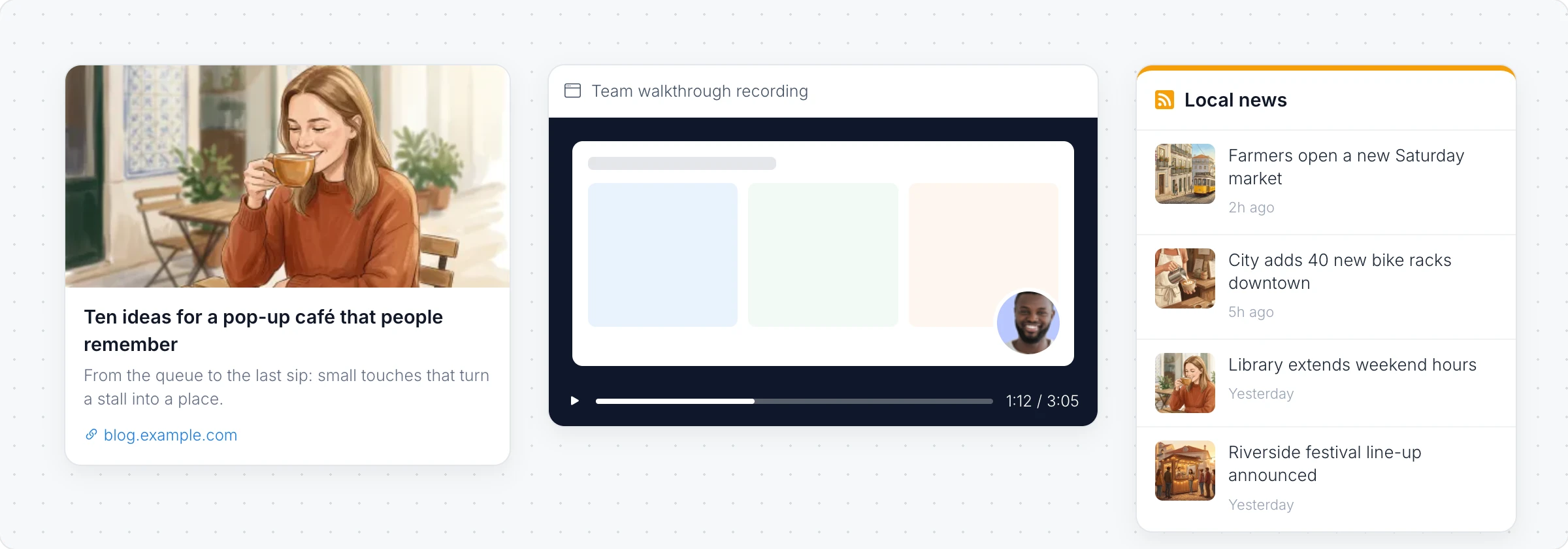
Paste a link
Copy a web address and paste it on the board (Ctrl+V, or ⌘+V on a Mac).
If the site is one MockFlow can embed, such as a video, a recording, a design file or a shared document, it plays or opens right on the board.
Any other address becomes a link card with the page's title, description and picture. Click it to open the page in a new tab.
A link card's toolbar has Change URL, a color, a Border style and a Corner Radius.
Embed content with a link or embed code
To embed something on purpose, or to use embed code a site gives you:
Click Add anything (the plus button) in the toolbar at the bottom of the board and choose Embed YouTube....
In Embed settings, paste the link or the embed code (an iframe).
Click Save Embed.
Check supported embed services lists the sites that can be embedded. Click Interact with Component (the hand button) to play or scroll the embed, and Enter Focus Mode to view it large. Change embed code replaces what it shows. For a tool by tool guide, see Embed content from other tools on a board.
Follow a site with an RSS feed
Choose RSS Feed from Add anything.
Paste the site's feed address in Feed URL, for example a news site's or a blog's RSS link, and click Fetch Feed.
The latest posts appear as a list, and each one opens in a new tab. The toolbar sets Max Items, Change Title, Toggle Images, the Feed color and the border.
Link cards, embeds and RSS feeds are available on every plan. See MockFlow pricing.