
Troubleshoot pairing your board with MockFlow Bridge
Fix pairing problems between your board and MockFlow Bridge: a pairing code that is not accepted, Bridge not found, a strip that does not turn green, and plan messages.
Pairing connects your board to MockFlow Bridge on your computer. You open Mida, click Connect on the Connect your local agent strip and enter the pairing code from the Bridge window. When it works, the strip turns green and reads Connected to followed by your agent's name. If it does not, find the message you see below. For the full setup, see Set up MockFlow Bridge.
"That pairing code is not correct"
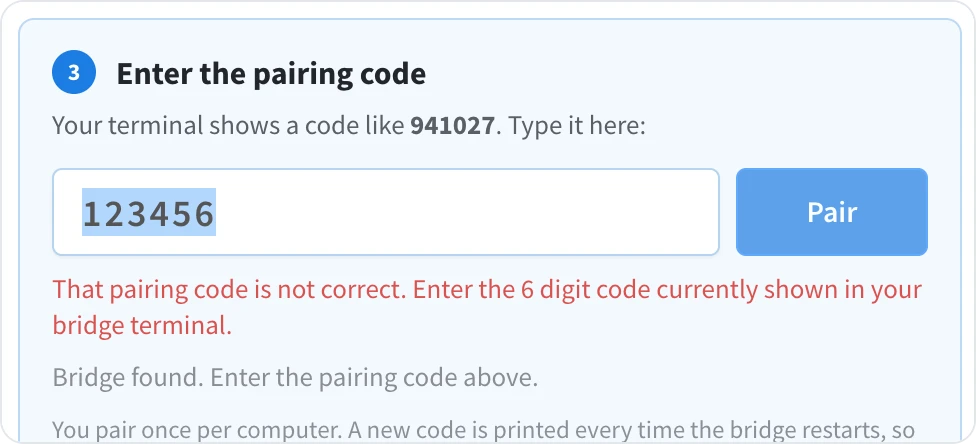
Bridge shows a new pairing code every time it starts. A code from an earlier run, or one typed with a mistake, is not accepted.
Look at the Bridge window and find the line Open MockFlow and enter code followed by six digits.
Type that code in the dialog and click Pair.
If you closed the Bridge window and started Bridge again, use the code it shows now.
"Not connected to the local bridge"
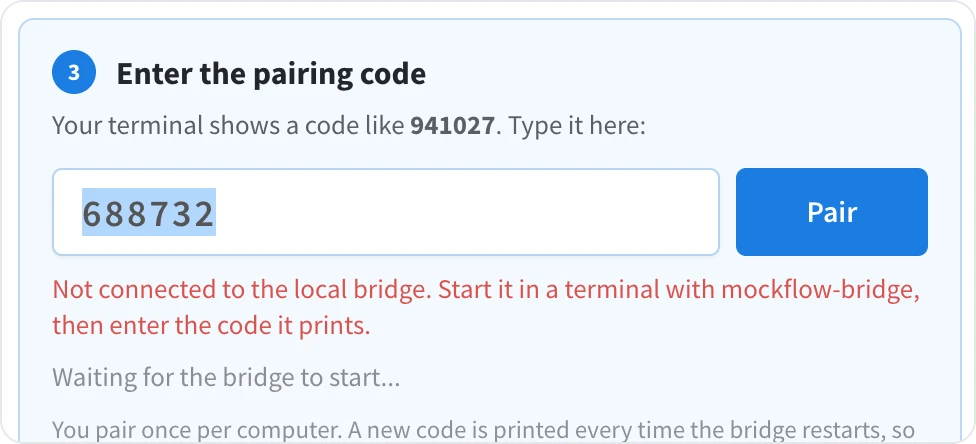
The board cannot find Bridge on your computer. The dialog shows Waiting for the bridge to start... under the code field.
Bridge is not running. Open a terminal and run
mockflow-bridge. Leave the window open; closing it stops Bridge.Bridge is running on another computer. Bridge connects only to boards open on the same computer. Start it on the computer where your board is open.
The board stopped looking for Bridge. After a few failed tries, the board waits longer between attempts. Once Bridge is running, reload the board and click Connect again.
When the board finds Bridge, the status changes to Bridge found. Enter the pairing code above.
The strip does not turn green
If you clicked Pair with the right code and the strip still reads Connect your local agent:
Check the Bridge window. It should still be open and show waiting for a board or the name of a connected board. If it shows an error or has closed, start Bridge again with
mockflow-bridge.Reload the board. A board opened before a MockFlow update may be running an older version of the editor. Reload it and connect again.
Use a MockFlow address. Bridge accepts boards opened on app.mockflow.com and in the MockFlow desktop app.
The board asks for a code again
You pair once per computer, and the board remembers it in your browser. It asks for a code again when:
you use another browser, a private window, or cleared your browser's site data
you reset Bridge with
mockflow-bridge reset --all, which also removes saved pairings
Enter the code currently shown in the Bridge window to pair again.
"Your plan connects one board to the local agent at a time"
On Basic, Bridge connects to one board at a time. To use it on another board, close the board that is connected, or click Disable on its strip, then click Connect on the new board. Plus and Max connect several boards at once. See MockFlow Bridge on each plan.
"This agent needs Bridge Pro"
On Basic, Bridge runs on Claude Code. If Bridge is set to another agent, such as Codex, opencode or BridgeAI, the board shows that the agent needs Bridge Pro and does not connect. Switch Bridge to Claude Code, or upgrade to Plus or Max:
mockflow-bridge agent claudeDisconnect a board
To stop using your agent on a board, click Disable on the Connected to strip in Mida. The board shows Local agent disconnected. Generation runs on MockFlow AI again. Closing the Bridge window disconnects every board.