
Revision history and check-ins
Go back to earlier versions of a WireframePro page with automatic revisions and named check-ins, compare revisions and restore one.
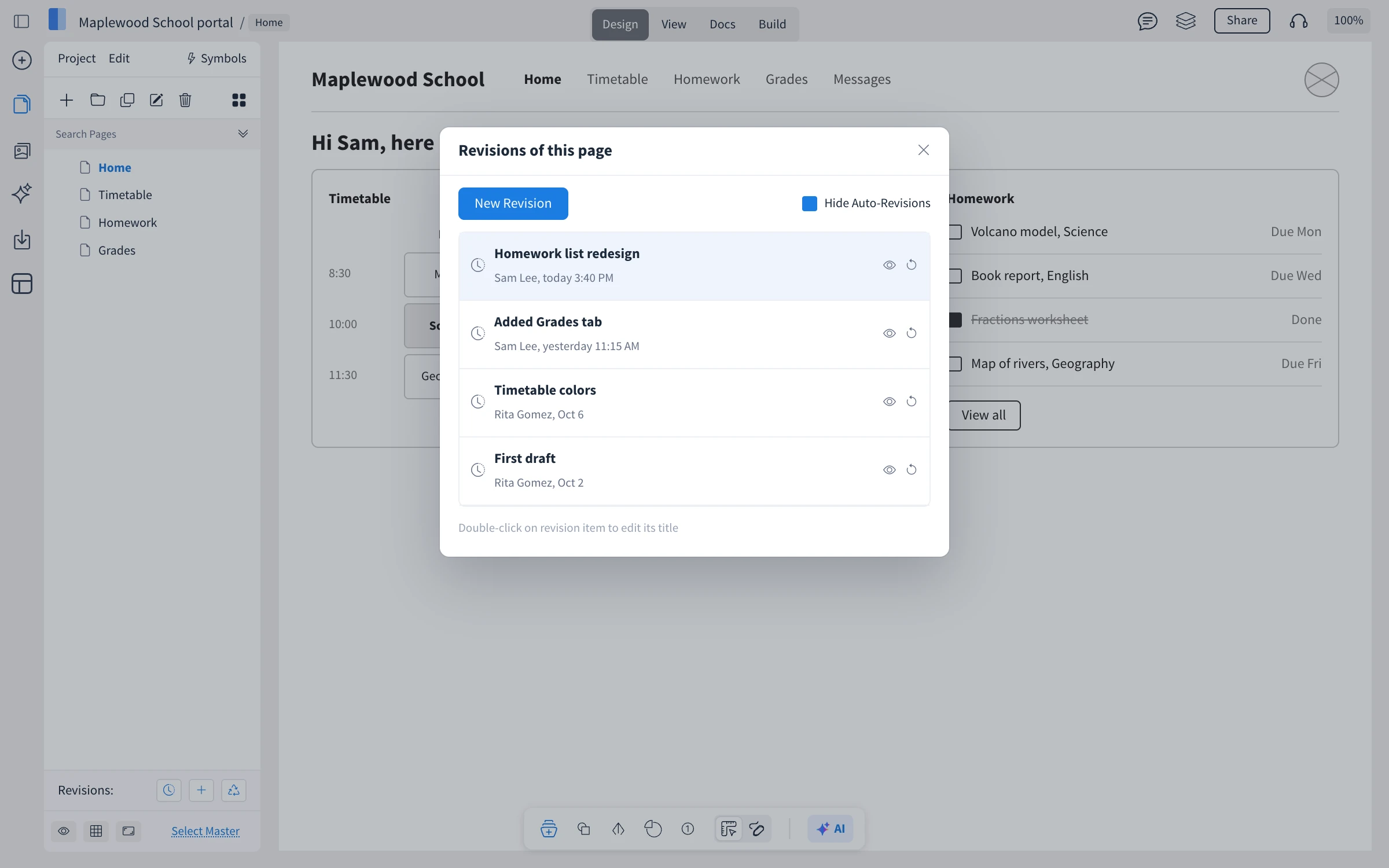
WireframePro keeps the history of every page, so you can try a bold idea and still go back. Revisions are saved automatically as you work, and you can check in a named revision at milestones, such as Before client review or Homework list redesign.
Check in a revision
Open the page and click Check-in new revision next to Revisions at the bottom of the Pages panel, or choose Check-In Revision in the Project menu.
Enter a note that says what changed.
Click Save Page Revision.
View, compare and restore revisions
Click View revision history next to Revisions, or choose Revision History in the Project menu.
In Revisions of this page, preview a revision to see the page as it was. Tick Hide Auto-Revisions to see only check-ins.
To compare, click Compare revisions while previewing and choose another revision. It appears faded underneath the current one.
Click Restore to bring the page back to that revision, or Save as to keep it as a new page.
Double-click a revision to edit its title.
What is not available on the Basic plan
Revision history goes back 7 days on Basic and 60 days on Plus and Max. Plus and Max also include many other features, such as restoring deleted pages and unlimited pages. See MockFlow pricing for details.