
See who is on the board
Show who is part of a board and who is online right now with the Member List and Member Presence components, and invite people who are away to join.
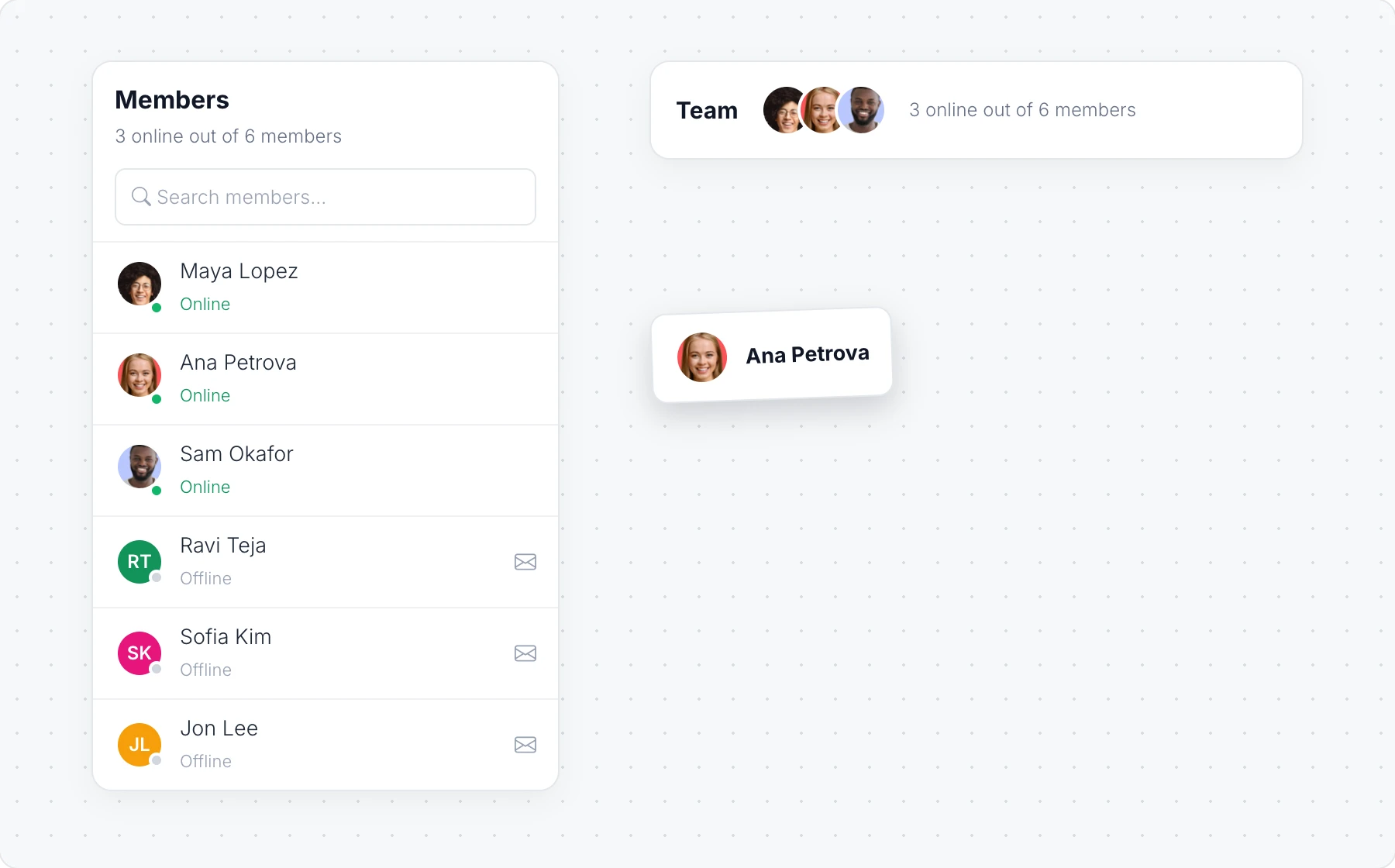
Two components show the people behind a board. Member List lists everyone on the board and who is online, and Member Presence is a small strip of the faces online right now. Put them at the top of a workshop board, a class board or a team's weekly board, so everyone can see who is there.
Add a member list
Click Add anything (the plus button) in the toolbar at the bottom of the board and choose Member List.
Click Change Title in its toolbar to name it, such as "Workshop team".
The list shows each member with a green dot when they are online, and how many are online out of all members. Click Interact with Component (the hand button) to use it:
Search members finds someone in a long list.
Click the invite button next to a member to ask them to join the session. MockFlow sends them an email with a link to the board.
Drag a member from the list onto the board to add a card with their name and picture, for example next to the work they own.
Refresh Members updates the list, and the toolbar sets the Component color, border, corners and height.
Add a presence strip
Choose Member Presence from Add anything for a compact strip of the people online now, with a count of how many are online. Change Title names it, Refresh Presence updates it, and the toolbar sets the background and accent colors.
Member List and Member Presence are available on every plan. They are not available in the desktop app's file mode or inside Jira and Confluence. See MockFlow pricing.