
MockFlow for Microsoft Teams
Add a MockFlow board as a tab in a Teams channel or group chat, use MockFlow as a personal app, and post board snapshots to a channel.
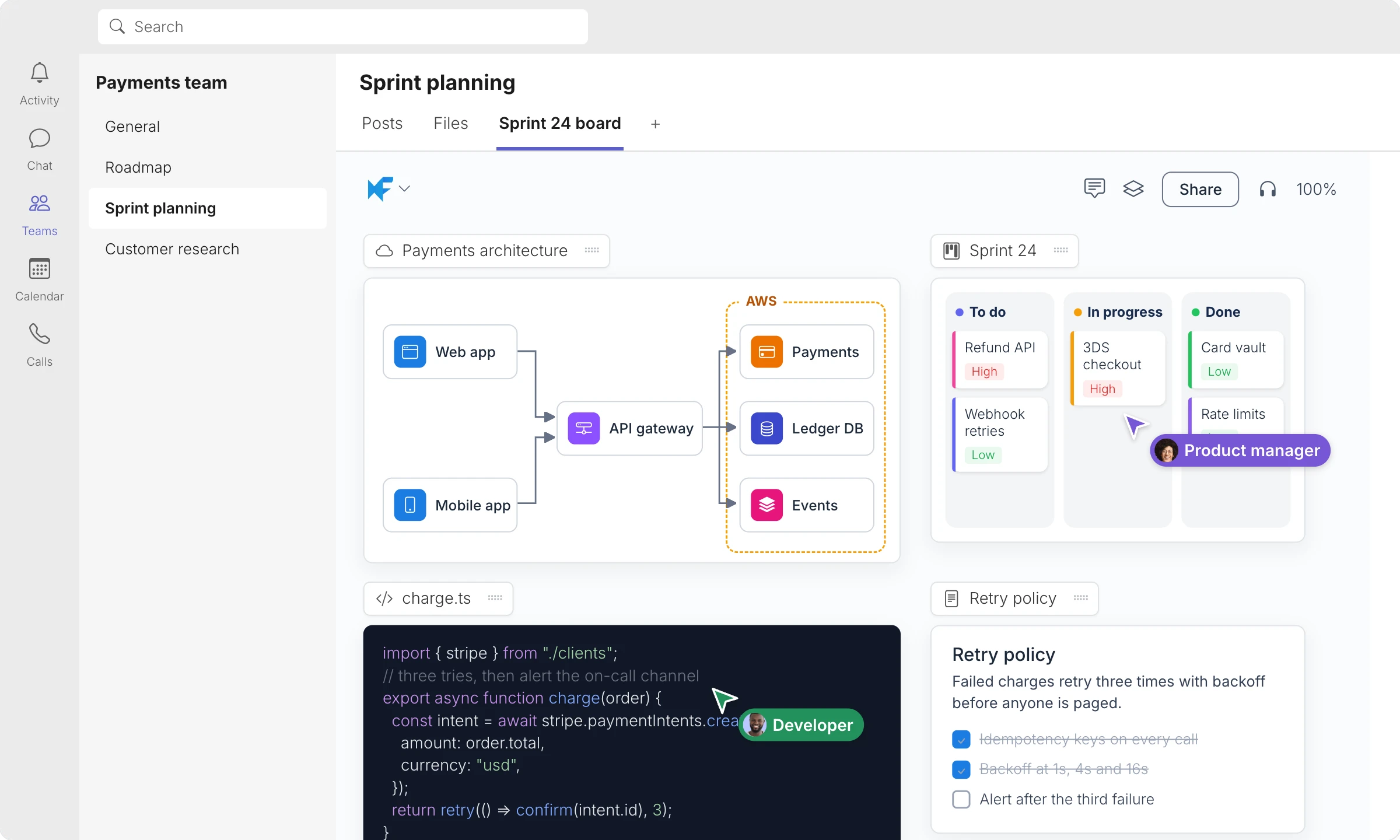
MockFlow for Microsoft Teams keeps a board where the team talks about it. Add the sprint board as a tab in the team's channel, open any of your boards from the MockFlow personal app, and post a snapshot of a board into a conversation.
Install MockFlow for Microsoft Teams
In Microsoft Teams, open Apps and search for MockFlow, or go to the MockFlow listing on Microsoft Marketplace.
Click Add and choose whether to add it as a personal app, to a team or to a chat.
Connect your MockFlow account: sign in with your email and password, with Microsoft or with Google, or create an account.
Add a board as a tab
In a channel or group chat, click + next to the tabs and choose MockFlow.
Choose the space under Select Designspace, then pick a board. Use Search projects to find it, or create a new board.
Click Save.
The tab is named after the board. Everyone in the channel can open it, and people with access to the board edit it together in real time.
Use the MockFlow personal app
Open MockFlow from the app bar in Teams to see your MockFlow workspace with all your spaces and boards, and work on them without switching windows.
Post a board snapshot
On a board opened in Teams, click Post at the top to share an image of the board, or of the items you select, in a Teams conversation.
What is not available on the Basic plan
Adding a board as a tab needs a paid MockFlow plan. On Basic you can use the personal app within the Basic limits. Plus and Max include tabs and unlimited boards, along with many other features, such as audio meetings on boards. See MockFlow pricing for details.