
Keyboard shortcuts
Every keyboard shortcut in the MockFlow board editor, for Windows and Mac: add items, edit, arrange, zoom, switch modes and format text.
Keyboard shortcuts let you work on a MockFlow board without reaching for the tool bar or a menu. Add a sticky note with one key, duplicate and group items as you arrange them, and zoom and pan across the visual canvas while your other hand stays on the mouse. This page lists every shortcut in the board editor, grouped by what you are doing.
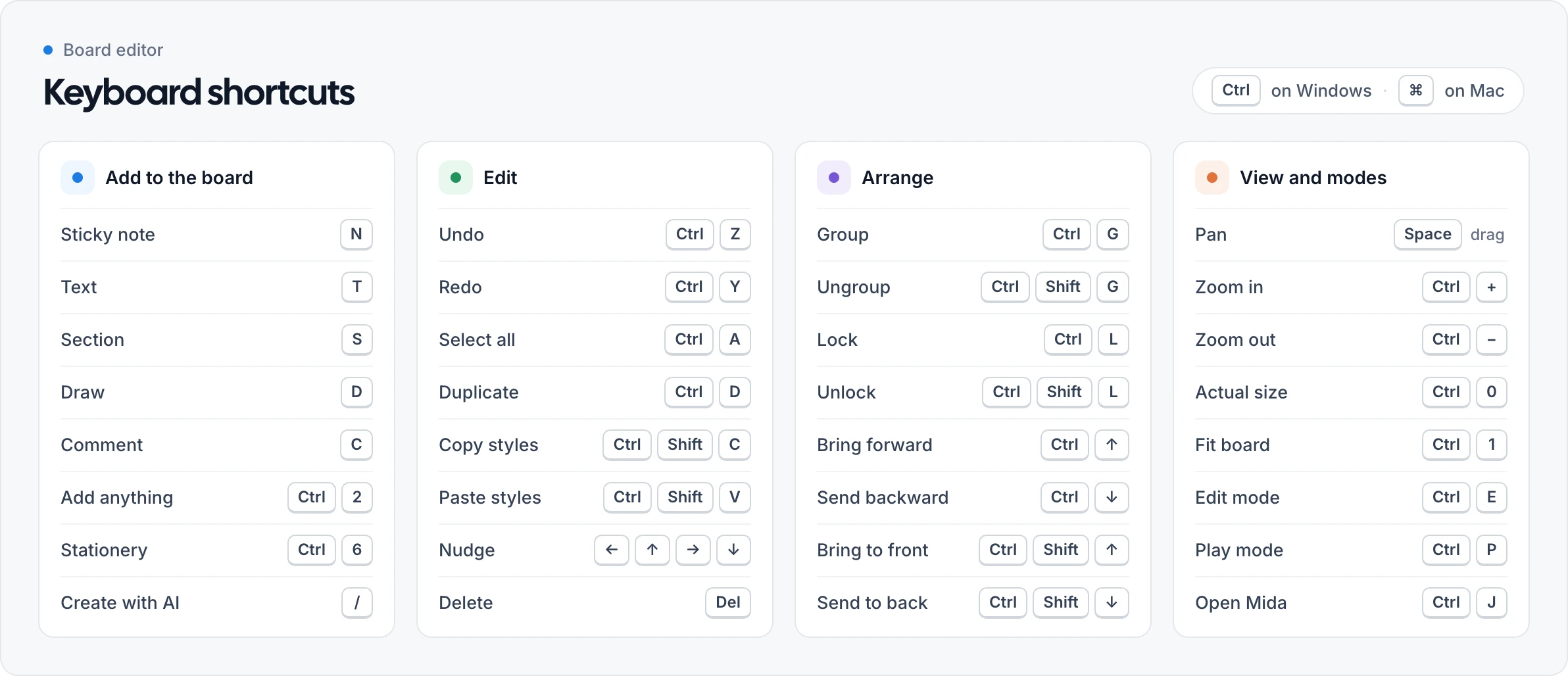
Shortcuts on Windows and Mac
Each shortcut that uses Ctrl on Windows uses ⌘ (Command) on Mac. For example, Undo is Ctrl+Z on Windows and ⌘+Z on Mac. The editor shows the right keys for your computer in its menus and tool tips.
Most shortcuts work in Edit mode, when you are not typing. While you type in a sticky note, a text box or any other item, keys type text instead, and the formatting shortcuts apply. Press Esc to finish typing, then use the board shortcuts again. Read more about the two modes in Edit mode and Play mode.
Find shortcuts in the right-click menu
You do not need to learn every shortcut at once. Right-click any part of the board and the menu shows the shortcut next to each command (1). Point to a button in the tool bar and its tool tip shows its shortcut too, for example Stationery (Ctrl + 6).
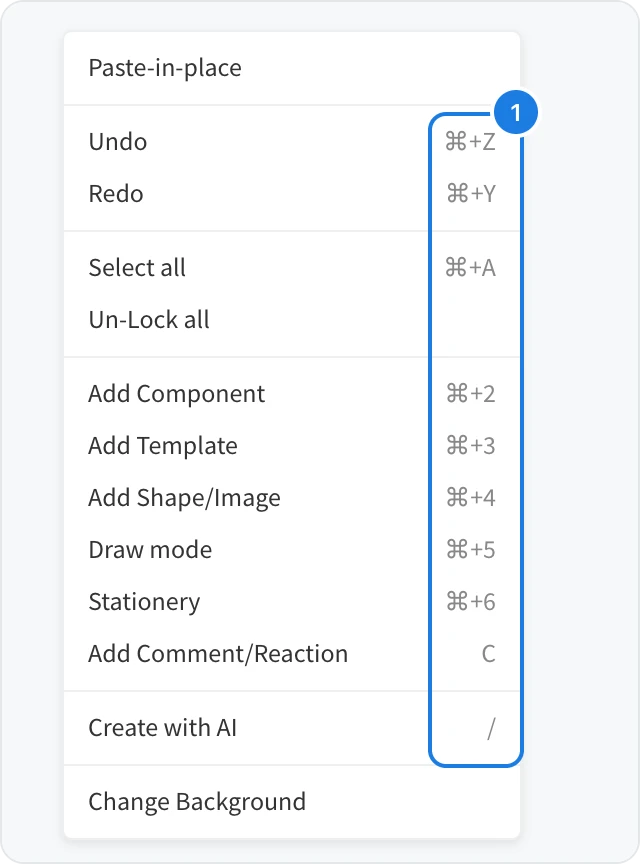
Right-click an item to see the shortcuts for the commands that act on it, such as Duplicate, Lock and the layer order.
Shortcuts to add items to the board
Single keys pick up a tool, so you can add the items you use most without opening a panel. Press the key, then click or drag on the board to place the item.
Action | Windows | Mac |
|---|---|---|
Add a sticky note | N | N |
Add text | T | T |
Add a section | S | S |
Turn draw mode on or off | D or Ctrl+5 | D or ⌘+5 |
Add a comment or reaction | C | C |
Open Add anything: components, frames and artifacts | Ctrl+2 | ⌘+2 |
Open Templates | Ctrl+3 | ⌘+3 |
Open Shapes and images | Ctrl+4 | ⌘+4 |
Open Stationery | Ctrl+6 | ⌘+6 |
Learn what each panel holds in What you can put on a board.
Shortcuts to select, copy and edit items
Action | Windows | Mac |
|---|---|---|
Undo | Ctrl+Z | ⌘+Z |
Redo | Ctrl+Y | ⌘+Y |
Select every item on the board | Ctrl+A | ⌘+A |
Add an item to the selection | Shift+click or Ctrl+click | Shift+click or ⌘+click |
Clear the selection | Esc | Esc |
Copy | Ctrl+C | ⌘+C |
Cut | Ctrl+X | ⌘+X |
Paste | Ctrl+V | ⌘+V |
Duplicate | Ctrl+D | ⌘+D |
Delete | Delete or Backspace | Delete or Backspace |
Move by 1 pixel | ← ↑ → ↓ | ← ↑ → ↓ |
Move by 10 pixels | Shift+Arrow | Shift+Arrow |
Keep proportions while resizing | Hold Shift and drag a corner | Hold Shift and drag a corner |
Reset rotation | Ctrl+R | ⌘+R |
Copy styles | Ctrl+Shift+C | ⌘+Shift+C |
Paste styles | Ctrl+Shift+V | ⌘+Shift+V |
Locked items stay in place when you press the arrow keys. More ways to select and change items are in Select, move, resize and rotate items.
Shortcuts to group, lock and layer items
Action | Windows | Mac |
|---|---|---|
Group | Ctrl+G | ⌘+G |
Ungroup | Ctrl+Shift+G | ⌘+Shift+G |
Lock | Ctrl+L | ⌘+L |
Unlock | Ctrl+Shift+L | ⌘+Shift+L |
Bring forward | Ctrl+↑ | ⌘+↑ |
Send backward | Ctrl+↓ | ⌘+↓ |
Bring to front | Ctrl+Shift+↑ | ⌘+Shift+↑ |
Send to back | Ctrl+Shift+↓ | ⌘+Shift+↓ |
Delete a section and keep its items | Ctrl+Backspace | ⌘+Backspace |
See Group, lock and layer items and Sections: group and organize items for how each command works.
Shortcuts to pan and zoom the board
Action | Windows | Mac |
|---|---|---|
Pan the board | Hold Space and drag | Hold Space and drag |
Zoom around the pointer | Ctrl and scroll, or pinch | Pinch on the trackpad, or Ctrl and scroll |
Zoom in | Ctrl++ | ⌘++ |
Zoom out | Ctrl+- | ⌘+- |
Show the board at 100% | Ctrl+0 | ⌘+0 |
Fit the whole board in the window | Ctrl+1 | ⌘+1 |
While you hold Space the pointer turns into a hand. Read more in Move around the board.
Shortcuts for modes, Mida and saving
Mida is the AI assistant in MockFlow. Press / or Ctrl+J (⌘+J on Mac) and describe what you need, for example a user journey map for a mobile banking app, a lesson plan for a science class or a launch checklist for a product.
Action | Windows | Mac |
|---|---|---|
Switch to Edit mode | Ctrl+E | ⌘+E |
Switch to Play mode | Ctrl+P | ⌘+P |
Open Mida | Ctrl+J | ⌘+J |
Create with AI: open Mida, ready for your request | / | / |
Save changes | Ctrl+S | ⌘+S |
Close a panel, leave draw mode or stop editing text | Esc | Esc |
Shortcuts to format text
These shortcuts work while you type in a sticky note, a text box or any other item with text.
Action | Windows | Mac |
|---|---|---|
Bold | Ctrl+B | ⌘+B |
Italic | Ctrl+I | ⌘+I |
Underline | Ctrl+U | ⌘+U |
Strikethrough | Ctrl+Shift+S | ⌘+Shift+S |
Clear formatting | Ctrl+\ | ⌘+\ |
Finish editing | Esc | Esc |
Start with the single keys N, T and S and with Ctrl+D (⌘+D on Mac) to duplicate. Together they cover most of the work of filling a board, and the right-click menu reminds you of the rest.