
MockFlow for Trello
Use the MockFlow Power-Up to draw a board from a Trello card and attach its image to the card.
The MockFlow Power-Up lets you sketch the plan behind a Trello card without leaving the board. Draw a floor plan for a pop-up, a flowchart for a process or a mind map for a campaign, and attach it to the card.
Add the Power-Up
On your Trello board, open Power-Ups and search for MockFlow, or go to the MockFlow Power-Up.
Click Add.
Attach a board to a card
Open a card and click the MockFlow button under Power-Ups.
The first time, connect your MockFlow account by signing in or registering, then authorize Trello.
Create a board, or open an existing one.
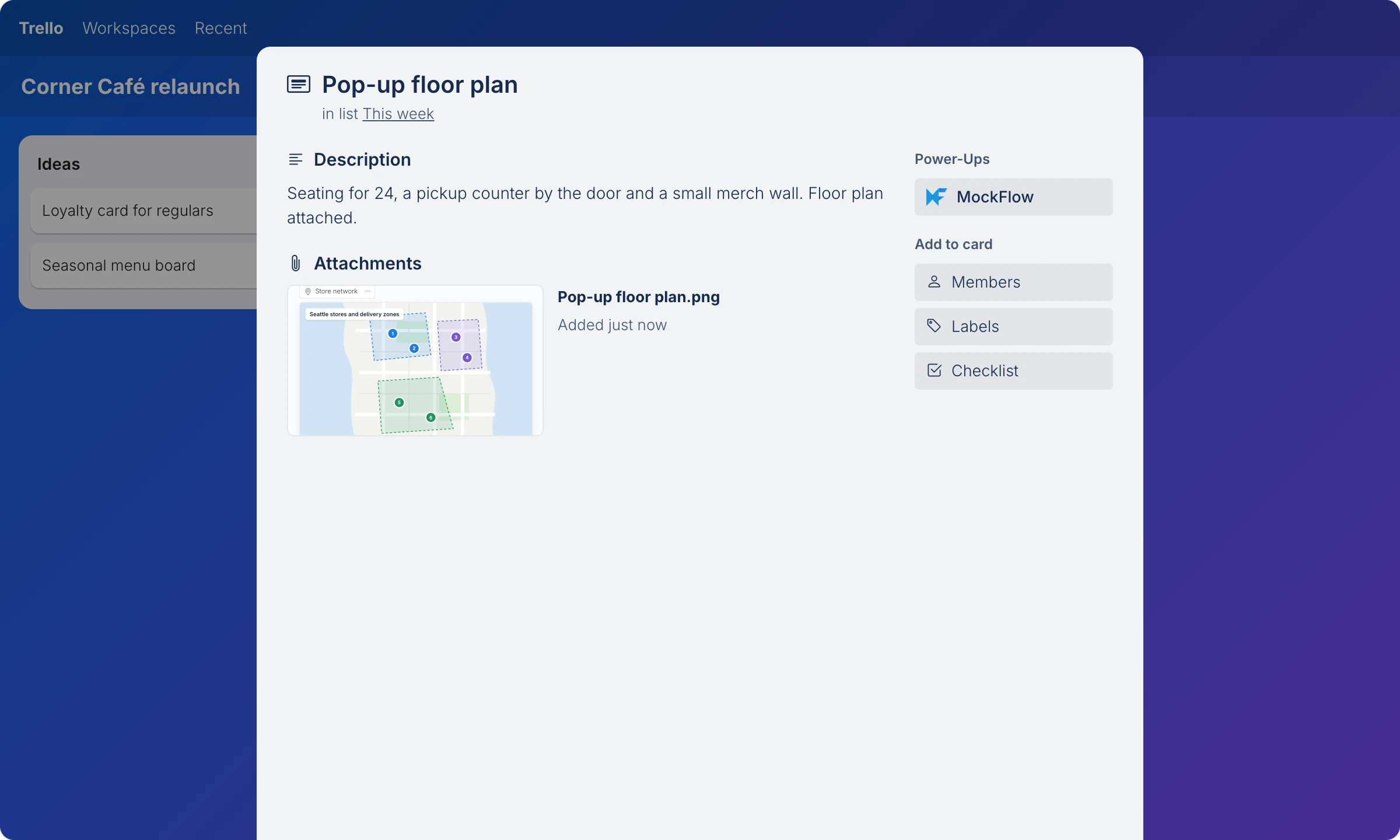
Click Attach at the top. MockFlow attaches an image of the board to the card, named after the board.
To update the image, open the board again from the card, change it and attach it again.
What is not available on the Basic plan
On the Basic plan, the boards you create follow the Basic limits. Plus and Max include unlimited boards, along with many other features, such as team chat on boards. See MockFlow pricing for details.