
Add a PDF or a downloadable file
Read a PDF right on your MockFlow board with the PDF viewer, and share any file with the Download File component so people on the board can download it.
Some work needs the original file close at hand: a contract to check, a reading for a lesson, a research report or a set of photos. MockFlow has two components for this. The PDF viewer shows a PDF you can read and scroll on the board, and Download File gives people on the board a file to download with one click.
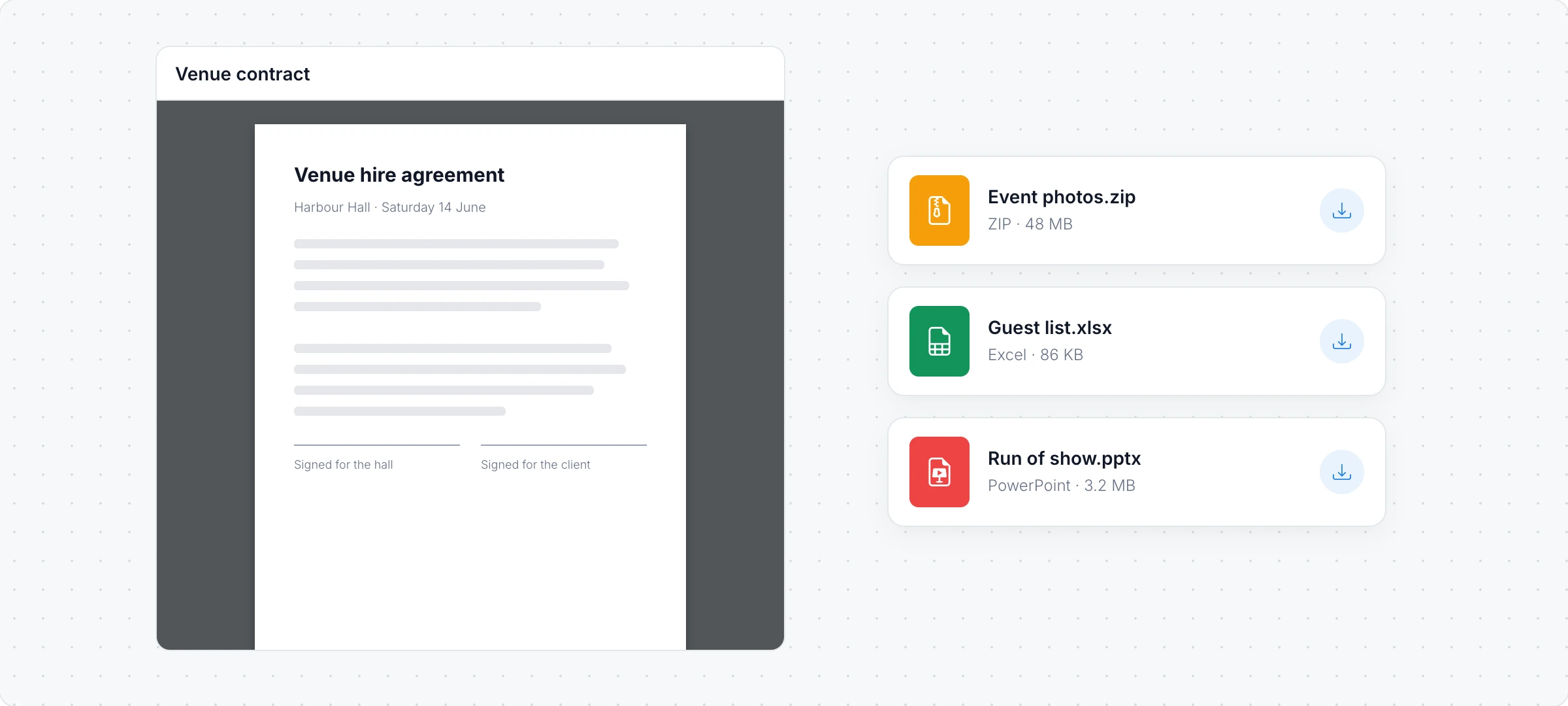
Show a PDF on the board
The quickest way is to drag a PDF from your computer onto the board. It opens in a PDF viewer. You can also add one yourself:
Click Add anything (the plus button) in the toolbar at the bottom of the board and choose PDF viewer.
Click Upload PDF in its toolbar to pick a file from your computer, or Select PDF to use a file you uploaded before.
Click Interact with Component (the hand button) to scroll through the pages. Add Title to doc puts a title above the PDF, and Download PDF downloads the file. Enter Focus Mode opens it large for reading.
Share a file to download
Click Add anything and choose Download File.
Click Select File, then Upload File to pick a file from your computer, From Library to use one you uploaded before, or File URL to link to a file stored elsewhere.
Anyone on the board clicks the tile to download the file, or to open it in a new tab. Use it for a ZIP of photos, a slide deck, a spreadsheet or a template people need to fill in. The toolbar sets the tile's Background color, Corner Radius, font and Font color.
The PDF viewer and Download File are available on every plan. Files can be up to 50 MB. Linking to a file with File URL is not available on the Basic plan. The PDF viewer is not available in the desktop app's file mode or inside Jira and Confluence. See MockFlow pricing.