
Show brand colors and fonts
Lay out a palette and typography on your MockFlow board with the Color code and Font preview components: color names with hex and RGB codes, and font specimens, weights and type scales.
A palette and a pair of fonts are the start of most visual work: a brand, a website, a poster series or a school club's logo. Two MockFlow components put them on the board where everyone can see and copy them: Color code for colors, and Font preview for typefaces.
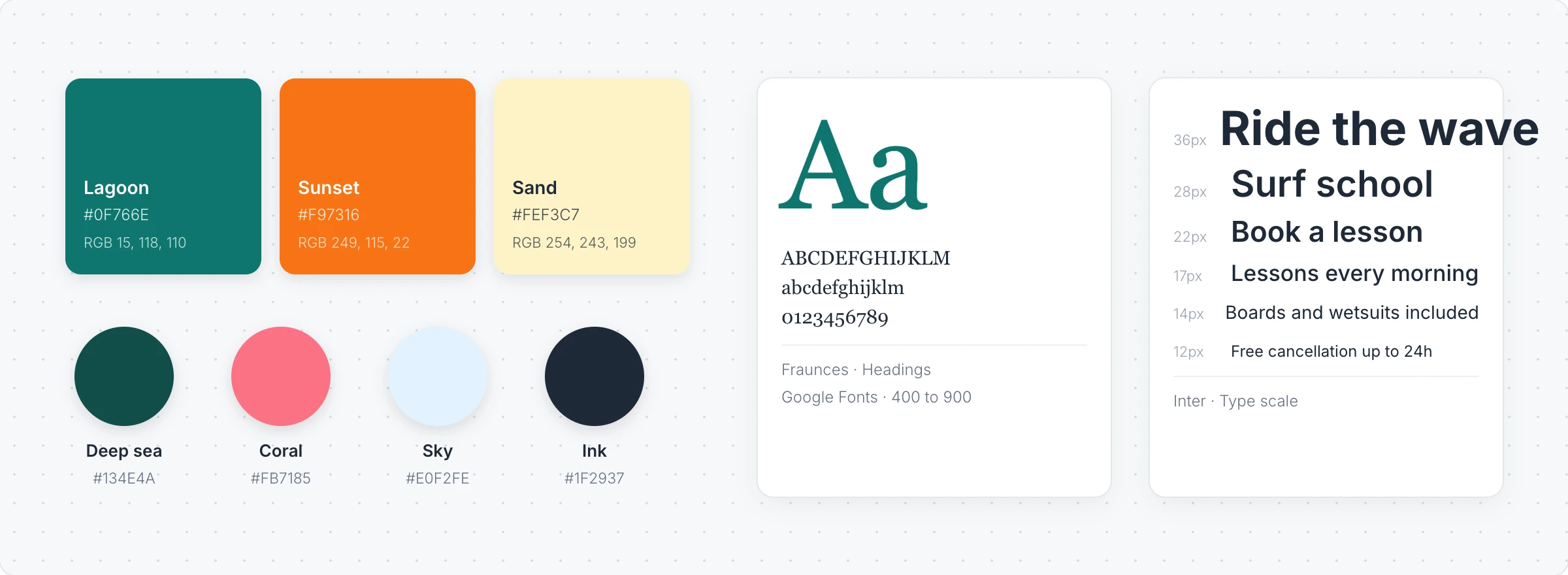
Add a color code
Click Add anything (the plus button) in the toolbar at the bottom of the board and choose Color code.
Click Select color in its toolbar and pick the color, or type its code.
Click Change name to give it a name, such as "Lagoon" or "Primary blue".
Anyone on the board clicks the swatch to copy its color code. The toolbar also has:
Toggle Hex code and Toggle RGB code: show the color as a hex code, RGB values or both.
Shape style: a Full card, a Square or a Circle.
Toggle Background, Padding and Corner Radius: the card around the color.
Add a font preview
Choose Font preview from Add anything.
Click Change font in its toolbar and pick from Google fonts, or use Font file from uploads for your own TTF, OTF or WOFF file.
Choose a Preview type: Specimen, Alphabet, Pangram, Weights or Type scale.
Change the preview text shows your own words in the font, such as a headline or the brand name. Weight sets how bold it is, and Toggle font name and Toggle font details show or hide the labels.
The Color code and Font preview components are available on every plan. See MockFlow pricing.