
Change how an item looks
Select an item and use the toolbar above it: themes for mind maps, accent colors for idea boards and polls, fills and borders for shapes, series colors for charts.
Select an item and a toolbar appears above it with the style options for that kind of item. The options follow the item: a mind map offers themes, an idea board an accent color, a shape a fill and a border, a chart its series colors.
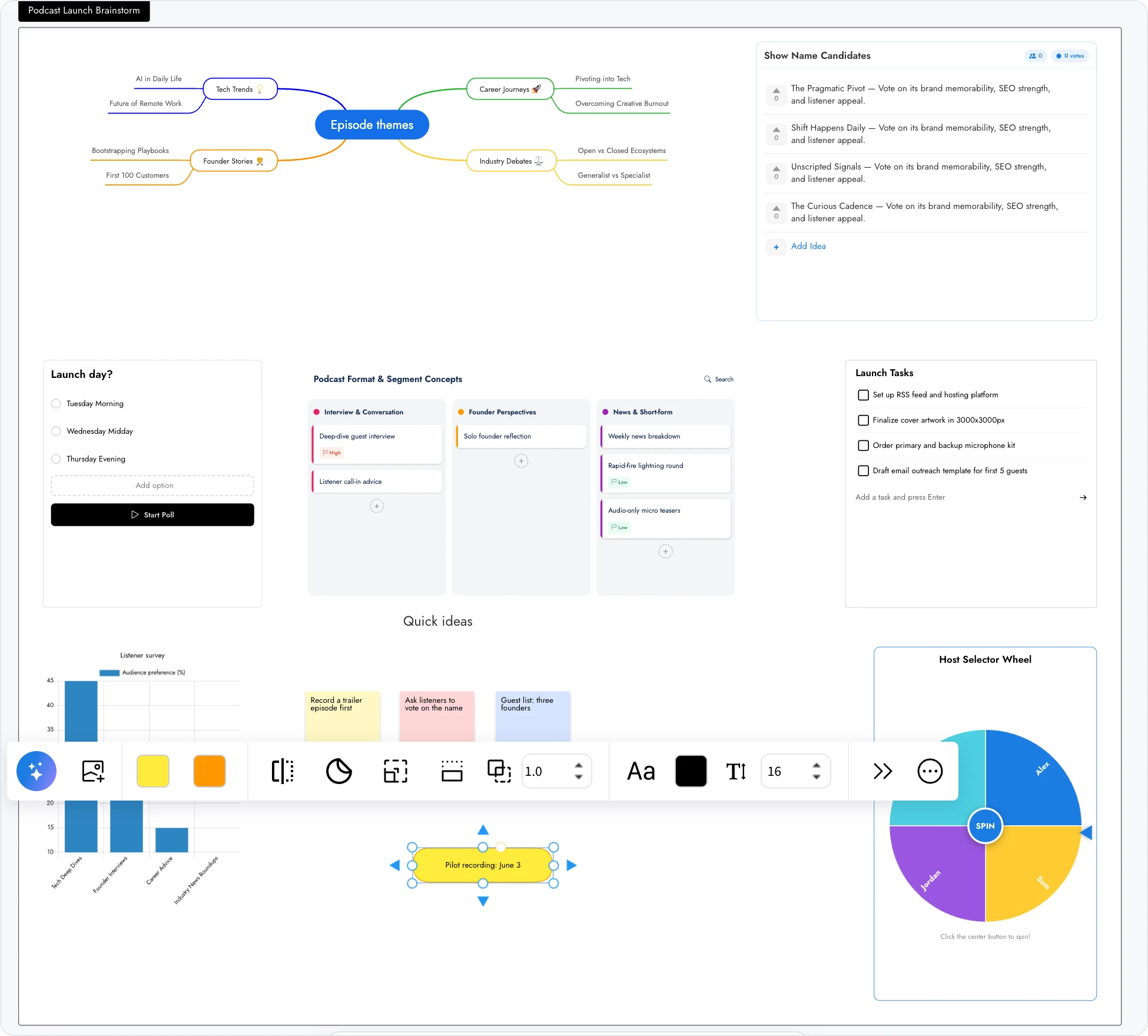
Mind maps: change the theme
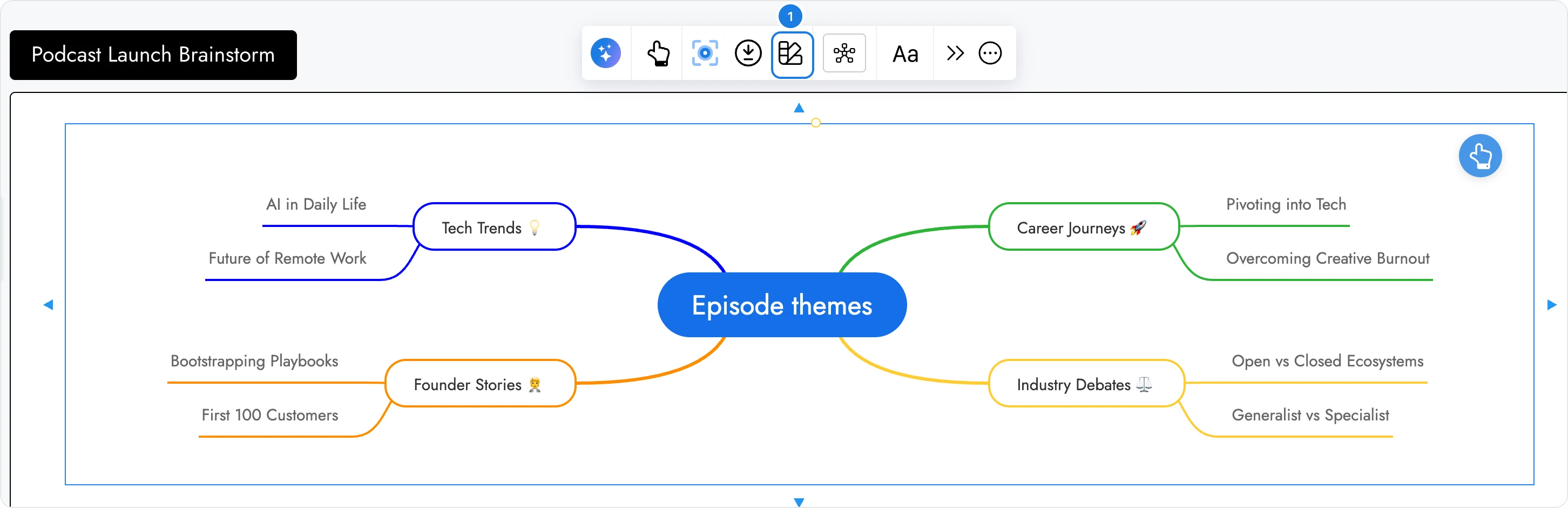
Select the mind map and click Change Theme (1). Default, Graphite, Blueprint and Candy recolor every node and branch at once. Change align type next to it changes how the branches sit around the center.

Idea boards, polls and wheels: pick an accent color
Upvote ideas, polls, spinning wheels and checklists share one pattern: an Accent color (1) for their buttons and highlights, Toggle Border (2) to show or hide the frame, and a few options of their own, such as Toggle Submitter Avatar (3) on an Upvote ideas list or the checkbox style on a checklist.
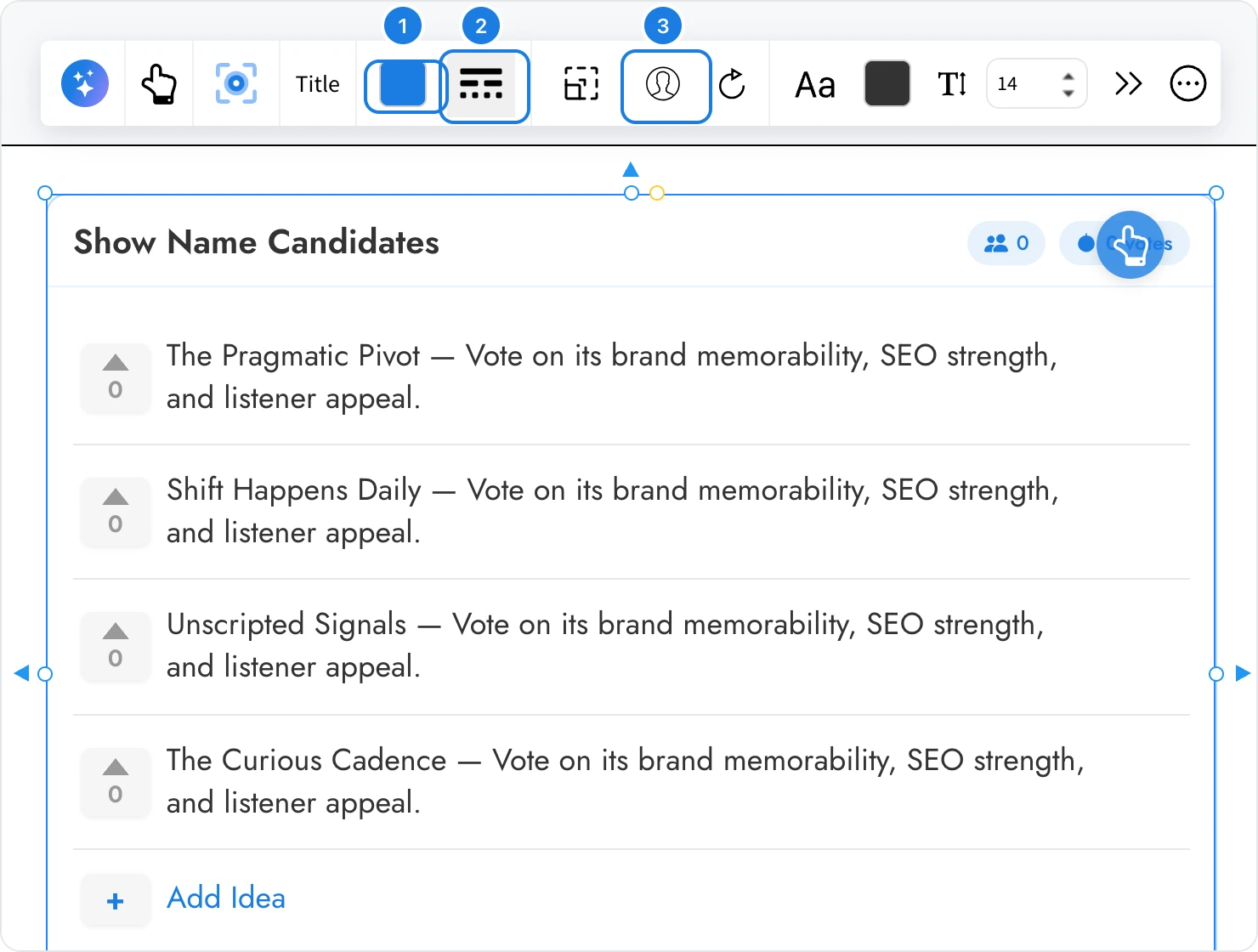
Shapes: fill and border
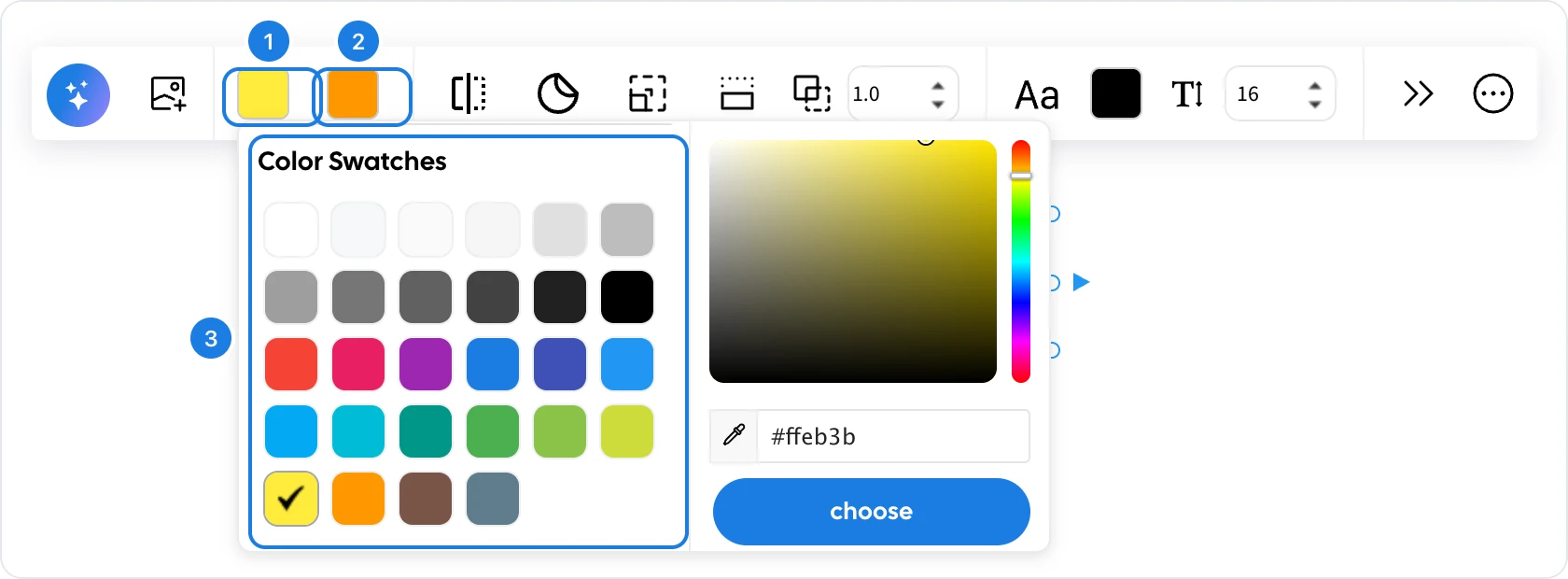
Shapes have Background (1) for the fill and Border (2) for the outline. Both open the same picker: click a swatch (3), or set a color of your own in the custom area and click Choose. Colors you add to Favourites are saved with the project.
Charts: series colors and fill
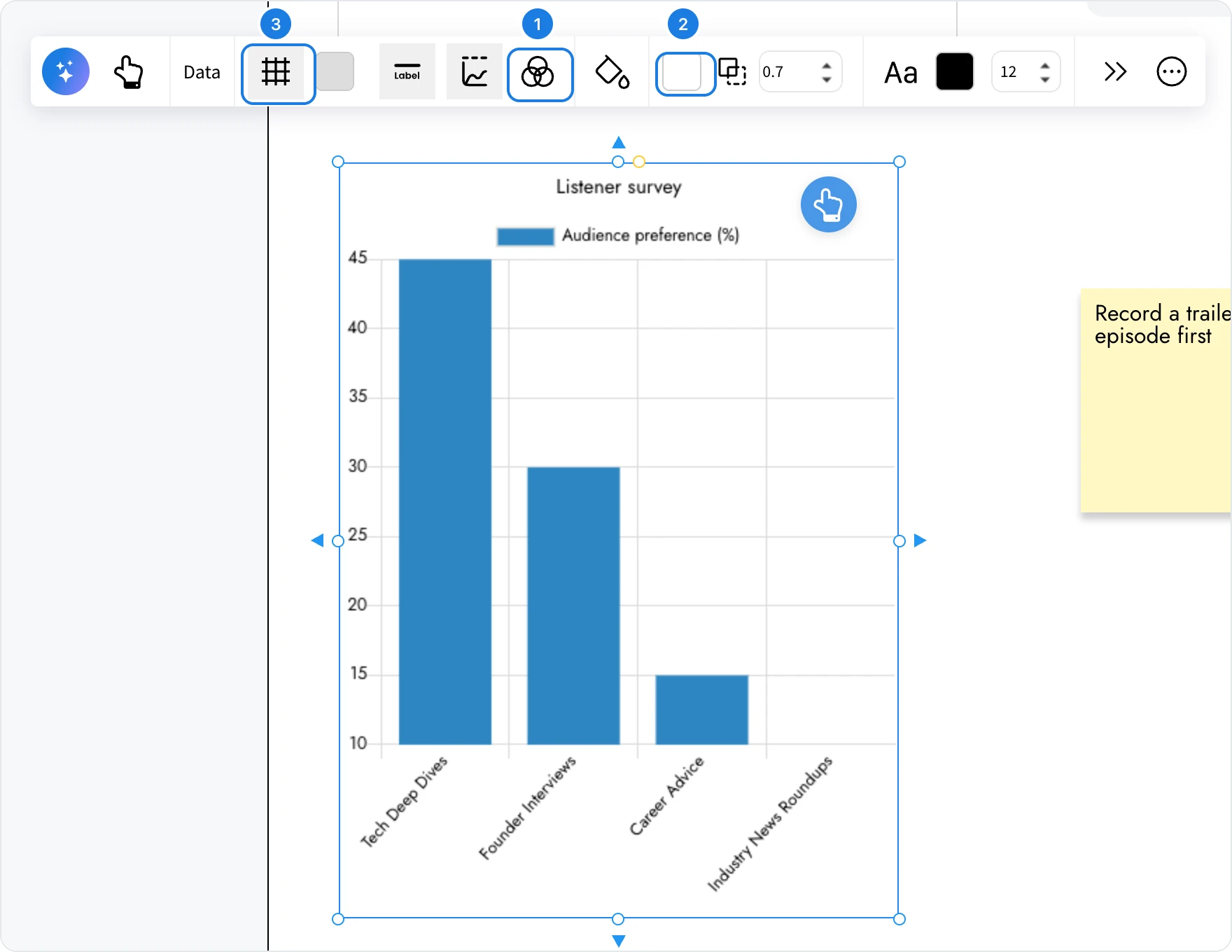
A chart has Colors (1) for its series, Fill color (2) for its background and Show Grid lines (3) with a grid color. Kanbans work the same way, with a card color and a list color.
Text: size, style and alignment
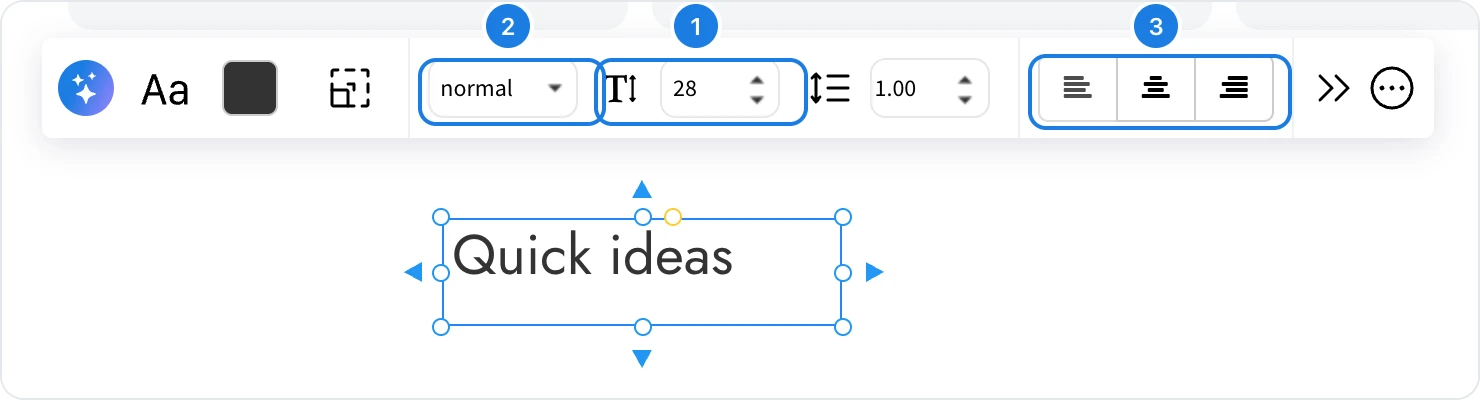
Every item with text has Change font family, Font color and Font size (1). Text items add Font style (2) for bold or a weight, Line height and Alignment (3).
Everything else: advanced settings
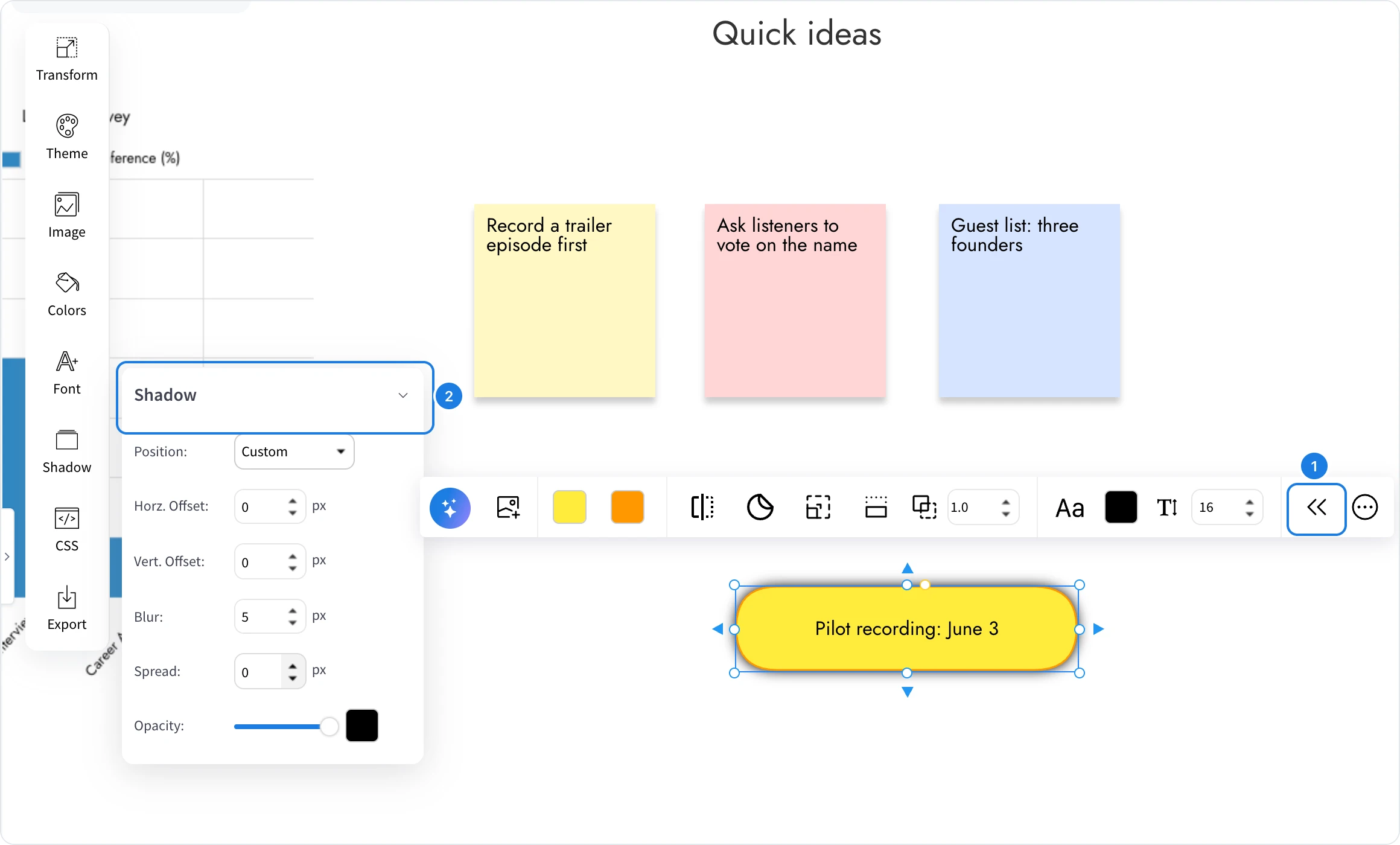
Toggle advanced settings (1), the double arrow at the end of the toolbar, opens a panel with every setting for the item in tabs. For a shape: Transform, Theme, Image, Colors, Font, Shadow, CSS and Export. Point to a tab to open it, for example Shadow (2) to set a position, offset, blur and opacity. Components such as mind maps and Upvote ideas keep their options in the toolbar and show only Transform and Export here.
Several items at once
Select several items of the same kind and the toolbar applies each change to all of them. With mixed items it shows only what works for every one of them, such as the font and the align and distribute tools in Align, space and snap items. To copy the look of one item onto another, use Copy Styles and Paste Styles, described in Group, lock and layer items.