
Connect apps to automations
Sign in to the apps your automations read from and send to, manage connections in Apps, and reach other apps through Zapier.
An automation reads from an app, sends to an app, or both, using your own sign-in to that app. You connect an app once, and the connection is shared: automations, Mida and the Concept Builder all use the same sign-in.
Apps you can use with automations
Apps are grouped by what they are for:
Group | Apps |
|---|---|
Meetings & calendar | Zoom, Fathom, Fireflies, Google Calendar, Outlook |
Chat & email | Slack, Microsoft Teams, Gmail |
Projects & tasks | Jira, Linear, Trello, Asana, ClickUp, monday.com |
Docs & files | Notion, Confluence, Google Docs, Google Sheets, Google Drive, OneDrive, Airtable |
Code | GitHub |
Sales & CRM | HubSpot, Salesforce |
Forms & surveys | Typeform |
Analytics | Google Analytics, Mixpanel, Amplitude, PostHog |
Social |
Apps you have connected are listed first under Connected. The list grows as MockFlow adds connectors. For which events each app can start, see Choose when an automation runs.
Connect an app
You can connect an app from the builder or from Apps.
In the builder, pick the app under From or in a Then step, and click Connect {App}. Or click Apps at the top of the Automations page and click Connect next to the app.
The app's sign-in opens in a new window. Sign in and allow MockFlow access.
MockFlow shows Waiting for you to sign in to {App} in the other window until you finish, then the app shows as connected.
Fireflies, Mixpanel, Amplitude and PostHog connect with an API key instead of a sign-in window. Click Add key, paste the key from that app's settings and click Connect {App}. The app checks the key straight away.
When you turn on a new automation whose app is not connected yet, the button reads Connect {App} and turn on, and the automation turns on as soon as you finish signing in.
Manage connections in Apps
Click Apps at the top of the Automations page. Each app row shows:
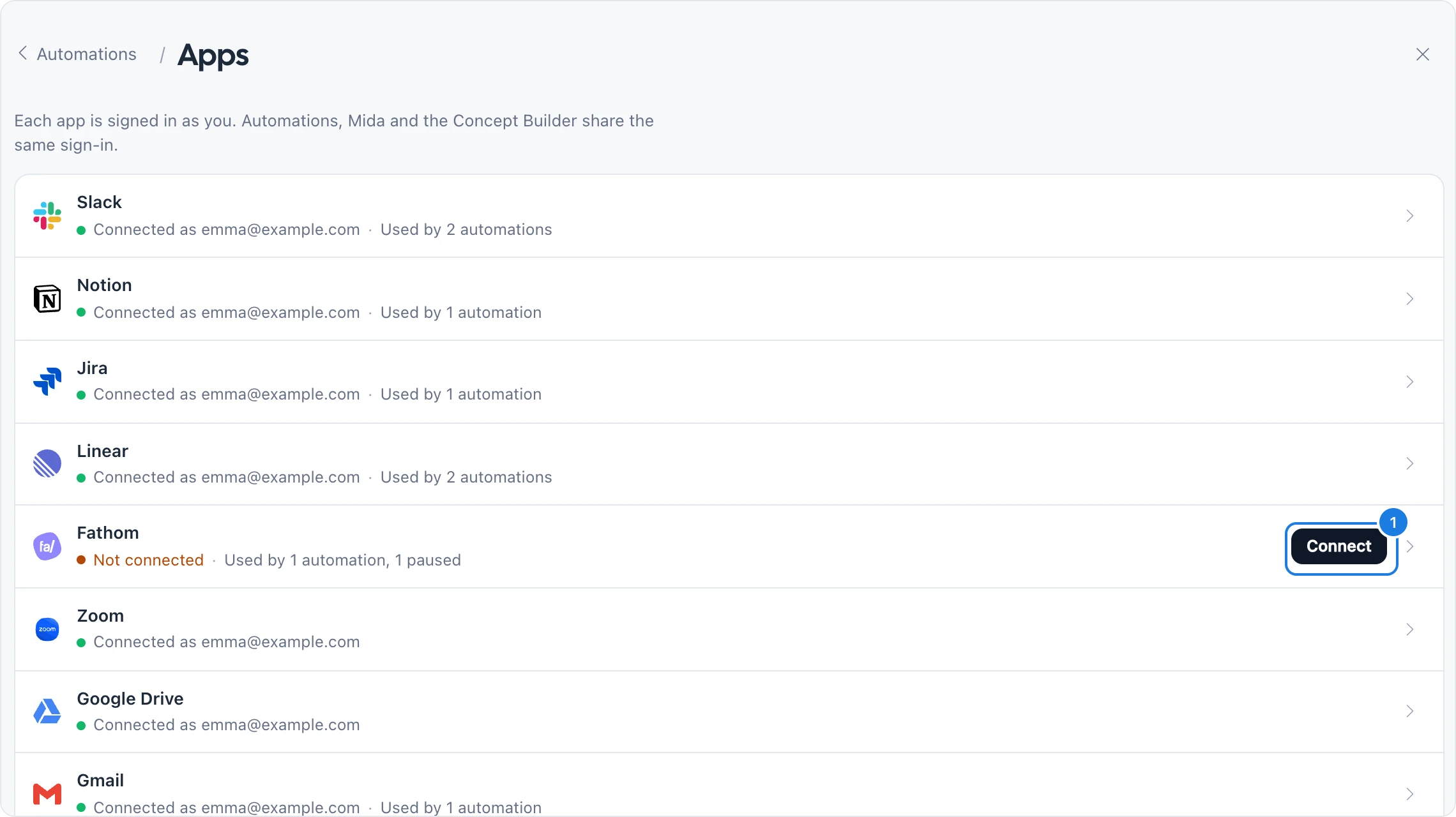
Connected as the account you signed in with
Used by how many of your automations
Not connected, with a Connect button (1)
Sign-in stopped working when the app needs you to sign in again, with a Reconnect button
When an app that your automations use is not connected or needs signing in again, a dot appears on the Apps button.
Open an app to see what it offers automations on the Triggers, Queries and Actions tabs: the events that can start a run, what can be read from it and what can be sent to it.
Disconnect an app
Click Disconnect {App} in Apps. MockFlow tells you how many automations use the app before you confirm. Those automations pause, and Mida loses access to the app too.
When you connect the app again, the automations it paused can be turned back on from the message at the top of My automations.
Use other apps through Zapier
If an app is not in the list, Zapier connects thousands more apps to MockFlow. When a search for an app finds nothing, the builder offers Use {name} through Zapier, and Apps has an Other apps, through Zapier row with Open Zapier.

Automations and Zapier work from opposite directions:
Automations run inside MockFlow with the built-in apps. They start on a schedule, a MockFlow event, an app event or Run, make the board or component you pick, and can then post, email or save a picture of it.
Zapier starts in another app: a trigger in any of thousands of apps calls the MockFlow Create Multiboard action, which plans and builds a board from the text the Zap passes in.
Use automations when your app is built in or you want a schedule; use Zapier for apps MockFlow does not connect, or when the board is one step in a longer Zap. See MockFlow for Zapier.
Plans for apps
Automations are on the Max plan, and the Max plan includes every app in the list. On other plans, apps other than Slack and Trello show Max plan, and the builder offers Upgrade to Max to use {App}. Schedules and MockFlow events work without an app. See Automation plans and limits.