
Pick at random with a spinning wheel
Let chance decide on your MockFlow board with the Spinning Wheel component: add options, spin, and see the result and how the spins add up.
The Spinning Wheel component picks one option at random, with a spin everyone on the board can watch. Use it to choose who presents first in a stand-up, which question a class answers next, the topic for a workshop round or the winner of a prize draw.
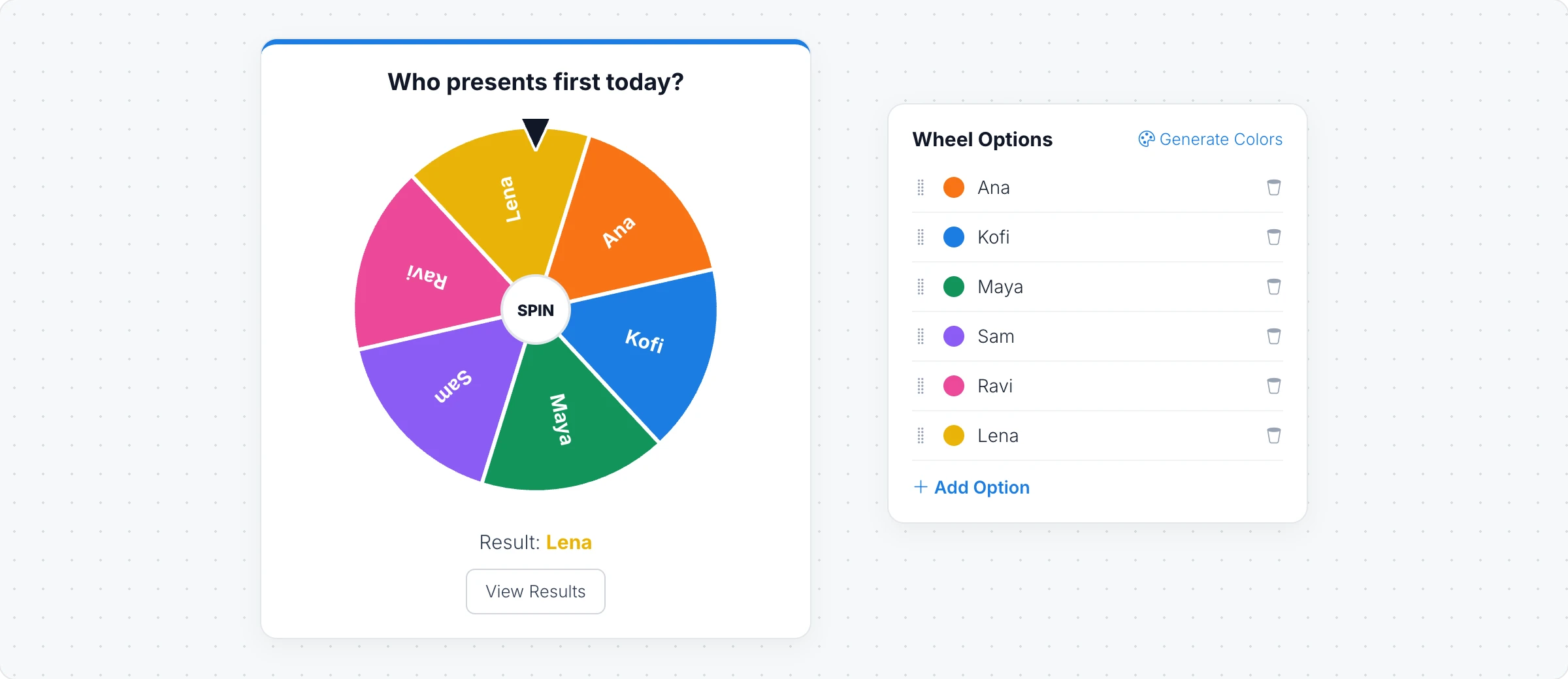
Set up the wheel
Click Add anything (the plus button) in the toolbar at the bottom of the board and choose Spinning Wheel.
Click Edit Title in its toolbar and type the question, such as "Who presents first today?".
In Wheel Options, type the options, click Add Option for more and drag them to change the order. Click an option's color to change it, or Generate Colors for a matching set.
To let AI fill the wheel, click the AI button on the left of the toolbar, choose Generate new and describe it, for example "Ten warm-up questions for a team meeting".
Spin and see the results
Click Interact with Wheel (the hand button), or switch the board to Play mode, and click SPIN. The wheel shows the Result for everyone on the board.
Each person can spin once, and people need to be signed in to spin. View Results shows each person's result and how the spins are spread across the options, and Toggle Results View shows or hides it on the wheel.
End Wheel stops further spins, and Reset Spins clears the results for a new round.
Polls, upvotes, spinning wheels and timers are collaborative components, included in the Plus and Max plans. Generating with AI uses AI credits. See MockFlow pricing.