
MockFlow for Jira
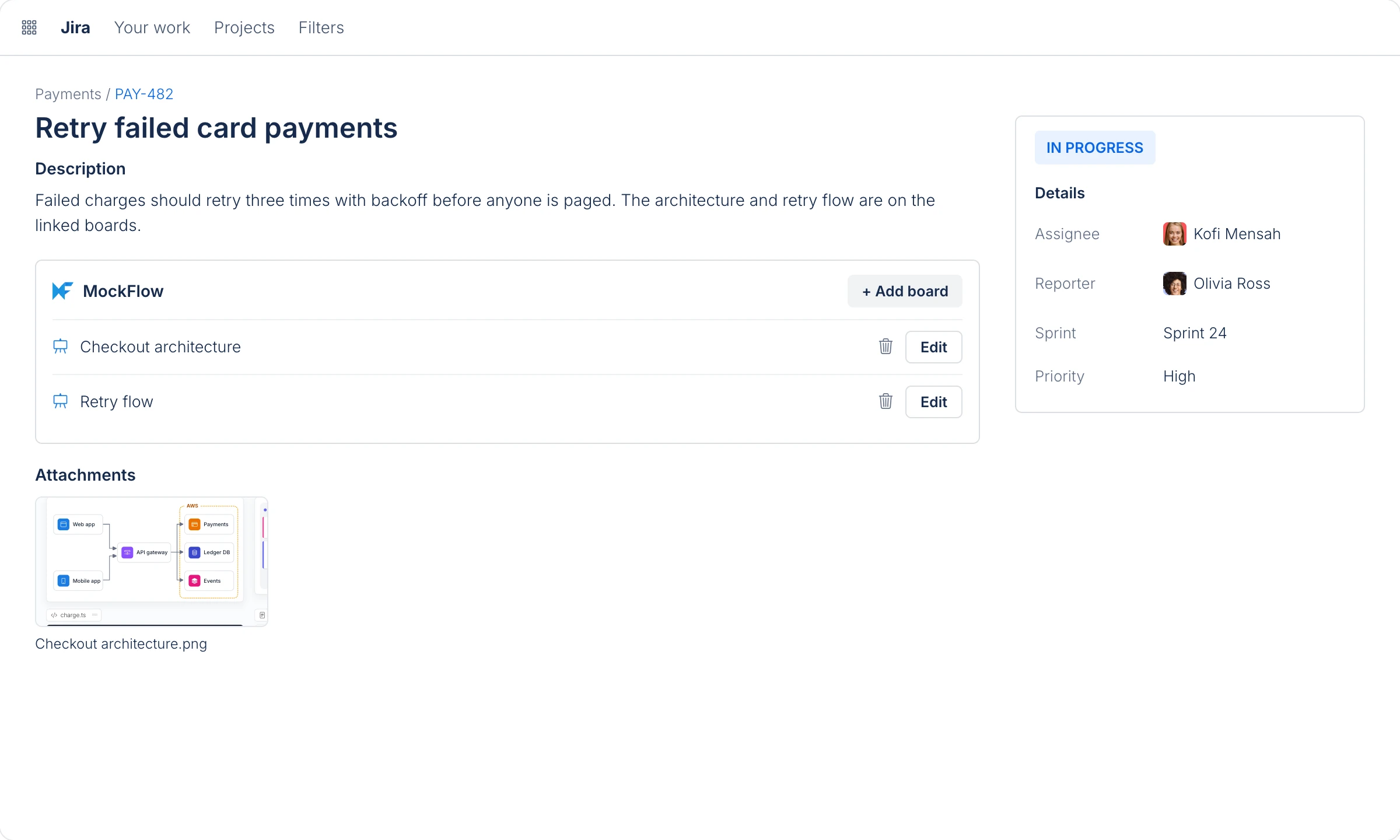
Link MockFlow boards to a Jira issue, open and edit them from the issue, and attach board images to the issue.
MockFlow for Jira keeps the thinking behind an issue next to it. Link the architecture diagram, the user flow or the brainstorm to the issue, and open it with one click when you pick up the work.
Install MockFlow for Jira
A Jira admin installs MockFlow from the Atlassian Marketplace. It is a paid Atlassian app, billed with your Jira subscription, and it includes MockFlow for everyone on your Jira site.
Add a board to an issue
Open the issue. The MockFlow panel appears on the issue.
Click the add button in the MockFlow panel. MockFlow opens full screen.
Create a board, or open an existing one.
Click Attach at the top and choose Add to Jira Issue to link the board, or Add to Jira Issue + Attachments to also attach an image of it.
When an issue has no boards yet, the panel invites you to link one.
Open and edit linked boards
Each linked board is listed in the MockFlow panel. Click Edit to open it, change it, and attach it again to update the image. Use the delete icon to unlink a board from the issue.
Who can edit
The app creates one MockFlow account for your Jira site, so anyone who can work on the issue can open and change its boards.