
MockFlow desktop app overview
The desktop app gives you everything in MockFlow on the web, your spaces, cloud boards, sharing and Mida, in a native app for Mac and Windows, plus file mode for boards saved on your computer.
The MockFlow desktop app is MockFlow in a native window for Mac and Windows. You sign in with your MockFlow account and work with the same spaces, boards and people as on the web. It launches from the Dock or the taskbar and opens your boards without a browser tab. The desktop app also adds file mode, for boards you keep as files on your own computer.
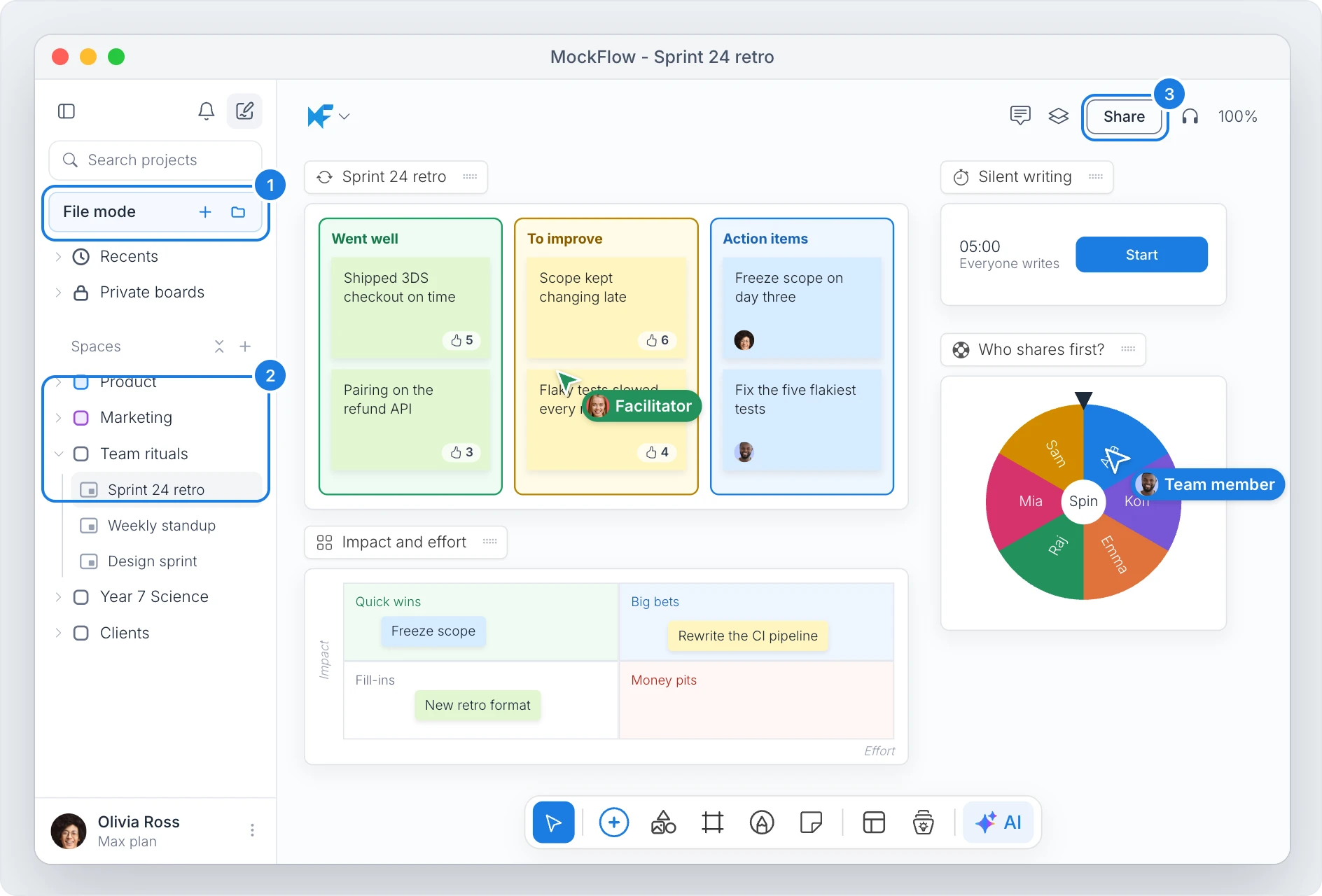
Everything in MockFlow on the web
Cloud boards in the desktop app are the same boards you open at app.mockflow.com, saved automatically and kept in sync. Everything your plan includes on the web works in the app:
Your workspace (2): spaces, private boards, favorites, recents and search, in the same workspace sidebar. See The workspace sidebar.
The full canvas: wireframes, flowcharts, mind maps, kanban boards, charts, tables, docs and the rest of the component library, plus Classic WireframePro for detailed UI design.
Sharing and collaboration (3): invite people with Share, comment, vote, run polls and timers, and edit together in real time. See Invite people to a space.
Mida and AI: ask Mida to create and change items on the board, and use Concept Builders, as on the web.
Your account: your plan, team and settings. Choose Account > Manage Account in the app menu to open account settings.
A board you change in the desktop app shows the change on the web and for your teammates, and the other way round.
What the desktop app adds
File mode (1): create boards and wireframes as
.boardand.wirefiles on your computer, with nothing saved to the cloud. Files open without an internet connection and can be password protected. See File mode: a private whiteboard on your computer.A native app: its own window, app menus and keyboard shortcuts, and full screen with Ctrl+⌘F on Mac or F11 on Windows. Each board can open in a window of its own with Open in new window from the board's menu in the sidebar, and the Windows menu switches between them.
AI agents on your computer: an MCP server built into the app lets Claude Code, Cursor or VS Code draw on the board you have open. See Use AI agents on board files.
Cloud boards and board files
Cloud boards | Board files (file mode) | |
|---|---|---|
Where it is saved | MockFlow's cloud, automatically | A |
Works offline | Needs a connection | Yes |
Sharing, comments and real time editing | Yes | No |
Version history | Revisions in the board | Revisions stored inside the file |
Plans | Every plan | Max |
When you are offline, the sidebar shows that your cloud boards open again once you reconnect, while files on your computer keep working.
Get started
Install the MockFlow desktop app, sign in, and your workspace opens with your spaces and boards.