
Export data, documents and diagrams from items
Download what is inside an item in the format your other tools use: tables to CSV, kanban boards to Trello or Jira, documents to PDF or Markdown, and more.
Many items on a board in MockFlow hold content that is useful elsewhere: a task list for a project tool, a schedule for a calendar app, a brief for a document. These items have their own export menu, so you can download their content in a format that other tools open, rather than as a picture.
Export an item's content
Select the item on the board.
In its toolbar, click the download icon (1).
Choose a format. The file downloads to your computer, or for copy options, the content is copied to your clipboard.
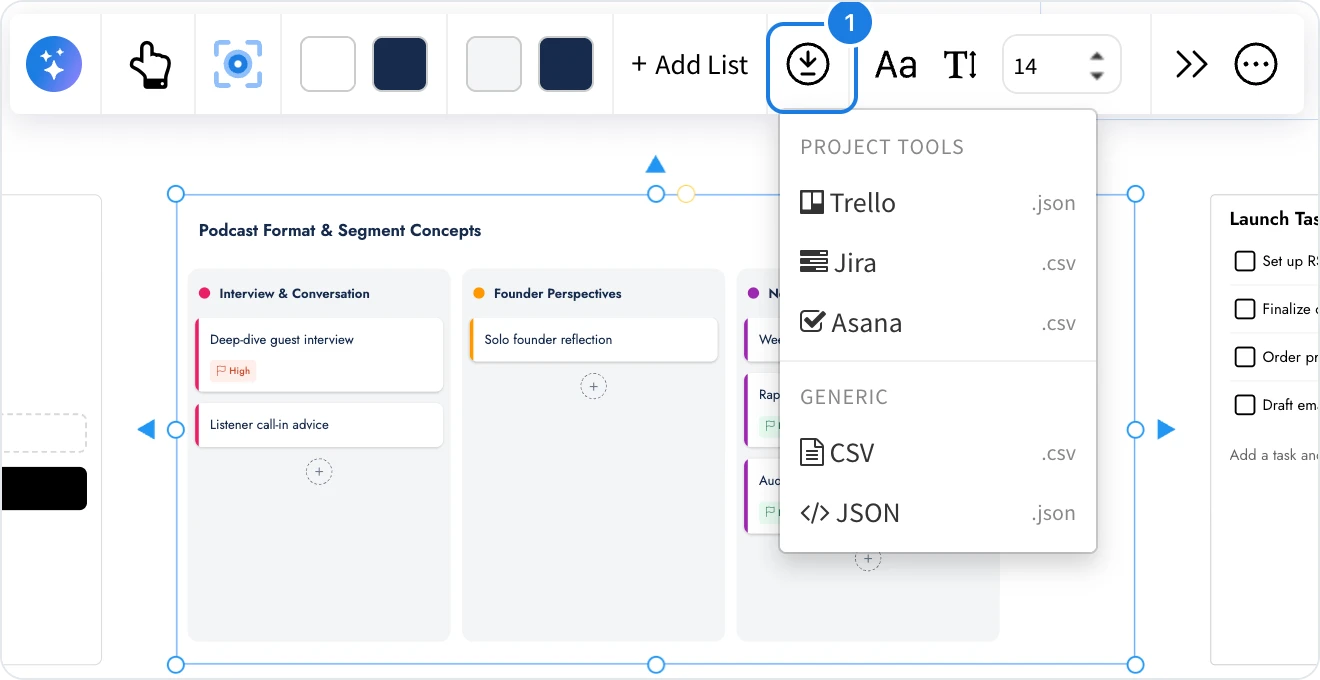
Export a kanban board to Trello, Jira or Asana
A kanban board exports its lists and cards for the project tool your team uses: Trello (.json), Jira (.csv) or Asana (.csv), plus generic CSV and JSON. For example, plan a launch on a board with your team, then move the agreed tasks into your tracker in one step.
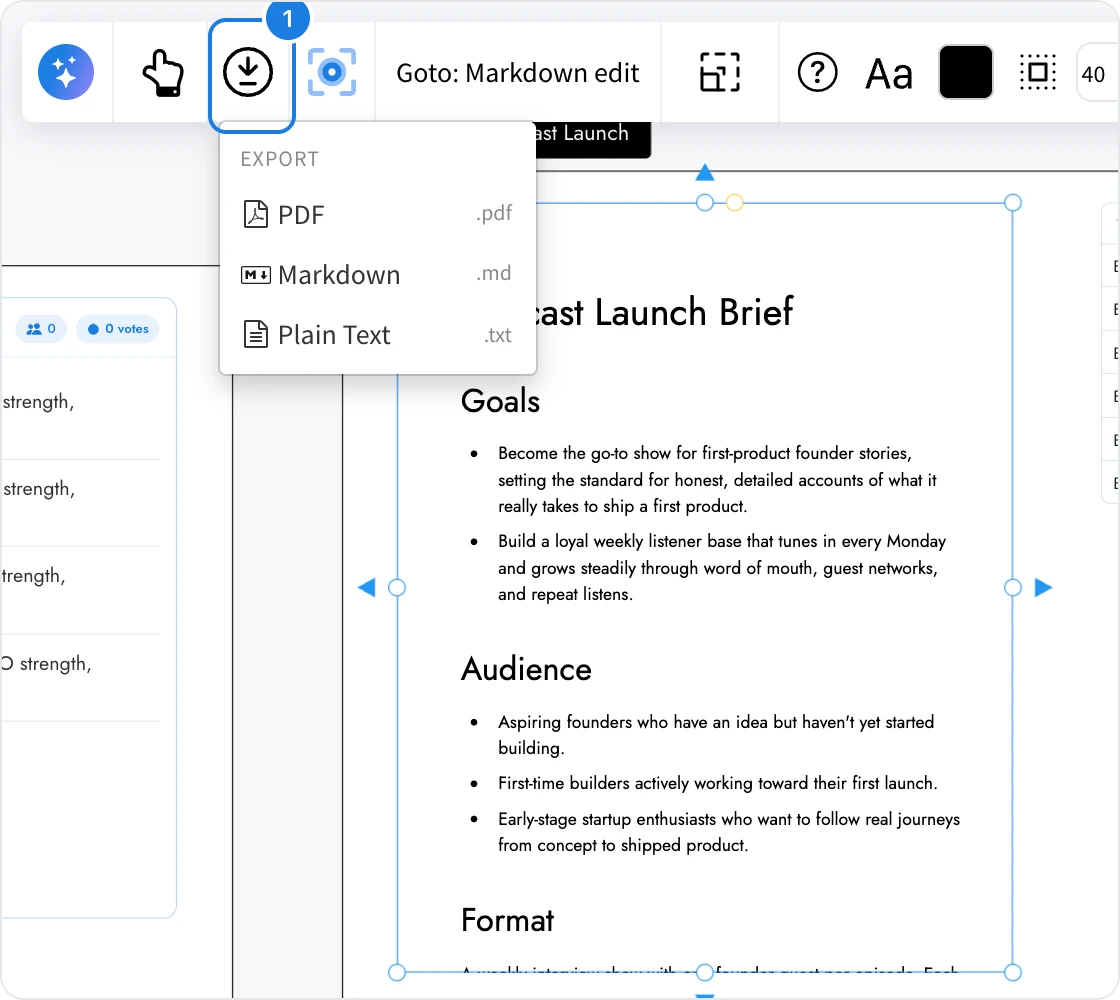
Export documents
A document exports as PDF to share or print, Markdown for wikis, code repositories and AI tools, or Plain Text. Select the document and click the download icon (1) in its toolbar.
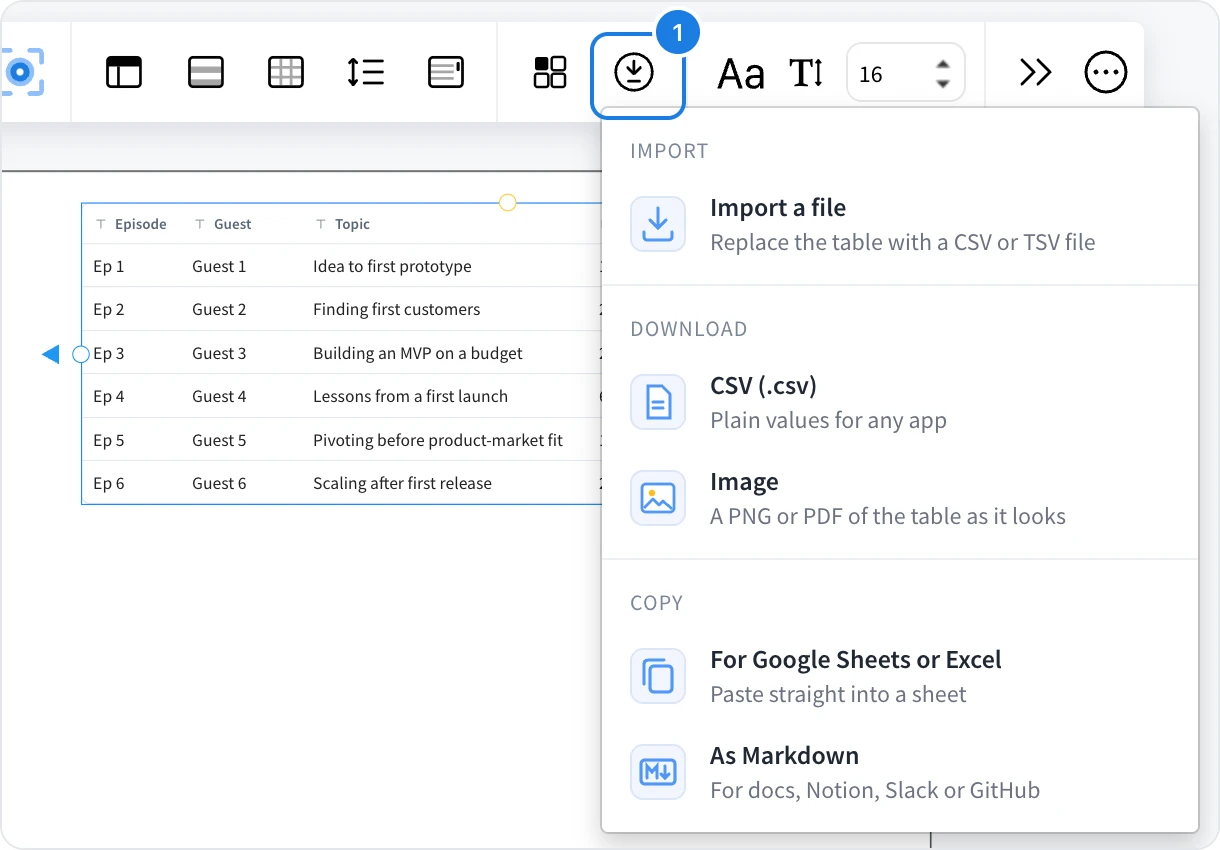
Export tables and spreadsheets
A table's menu, Import and export, downloads the table as CSV or as an Image (PNG or PDF of the table as it looks). Under Copy, For Google Sheets or Excel copies the table so it pastes straight into a spreadsheet, and As Markdown copies it as a Markdown table. The same menu has Import a file, to replace the table with a CSV or TSV file.
A spreadsheet exports as CSV or XLSX for Excel.
Other items you can export
Item | Formats |
|---|---|
Calendar | iCal, CSV, JSON |
Gantt chart, timeline | CSV, JSON |
Site map, org chart and other tree diagrams | Image, text outline, CSV, JSON |
Knowledge graph | Image, Markdown |
Storyboard | PDF, images, CSV, JSON, Markdown, plain text, Fountain screenplay |
Floor plan | Image, SVG, JSON |
Data simulator | PDF report, image, results as CSV, model as JSON |
New items and formats are added as the library grows, so look for the download icon in an item's toolbar. To save an item as a picture instead, see Export part of a board as an image. Wireframes and prototypes have their own options, covered in their own articles.