
Use brand kits
Keep your team's logo, colours, fonts and brand rules in one kit, so what Mida creates follows your brand every time.
A brand kit holds your team's logo, colours, fonts and brand rules. Apply it before you ask Mida, and what it creates follows your brand: wireframes, designs and prototypes use your colours, fonts and logo, and charts and diagrams use your colours. Team admins create the kits; everyone on the team can use them.
Create a brand kit
Only team owners and admins can create, edit or delete kits. Creating kits needs a paid plan.
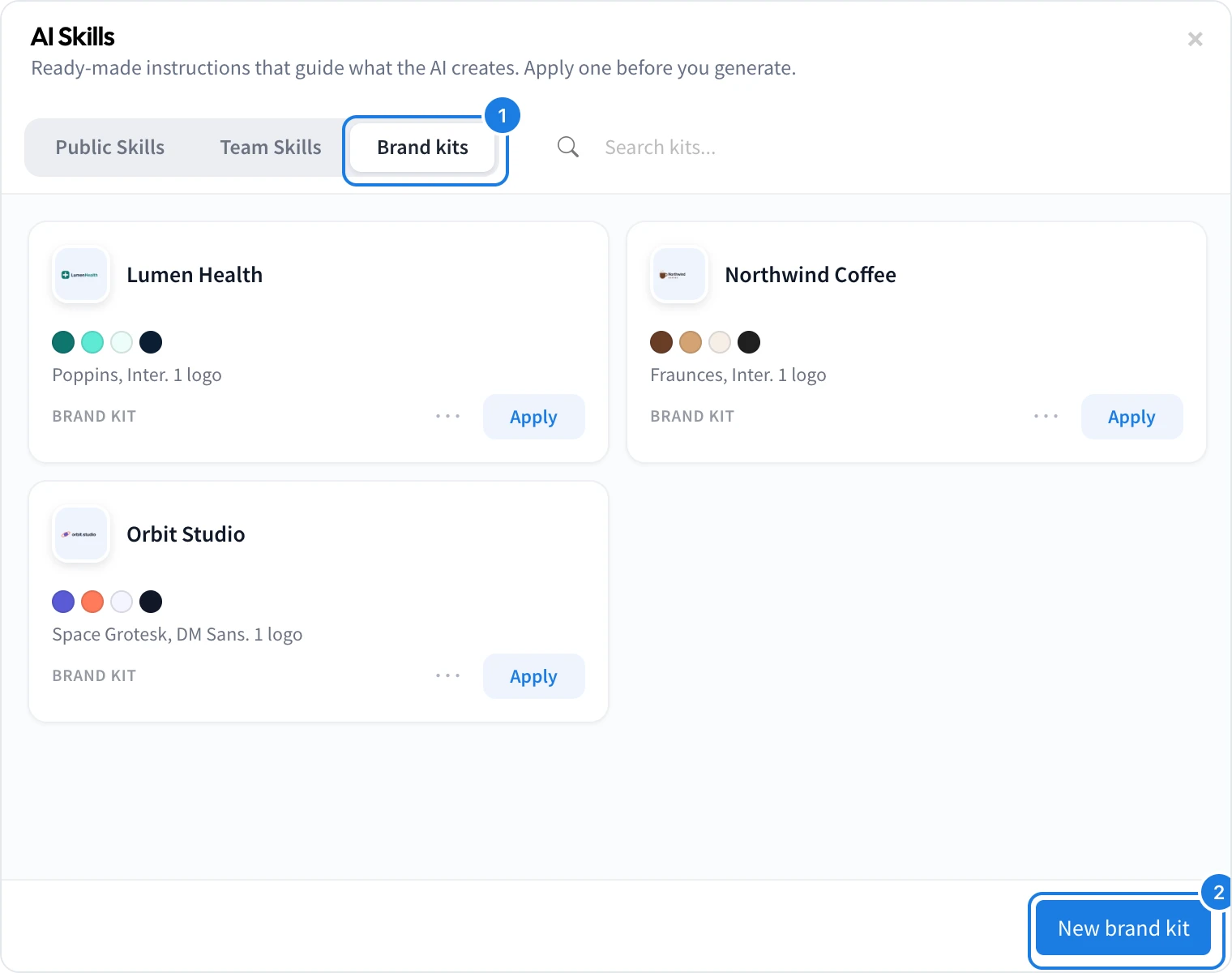
Open Mida and click Browse Skills below the prompt field, then open the Brand kits tab (1).
Click New brand kit (2).
Optional: under Start from your website, type your site's address and click Fill in. Mida copies its name, logo, colours and fonts into the form and drafts the brand's voice. Check them before saving.
Give the kit a Brand name.
Under Logo, add your Main logo. You can also add one For dark backgrounds and an Icon, your square mark for app icons and avatars. PNG, JPG, WebP or SVG, up to 5 MB.
Under Colours, add your colours. The first colour is the main one. Give colours names to use them in your rules.
Choose a Heading font and a Body font, or leave them to Mida.
Under Voice and rules, write how your brand sounds and anything Mida should always or never do.
Click Create kit.
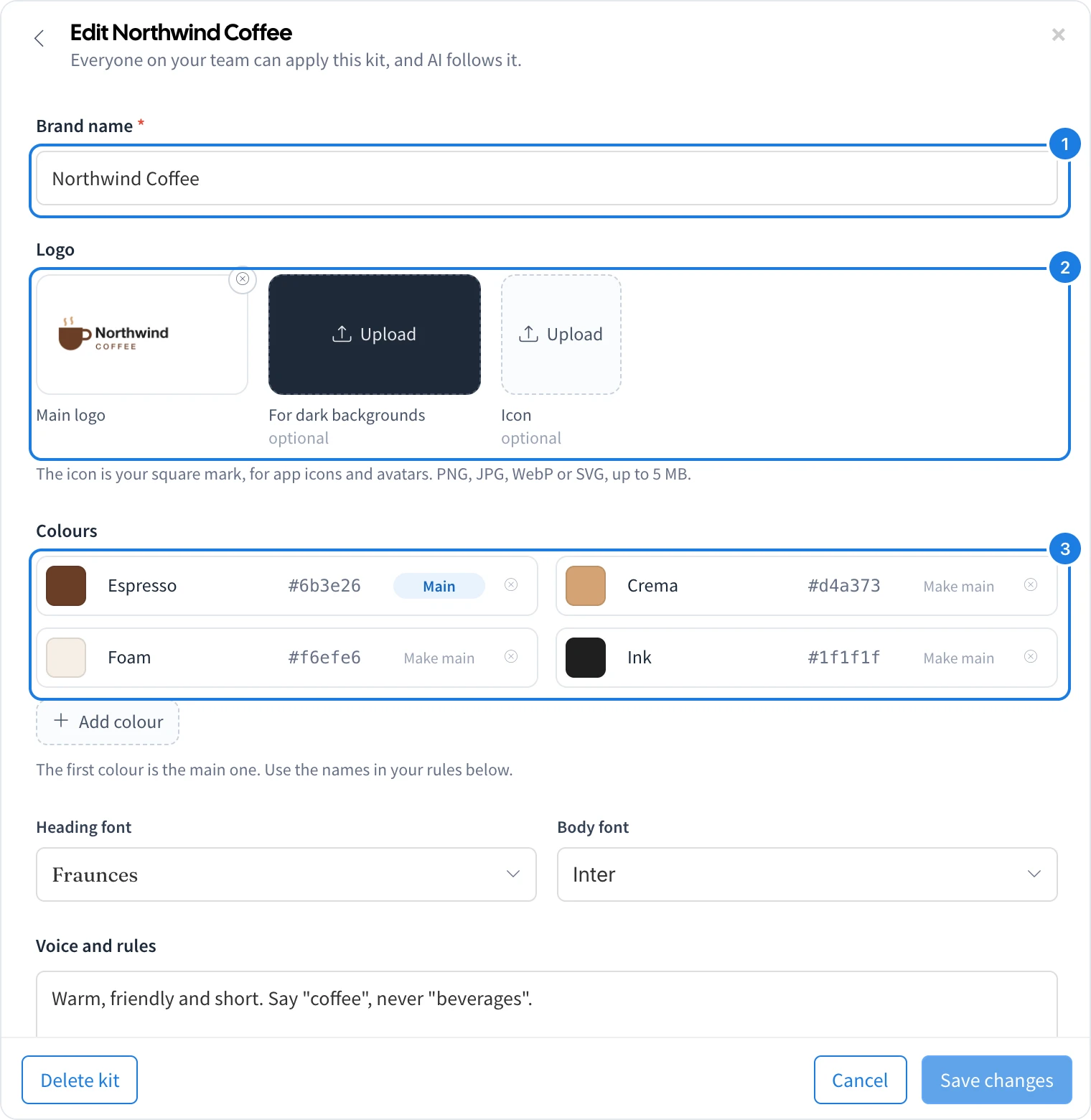
To change a kit later, click its card and choose Edit kit.
Apply a brand kit
In Browse Skills, open the Brand kits tab.
Click a kit to see it, then click Apply.
Describe what you need and press Enter.
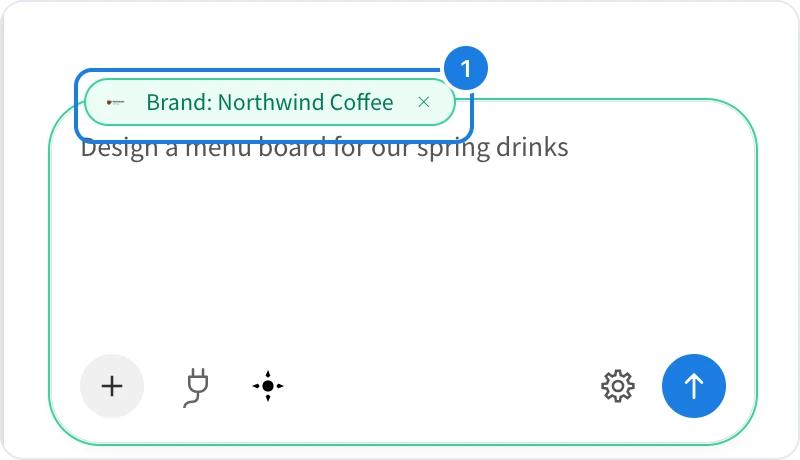
The kit shows as a Brand pill (1) above the prompt. Mida follows it until you remove the pill with its ×. A brand kit and a skill can be applied together: the skill decides what to make, and the kit decides how it looks.
When Mida asks a few setup questions before it creates, the Brand row shows the applied kit. Pick another kit, or No brand, for that one creation.
Some items, such as mind maps and checklists, have no colours or logo of their own, so a kit does not change them. Mida tells you when that is the case.
Use kit logos and colours by hand
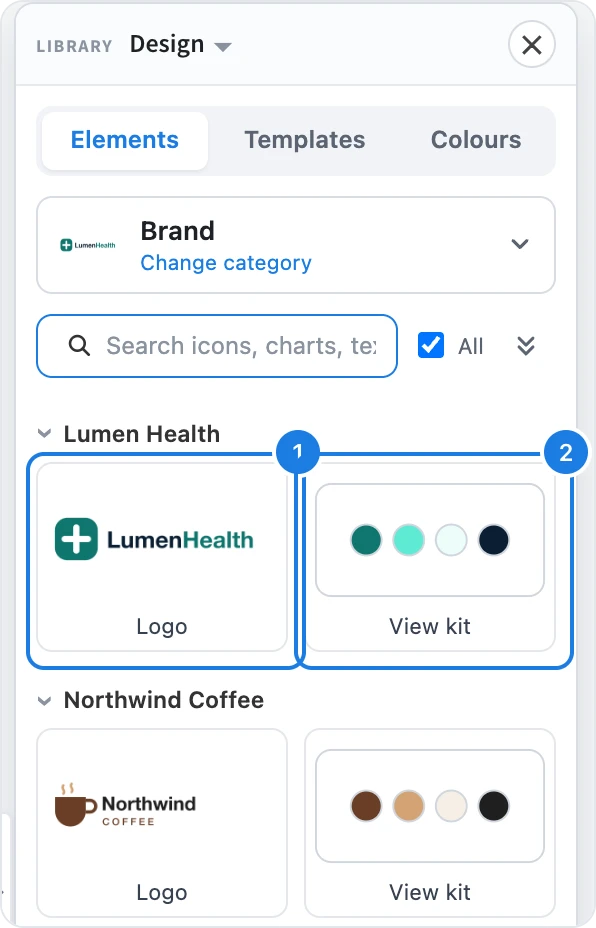
In Design, Video and Wireframe frames: open the frame's Library, then the Brand category under Elements. Click or drag a logo (1) onto the frame. View kit (2) opens the kit.
In a Design frame's Colours tab: your kits come first among the colour cards. Click one to recolour the page with your brand colours.
In the colour picker: your kit's colours show as a Brand row.
A logo you place is copied into the board, so changing the kit later does not change items already made.
Brand kits in the API and MCP
On the Plus and Max plans:
The MockFlow API lists your team's kits at
GET /brand-kits, andPOST /boards/{boardId}/ai/generatetakes abrandKitid so Mida follows the kit.In MockFlow MCP, your AI app can call get_brand_kit to read your kit's colours, fonts, rules and logo, and use them in what it creates.