
Keep revisions in a board file
Save named revisions of a board file, look back at earlier versions, and restore one. Revisions are stored inside the .board file.
A revision is a saved snapshot of a board at one moment, such as the version you shared with a client or the plan agreed in a meeting. In file mode, revisions are stored inside the .board file itself, so the version history travels with the file.
Open the revision tools
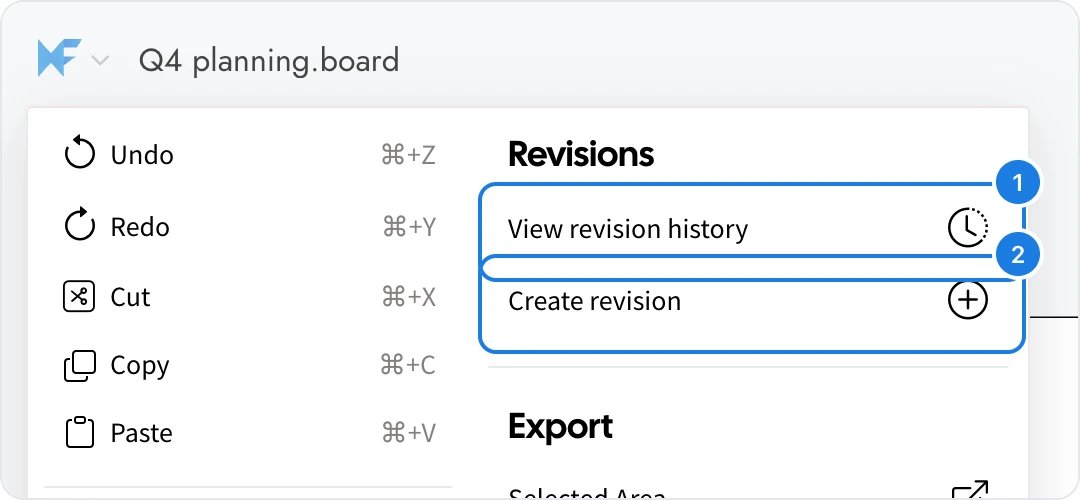
Click the MockFlow logo at the top left of the board window to open the board menu. The Revisions section has two options:
View revision history (1) opens the list of revisions.
Create revision (2) saves a new revision of the board as it is now.
Create and restore revisions
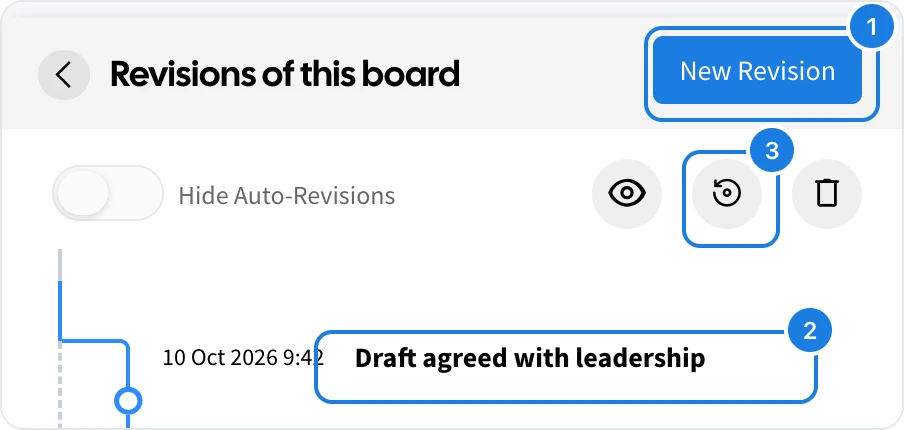
Choose View revision history. The Revisions of this board panel opens.
Click New Revision (1), type a note such as "Draft agreed with leadership", and click Save Revision.
The revision appears in the list with its date and note (2). Double-click a revision to change its note.
To go back to a revision, select it and click Restore (3), then confirm.
Next to Restore, Preview shows a revision without changing the board, and Delete removes it. MockFlow also saves some revisions automatically; turn on Hide Auto-Revisions to see only the ones you named.
Revisions become part of the file when you save the board, so press Ctrl+S (⌘S on Mac) after creating one.