
Rename, duplicate and lock a board
Manage a board from the workspace sidebar: rename it, give it an icon, duplicate it, lock it against changes, or remove a shared board from your list.
Every board in the workspace sidebar has a menu for managing it. You can rename a board, give it an icon that stands out, make a copy to try a new direction, or lock a finished board so nobody changes it by accident.
Open the board menu
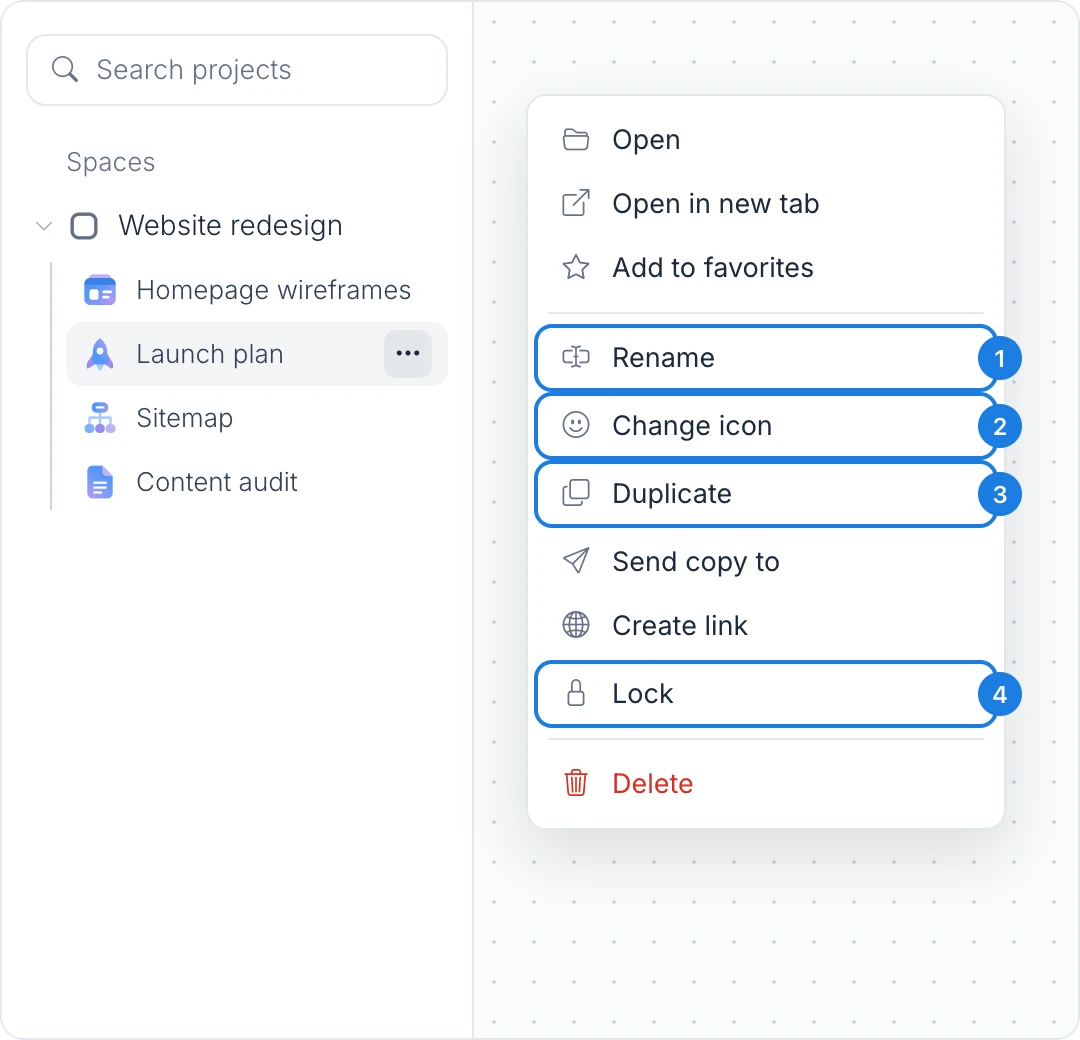
Point to a board in the sidebar and click the More options button at the end of its row. The management actions are in the middle of the menu: Rename (1), Change icon (2), Duplicate (3) and Lock (4).
The actions you see depend on your role in the board's space:
Action | Who can use it |
|---|---|
Rename, Change icon, Duplicate | Editors, admins and the owner |
Lock and Unlock | Admins and the owner |
Remove from my list | People a single board was shared with directly |
Reviewers can open a board and add it to Favorites, but cannot change it from the sidebar.
Rename a board
Choose Rename (1) from the board menu, or double-click the board's name in the sidebar.
Type the new name.
Press Enter to save, or Esc to keep the old name. Clicking elsewhere also saves.
The new name shows everywhere the board appears, including Favorites, Recents and for everyone in the space.
Change a board's icon
An icon makes a board easy to spot in a long list.
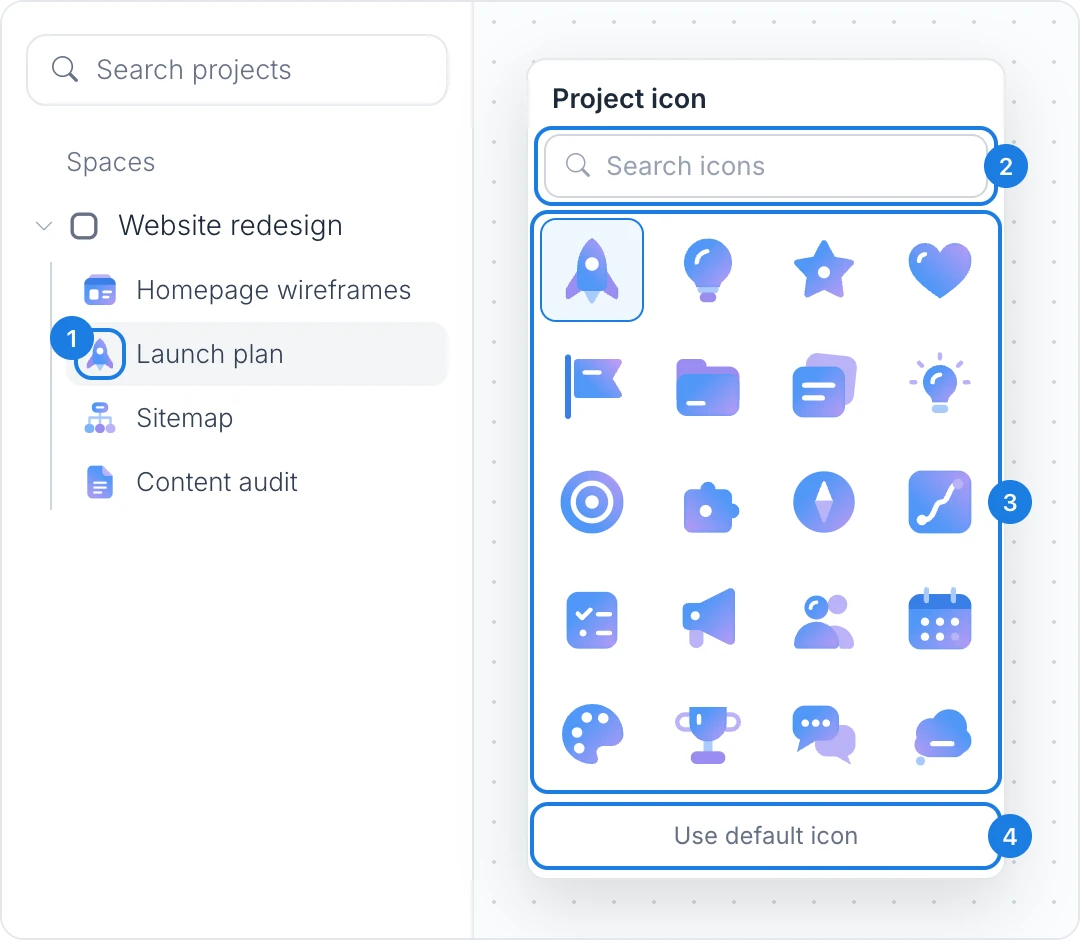
Click the board's icon in the sidebar (1), or choose Change icon from the board menu. The Project icon picker opens.
Type in Search icons (2) to filter by name, such as rocket, calendar or roadmap.
Click an icon in the grid (3) to apply it.
To go back to the icon MockFlow chose for the board, click Use default icon (4).
Duplicate a board
Duplicating makes a full copy of a board, so you can try a new direction while keeping the original as it is.
Choose Duplicate (3) from the board menu.
In the Duplicate project dialog, click Duplicate.
The copy appears at the top of the same space as the original, with Copy_ before its name. Rename it to suit the new version.
A copy counts as a new board on the plan of the space's owner. On the Basic plan, which includes a limited number of boards, the dialog offers an upgrade instead when the limit is reached. See MockFlow pricing for details.
Lock a board to prevent changes
Lock a board when the work is final, such as an approved design or a signed off plan, so that nobody edits it by accident.
Choose Lock (4) from the board menu.
A lock icon appears beside the board's name in the sidebar. Everyone, including editors, now opens the board as a reviewer: they can view it and leave feedback, but cannot change it.
To allow changes again, choose Unlock from the same menu.
If the board is open when you lock or unlock it, it reloads so the change takes effect. Locking is not available on the Basic plan.
Remove a shared board from your list
When someone shares a single board with you directly, it appears in Default space in your sidebar. If you no longer need it, choose Remove from my list from its menu and confirm. The board is not deleted for anyone else, but you lose access to it until it is shared with you again.
To delete a board you own, use Delete at the bottom of the board menu.