
Create a sitemap, org chart, tree or WBS
Plan website pages, team structures, hierarchies and project breakdowns in the SiteMap/Org/Tree frame, by hand or with AI.
The SiteMap/Org/Tree frame draws hierarchies: the pages of a website, the people in a team, a nested list of ideas or the parts of a project. Describe what you need and AI builds the whole tree, with details on every node.

Choose what to map
Click Frames in the toolbar at the bottom of the board and choose SiteMap/Org/Tree. The empty frame asks what you want to map. Click the frame, click the hand button to work inside it, then pick a type. You can also start from a spreadsheet, a sitemap.xml file or an outline.
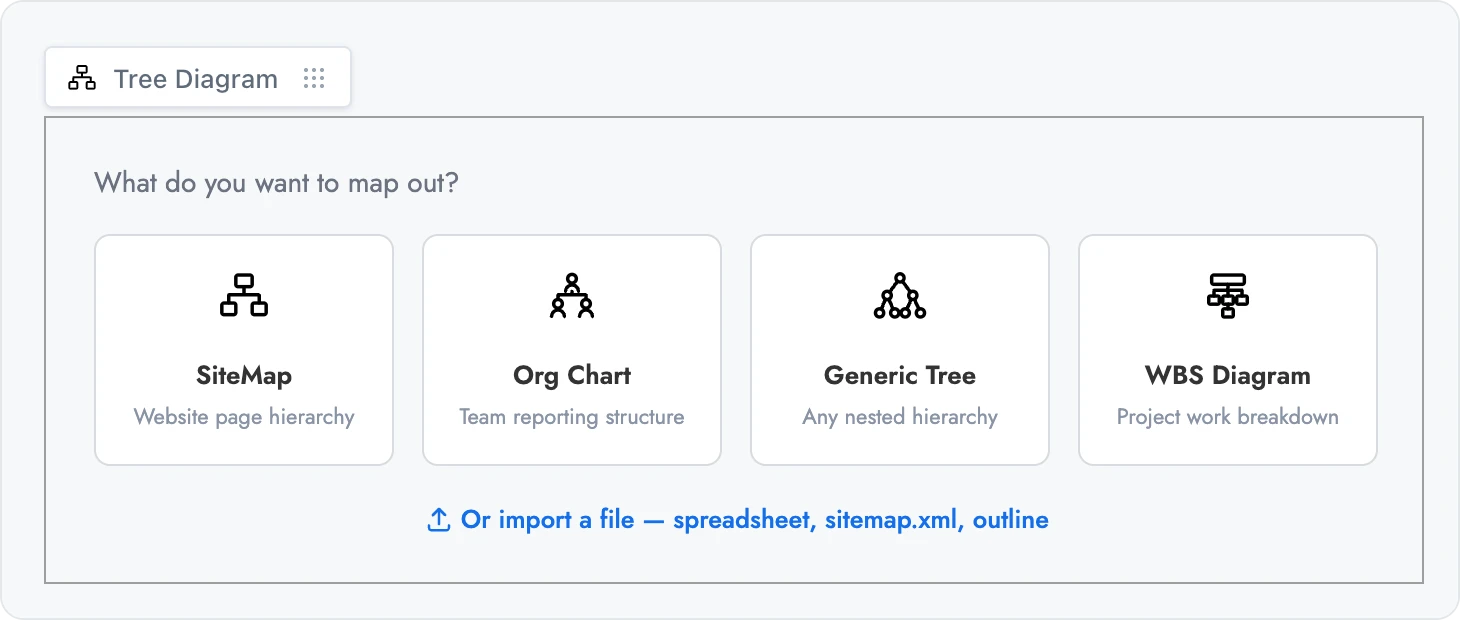
Each type adds its own details to every node:
Plan the pages of a website or app. Each page holds its Page URL, the sections on the page, and a status: Needs Work, In Progress or Published.
Example: the pages of a clinic, store or school website.
Show who reports to whom. Each person holds a Role, a Department and an avatar.
Example: a company, a club or a project team.
Any nested hierarchy, with a Note on each node.
Example: a product category list, a family tree or a decision outline.
A work breakdown structure splits a project into deliverables and tasks. Nodes are numbered and each holds an Owner.
Example: an event, a website launch or a construction project.
To switch types later, select the frame and use Change diagram type in its toolbar.
Generate a tree with AI
Select the frame by its name label.
Click the AI button on the left of the toolbar and choose Generate new.
Describe what to map, for example "Website for a dental clinic", and click the send button.
AI fills in the nodes and their details, such as page URLs and page sections in a sitemap, and names the frame.
Edit nodes with the keyboard
Click the hand button on the frame to work inside it, then select a node.
Key | Action |
|---|---|
Tab | Add a child node |
Enter | Add a sibling node |
F2 or double-click | Rename the node |
Delete or Backspace | Delete the node |
Import and export
Import File: bring in a CSV spreadsheet, a sitemap.xml file or a text outline.
Export: save the tree as an image, text, CSV or JSON.
The SiteMap/Org/Tree frame is available on every plan. Generating with AI uses AI credits. See MockFlow pricing.