
Pin places on a map
Mark locations on a real map with the Pin Maps component: generate pins with AI, add markers with icons and notes, show a listing sidebar and change the map style.
The Pin Maps component puts a real, zoomable map on your MockFlow board with a pin for each place that matters: stores and offices, venues for a trip, schools in a district or spots for a pop-up. Each pin can carry an icon and a note, so the map reads as a plan, right beside the lists and timelines that go with it.
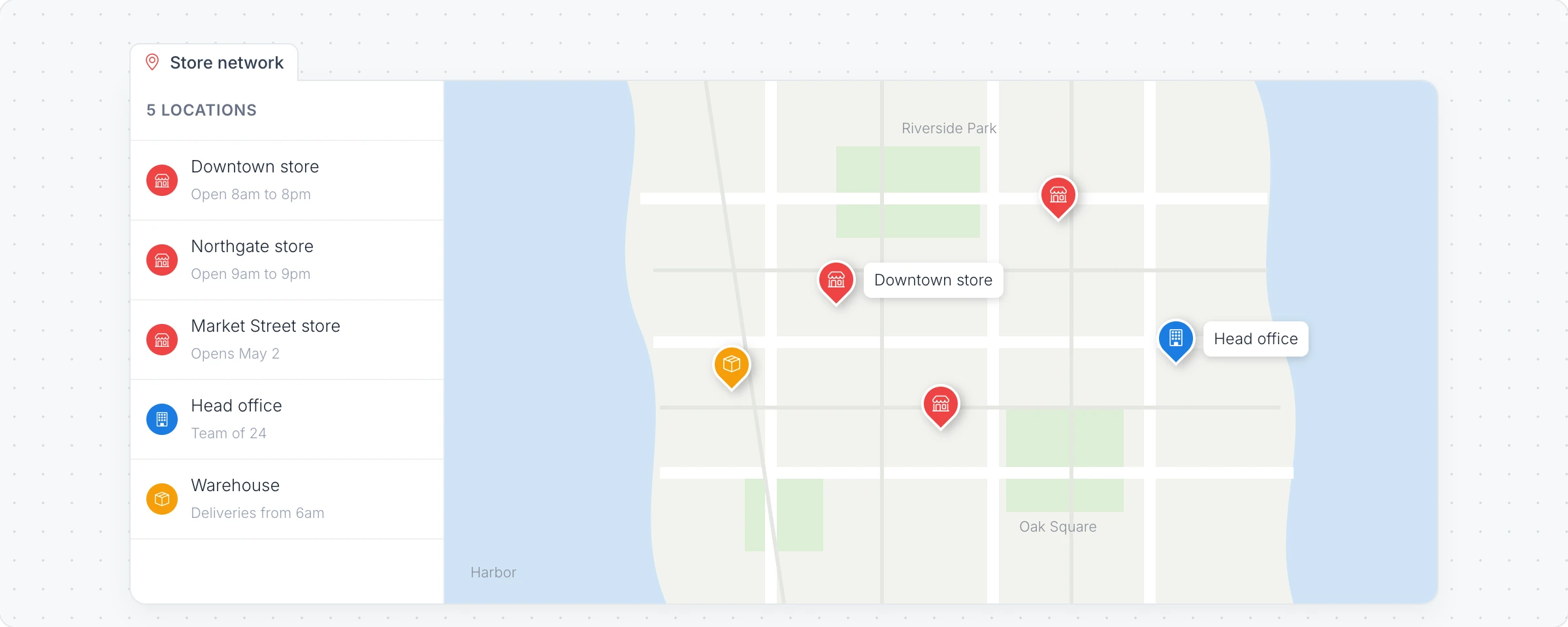
Generate a map with AI
Click Add anything (the plus button) in the toolbar at the bottom of the board and choose Pin Maps.
With the map selected, click the AI button on the left of its toolbar and choose Generate new.
Describe the places, for example "Our five stores in Seattle, the head office and the warehouse", and click Generate. Examples offers more ideas.
Modify with AI adds or changes pins with a prompt, and Convert to turns the map into another kind of item, such as a table of the locations.
Add a marker
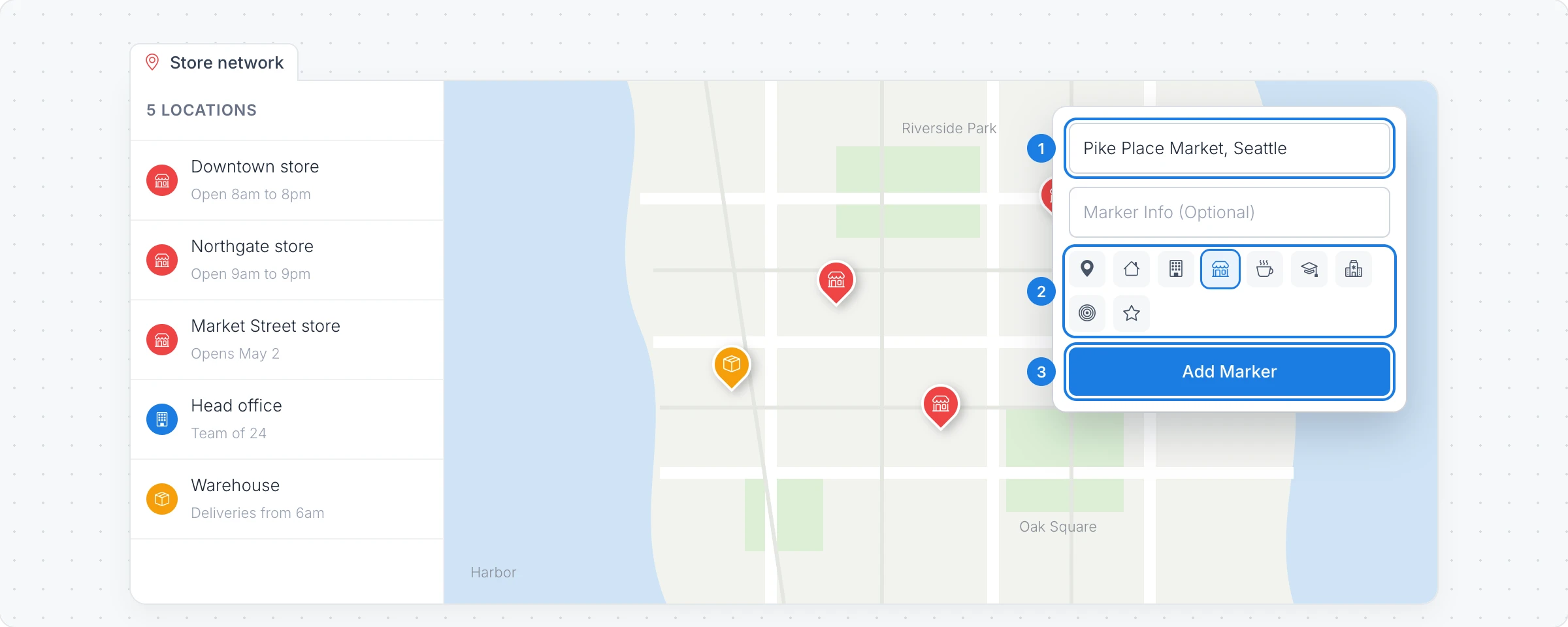
Click Add Marker in the map's toolbar.
Type a place in Enter location, such as a city, an address or a landmark. Add a note in Marker Info if you like.
Pick an icon for the pin, such as Store, Office, Home, School or Hotel, or enter your own emoji.
Click Add Marker to drop the pin on the map.
Click a pin to Edit Marker or Delete this Marker. Clear All Markers empties the map.
Change how the map looks
Marker Listing: Show Listing Sidebar lists every pin next to the map, with its note.
Change Map Style: light, dark and other map styles.
Change Map Projection: a flat map or a globe.
Toggle Map Labels and Reset Zoom: hide place names, or zoom back out to fit all the pins.
Click Interact with Component (the hand button) to pan and zoom the map on the board.
The Pin Maps component is available on every plan. Generating with AI uses AI credits. See MockFlow pricing.