
Make a clickable prototype with interactions
Add interactions to WireframePro components to go to pages, open links, and show, hide or replace components, then click through the design in View mode.
Interactions turn a set of wireframes into a clickable prototype. A Confirm booking button can take users to the Booked screen, a menu icon can show a side menu, and a tab can swap the content below it. Reviewers try the flow in View mode before anything is built.
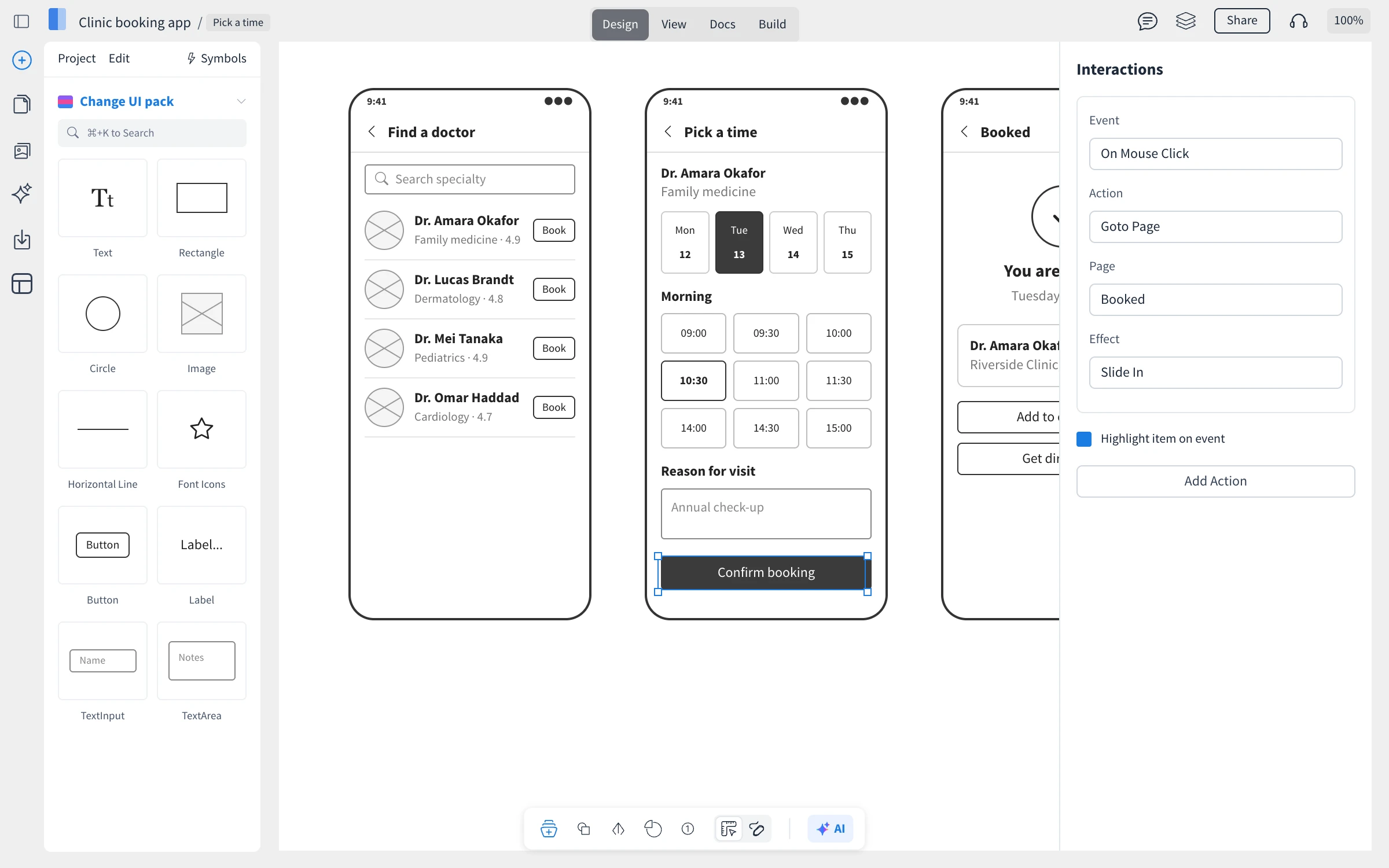
Add an interaction
Select a component, for example a button.
In its settings, under Prototyping, click Manage Interactions.
Click Add Action, then choose the event and the action, for example On Mouse Click and Goto Page.
Pick the target, such as the page to open, and an effect if you want one.
A component can have several actions, for example showing a message and then going to the next page.
Events, actions and effects
Events: On Mouse Click, On Mouse Hover and On Mouse Out.
Actions: Goto Page, Open URL, Scroll to Component, Show Component, Hide Component, Toggle Comp Visibility and Replace Component.
Effects: such as Fade In, Slide In and Zoom In, with delay, duration and direction settings.
Turn on Highlight item on event to outline the component when the event happens.
Build screens that change in place
Replace Component swaps one component for another, for example a collapsed card for an expanded one, without leaving the page. To show only part of a page in View mode, select a group and set it as the Primary container: only that container and its children are visible in View mode, which is useful for phone prototypes built with Replace Component.
Test the prototype in View mode

Click View at the top. The design behaves like the finished product: click buttons and links to move between pages. Press Shift to highlight every link on the page. Share the project so reviewers can try it, as described in Review and collaborate on a WireframePro project.