
Export a wireframe
Export a MockFlow wireframe as an image, SVG, hi-fi design or JSON, or copy it to Figma, an AI coding tool or WireframePro.
A wireframe on a MockFlow board can leave the board in several forms: a picture for a slide or a ticket, a vector file, a finished hi-fi design, editable layers in Figma, a build prompt for an AI coding tool, or editable components in WireframePro. Every option is in one dialog.
Open the export dialog
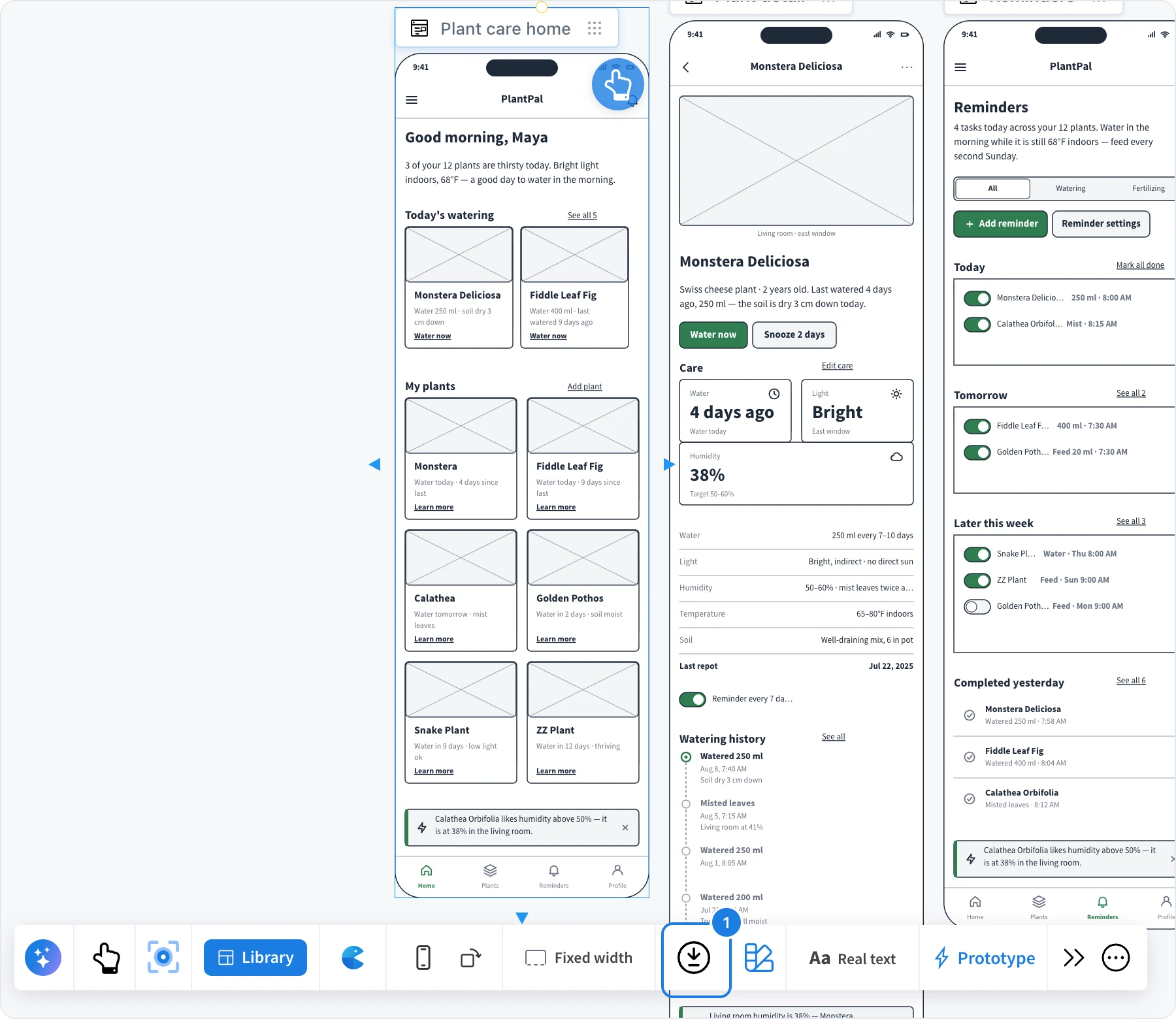
Click the wireframe's title bar to select it.
Click Export and copy (1) in the toolbar.
The Export Wireframe dialog opens with two groups: Export as for files, and Copy to for other tools.
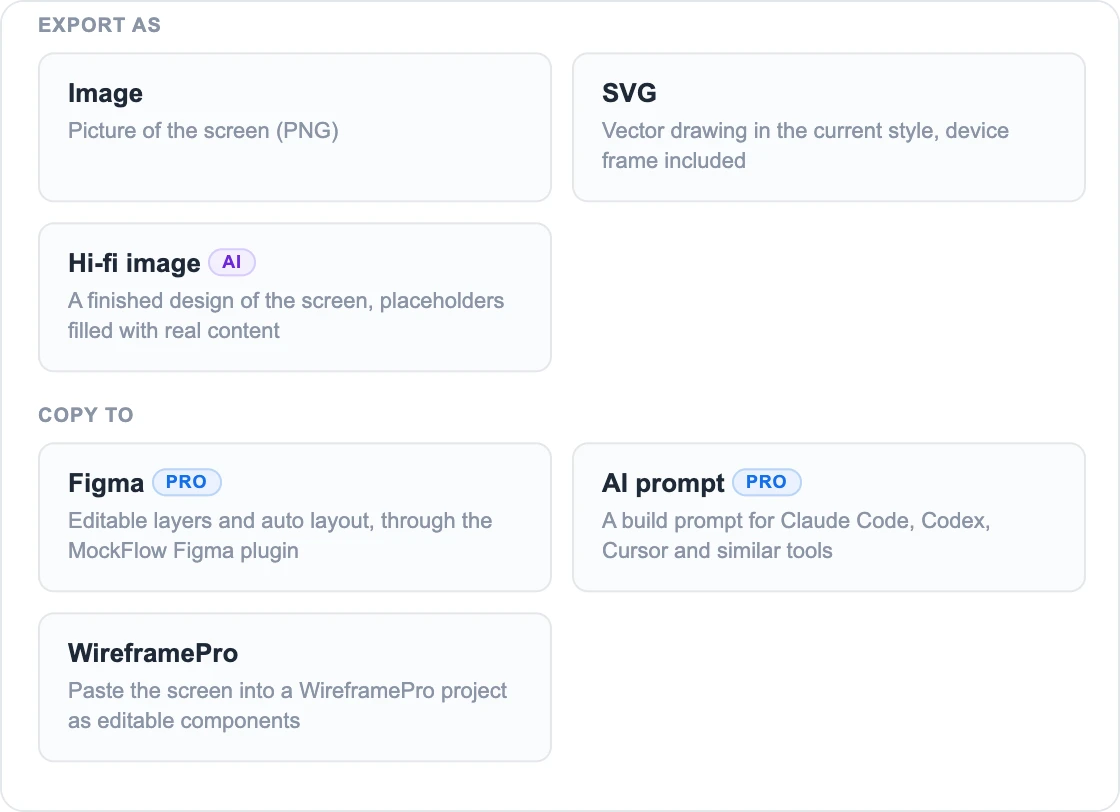
Export as a file
Option | What you get | Use it for |
|---|---|---|
Image | A PNG picture of the screen | Slides, documents, tickets and chat messages |
SVG | A vector drawing in the screen's current style, device frame included | Sharp pictures at any size, or further editing in a vector tool |
Hi-fi image | A finished design of the screen made by AI, with placeholders filled with real content | Showing stakeholders what the screen could look like |
JSON | The screen's widget data: its device, size, style and every widget | Backups and tools that read the screen's structure |
For SVG and JSON, the dialog shows the result with the number of widgets and the screen size. Click Download to save the file, or Copy to put it on the clipboard. Files are named after the wireframe's title.
Hi-fi image opens the Convert to hi-fi image dialog, where you choose a flat Hi-fi screen or a Device mockup. It uses AI credits. See Render a hi-fi screen or device mockup.
Copy a wireframe to Figma
Figma copies the screen as editable Figma layers. Stacks in the wireframe become auto layout in Figma, so spacing and alignment keep working as you edit.
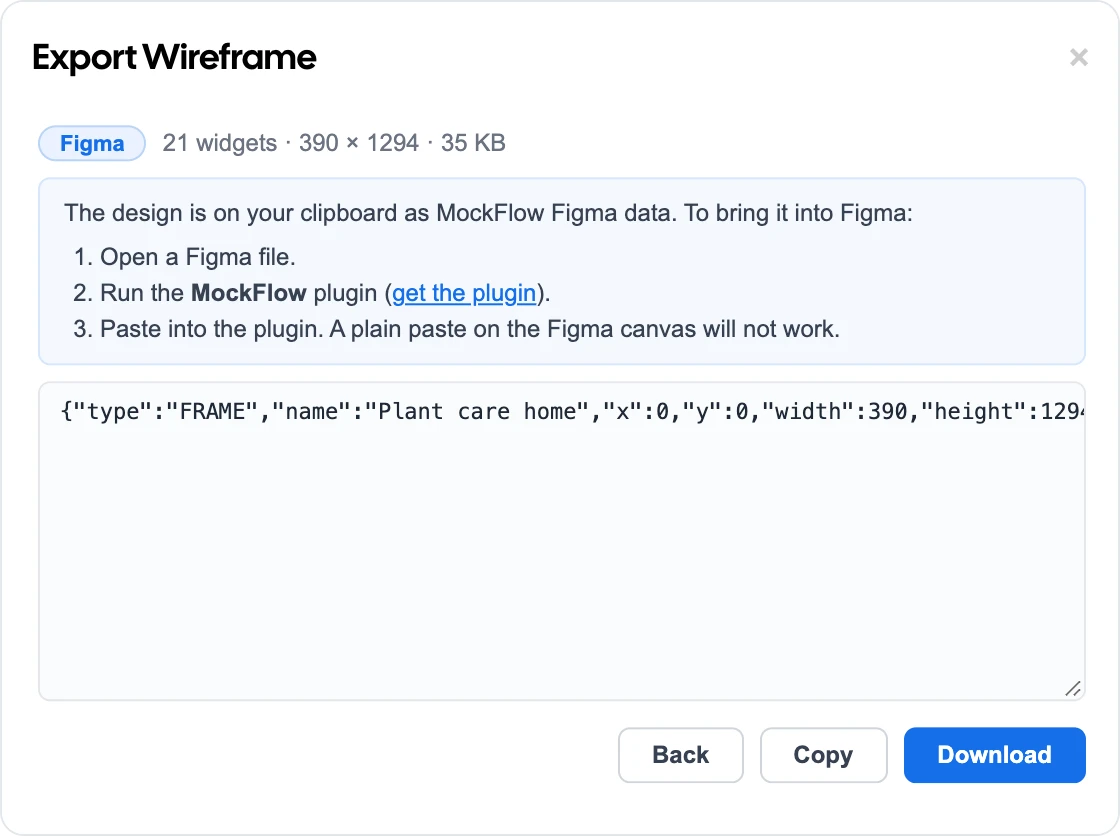
In the export dialog, choose Figma. The design is copied to your clipboard.
Open a Figma file.
Run the MockFlow plugin. If you do not have it yet, install it from the Figma Community.
Paste into the plugin. The screen is added to the file as layers.
Paste into the MockFlow plugin, not onto the Figma canvas. A plain paste on the canvas does not create the layers.
If the clipboard was overwritten, click Copy in the dialog to copy the design again, or Download to save it as a file.
Copy a build prompt for Claude Code, Codex or Cursor
AI prompt writes a build prompt that describes the screen in detail: its device and size, its colors and style, and every part of the layout from top to bottom with its position, size and text. An AI coding tool can build the screen from it.
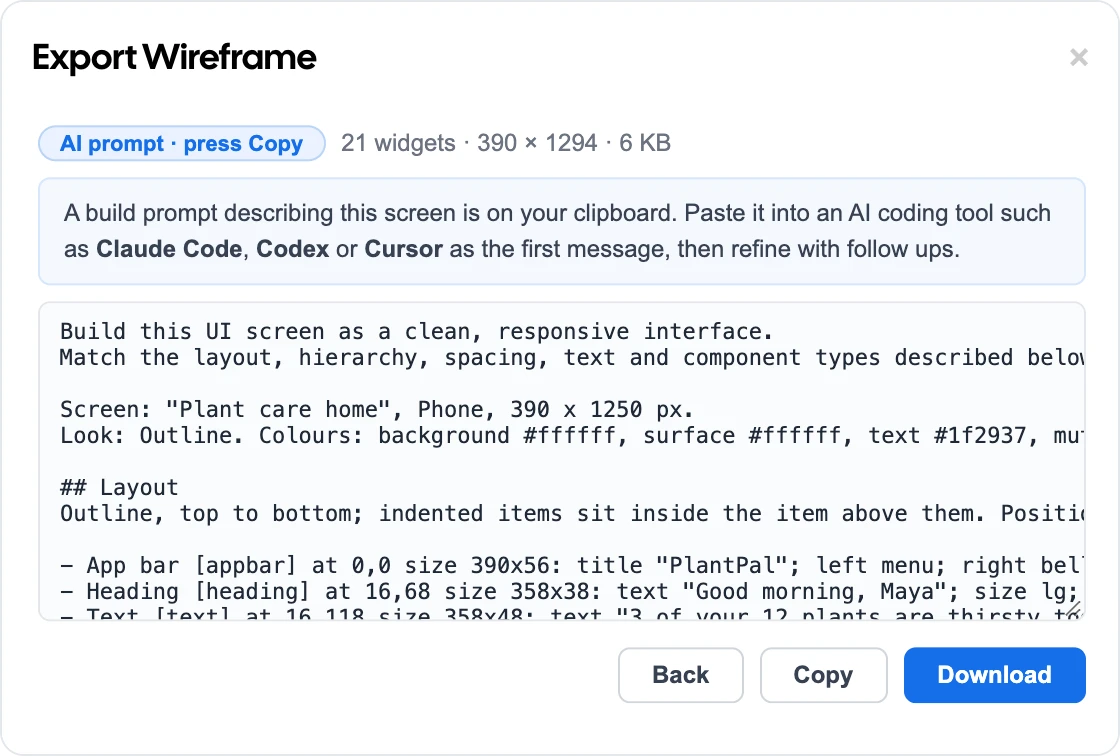
In the export dialog, choose AI prompt, then click Copy.
Open an AI coding tool such as Claude Code, Codex or Cursor.
Paste the prompt as the first message, then refine the result with follow up messages.
To keep the prompt as a Markdown file, click Download.
Copy a wireframe to WireframePro
WireframePro copies the screen as components for WireframePro, the dedicated UI design tool included with every plan. Use it when a screen needs WireframePro features such as pages, symbols, UI packs or Build mode.
In the export dialog, choose WireframePro, then click Copy.
Open your project in WireframePro and go to the page you want.
Click an empty spot on the canvas.
Press Ctrl+V (⌘V on Mac). The screen lands as components you can edit.
Plans
Image, SVG, JSON and WireframePro are available on every plan. Figma and AI prompt are marked PRO and are not available on the Basic plan; choosing one on Basic offers an upgrade. Hi-fi image uses AI credits.
Export a whole prototype
The export dialog works on one screen at a time. To take a clickable prototype with all its screens as code, use Code in the prototype's toolbar. See Play and share a prototype.