
Share a board with a public link
Create a view-only link that anyone can open, choose its URL, protect it with a key, and turn it off when you are done.
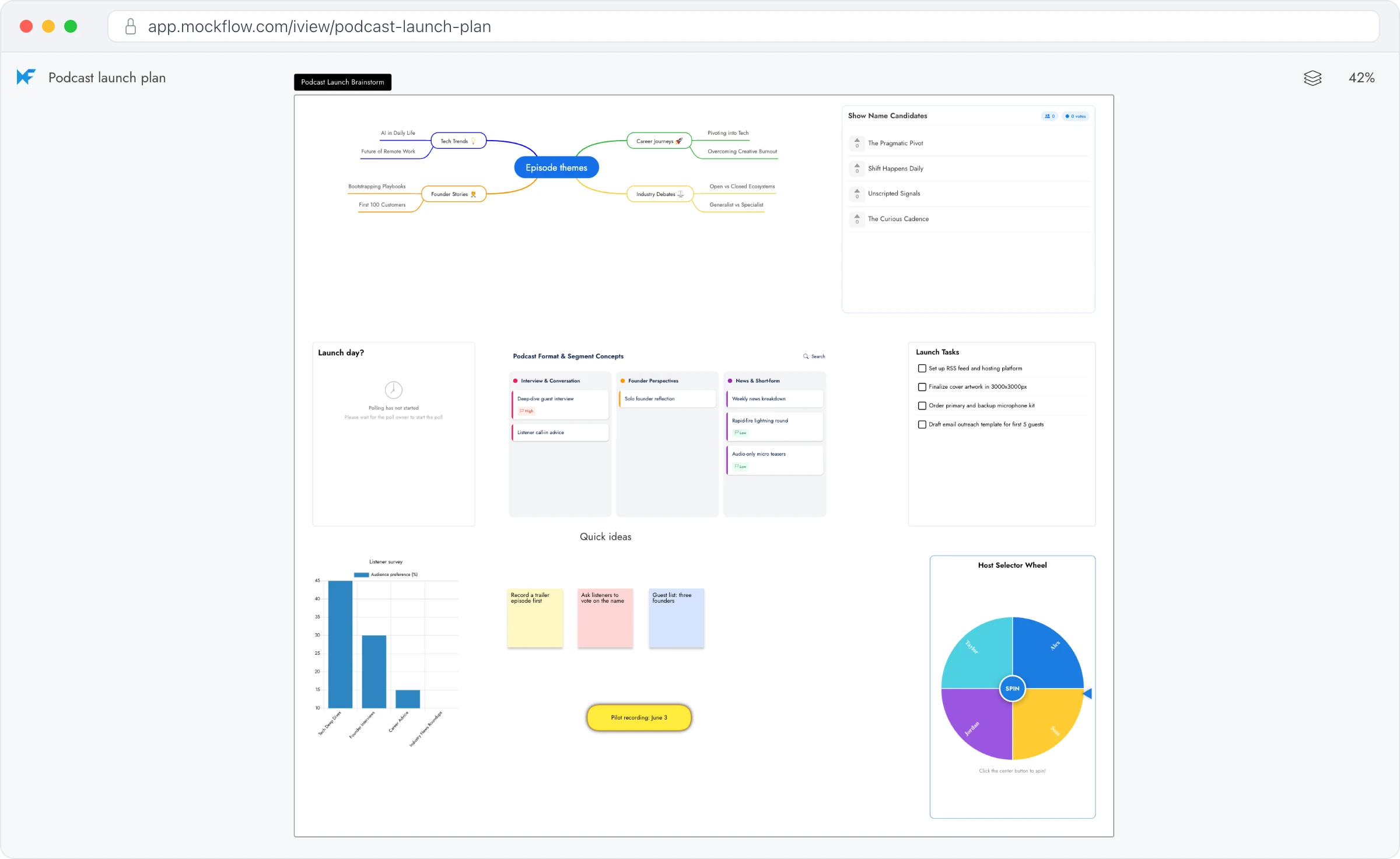
A public link lets anyone view a board in MockFlow without an invitation or an account, such as a client reviewing a campaign plan, students following a lesson board or readers of a project update. People who open the link see the board as it is, always up to date, but cannot change it.
Create a public link
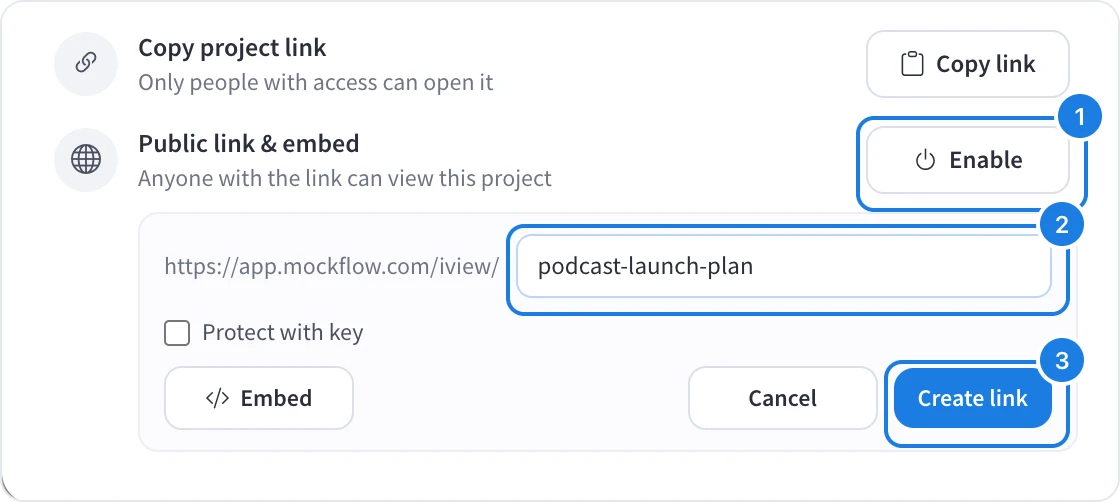
Open the board, click Share at the top right, and click Enable (1) beside Public link & embed.
The link's address appears with a suggested ending. Change it to something readable (2), for example
podcast-launch-plan. It must be 5 to 200 characters long and not already used by another link.Click Create link (3).
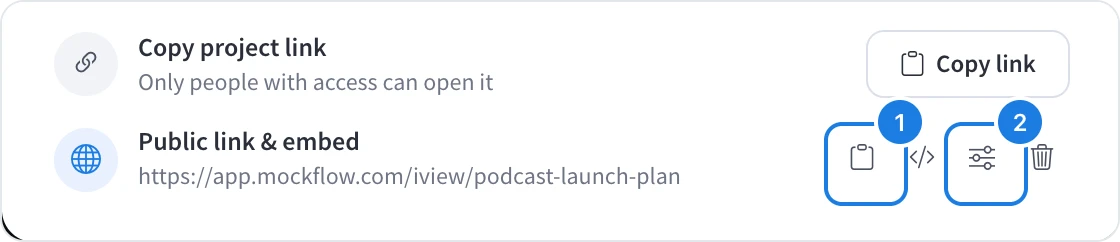
The panel now shows Anyone with the link can view this project and the full address, such as app.mockflow.com/iview/podcast-launch-plan. Only the owner and admins of a board can create or change its public link.
Copy and send the link
Click Copy link (1) and paste the link wherever your audience is: an email, a chat, a document or a project page. To change the address later, click Link options (2), edit it and click Update link. The old address stops working, so send the new one to anyone who had it.
Protect the link with a key
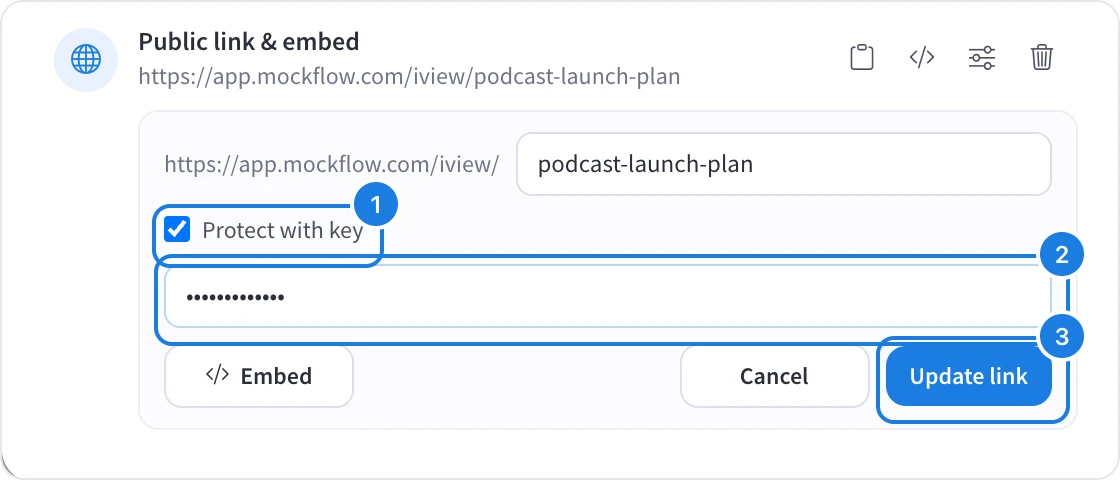
A key is a password for the link. Use one when a board should reach a specific group, such as a client team, without being open to anyone who comes across the address.
Click Link options beside the link.
Tick Protect with key (1).
Type the key (2), up to 90 characters.
Click Update link (3).
Visitors now see This project url is password protected and enter the key, then click Open project. Send the key separately from the link.
Turn off a public link
Click the bin icon (Remove link) at the end of the link row. The link stops working straight away, and people who were invited to the board keep their access. You can create a new link at any time.
Public links for a space and for websites
To share several boards from a space through one address, see Share a space with a public link.
To show a board inside a website, a wiki or a document, see Embed a board in a website or page.
What is not available on the Basic plan
Public links are not available on the Basic plan. When a Basic account turns on a link, MockFlow shows Public links are available on the MockFlow Plus plan. Upgrade now? A link the board already has keeps working, and you can still remove it. Public links, links protected with a key and many other features, such as live presentation mode and editor roles, are available on Plus and Max. See MockFlow pricing for details.