
Embed content from other tools on a board
Show live content from Figma, Miro, Loom, YouTube, Google Docs, Airtable and many other tools on a MockFlow board by pasting a link or embed code.
A board often brings work together from many tools. Embeds show that work live on the board: the Figma screens next to the user flow, the customer interview video next to the findings, or the feature votes spreadsheet next to the roadmap.
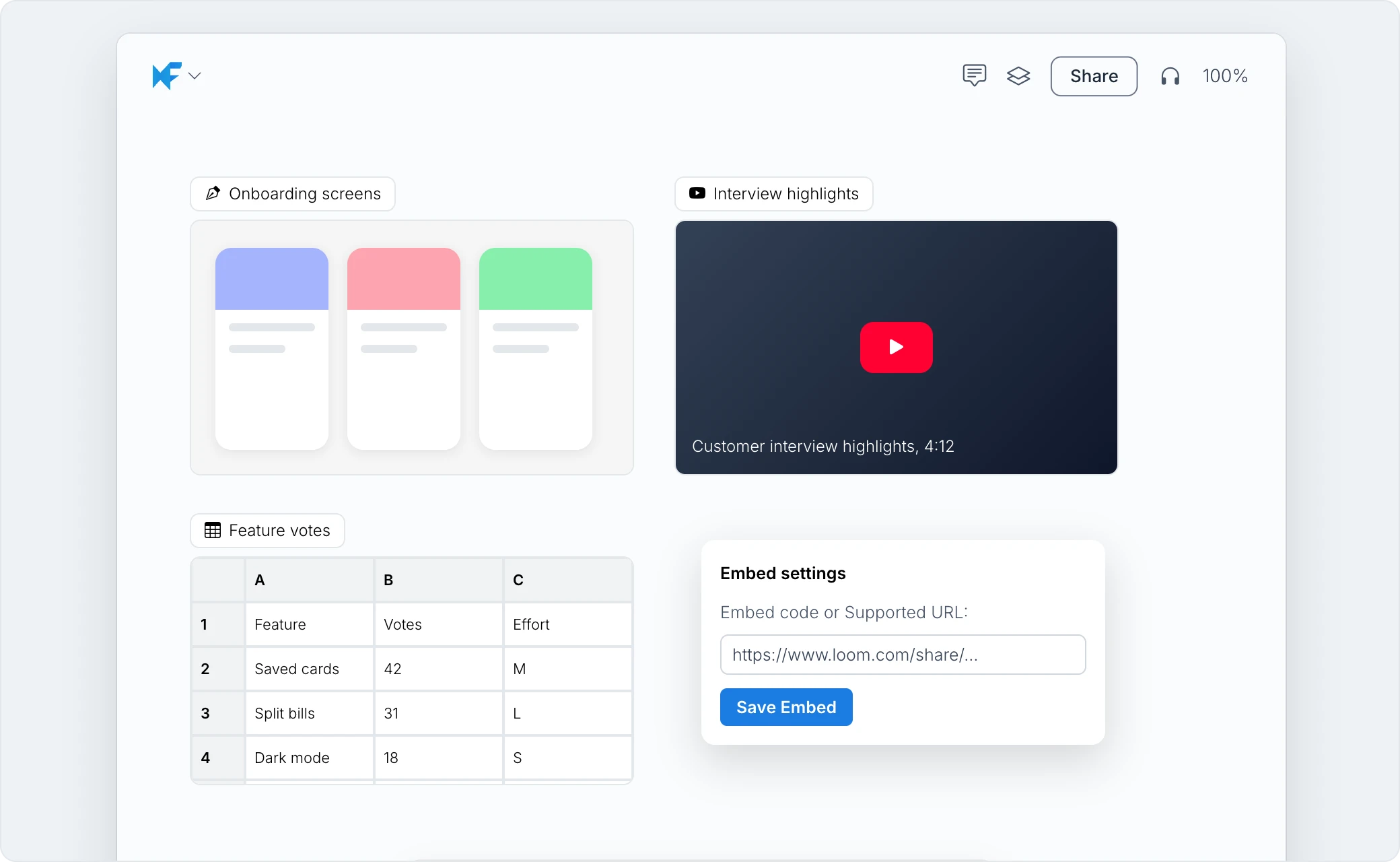
Embed by pasting a link
Copy a link from a supported tool, click an empty spot on the board and press Ctrl (⌘ on Mac) + V. MockFlow shows the content live on the board. Links from tools that cannot be embedded become link cards instead.
Embed from the component library
Add the Embed component from the component library.
In Embed settings, paste the link or the tool's embed code under Embed code or Supported URL:.
Click Save Embed.
To interact with the content, for example to play a video or scroll a document, click Interact with Component in its toolbar. Enter Focus Mode shows it full screen, and Change embed code swaps it for another link.
Supported tools
Design and whiteboards: Figma, Sketch, Miro, Mural, Whimsical, Lucidchart, Canva, Framer, Excalidraw, draw.io, MindMeister and others.
Video and audio: YouTube, Vimeo, Loom, Wistia, Arcade, Spotify and SoundCloud.
Documents and productivity: Google Docs, Sheets, Slides and Forms, Airtable, Coda, Typeform, Office 365, Prezi and Pitch.
Data, code and maps: Tableau, Looker Studio, Google Maps, CodePen, GitHub Gist, Replit and Streamlit.
Social: X, TikTok, Instagram, Pinterest, Reddit and LinkedIn.
The list grows as more tools are added. If a link is not supported, MockFlow says so.