
Choose when an automation runs
Run an automation at a set time, only when you press Run, when something happens in MockFlow, or when an event happens in one of your apps.
The When part of an automation decides what starts a run. Click pick when it runs in the builder to choose one of four kinds:
Choice | Starts a run | Good for |
|---|---|---|
At a set time | On a schedule, like every Monday at 9am | Stand-ups, weekly reports, monthly metrics |
Only when I press Run | Only when you click Run | Boards you make on demand, such as a client report before a meeting |
An event in your app | When something happens in the app the automation reads | A meeting board after each recording, a retro when a sprint closes |
MockFlow | When a board is created, someone joins, and similar events | Kickoff kits for new boards, welcome boards for new members |
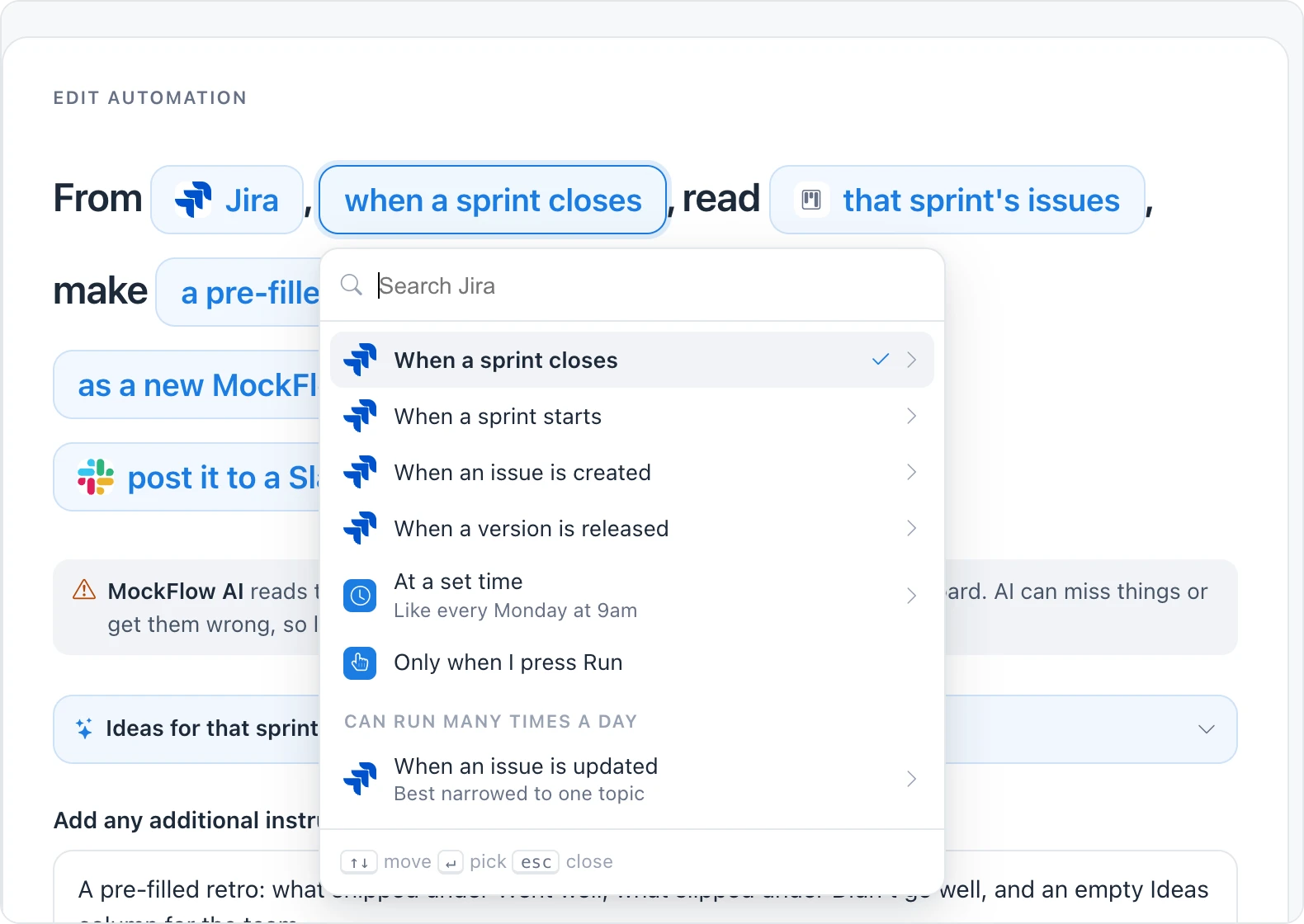
Events that can happen often are grouped under Can run many times a day. Each run that makes a board counts toward your monthly runs, so the builder warns you when an automation could run many times a day. See Automation plans and limits.
Run an automation on a schedule
Choose At a set time, then pick how often:
Every hour, at a minute you choose, in five minute steps
Every day, at a time you choose
Every weekday, Monday to Friday
On days I pick, any mix of days from Sunday to Saturday
Every week, on one weekday
Every month, on a day from Day 1 to Day 28, or the Last day
Then set the time and click Use this time.
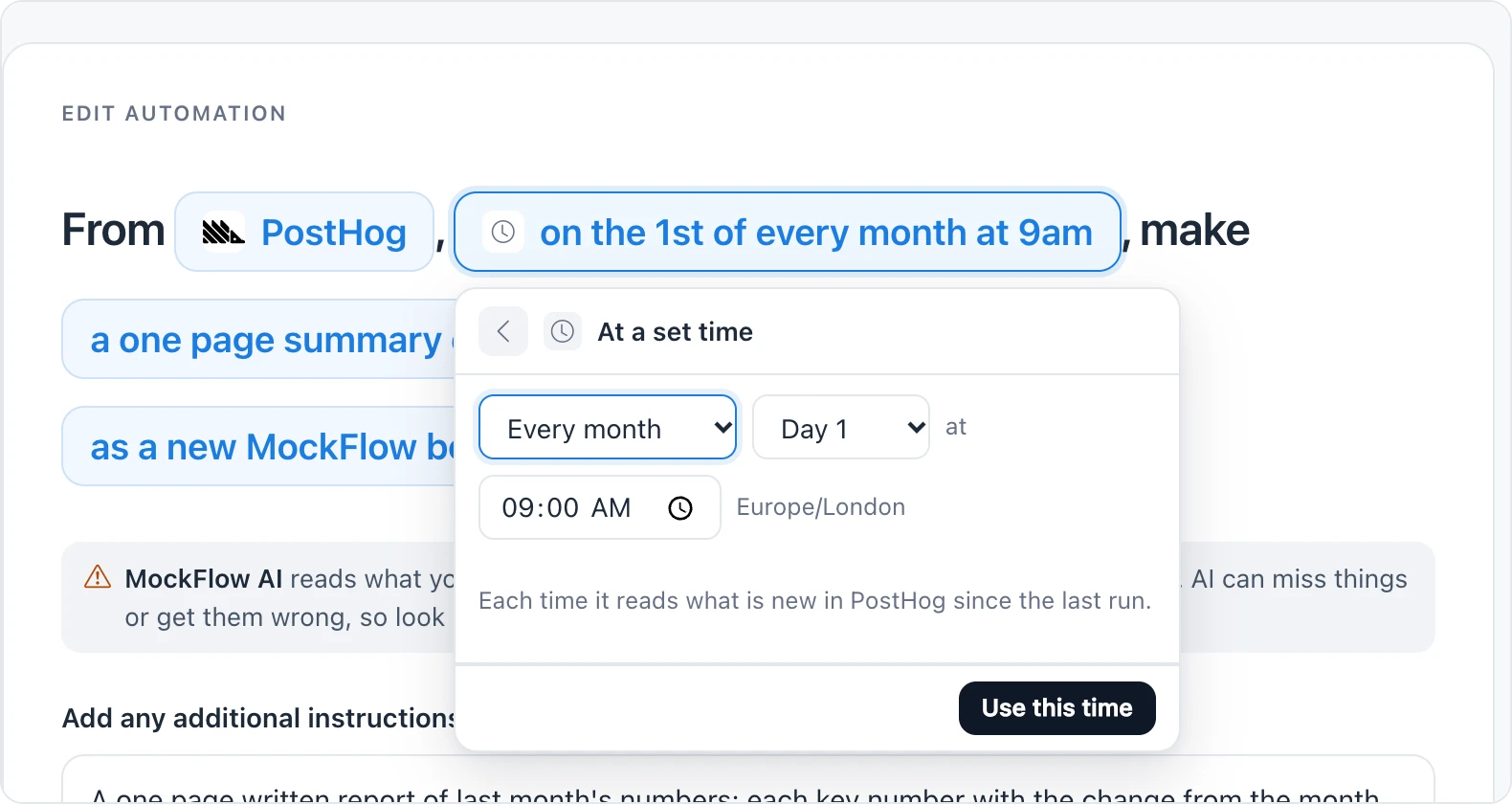
Schedules use the time zone shown under the time, which is the time zone of your browser when you set it.
When a scheduled automation reads an app, each run reads what is new in that app since the last run. For example, a weekly Slack automation reads only that week's messages.
Run an automation only when you press Run
Choose Only when I press Run for an automation that never starts by itself. A Run button appears on its row under My automations, and Run now is always in its builder.
Run an automation when something happens in MockFlow
Choose MockFlow to start a run on an event in your own workspace:
A board was created
A board was renamed
A board was moved to the trash
A board came back from the trash
Someone was given access to a space or a board
Someone lost access to a space or a board
Someone commented on a board
Use Only in to limit the event to one space, or leave it on Any space. With a MockFlow event, Where can also be The board it is about for board events or The space it is about, so a kickoff kit lands on the board that was just created.
Run an automation when something happens in an app
After you choose the app under From, its events are listed under When. Each reads as When followed by the event.
App | Events that can start a run |
|---|---|
Slack | New messages are posted in a channel |
Trello | A card is created; a card moves to another list |
Notion | A page is created; a page is edited; someone comments on a page |
Jira | A sprint closes; a sprint starts; an issue is created; an issue is updated; a version is released |
Linear | An issue is created; an issue is updated; a project update is posted; someone comments on an issue |
Fathom | A meeting recording is ready |
Zoom | A cloud recording is ready; a meeting is scheduled |
Fireflies | A meeting transcript is ready |
Google Drive | A file is added; a file is changed; someone comments on a file |
GitHub | A pull request opens or closes; a pull request review is submitted; an issue is opened; commits are pushed |
Gmail | A new email arrives; you send an email |
Google Sheets | New rows are added; a row changes |
Google Calendar | An event is added; an event is about to start; an event changes |
Google Docs | A document is created; a document is edited |
Confluence | A page is created; a page is added under a page; a page is edited; someone comments on a page |
OneDrive | A file is added; a file is changed |
Asana | A task is created; a task moves to another section; someone comments on a task |
ClickUp | A task is created; a task changes status; someone comments on a task |
monday.com | An item is created; an item moves to another group; a column value changes, like a status; someone posts an update on an item |
HubSpot | A contact is added; a deal changes stage |
Salesforce | A lead is added; a deal is added or changes; a contact is added |
Outlook | A new email arrives; a calendar event is added |
Typeform | A form gets a response |
PostHog | A new error shows up |
Microsoft Teams, Airtable, Google Analytics, Mixpanel, Amplitude and Instagram do not start runs. Use them with At a set time or Only when I press Run.
Some events need extra details, such as which channel, project or form to watch. Set them under More options, in the app's settings.
If an event is shown as Not on this connection, the way your app is connected cannot deliver it. Pick a schedule instead.
The list of apps and events grows as MockFlow adds connectors.