
Add and edit images
Add pictures to your MockFlow board from your computer, the web, stock photos, Dropbox or Google Drive, generate them with AI, then crop, caption, style and erase backgrounds.
Pictures make a board easier to understand at a glance: a photo of the venue, a product shot, a reference for a design or a picture for a lesson. The Image component holds one picture you can crop, caption and style, and its library brings in images from many places, including AI.
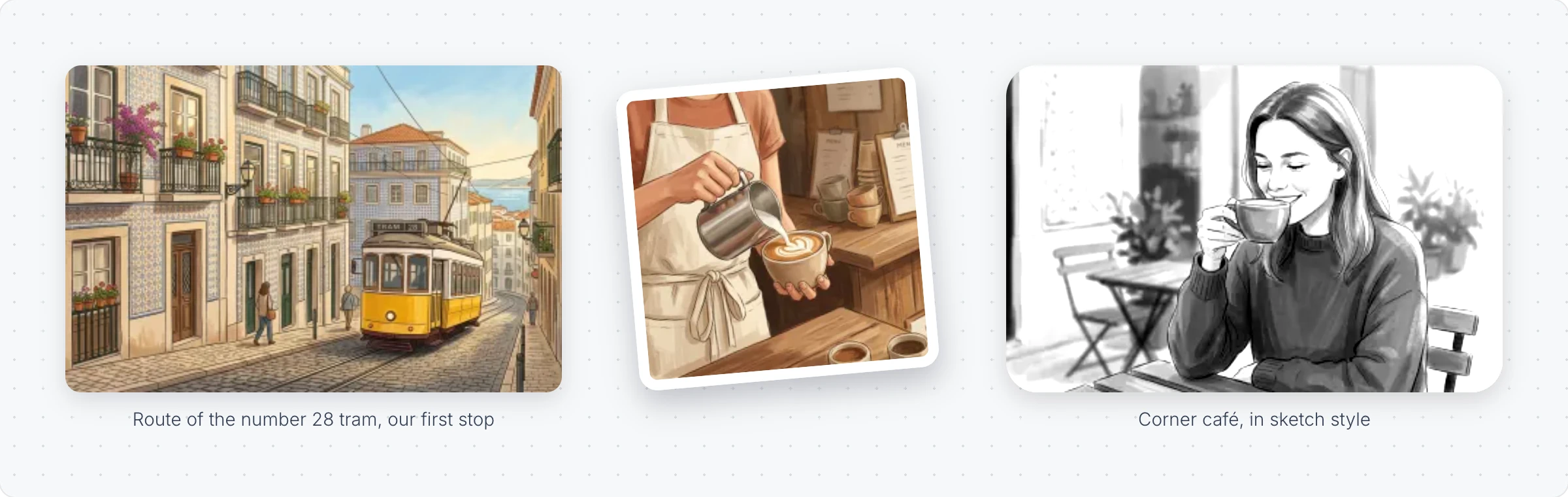
The quickest way to add a picture is to drag it from your computer onto the board, or to paste it.
Pick an image from the library
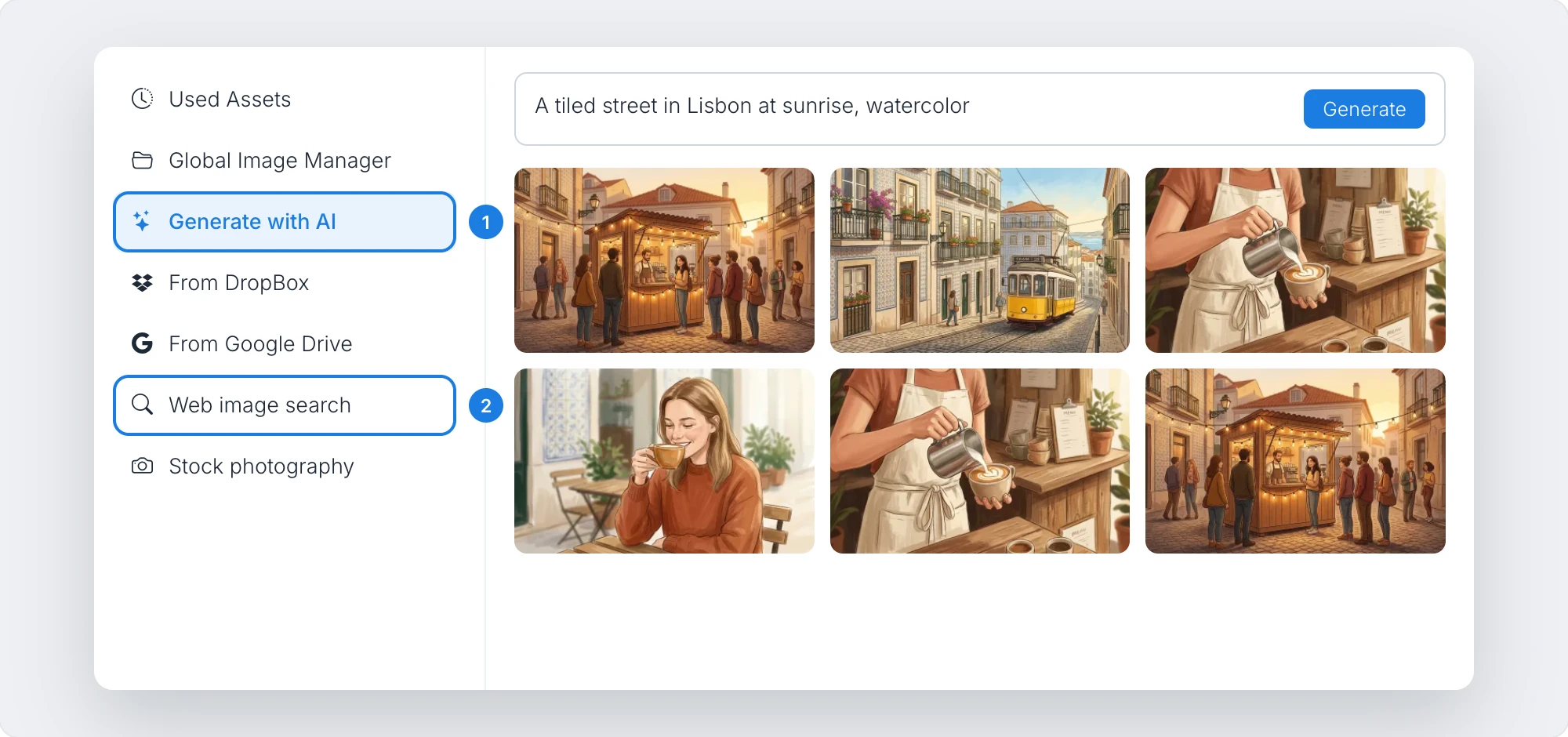
Choose Image from Add anything, then click Pick Image in its toolbar. The library lists where pictures can come from:
Generate with AI: describe a picture, such as "a tiled street in Lisbon at sunrise, watercolor", and pick one of the results.
Web image search and Stock photography: search for a picture or a free stock photo.
Used Assets and Global Image Manager hold pictures already used on your boards, and From DropBox and From Google Drive bring in your own files.
Crop and position
Crop Image, Zoom In and Zoom Out: frame the part of the picture you want, and Pan Image or Drag Image to set Position to move it inside the frame. Reset Crop starts again.
Maintain size ratio keeps the shape when you resize, and Flip mirrors the picture.
Style a picture
Display text as caption: add a caption under the picture, with Wrap Caption for longer text.
Apply Sticker style: a white border and shadow, like a printed sticker.
Corner radius, Border and Opacity: round the corners, add an outline or make it see-through.
Sketchify, in Toggle advanced settings: turn the picture into a sketch, so it sits well next to hand drawn wireframes and diagrams.
Change a picture with AI
Click Generate with AI in the image's toolbar:
Generate image: replace the picture with a new one from a description.
Erase background: cut out the subject, such as a product or a person.
Modify with AI: change the picture with a prompt, such as "make it evening" or "add a red umbrella".
Convert to: turn the picture into another kind of item.
The Image component is available on every plan. Generating and changing images with AI uses AI credits. See MockFlow pricing.