
Automation templates
Turn on a ready-made automation from MockFlow templates, or save your own automations as team templates for everyone in your team.
An automation template is a ready-made automation you can turn on in a minute. MockFlow makes templates for common work, and your team can save its own. Both are on the Automations page, in the MockFlow templates and Team templates tabs.
MockFlow templates
MockFlow templates cover meetings, research, product work, design, marketing and sales, personal planning and work inside MockFlow. Some examples:
Zoom Meeting to Action Items Board, which also posts to Slack
Fathom Call to Empathy Map and Fathom Customer Call to Journey Map
Jira Sprint to Retrospective Board and Jira Roadmap to Gantt Chart
Linear Daily Stand-up Board, made every weekday
Slack Channel to Affinity Map
Notion PRD to Wireframes
HubSpot Deals to Pipeline Kanban
PostHog Monthly Metrics Report, emailed with Gmail
Google Calendar Week to Timeline
Project Kickoff Kit for New Boards and Welcome Mind Map for New Members, which run on MockFlow events
New templates are added often. Browse them all in the automation templates catalog, where Use this template opens the template in your Automations page.
Find a template
On the MockFlow templates tab:
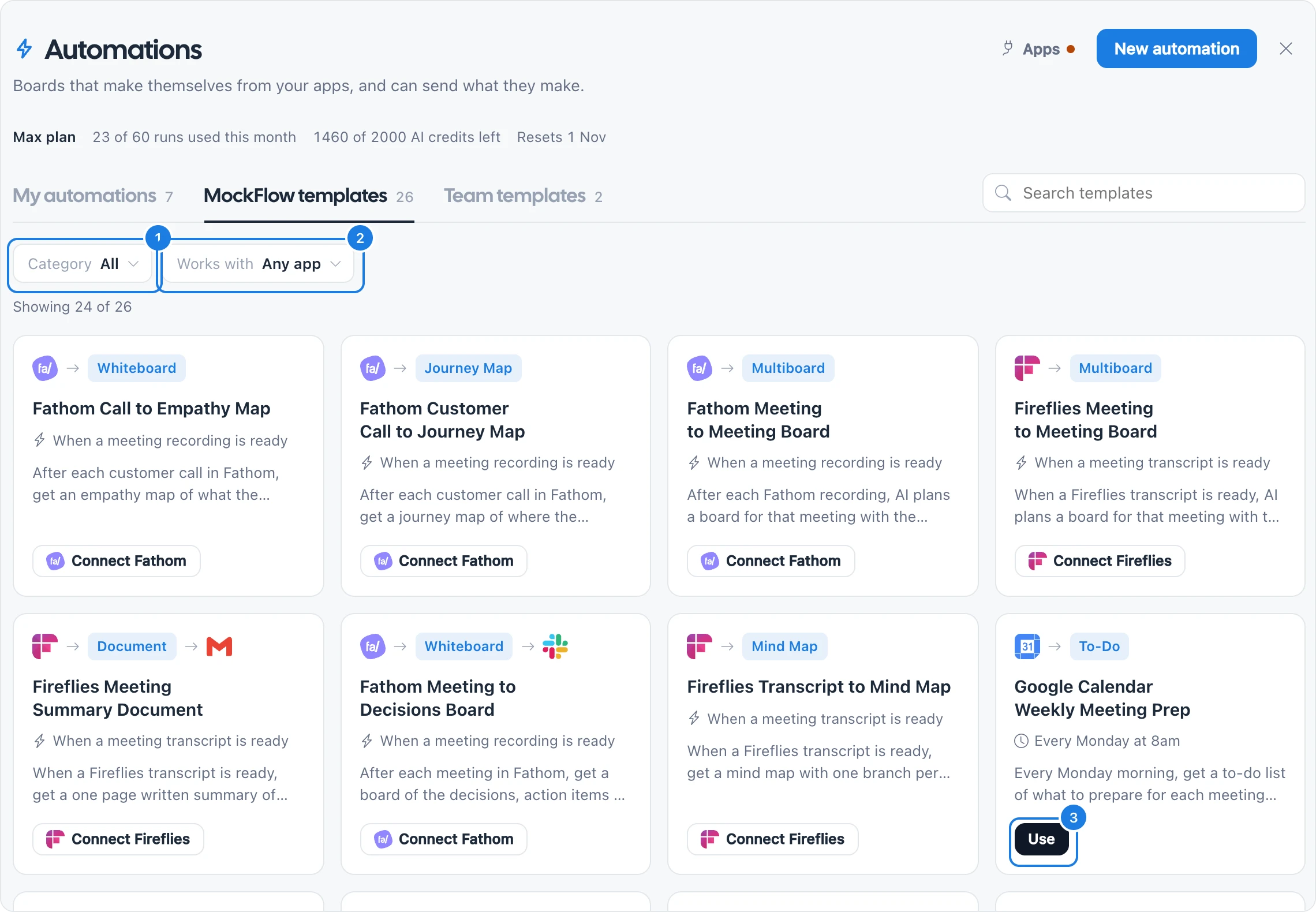
Category (1) narrows the list, for example to Meetings, Research, Product, Design, Marketing and sales, Personal or In MockFlow. Ready to use shows only templates whose apps you have already connected.
Works with (2) narrows the list to one app, or Any app.
Search templates finds a template by name.
Each card shows the app, the kind of board it makes, what happens next, when it runs and what it does.
Use a template
Click Use (3) on the card. If the card says Connect {App}, sign in to the app first.
The builder opens with the template filled in. Pick anything the template leaves to you, such as which channel or project to read and which space the board goes to.
Click Try it once to see what it makes, then Turn on.
The automation is now yours: change any part of it like an automation you built yourself. See Create an automation.
Save an automation as a team template
Share an automation that works well so your team can turn on the same thing.
Open one of your automations.
Click … and choose Save as template.
Enter a Name and, optionally, What it does.
Click Save template. It is saved for your team, under Team templates.
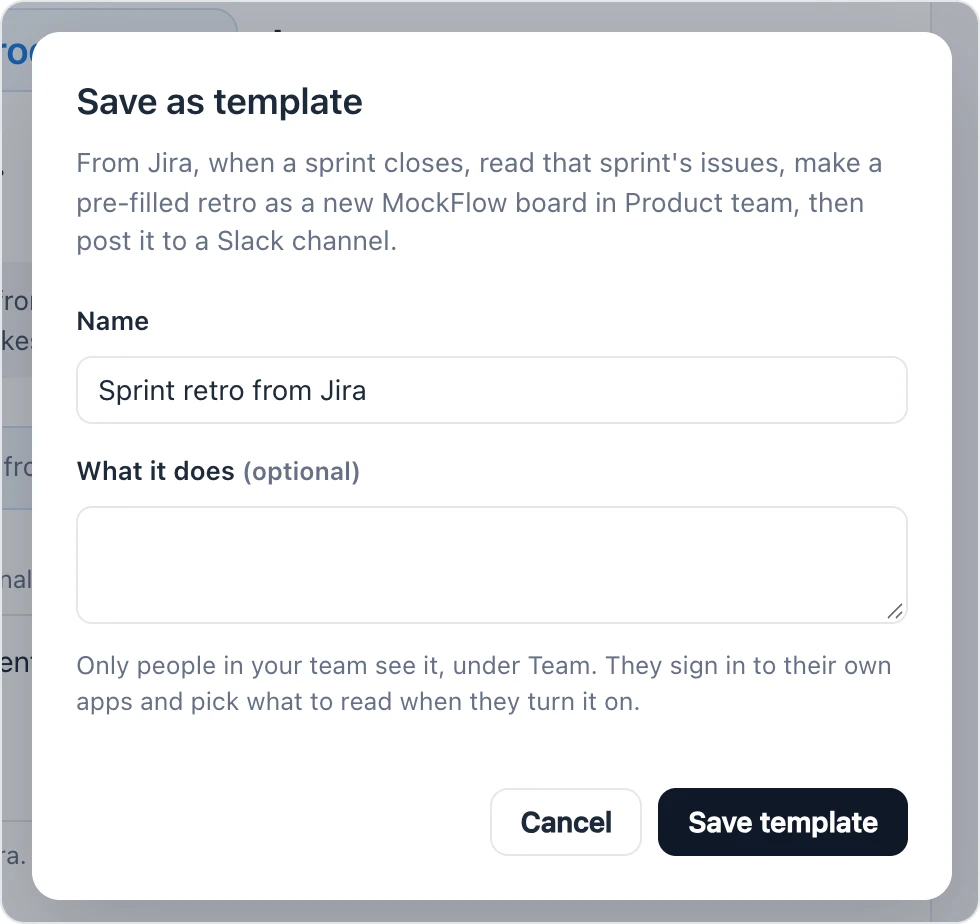
Only people in your team see team templates. When a teammate uses one, they sign in to their own apps and pick what to read, so your sign-ins and data are never shared.
Use and delete team templates
Open the Team templates tab. Each card shows who saved it and when.
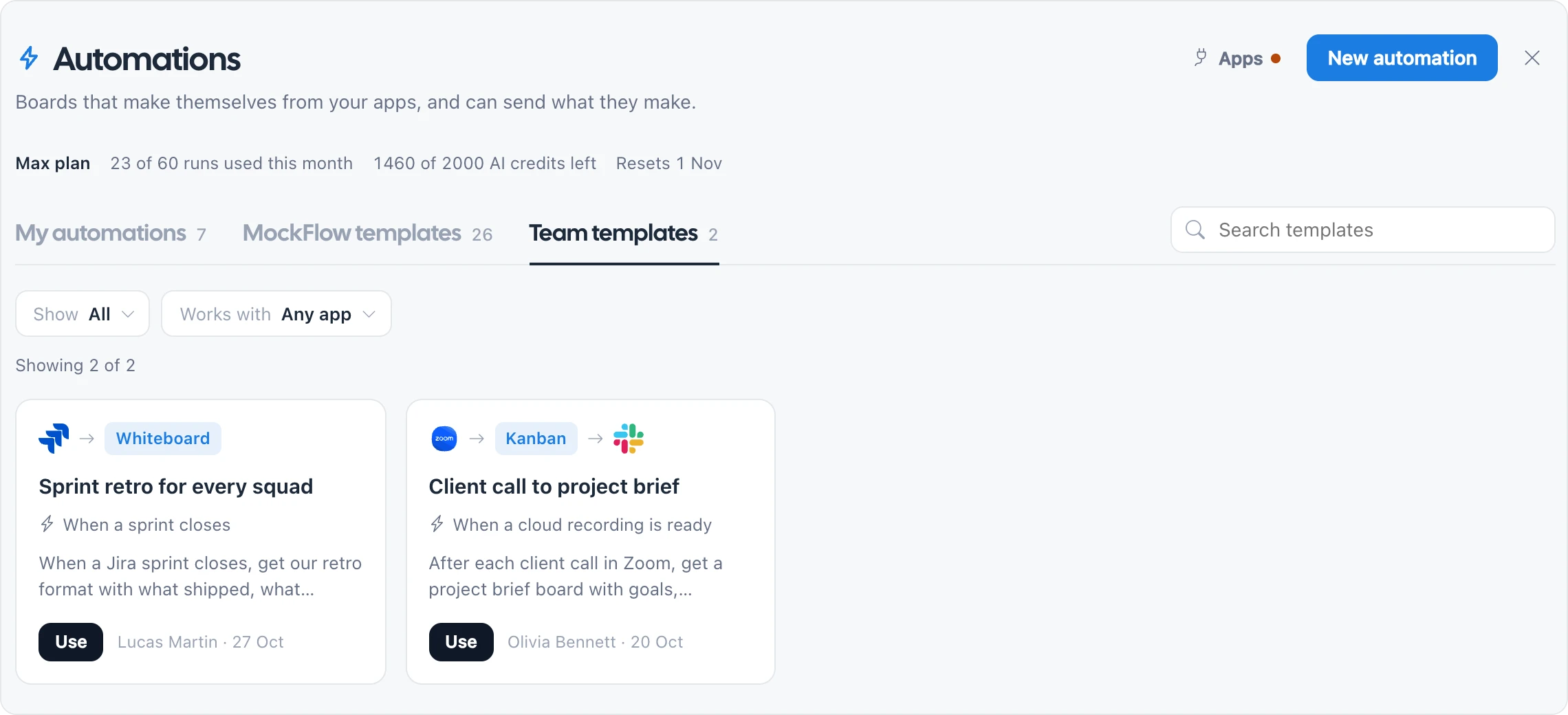
Use Show to list all team templates or only those that are Ready to use, and Works with to filter by app.
Only the person who saved a team template can delete it.
Team template plans and limits
Team templates are available on the Plus and Max plans. Running an automation from one needs the Max plan.
A team can keep up to 200 automation templates.
For templates of boards rather than automations, see Templates.