
Reuse designs with symbols
Save a header, footer or card as a symbol in WireframePro, place instances on any page and update them all at once.
Symbols are reusable master components. Save a part of your design that repeats across pages, such as a store's header, a product card or an app's bottom tab bar, as a symbol. Each copy on a page is an instance, and editing the symbol can update every instance at once.
Create a symbol
Select the items that make up the repeated part, for example the header.
Right-click and choose Save as Component.
Choose the project's symbols as the destination, enter a name and click Add Component.
Click Symbols at the top of the panel to see the project's symbols, then drag one onto any page.
Edit a symbol and update its instances
Select an instance and choose Edit Symbol in its settings.
Make your changes.
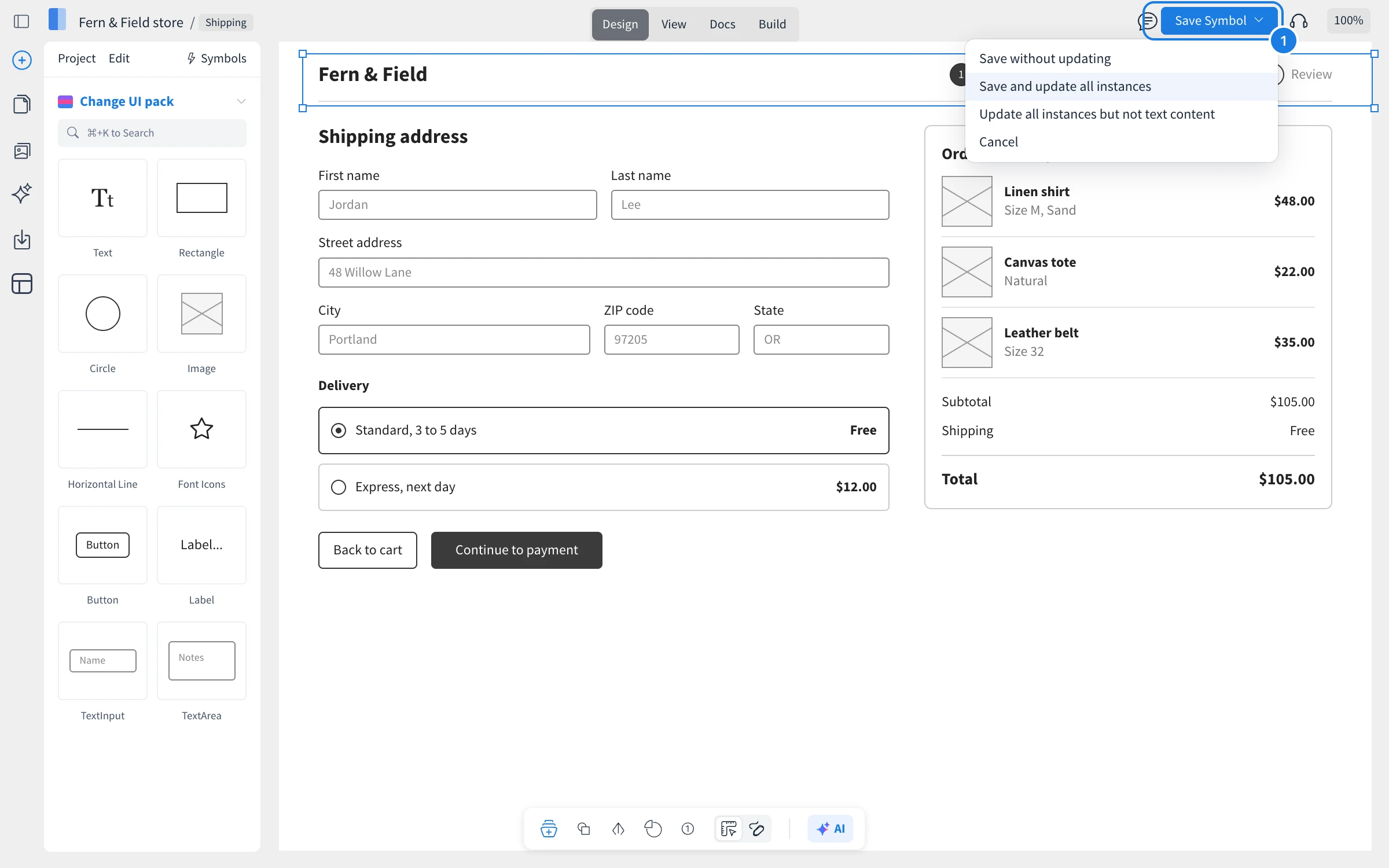
Click Save Symbol at the top (1) and choose how to save:
Save without updating: keeps existing instances as they are.
Save and update all instances: applies the change everywhere.
Update all instances but not text content: updates the design but keeps each instance's own text, such as a different page title in each header.
Change a single instance
An instance can differ from its symbol, for example a header with a different active menu item. In the instance's settings:
Detach Symbol makes it a regular group, no longer linked to the symbol.
Reset Instance removes its changes and matches the symbol again.