
Manage automations and their runs
Turn automations on and off, run them now, edit, duplicate or delete them, read Recent runs and History, and fix paused or failed automations.
Once an automation is on, MockFlow runs it for you. This article covers where you see your automations, how to change them, what each run did and what to do when one needs your attention.
Your automations in the sidebar and on the Automations page
Your automations are listed in two places:
The workspace sidebar. Open the Automations group to see each automation with a dot that shows whether it is on, and a short label such as Monday 9:00 → Kanban. Click one to open it, or Overview to open the Automations page.
My automations on the Automations page. Each row shows the automation as a sentence, whether it is On, Off or Paused, when it Last run or runs Next, and an on/off switch. Automations that run only when you press Run have a Run button.
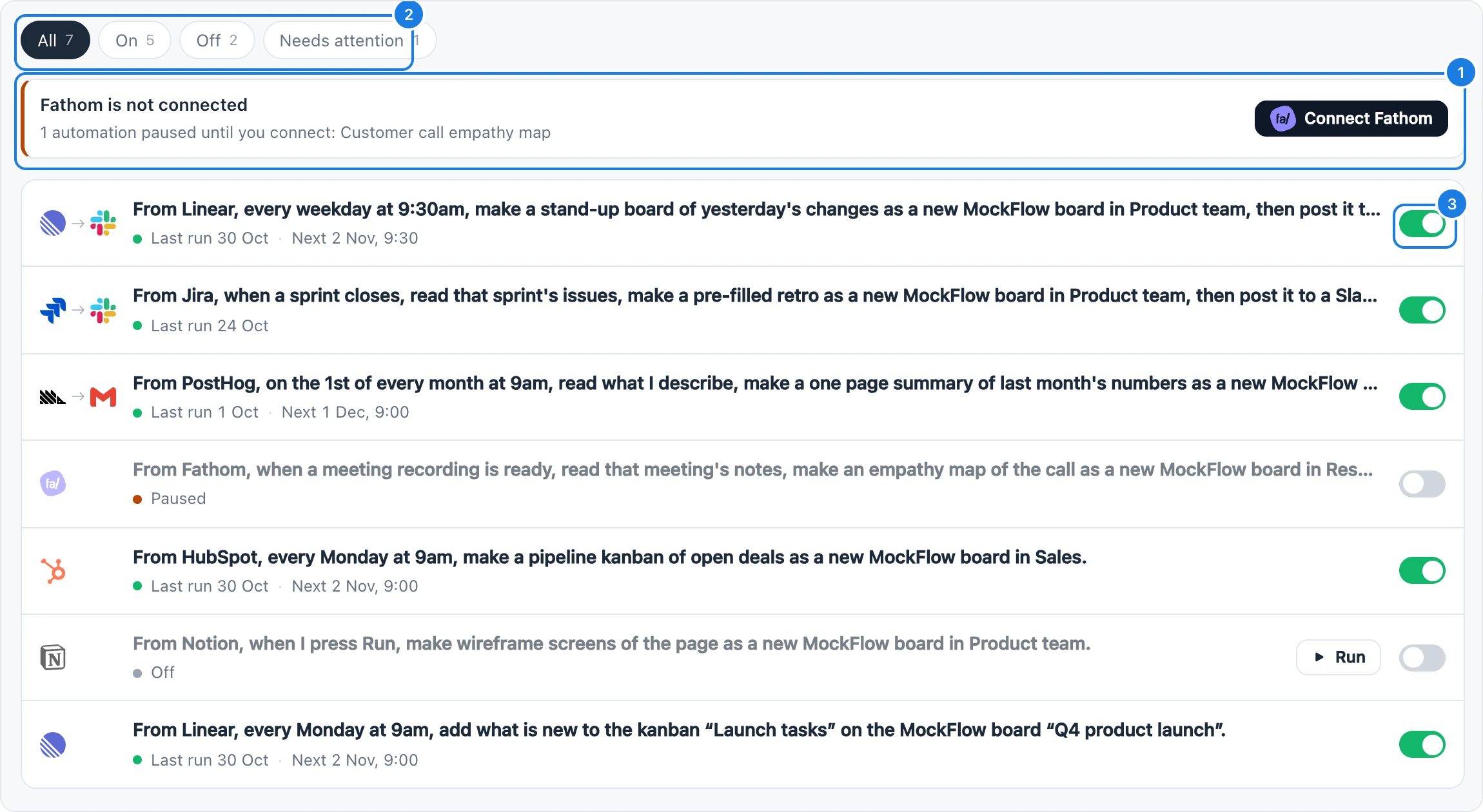
Messages that need you appear at the top (1). With six or more automations, chips (2) filter the list to All, On, Off or Needs attention. A search box finds automations by name.
Automations on a board
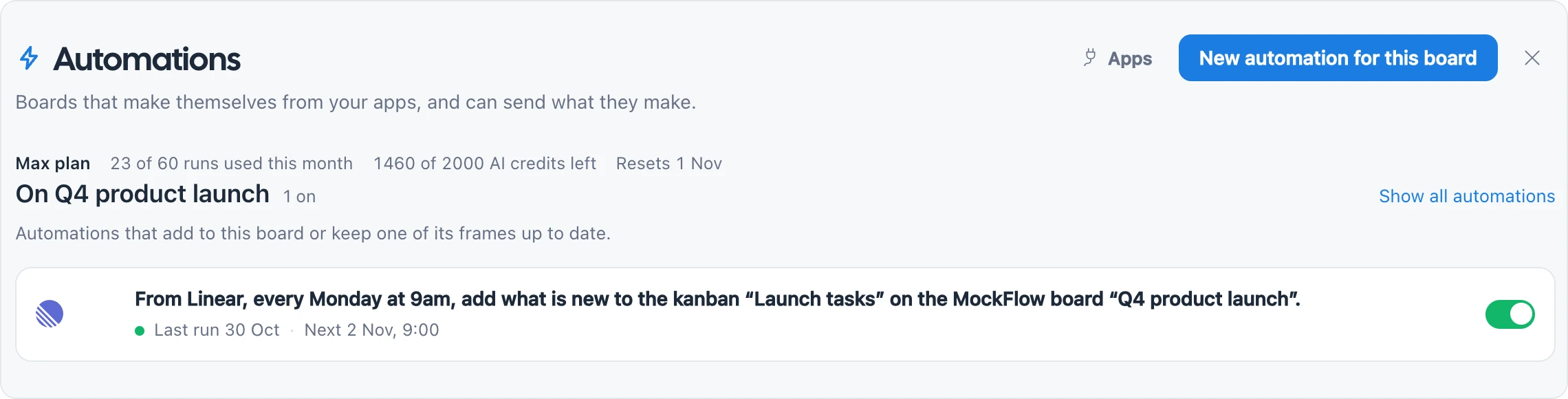
On any board, open the main menu and click Board automations to list only the automations that add to that board or keep one of its frames up to date. Click New automation for this board to add another, or Show all automations to see the rest.
Turn an automation on or off
Use the switch on its row (3), or Turn on and Turn off in its builder. An automation that is off keeps its settings and history and does not run until you turn it on.
Run an automation now
Click Run now (1) in the builder, or Run on the row of an automation that runs only when you press Run. If you have unsaved changes, they are saved first.
While it runs, the run box shows each step, such as Reading {App}, Making the board, Drawing it on the board and Sending the Then step. When it finishes, it shows the result, how long it took and how many AI credits it used, with Open the board and Run again.
Edit, duplicate, copy a link or delete
Click an automation to open it in the builder. Change any part, then click Save changes. An automation that is on picks up the changes straight away.
The … menu at the top of the builder has:
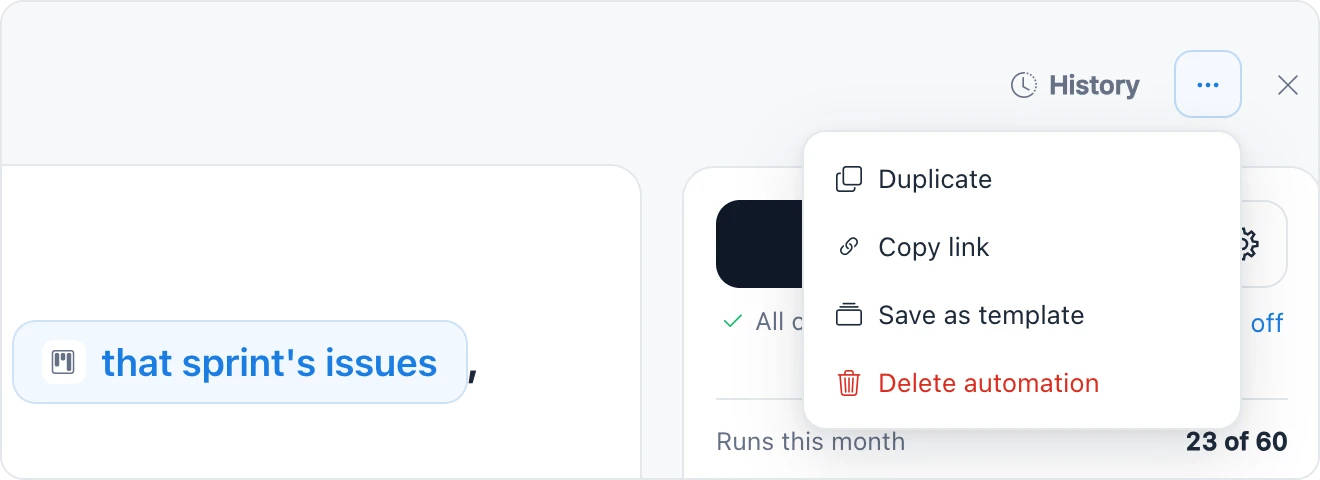
Duplicate: makes a copy named {name} (copy), turned off, to change into a new automation.
Copy link: copies a link that opens this automation. Automations are personal, so the link only opens it for you.
Save as template: shares the automation with your team. See Automation templates.
Delete automation: deletes it for good after you confirm. Boards it already made stay.
Recent runs and History
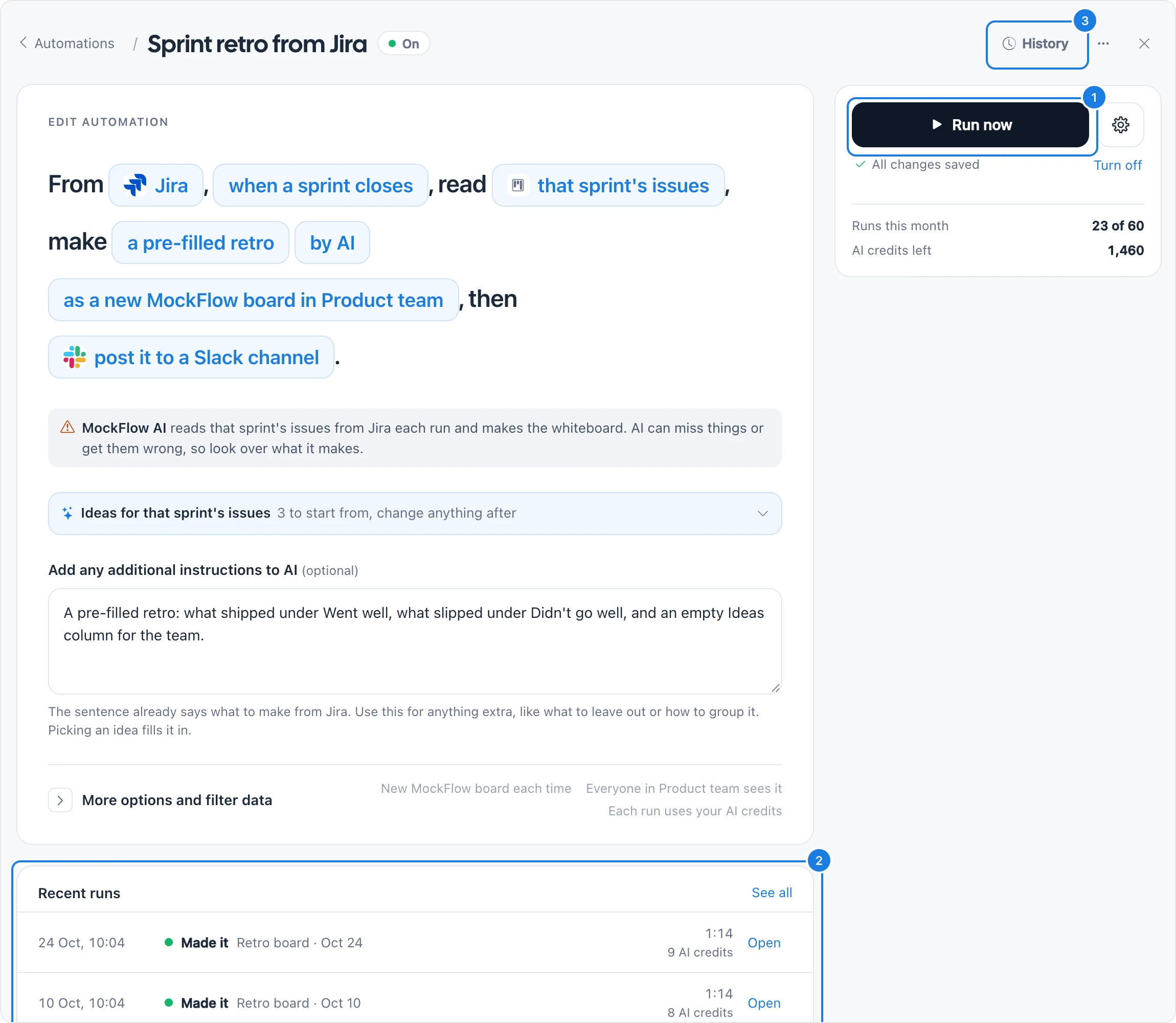
The builder of a saved automation shows its three Recent runs (2): Made it, Skipped, Failed, Running or Waiting, each with Open for the board it made. Click See all, or History (3) at the top of the builder, to open History.
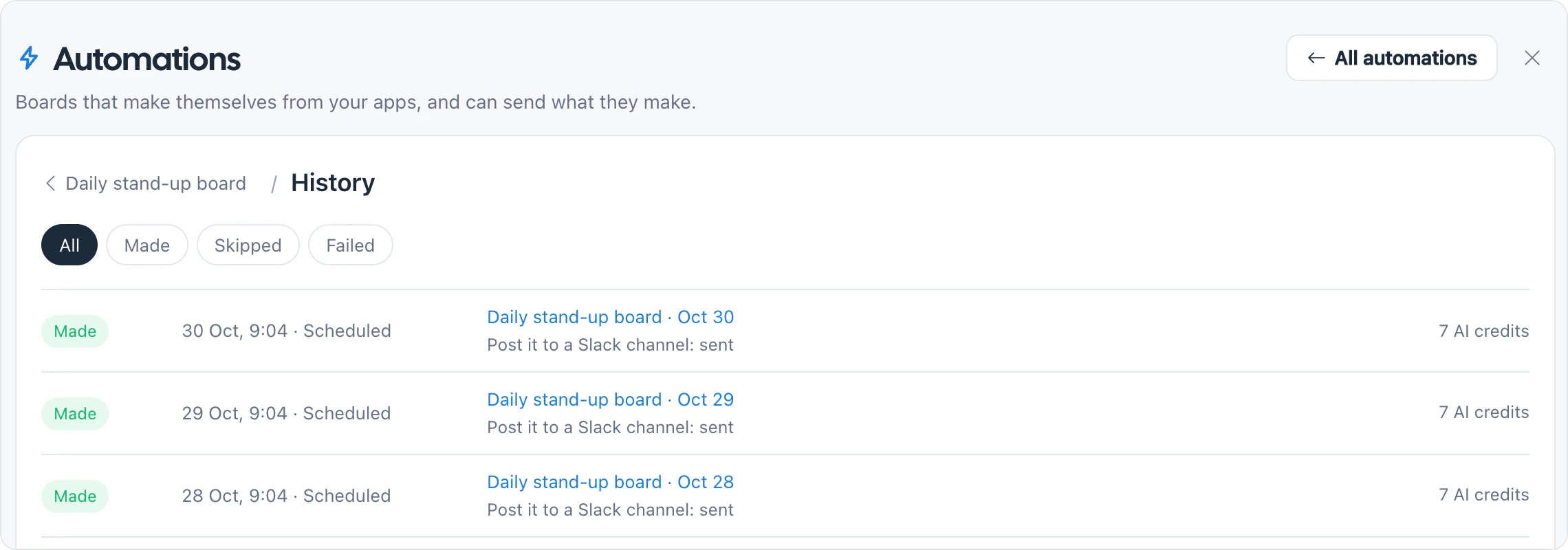
History lists up to the last 50 runs, filtered by All, Made, Skipped or Failed. Each run shows:
When it ran and what started it: Scheduled, App event, MockFlow event, Run now or Try it once
A link to the board it made or changed
What happened to its Then step: Sent, Sending or Not sent, with See it and Try again
No AI credits or how many AI credits it used
A run that finds nothing new, or nothing that matches its filter, is Skipped and makes no board.
Notifications from automations
MockFlow sends browser notifications about your automations:
Made {board} or Updated {board} when a run finishes, if Notify me is on for that automation
Failed with the reason, the first time an automation fails
Paused with the reason, when an automation pauses
Click a notification to open the board, or the automation if there is no board. Failures and pauses notify you even when Notify me is off.
Fix an automation that needs you
Anything that needs your attention is listed at the top of My automations, with a button to fix it:
Message | What it means | What to do |
|---|---|---|
{App} is not connected or {App} stopped working | The app's sign-in was removed or expired | Click Connect {App} or Reconnect {App} |
Paused: with a reason | The automation stopped itself, for example because the board, frame or channel it uses is gone | Click Fix it, or Pick the item again |
Not sent: | The board was made but the Then step failed | Click Try again |
{App} is connected again | Automations that paused for that app can run again | Click Turn it on or Turn them on |
An automation is also skipped when it reaches its own Runs per month, at most cap, when your plan's monthly runs are used up or when you are out of AI credits. Raise the automation's cap under More options in its builder, or wait for the allowance to reset on the first of the month. See Automation plans and limits.
Who sees what
Automations are personal. Each one runs as you, with your app sign-ins and your AI credits, and only you can open, change or run it. Teammates see the boards it makes in shared spaces, and the team templates you save, but not the automation itself.