
Show events on a timeline
Lay out events in order with the Timeline component: generate one with AI, add dates, labels and pictures, switch between horizontal and vertical layouts and export it.
A timeline shows events in the order they happen. On a MockFlow board, the Timeline component is a quick way to tell a story over time, such as the history behind a lesson, the milestones of a product roadmap or the steps of a company's growth, right beside the notes and pictures that go with it.
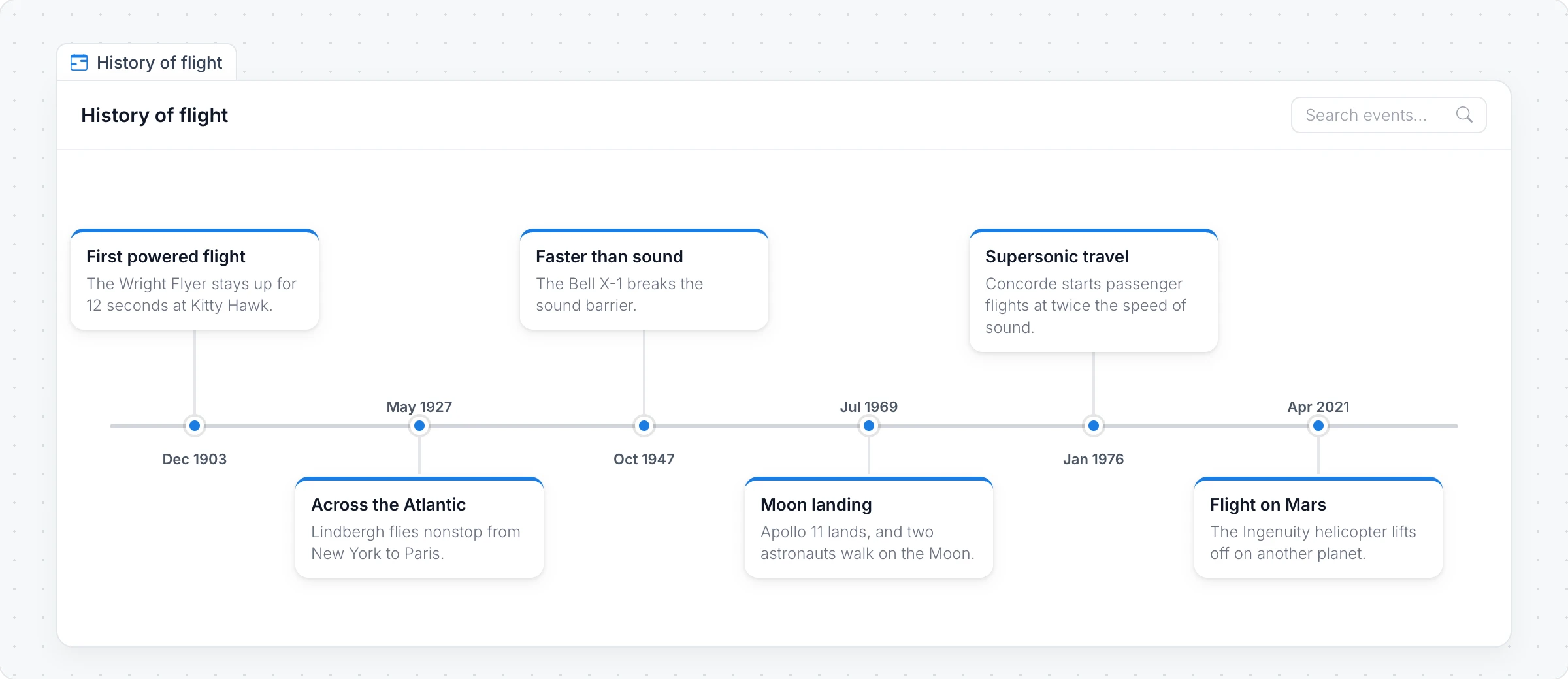
Generate a timeline with AI
Click Add anything (the plus button) in the toolbar at the bottom of the board and choose Timeline.
With the timeline selected, click the AI button on the left of its toolbar and choose Generate new.
Describe the timeline, for example "Key moments in the history of flight", and click Generate. Turn on Gen Images to add a picture to each event.
The AI menu also has Modify with AI, to add or rewrite events with a prompt, and Convert to, to turn the timeline into another kind of item, such as a document or a mind map.
Add and edit events
Click Interact with Component (the hand button) to work inside the timeline.
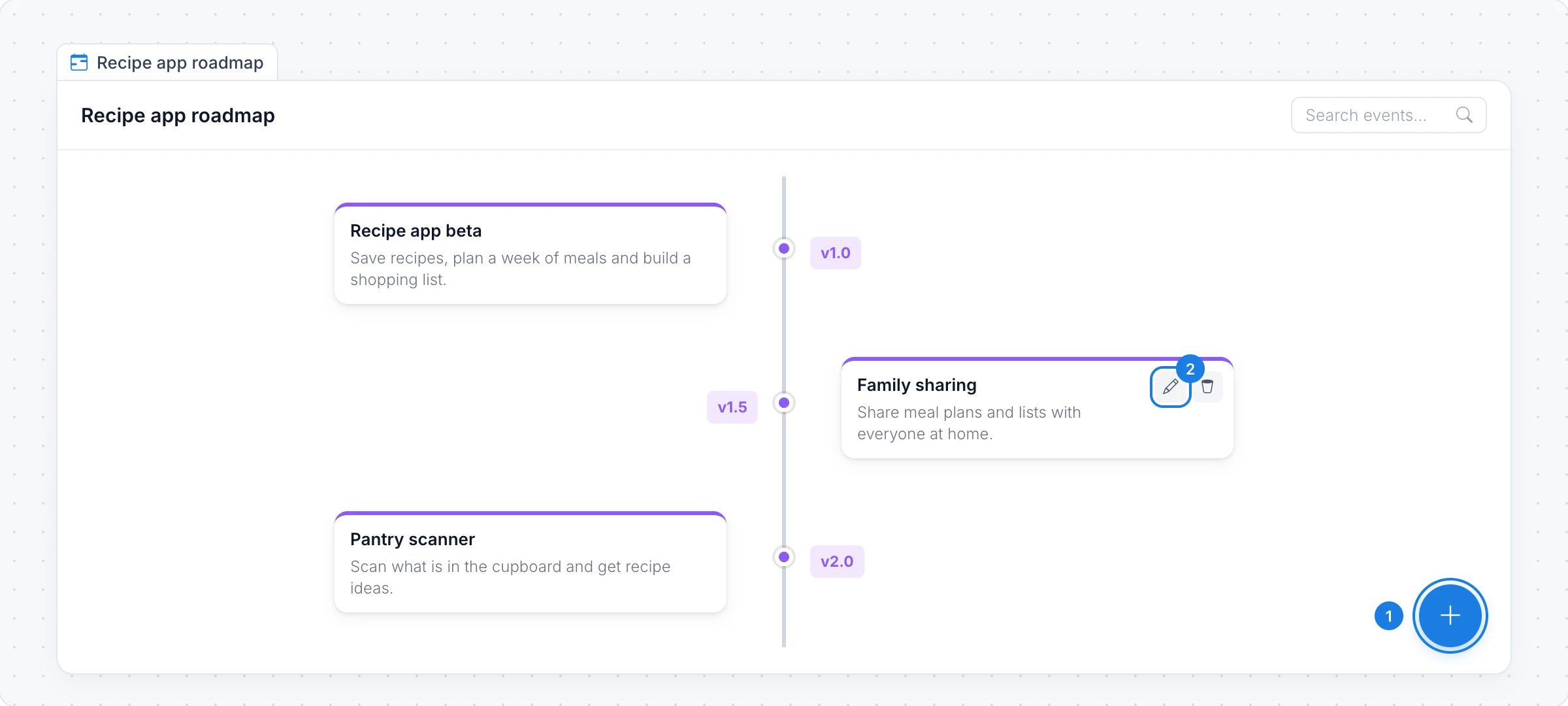
Add event: the round plus button adds a new event.
Edit: the pencil on an event opens it.
An event has a Title, a Date, an optional Label and a Description. Add Image or Add Video gives it a cover picture, and Delete Event removes it. The timeline keeps its events in date order, and Search events finds one in a long timeline.
Choose the layout and labels
With the timeline selected, the toolbar changes how it looks:
Layout: Horizontal, with events above and below a line, or Vertical, with events down the page.
Label type: show each event's Date, or its Label, such as "Step 1", "v2.0" or "Phase 3". Labels suit plans and processes where the exact date matters less than the order.
Theme: Transparent, Light or Dark, and an Accent Color for the line and dots.
Export a timeline
Choose Export Timeline in the toolbar to download the events as CSV or JSON.
The Timeline component is available on every plan. Generating with AI, and images made with Gen Images, use AI credits. See MockFlow pricing.