
Work with numbers in a spreadsheet
Add the Spreadsheet component to your MockFlow board: generate it with AI, paste data from Excel or Google Sheets, use formulas such as SUM and IF, format cells and export to XLSX or CSV.
The Spreadsheet component brings rows, columns and formulas to your MockFlow board. It is a quick way to work out the numbers behind a plan, such as a bake sale's takings, an event budget, a class's scores or the costs of a small project, right beside the ideas and charts that use them.
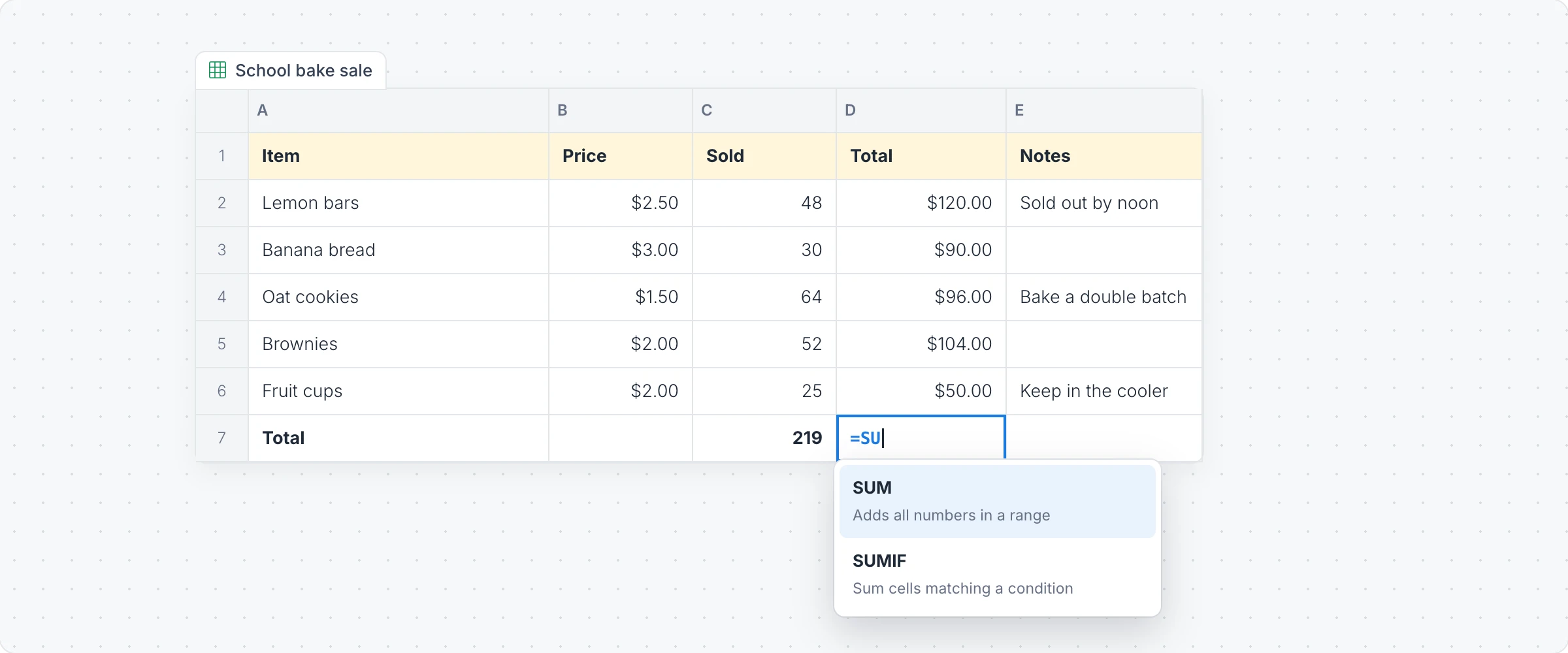
Generate a spreadsheet with AI
Click Add anything (the plus button) in the toolbar at the bottom of the board and choose Spreadsheet.
With the spreadsheet selected, click the AI button on the left of its toolbar and choose Generate new.
Describe the sheet, for example "Budget for a school bake sale with items, prices, quantity sold and totals", and click Generate.
The AI menu also has Modify with AI, to add rows or calculations with a prompt, and Convert to, to turn the sheet into another kind of item, such as a chart or a table.
Enter data and formulas
Click Interact with Component (the hand button) to work inside the spreadsheet, then click a cell and type.
Start a cell with = to write a formula. Suggestions appear as you type, with a short description of each function.
Formulas cover sums and counts (SUM, AVERAGE, COUNT, MAX, MIN), conditions (IF, SUMIF, COUNTIF, AND, OR, NOT), rounding and math, text (UPPER, LEFT, CONCATENATE and more) and dates (TODAY, NOW, YEAR, MONTH, DAY).
Add Row, Add Column, Delete Row and Delete Column in the toolbar change the size of the sheet.
To bring in data you already have, click CSV (Paste CSV or Excel data) in the toolbar and paste comma separated text, or cells copied from Excel or Google Sheets.
Format cells
Select cells, then use the toolbar:
Bold, Italic, Font color and Background color, to pick out headers and totals.
Format Type: show values as Text, Number, Currency, Percentage or Date.
Toggle Text Wrap for long notes, and Clear Formatting to start again.
Export a spreadsheet
Choose Export Spreadsheet in the toolbar to download the sheet as XLSX, to open in Excel or Google Sheets, or as CSV.
The Spreadsheet component is available on every plan. Generating with AI uses AI credits. See MockFlow pricing.