
Share code with a code block
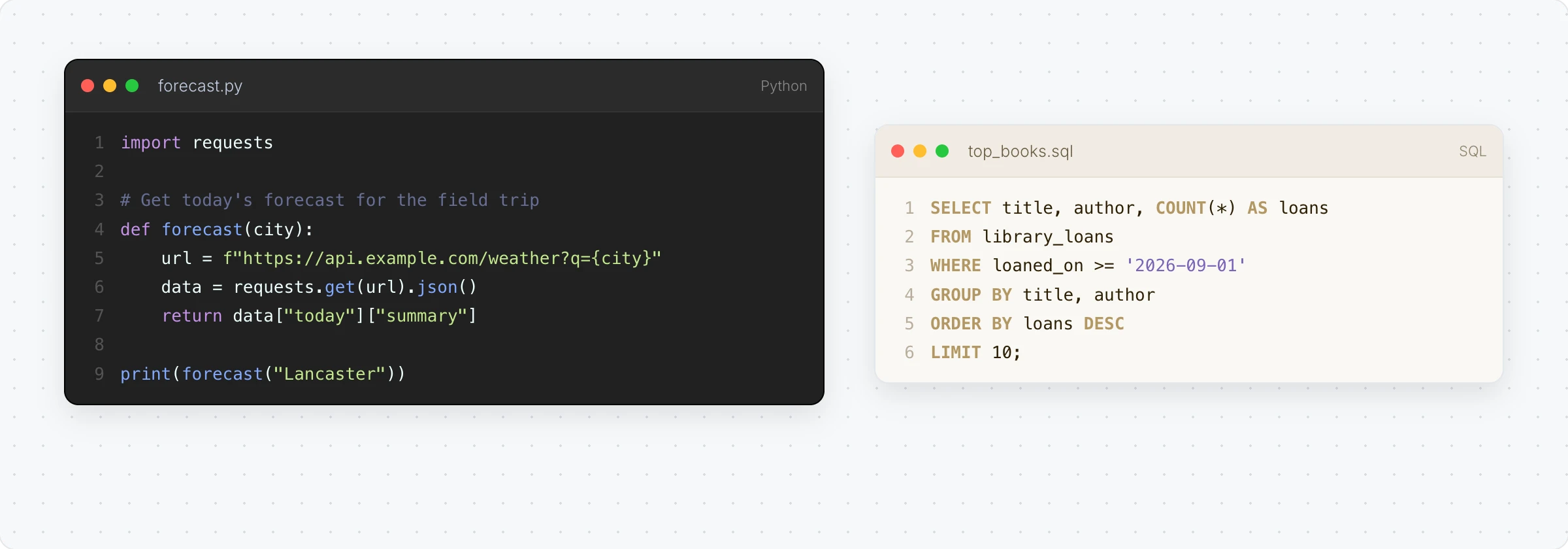
Show code with syntax highlighting on your MockFlow board with the CodeBlock component: generate code with AI, pick a language and theme, and show line numbers and a title bar.
The CodeBlock component shows code with syntax highlighting on your MockFlow board. Put an API call next to the architecture diagram it belongs to, a query beside the chart it feeds, or a short example beside a lesson on loops, so the code and the explanation sit together.
Generate code with AI
Click Add anything (the plus button) in the toolbar at the bottom of the board and choose CodeBlock.
With the code block selected, click the AI button on the left of its toolbar and choose Generate new.
Describe the code, for example "A Python function that gets today's weather for a city", and click Generate. Example prompts offers more ideas.
The AI menu also has Modify with AI, to change or explain the code with a prompt, and Convert to, to turn it into another kind of item, such as a flowchart of what the code does.
Write and paste code
Click Interact with Component (the hand button) to type or paste code into the block. Choose the language from the language list in the toolbar, from Python, JavaScript and SQL to HTML, Java, Go and many more, so the highlighting matches.
Change how it looks
Change Theme: light and dark code themes, such as default, eclipse, duotone-light, erlang-dark and material-darker.
Toggle Title Bar: show a bar with the file name across the top.
Toggle Line Numbers and Toggle Line Wrap: number the lines, and wrap long lines instead of scrolling.
Toggle Auto Height: grow the block to fit all the code.
The CodeBlock component is available on every plan. Generating with AI uses AI credits. See MockFlow pricing.