
Create a cloud architecture diagram
Generate an AWS, Azure, Google Cloud or Kubernetes architecture diagram with AI on your MockFlow board, using real provider icons.
A cloud architecture diagram shows the services a system runs on and how traffic and data move between them. In MockFlow you create one in a Diagram frame: pick a cloud type, describe the system, and AI draws it with that provider's icons, grouped into clouds, networks and tiers.
Generate an architecture diagram with AI
Click Frames in the toolbar at the bottom of the board and choose Diagram.
Click the AI button on the left of the frame's toolbar and choose Generate diagram.
Click Type and pick a cloud, for example Generate AWS architecture for.
Finish the sentence with your system, such as "a photo sharing web app", and click the send button.
The Type list sets which icons AI draws with. Some examples:
To draw | Pick |
|---|---|
Amazon Web Services | Generate AWS architecture for |
Microsoft Azure | Generate Azure architecture for |
Google Cloud | Generate Google Cloud architecture for |
Containers and clusters | Generate Kubernetes architecture for |
Networks | Generate Cisco network architecture for |
Name the services you already use, for example "with Lambda, DynamoDB and API Gateway". AI builds the diagram around them.
Add provider icons by hand
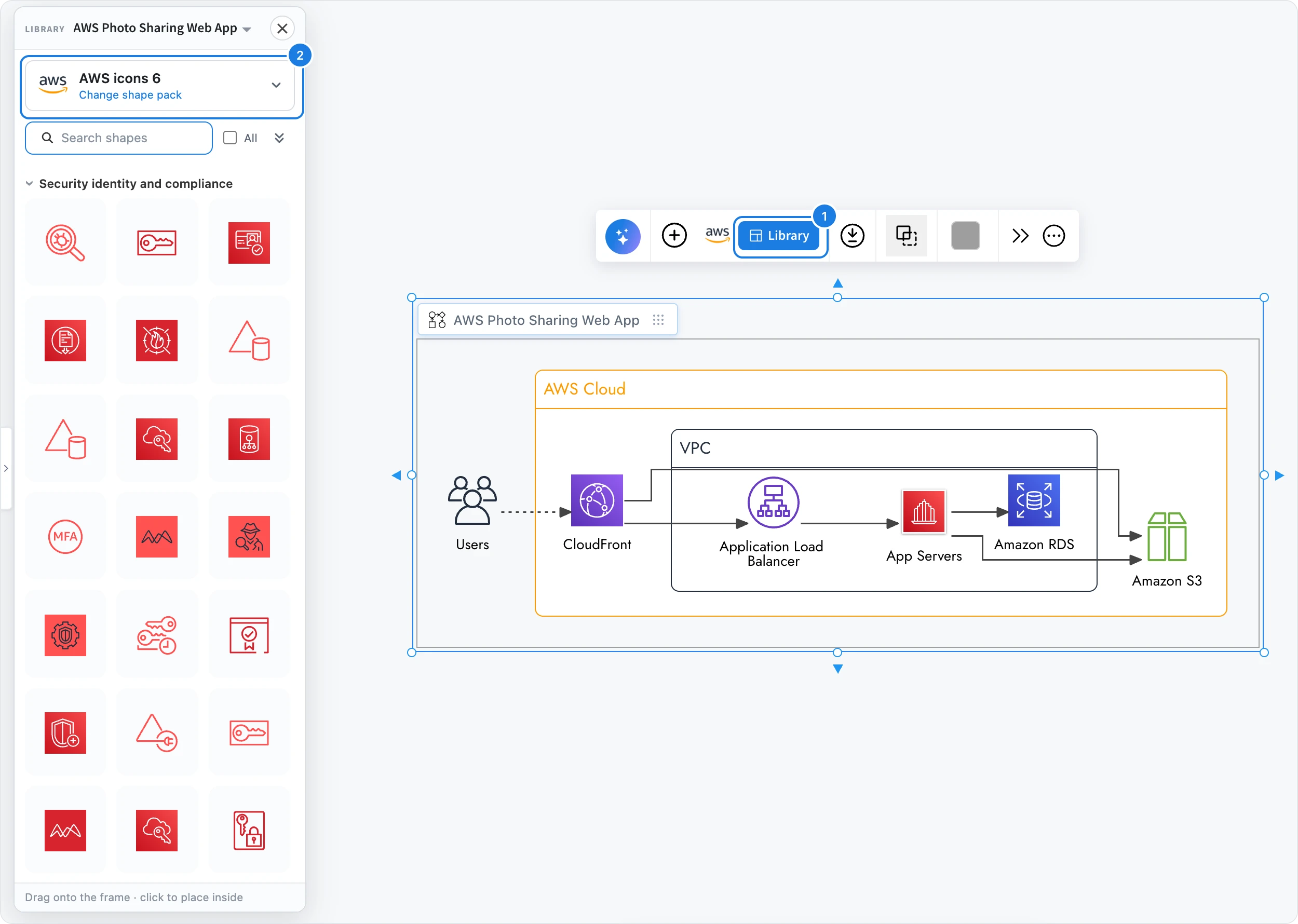
Select the Diagram frame and click Library (1).
Click the shape pack (2) and choose a cloud pack, such as AWS icons 6, Azure cloud or Google Cloud.
Search for a service by name, then drag its icon into the frame.
Connect icons the same way as in a flowchart: select an icon and drag one of its blue arrows to another icon. To add or change services with a prompt, select the frame, click the AI button and choose Modify with AI.
Cloud diagrams with AWS, Azure and other providers are included on every plan, including Basic. Generating with AI uses AI credits. See MockFlow pricing.