
Frames: ready areas for one kind of work
What frames are on a MockFlow board, the brainstorm, design and interactive frames you can add, and how to move, rename, trim and export them.
A frame is a ready area on the board for one kind of work. Each frame comes with the tools that work needs: a Diagram frame opens a shape library, a Wireframe frame offers device sizes and a widget library, and a Moodboard frame holds images, colors and fonts. Most frames can also fill themselves with AI from a short description. A board can hold as many frames as you need, side by side with sticky notes, documents and everything else on the visual canvas.
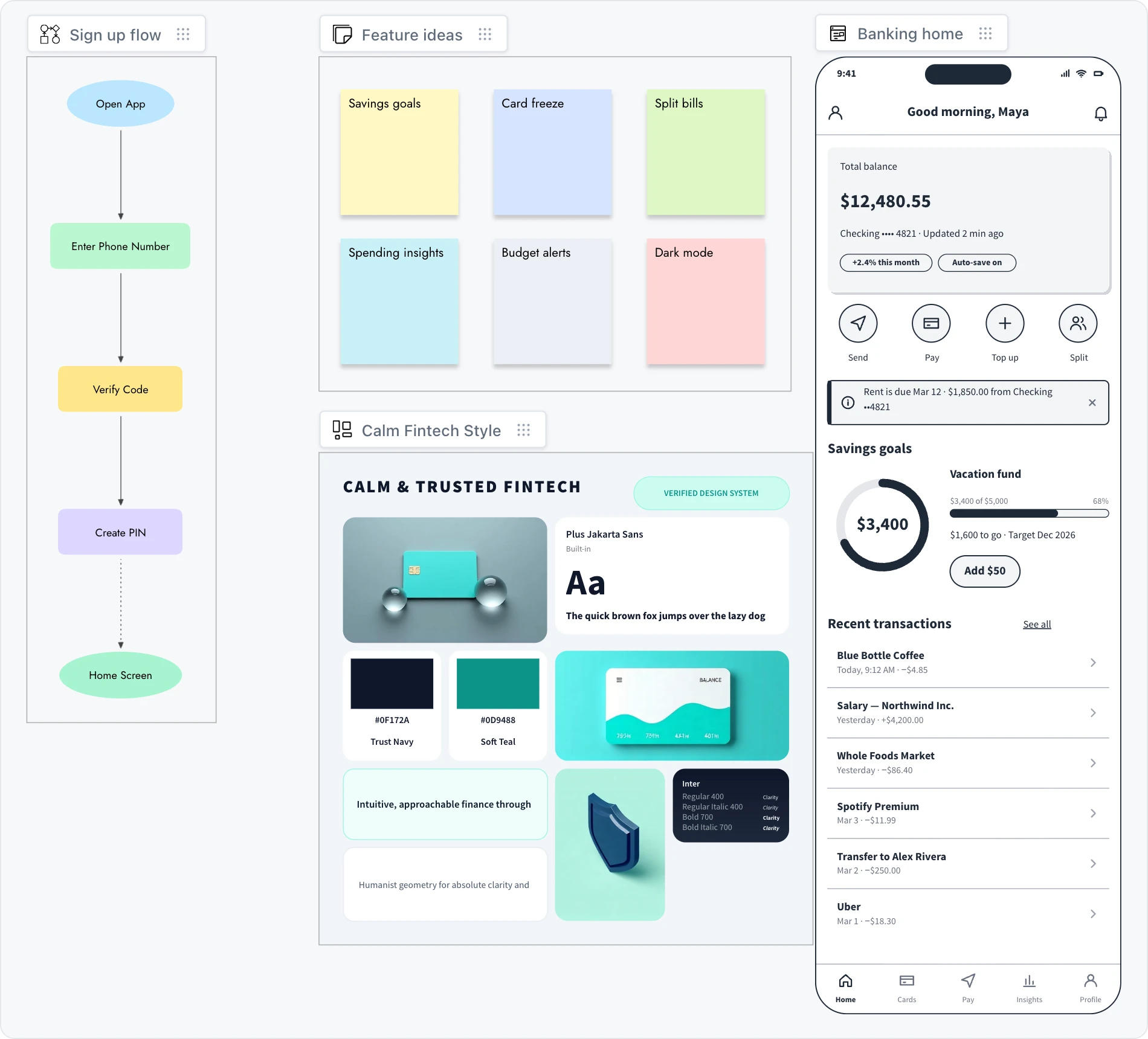
What a frame is
Every frame has a label chip above its top left corner with the frame's name, and a toolbar that appears when you select the frame. Frames come in two kinds, and the difference decides how you work inside them.
Diagram, Whiteboard, Design frame and Moodboard are areas that hold ordinary board items: shapes, sticky notes, text, images and more. You add, select and edit those items the same way as anywhere else on the board.
An item belongs to the frame when it sits fully inside the frame. When you move the frame, everything that belongs to it moves too.
SiteMap/Org/Tree, Wireframe, Prototype, Floor Plan, Artifact and Data Simulator keep their content inside the frame, in an editor made for that work. A wireframe's widgets, a floor plan's rooms and an artifact's app all live inside their frame.
In Edit mode a click selects the whole frame. To work inside it, select the frame and click the hand button in its toolbar, or switch to Play mode. See Edit mode and Play mode.
Add a frame to your board
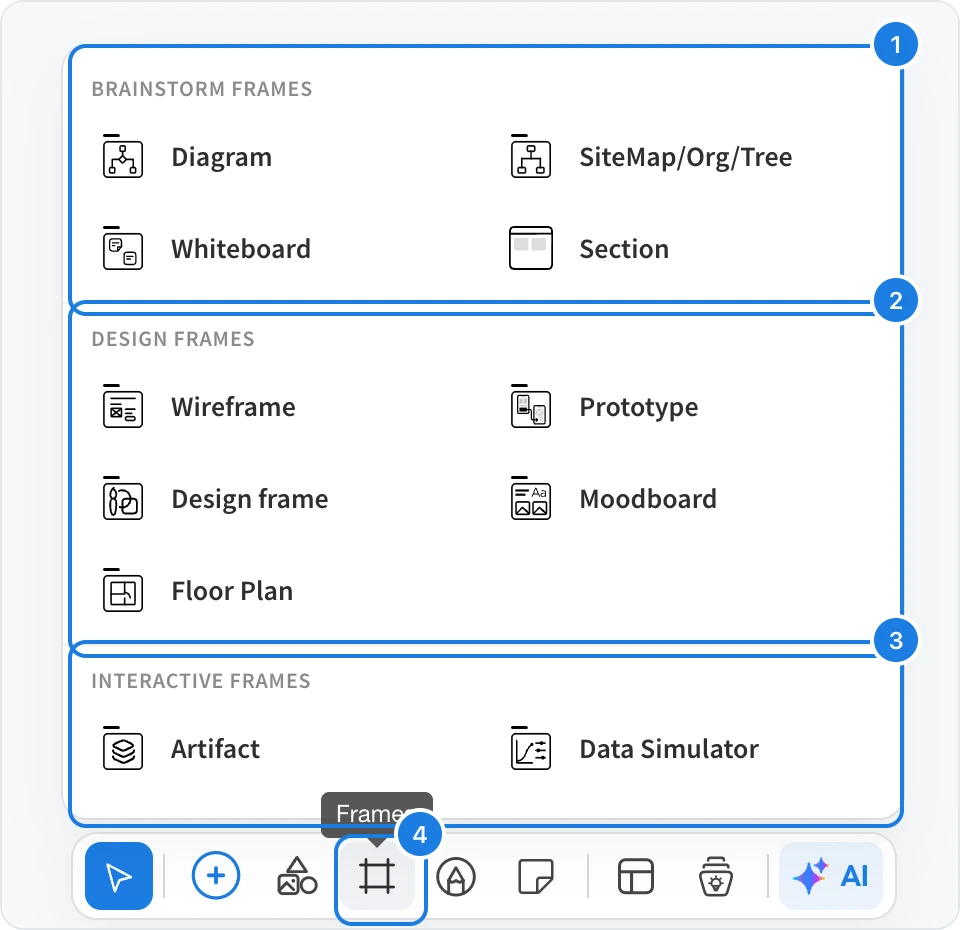
Click Frames (4) in the tool bar at the bottom of the board.
Choose a frame from Brainstorm frames (1), Design frames (2) or Interactive frames (3).
The frame appears in the middle of your view, and the board zooms to it. Drag it by its label chip to place it where you want.
Frames are also listed under Frames in the component library. Click Add anything in the tool bar, or press Ctrl+2 (⌘2 on Mac), and choose the Frames category.
Brainstorm frames
Brainstorm frames give structure to ideas, flows and hierarchies.
Frame | Use it for | What you see when you add it |
|---|---|---|
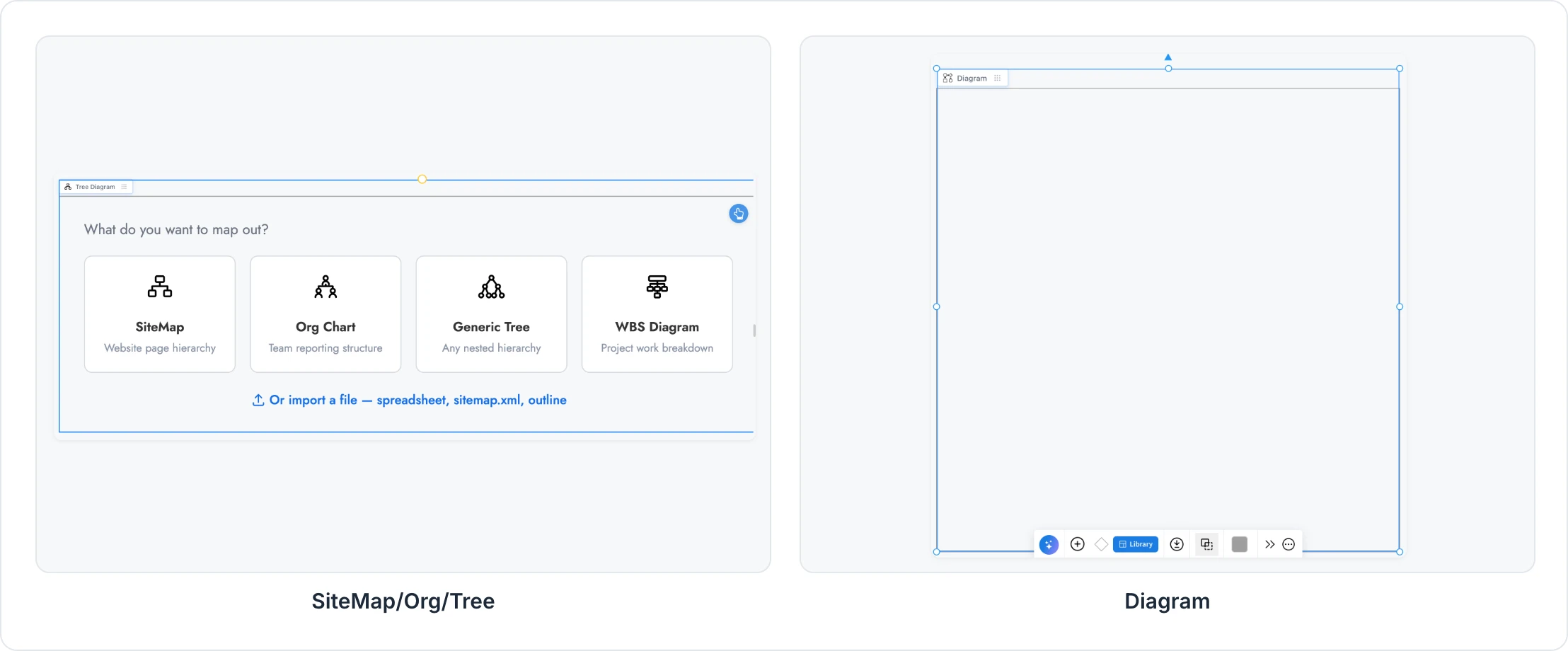
Diagram | Flowcharts and architecture diagrams | An empty frame. Add shapes from its shape library, or describe the diagram and let AI draw it |
SiteMap/Org/Tree | Sitemaps, org charts, trees and work breakdowns | A picker that asks What do you want to map out? with SiteMap, Org Chart, Generic Tree and WBS Diagram, plus importing a spreadsheet, sitemap.xml or outline |
Whiteboard | Brainstorming with sticky notes | An empty frame to fill with notes, note tags, text, images and sections |
Section | Grouping and organizing items | A titled area. See Sections: group and organize items |
Design frames
Design frames are for screens, visuals and spaces.
Frame | Use it for | What you see when you add it |
|---|---|---|
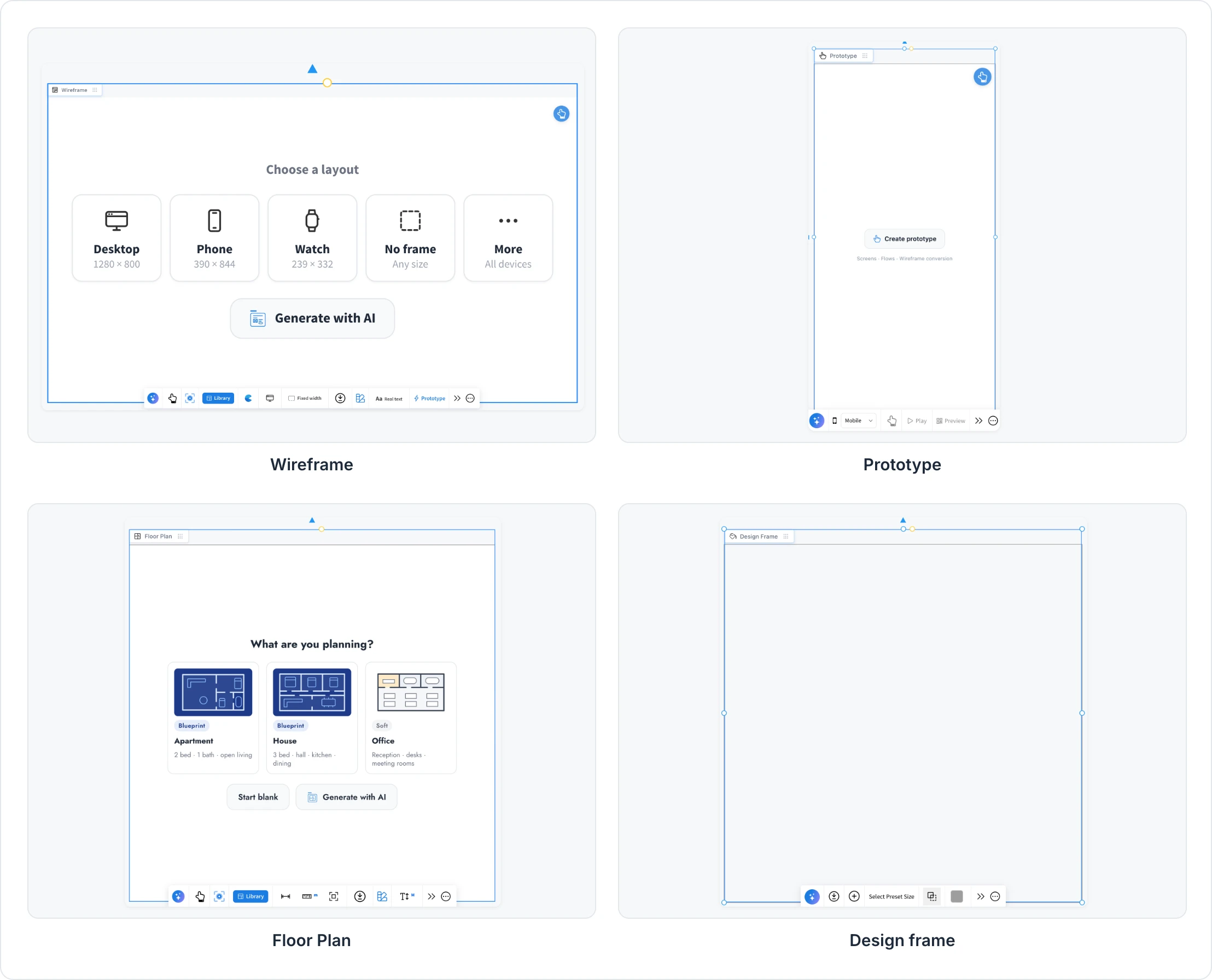
Wireframe | App and web screens built from a widget library, in outline, sketchy or blueprint style | Choose a layout: Desktop, Phone, Watch, No frame or More, or Generate with AI |
Prototype | Turning wireframe screens into an interactive prototype, wired automatically by AI | Create prototype, for screens, flows and wireframe conversion |
Design frame | Ads, posters and social media assets | An empty frame. Preset size sets it to a format such as Instagram Square 1080 x 1080 px |
Moodboard | Visual references for a look and feel | An empty frame to fill with images, text, colors, fonts, video, audio, 3D models and embeds |
Floor Plan | Rooms, walls, doors and furniture on a grid | What are you planning? with ready plans such as Apartment, House and Office, plus Start blank and Generate with AI |
Interactive frames
Interactive frames hold something people use together on the board.
Frame | Use it for | What you see when you add it |
|---|---|---|
Artifact | Small collaborative apps and games built with AI, such as polls, timers, planning poker, quizzes and games. Everyone on the board uses the same artifact, live | Generate with AI: describe the app or game you want |
Data Simulator | Live what-if models with charts and sliders | Create simulation, for forecasts, funnels, growth models and queues |
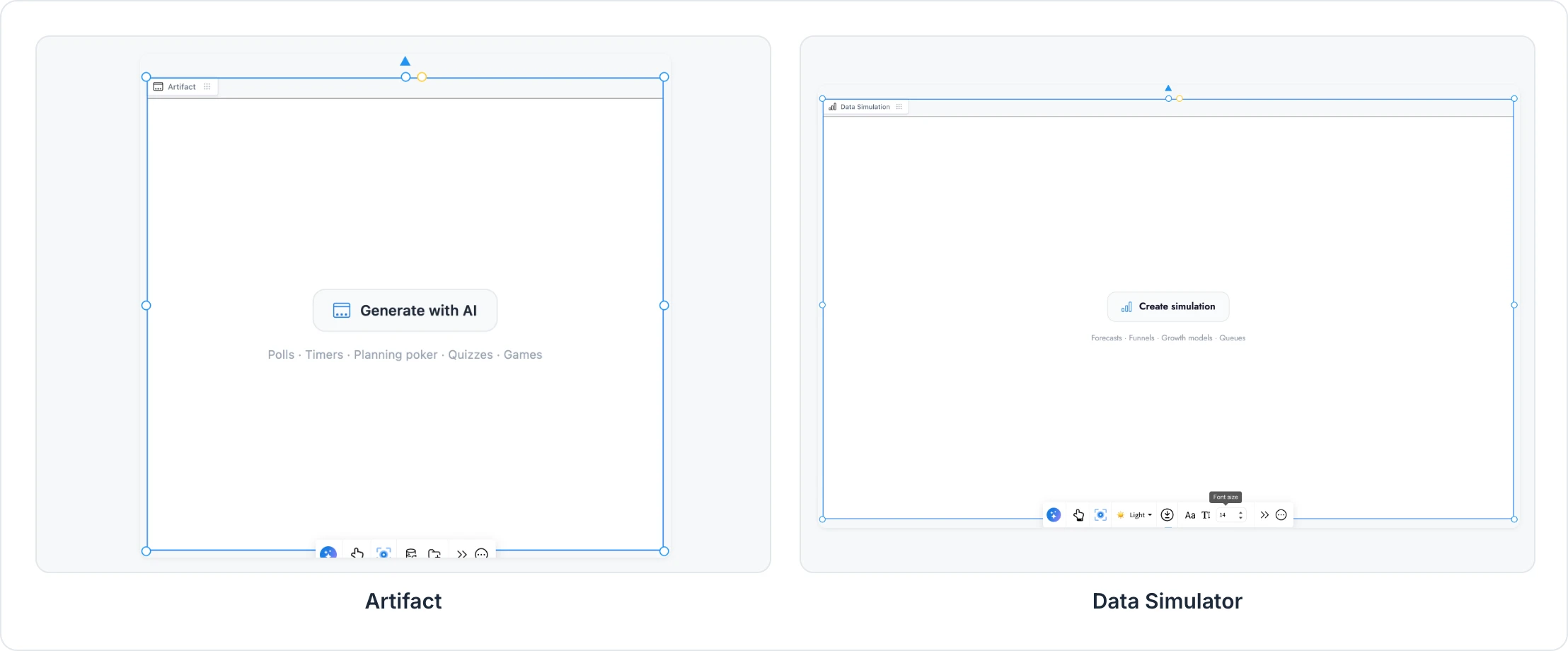
Artifacts come with the Plus and Max plans. Creating your own artifacts and publishing them to your team library needs the Max plan. See MockFlow pricing.
The label chip and the frame toolbar
Click a frame's label chip to select the frame and show its toolbar.
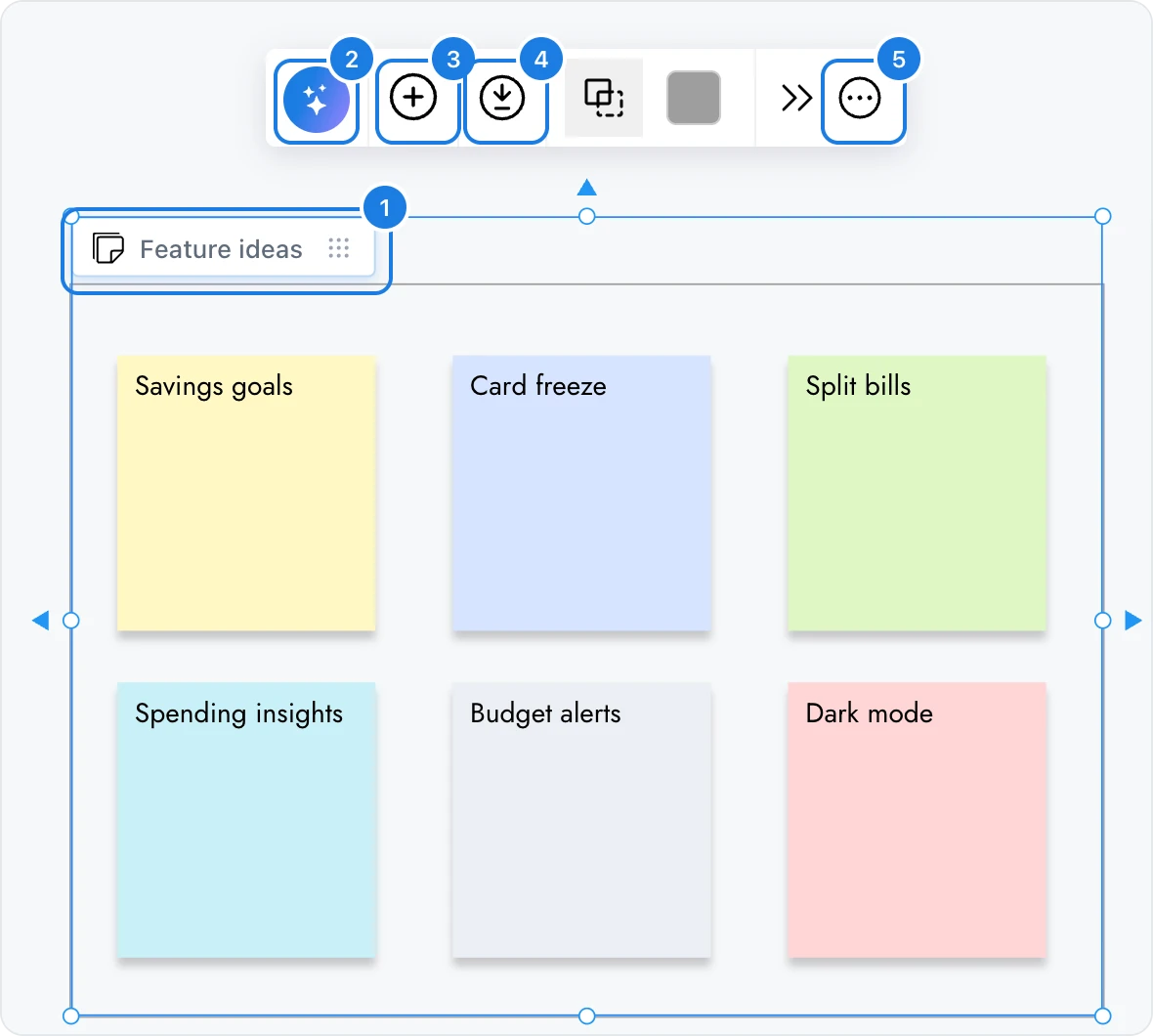
Label chip: the frame's name. Click it to select the frame, drag it to move the frame, and double-click the name to rename it.
Generate with AI: describe what you want, and the frame fills itself. For example, a Whiteboard frame can lay out sticky notes for a brainstorm, and a Moodboard frame can gather images, colors and fonts for a style.
Add: drag in items made for this frame. In a Whiteboard frame these are notes, note tags, text, images and sections.
Export: save the frame and everything in it.
Edit menu: copy, paste, duplicate and delete the frame, and change whether it sits in front of or behind other items.
The toolbar changes with the kind of frame. A Wireframe frame adds style, device size and Prototype, and a Floor Plan frame adds units and room dimensions.
A frame filled by AI takes a name from what it made, such as Mobile Banking Sign Up. Double-click the name in the label chip to change it.
Move and resize a frame
Drag a frame by its label chip to move it. Everything that belongs to the frame moves with it, and alignment guides show when the frame lines up with other items.

To resize a frame, select it and drag a handle on its edge or corner. Items inside keep their place on the board while the frame grows or shrinks around them.
Deleting a frame also deletes the items inside it. To keep them, drag them out of the frame first.
Frames that trim their contents
A Design frame and a Moodboard frame work like a real picture frame: anything that hangs past their edge is hidden (1). Drag the item back inside to see all of it again.
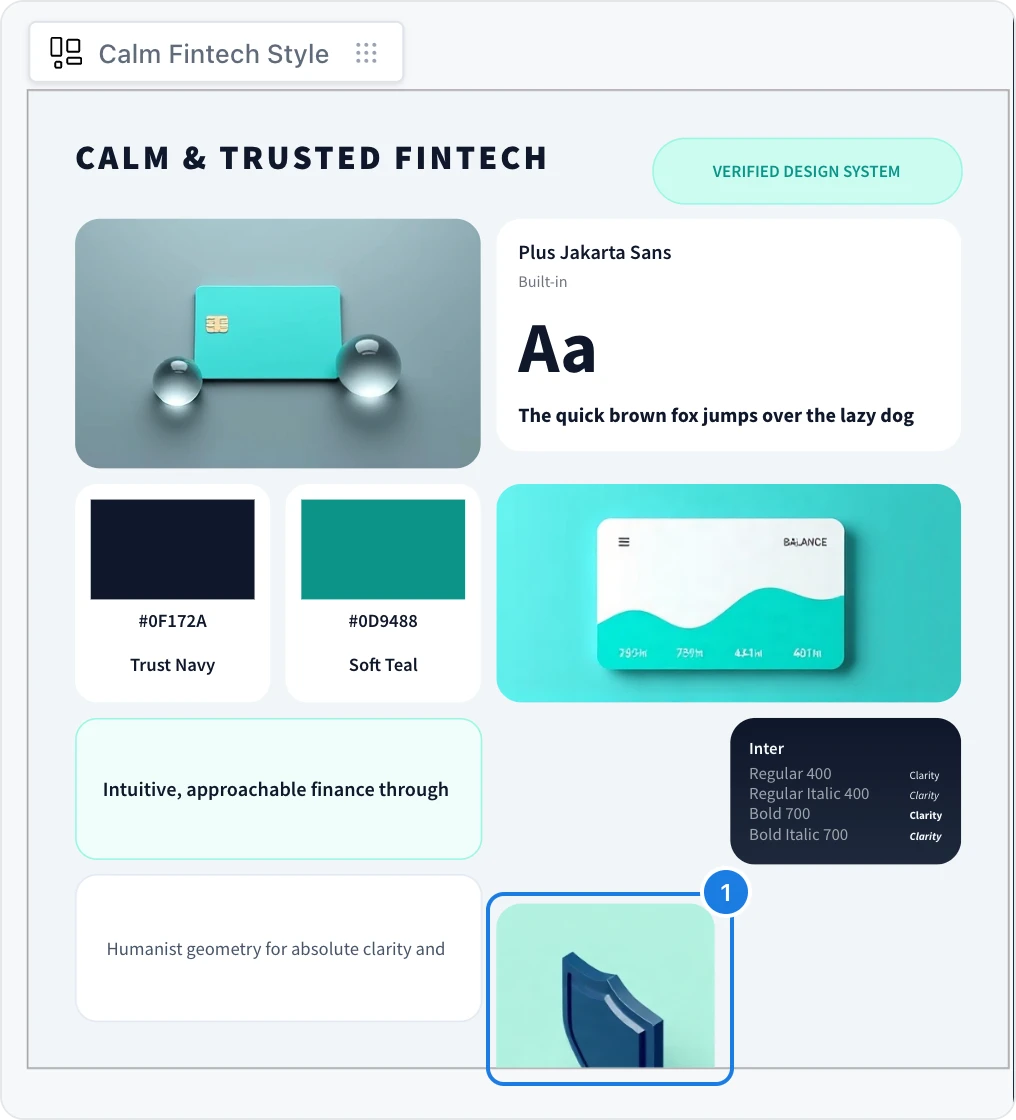
Other frames, such as Diagram and Whiteboard, show items in full even when they reach past the edge.
Export a frame
Each frame has its own export button on its toolbar, such as Export Diagram, Export Whiteboard, Export Moodboard and Download on a Design frame. Frames with their own editor offer formats that suit their content:
Wireframe: an image, SVG, editable Figma layers or a prompt for AI coding tools
SiteMap/Org/Tree: an image, text, CSV or JSON
Floor Plan: an image, SVG or JSON
To export a frame together with other items, select them all, right-click and choose Export selected.
Frames and sections
Section is listed with the brainstorm frames, and it is also in Stationery in the tool bar. A section is a plain container for grouping any items, with stacking, themes and icons. A frame is built for one kind of work, with its own tools, AI and export. Use a section to organize a board, and a frame when you are making something specific, such as a flowchart, a set of screens or a floor plan. See Sections: group and organize items.