
Document a design with UX docs and specs
Write PRDs, UX checklists and design notes in the WireframePro Docs tab, link text to components, and export specs for developers.
A design is easier to build when the reasoning travels with it. The Docs tab puts a document beside your wireframes, where you write the goals, requirements and open questions for each screen, and link sentences straight to the components they describe.
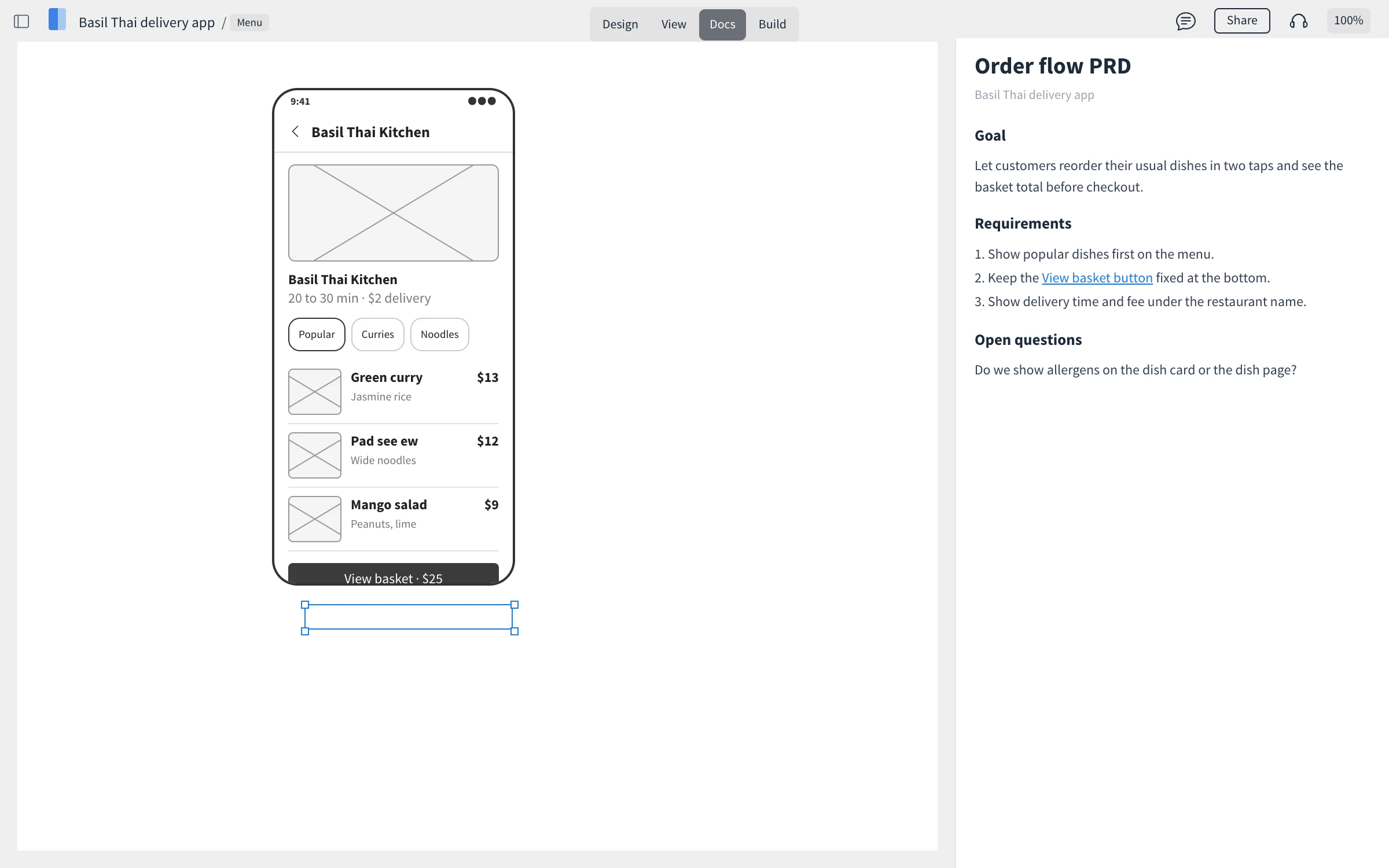
Start a doc
Click Docs at the top of the editor. The document opens beside the page.
Under Get Started, choose Blank doc, Product Requirements Doc (PRD), UX checklist or More templates.
Type your content. Headings build the Table of Contents automatically.
In the templates window, Create with AI drafts a document for you, and the AI text tools can rephrase a passage or make it shorter or longer.
Link text to a component
Select text in the doc and add a link. On the Design tab of the link window, click Pick Component and select the component on the page. Clicking the link later scrolls the design to that component, so a developer reading Keep the View basket button fixed at the bottom lands right on the button.
Export docs and specs
From the Docs options menu, choose Export to PDF to share the document, or Export to .ddoc to keep a copy.
On the left rail, Export > Specs data shows the specifications of the design, such as sizes and positions, for developers.
Docs are saved with the project, so everyone who can open the project can read them.