
Find your way around a board
A tour of the MockFlow board editor: the workspace sidebar, the main menu, sharing and collaboration controls, zoom and the tool bar.
The board editor keeps the canvas clear and puts every control at its edges. This tour shows where each control is and what it does, so you can find your way around any board.
The editor at a glance
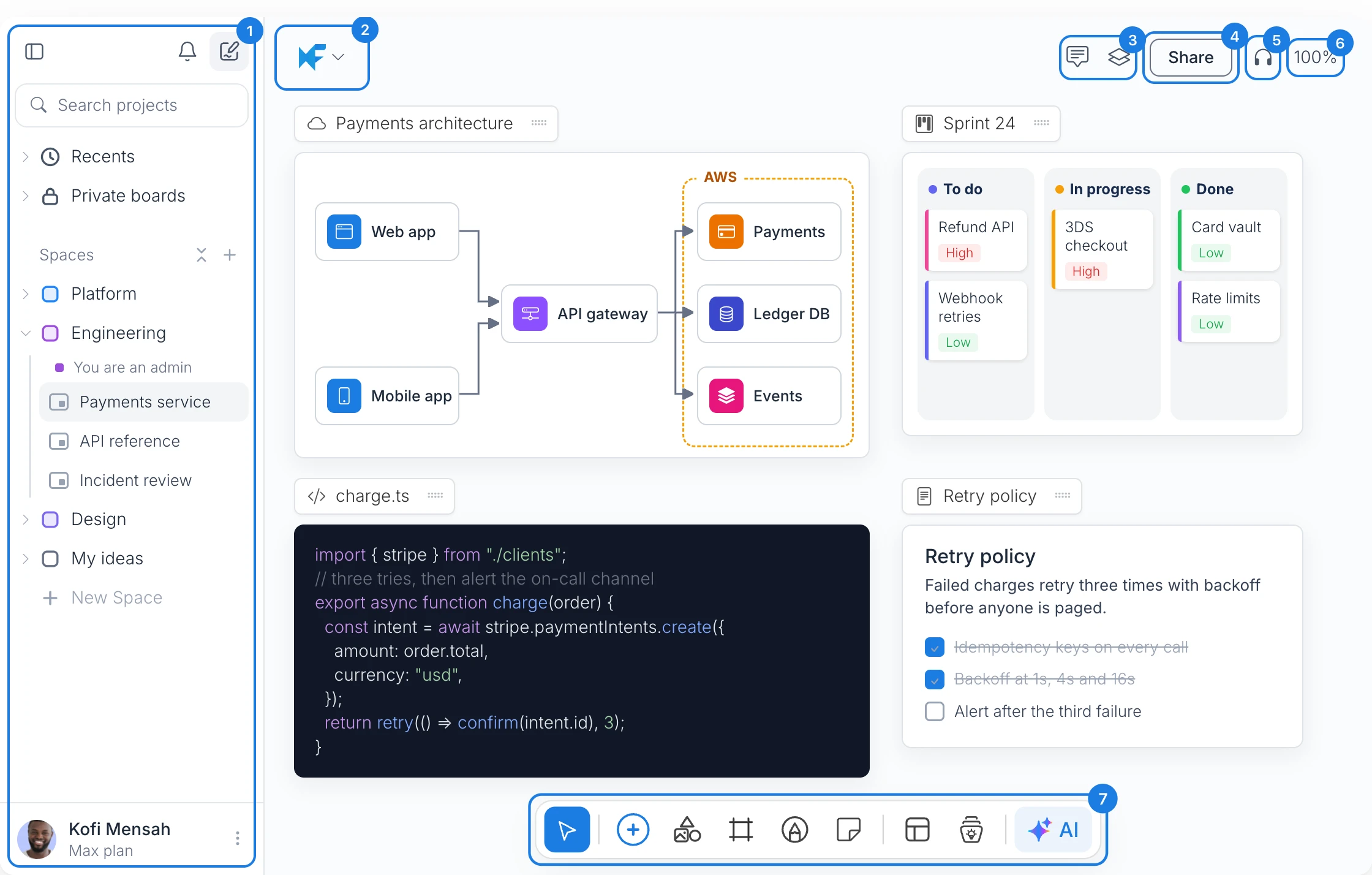
# | Area | What it is for |
|---|---|---|
1 | Workspace sidebar | Your boards and spaces, search and new boards |
2 | Main menu | Editing commands, revisions, export and board settings |
3 | Comments and Layers | Feedback on the board, and a list of everything on it |
4 | Share | Invite people and create links to the board |
5 | Collaboration menu | Meetings, live presenting, team chat and timers |
6 | Zoom | Zoom controls, the mini map and board search |
7 | Tool bar | Everything you add to the board |
Workspace sidebar (1)
The workspace sidebar lists your boards and lets you move between them without leaving the editor.
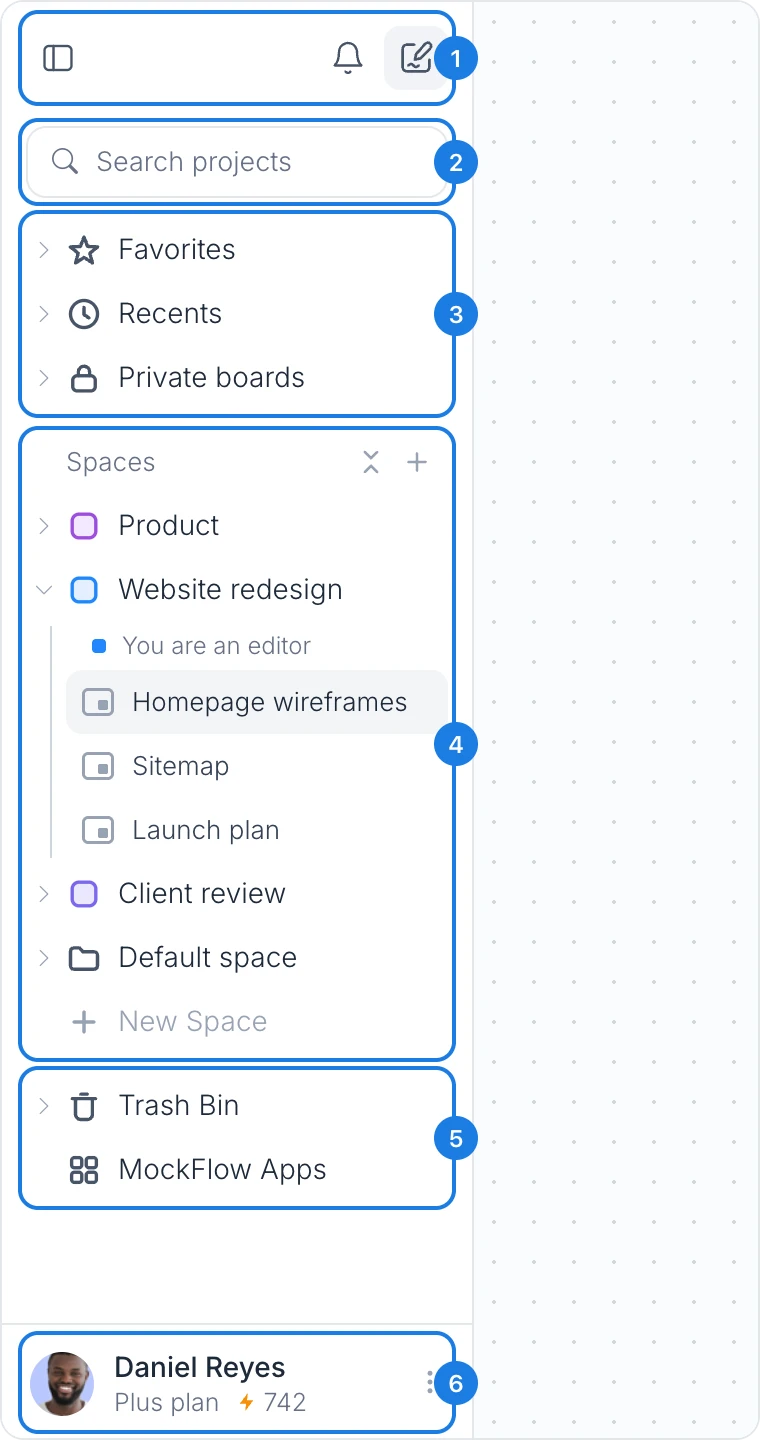
Sidebar buttons: hide or show the sidebar, see notifications, and create a board with New board, the pencil button. See Start your first board.
Search projects: find a board by name.
Favorites, Recents and Private boards: the boards you starred, the boards you opened last, and boards only you can see.
Spaces: shared areas where a team keeps its boards. New Space creates one.
Trash Bin and MockFlow Apps: boards you deleted, and MockFlow on desktop, in Chrome and inside the other tools you use.
Your account: your name, your plan and your AI credits. Click it for your account, subscription and help.
Main menu (2)
Click the MockFlow logo at the top left to open the main menu.
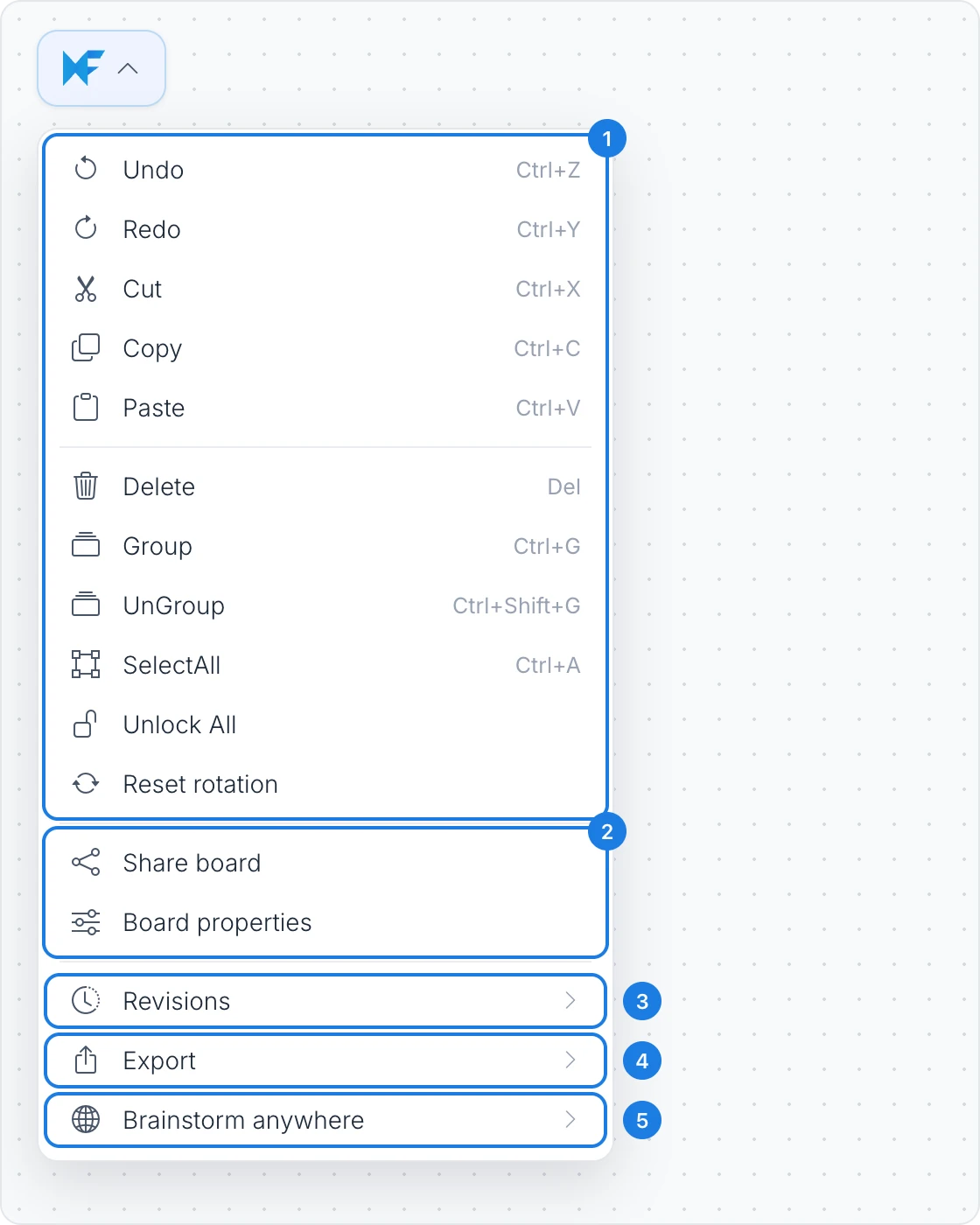
Editing commands: Undo, Redo, Cut, Copy, Paste, Delete, Group, UnGroup, SelectAll, Unlock All and Reset rotation, with their keyboard shortcuts.
Share board and Board properties.
Revisions: View revision history to go back to an earlier version, or Create revision to save the current version.
Export: the Selected Area as an image, or the whole board as an Offline file.
Brainstorm anywhere: install MockFlow Clippy for Chrome or the Google Meet extension, or add the MockFlow MCP server to an AI assistant such as Claude.
Comments, Layers and Share (3, 4)
Comments: opens the comments on the board. Pin a comment to the exact spot you mean and reply in threads.
Layers: lists every item on the board, so you can find, select and hide items on a busy board.
Share: invites people by email and creates links to the board. A board in Private boards shows Private here instead; choose Move to a team space to share it.
Collaboration menu (5)
Click the headphones button (1) to open the tools for working together live (2).
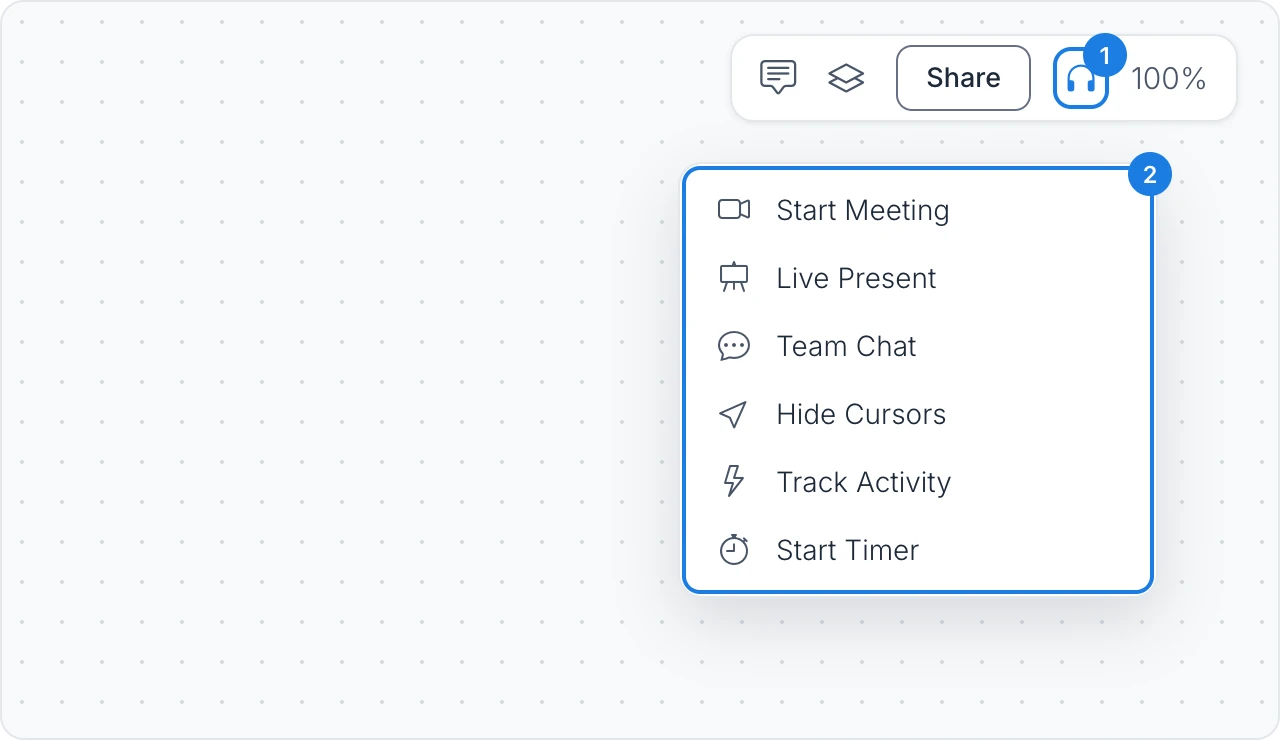
Start Meeting: an audio or video call on the board
Live Present: walk everyone through the board as they follow your view
Team Chat: chat with everyone on the board, and mention @mida to ask the AI
Hide Cursors: hide other people's cursors while you focus
Track Activity: see what changed on the board and who changed it
Start Timer: a countdown everyone on the board sees, for workshops and timed exercises
Some collaboration features need a paid plan. See MockFlow pricing.
Zoom, mini map and search (6)
Click the zoom percentage (1) to open the zoom panel.
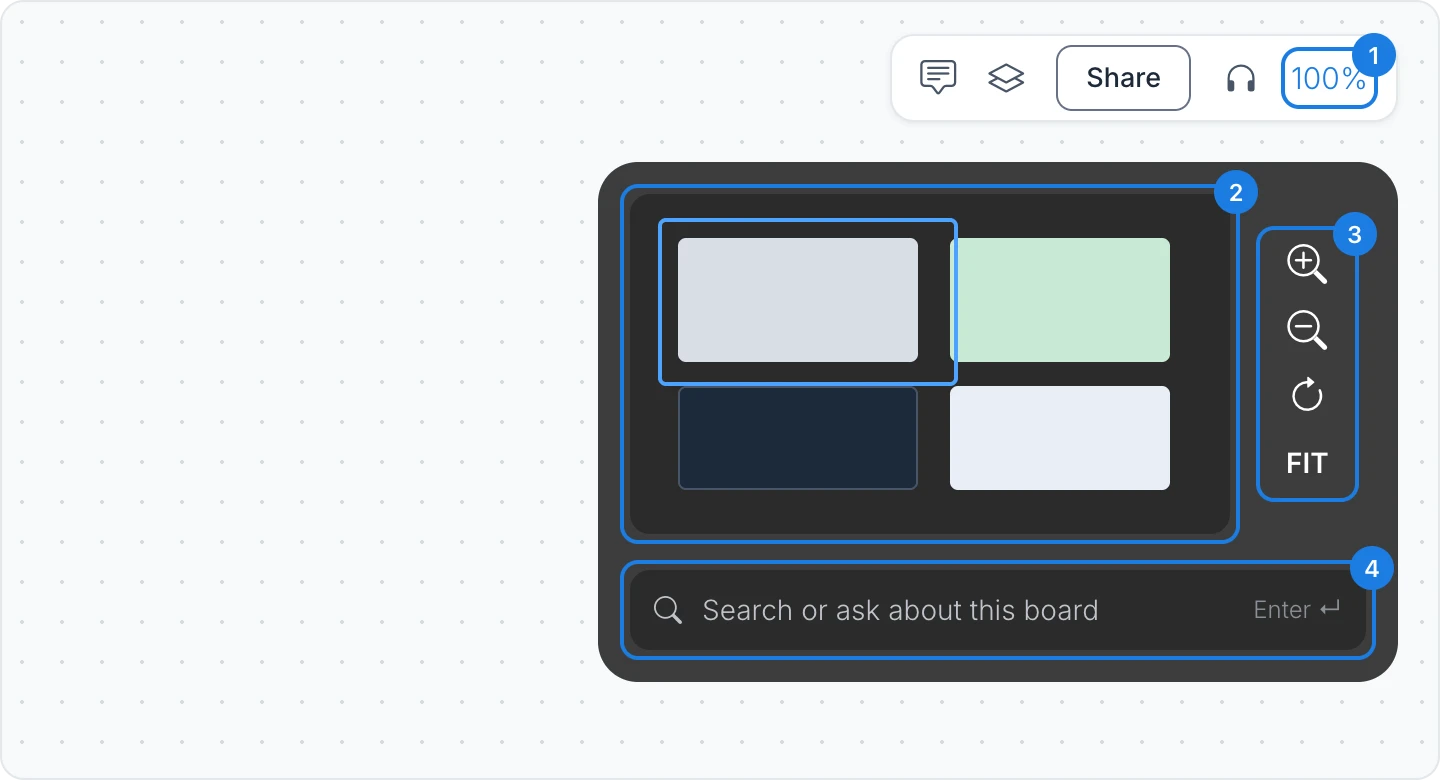
Mini map: an overview of the whole board. Click anywhere on it to jump there.
Zoom buttons: zoom in (Ctrl +), zoom out (Ctrl -), back to 100%, and FIT to fit the whole board on screen (Ctrl 1).
Search or ask about this board: find text on the board, or ask a question about its content.
Tool bar (7)
The tool bar at the bottom of the board holds everything you add to the canvas.
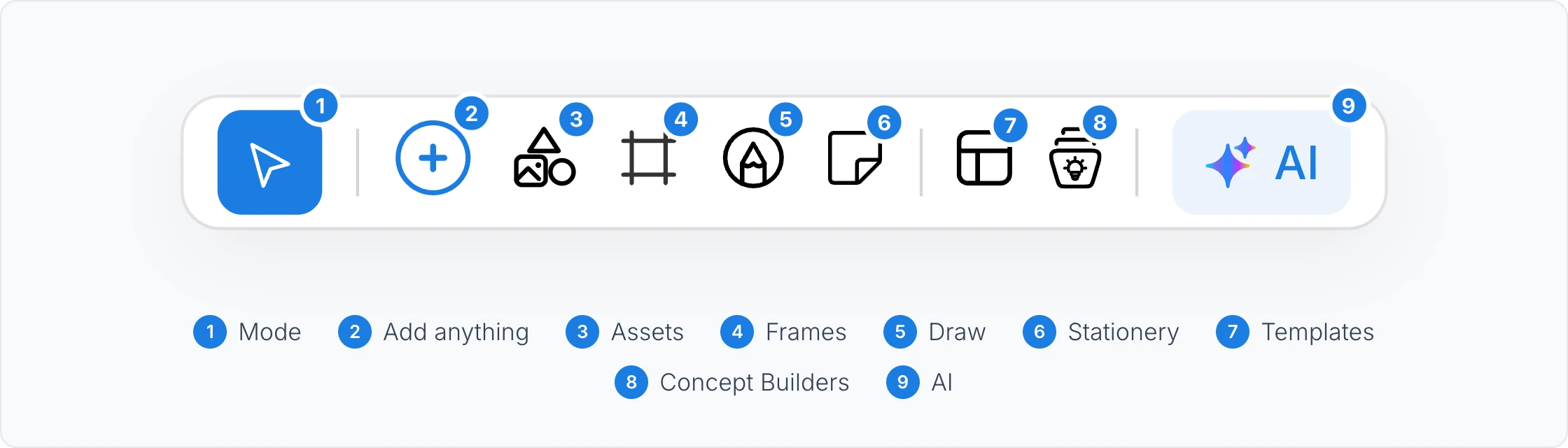
# | Tool | Shortcut | What it does |
|---|---|---|---|
1 | Mode | Ctrl+E, Ctrl+P | Switch between Edit mode to select and arrange items, and Play mode to interact with the board and pan around it |
2 | Add anything | Ctrl+2 | Opens the component library. Search it, or browse categories such as Whiteboard, Design tools, Collaboration, Productivity and Data Visualization. The Artifacts tab holds apps and games built with AI |
3 | Assets | Vector icons, sticker packs, your uploaded files and diagram shapes | |
4 | Frames | Ready areas for one kind of work, such as a wireframe, diagram, mind map, kanban or floor plan | |
5 | Draw | Ctrl+5 | Draw freehand on the board |
6 | Stationery | Ctrl+6 | Sticky notes, sticky tags, note stacks, sections and text |
7 | Templates | Ctrl+3 | Ready-made boards and layouts to add to the board |
8 | Concept Builders | AI collaborators with a defined role that shape an idea with you | |
9 | AI | Ctrl+J | Opens Mida, the AI on your board |
You can also right-click the canvas to add a component, a template or a shape, or to create something with AI at that spot.