
Embed a board in a website or page
Show a live, view-only board inside a website, a wiki, a blog or an internal page with the embed code from the Share panel.
Embedding places a board from MockFlow inside another page, such as a team wiki, a course site, a blog post or a client portal. The embedded board is view-only and always shows the latest version, so the page stays current as your team keeps working on the board.
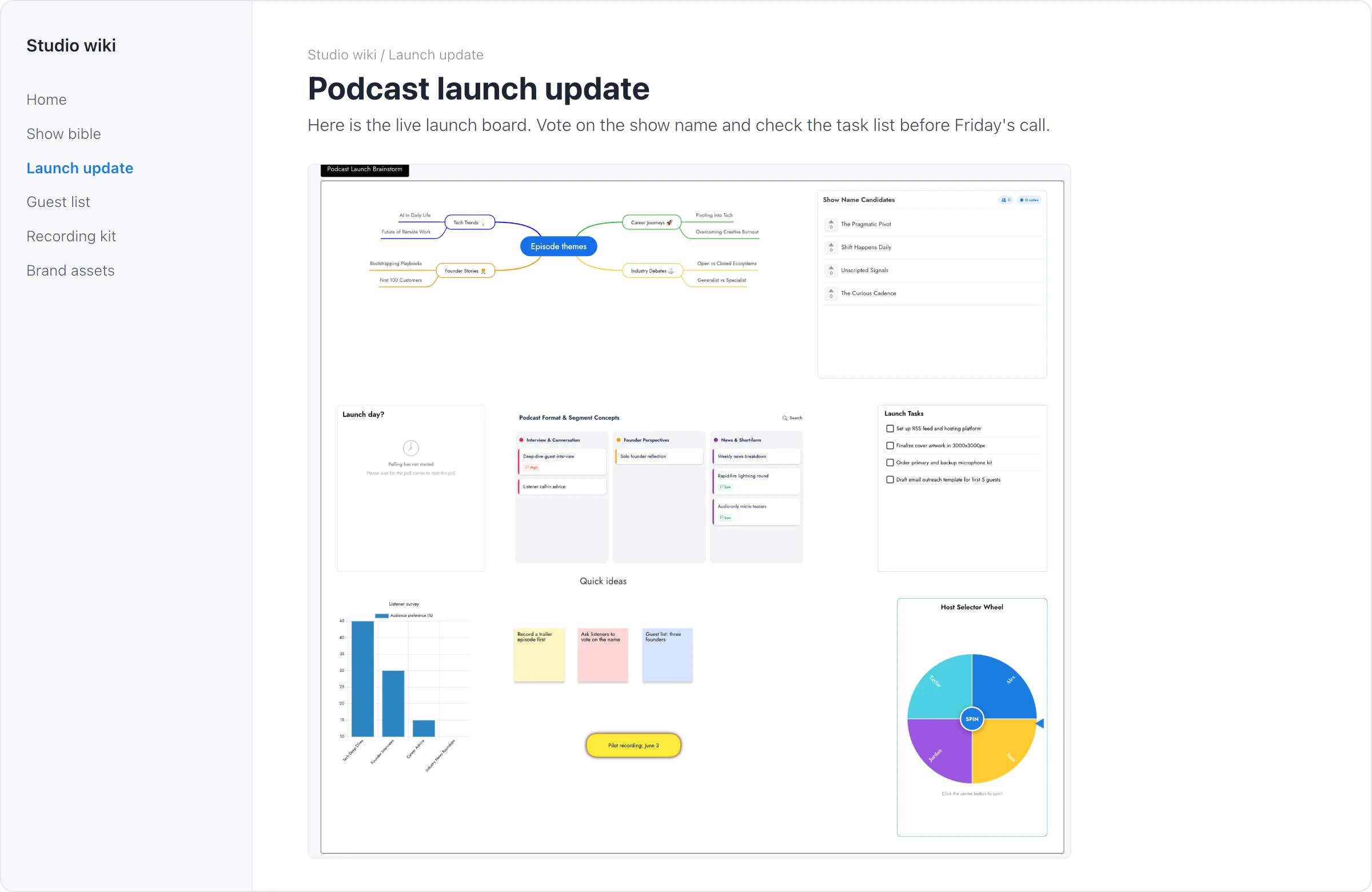
Get the embed code
Embedding uses the board's public link. If the board does not have one yet, MockFlow asks whether to create it, or you can create it first as described in Share a board with a public link.
Open the board and click Share at the top right.
Beside Public link & embed, click the Embed icon (1). The embed snippet appears under the link.
Click Copy code (2) and paste the code into your page's HTML or embed block.
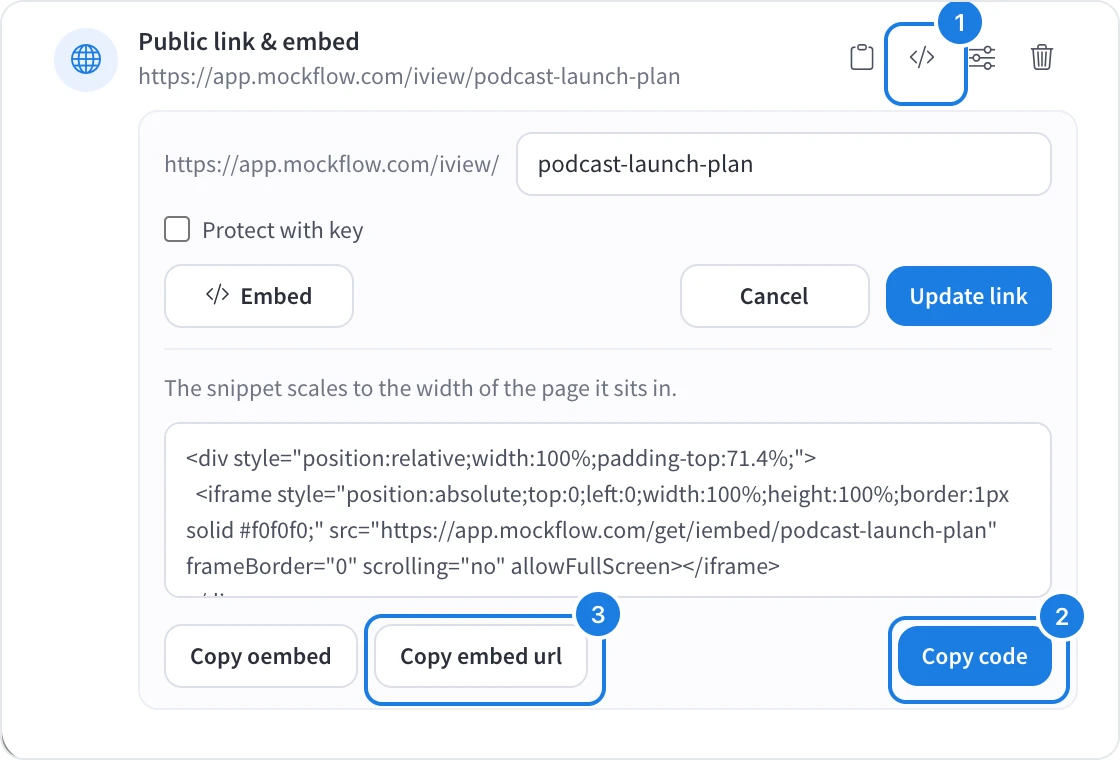
The snippet scales to the width of the page it sits in and keeps the board's proportions. Viewers can open the embedded board full screen.
Choose the right embed option
Copy code: the complete HTML snippet. Use it in website builders, blogs and any page where you can add HTML.
Copy embed url (3): the address of the embedded view on its own. Use it in tools that ask for a URL to embed rather than HTML code.
Copy oembed: an oEmbed link, for tools that build the embed themselves from an oEmbed address.
Update or remove an embedded board
You do not need to update the embed code when the board changes: every edit shows up in the embedded view. If you change the public link's address or remove the link, the embedded board stops showing, so copy the new code into your page after changing the address.
What is not available on the Basic plan
Embedding needs a public link, and public links are not available on the Basic plan. A board that already has a public link keeps its embed working. Embedding, public links and many other features, such as live presentation mode and editor roles, are available on Plus and Max. See MockFlow pricing for details.