
Manage authorized apps
See which apps and AI tools can use your MockFlow account, what each one can do, and disconnect any you no longer use.
When you connect an app or an AI tool to MockFlow and allow access, it can work with your boards on your behalf. Examples include the MockFlow connector in Claude or ChatGPT, the MockFlow MCP servers in coding tools such as Claude Code or Cursor, and apps that other companies build on the MockFlow API. Authorized apps lists every one of them in one place, so you can check what has access to your visual workspace and remove anything you no longer use.
Open Authorized apps
Click your name at the bottom of the workspace sidebar, choose My Account, then Authorized apps.
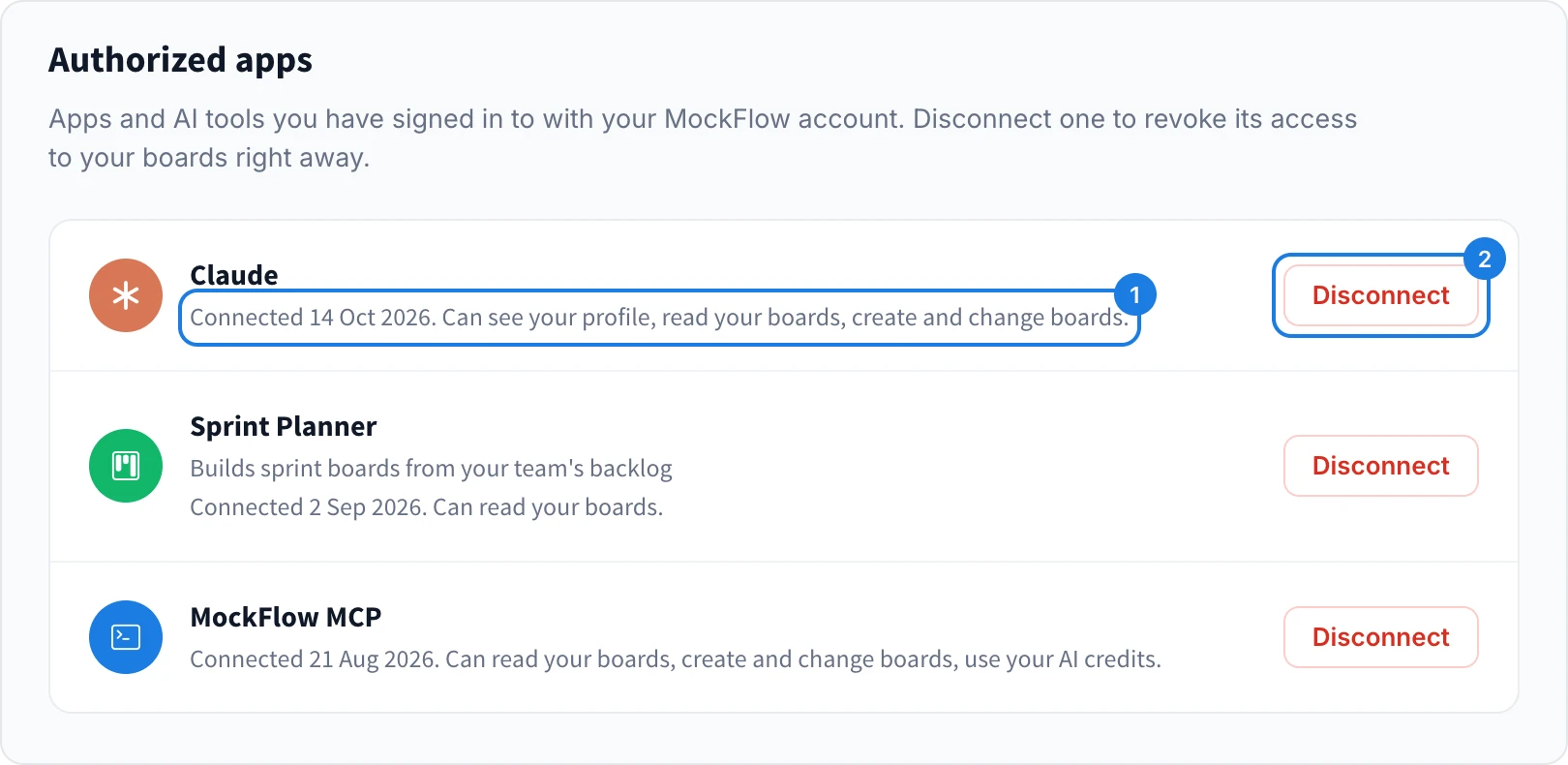
Each app shows its name, a short description when the app has one, and when you first connected it. The line under the name (1) says what the app can do, for example:
See your profile
Read your boards
Create and change boards
Share spaces and change roles
Use your AI credits
If no app has access, the list shows No authorized apps.
Disconnect an app
Click Disconnect (2) beside the app.
Confirm with Disconnect.
The app loses access to your MockFlow account straight away, and its next request is refused. The boards it created stay in your workspace. To use the app again, connect it again from the app and allow access.
Disconnect an app when you stop using it, when a computer with a signed-in MCP server is lost or handed on, or when an app asks for more than it needs.