
Templates: start from a ready layout or your team's own
Add board, design and wireframe templates from Templates, fit a template to a selected frame, and save any board or selection as a team template.
Templates give you a ready layout to adapt instead of an empty canvas. In MockFlow, a template can be a whole board layout, such as a retro or a customer journey, a design such as a social post or a flyer, or a wireframe screen such as a landing page or a checkout. Your team can also save its own boards as team templates, so everyone starts from the same kickoff board, lesson plan or campaign brief.
Open Templates from the tool bar, or press Ctrl + 3 (⌘ + 3 on Mac).
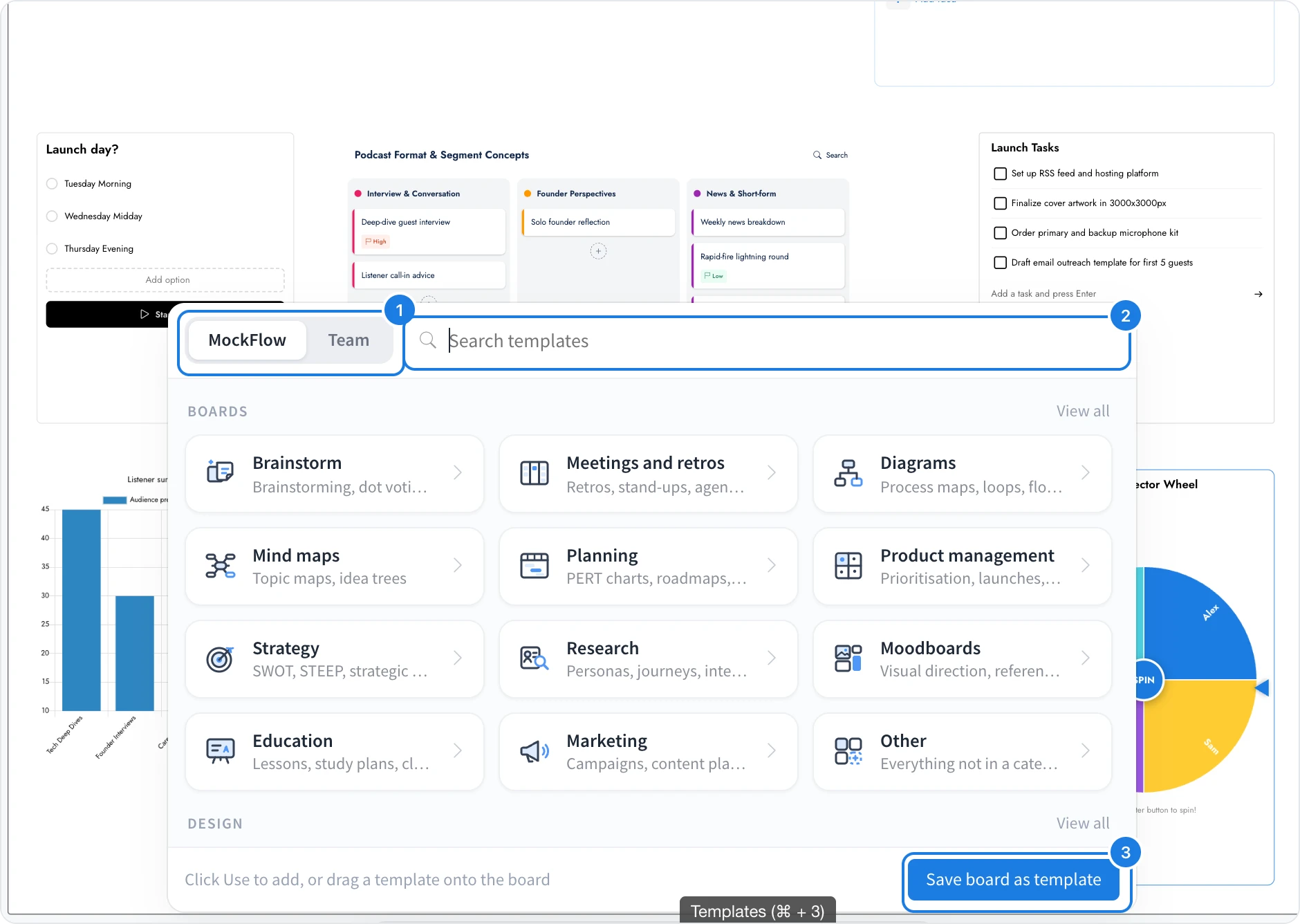
The MockFlow and Team tabs
Templates has two tabs (1):
MockFlow holds the templates made by MockFlow.
Team holds the templates people in your team have saved, newest first, with the name of the person who saved each one.
Use Search templates (2) to find a template by name in either tab.
Kinds of MockFlow templates
The MockFlow tab opens on three groups. Click a card to see its templates, or View all to list a whole group.
Group | What a template adds | Examples |
|---|---|---|
Boards | Ready items placed straight on the board | Brainstorm, Meetings and retros, Diagrams, Mind maps, Planning, Product management, Strategy, Research, Moodboards, Education, Marketing |
Design | A Design frame holding the template | Social media posts and stories, posters, flyers and menus, invitations and business cards, banners and covers, infographics, logos and product listings |
Wireframes | A Wireframe frame holding the screen | Landing pages, dashboards, mobile apps, e-commerce stores and checkouts, forms, and UI screens |
When you search, chips under the search box narrow the results to Boards, Design or Wireframes. Inside a Design or Wireframes category, shape chips such as Square, Portrait, Story, Landscape and Banner narrow the list by size.
The template library grows often. Browse it any time in the template library.
Add a template to a board
Open Templates and find a template.
Click Use on its tile, or click the template to preview it full size and click Add to board. The template is placed at the centre of your view as one undo step.
To place it somewhere exact, drag the template tile from the list and drop it on the board.
A board template adds real, editable items: frames, tables, kanbans, mind maps, diagrams, images and text keep their layout and styles. A design or wireframe template adds a Design or Wireframe frame, and everything in it stays editable.
Fit a template to a selected frame
When a Design or Wireframe frame is selected on the board, its category list shows a Fits selected frame chip. It lists templates that match that frame. Preview one and click Replace page to swap the page in your selected frame for the template. Text and colours stay editable.
This suits work like trying several layouts for one Instagram post, or replacing a draft sign-up screen with a finished form layout.
Save a board as a team template
A team template can be a whole board or only the part you select. With nothing selected, the whole board is saved.
Open the board you want to reuse. To save only part of it, select those items.
Open Templates and click Save board as template (3).
MockFlow shows whether it is saving your selection or the whole board, and how many items it holds.
Enter a Name and choose a Category, such as Brainstorm, Meetings and retros, Planning, Research, Education or Marketing.
Click Save template. The Team tab opens with your template at the top, and teammates see it straight away.
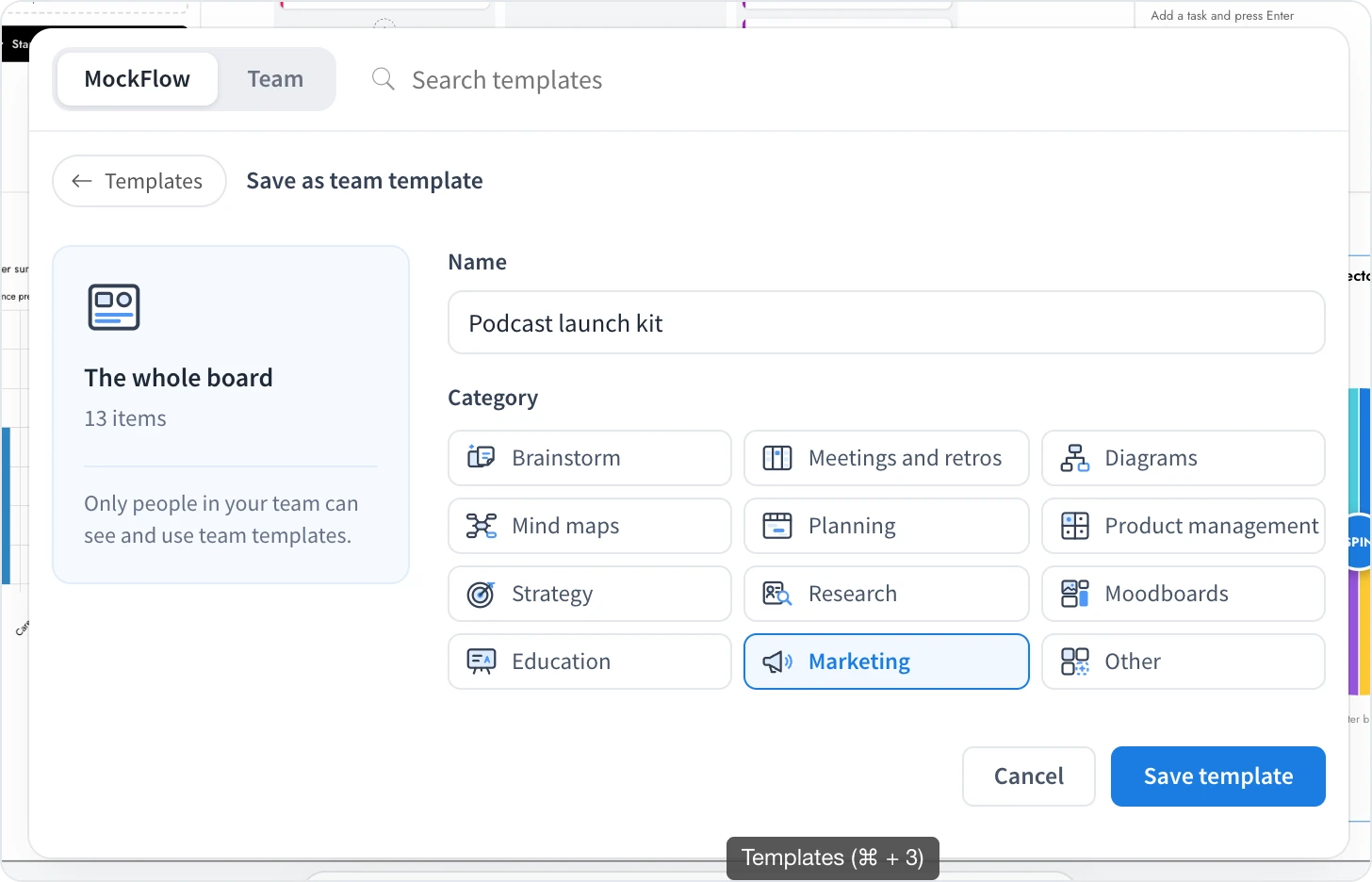
Only people in your team can see and use team templates. Your team is everyone on your MockFlow plan.
Use and delete team templates
Open Templates and choose Team. Each tile shows who saved it. Click Use, or click the template to preview it and click Add to board, or drag the tile onto the board.
Only the person who saved a team template can delete it. Open it from the Team tab and delete it from its preview.
How teams use team templates
Agencies: a kickoff board with goals, stakeholders, a moodboard area and a timeline, added to every new client's board on day one.
Product teams: a sprint retro with voting columns and an action table, so every squad runs the same format.
Design teams: an approved set of login, dashboard and settings wireframes that already follow the house style.
Teachers: a lesson board with a mind map, a worksheet table and a reflection area, shared across a department each term.
Marketing teams: a campaign brief and monthly content calendar with channels, owners and dates in place.
People teams: a new starter onboarding board with a first week plan and a checklist.
Team template limits and plans
A team template can cover up to 10,000 × 10,000 px of board. For a larger board, select the part you want to reuse.
Team templates are saved from cloud boards. Local files in the desktop app cannot be saved as team templates.
Team templates are part of the Plus and Max plans. On the Basic plan, the Team tab explains team templates and offers See plans.
MockFlow templates are available on every plan. See pricing for what each plan includes.