
What are automations
Automations make MockFlow boards for you from your apps, on a schedule or when something happens, and can send what they make.
An automation makes boards for you on its own. It runs on a schedule, when something happens in MockFlow, or when one of your apps changes, and each run ends in a new board or an update to a board you pick. It can then send what it made, for example by posting it to a Slack channel or emailing it.
MockFlow is a visual canvas for people, teams and agents, and automations bring the work from your other tools onto it without anyone copying it across. MockFlow AI reads what the automation collects and lays it out as a real board: a mind map, a kanban, a Gantt chart, a journey map, a document, a flowchart or wireframes, or several of them on one board.
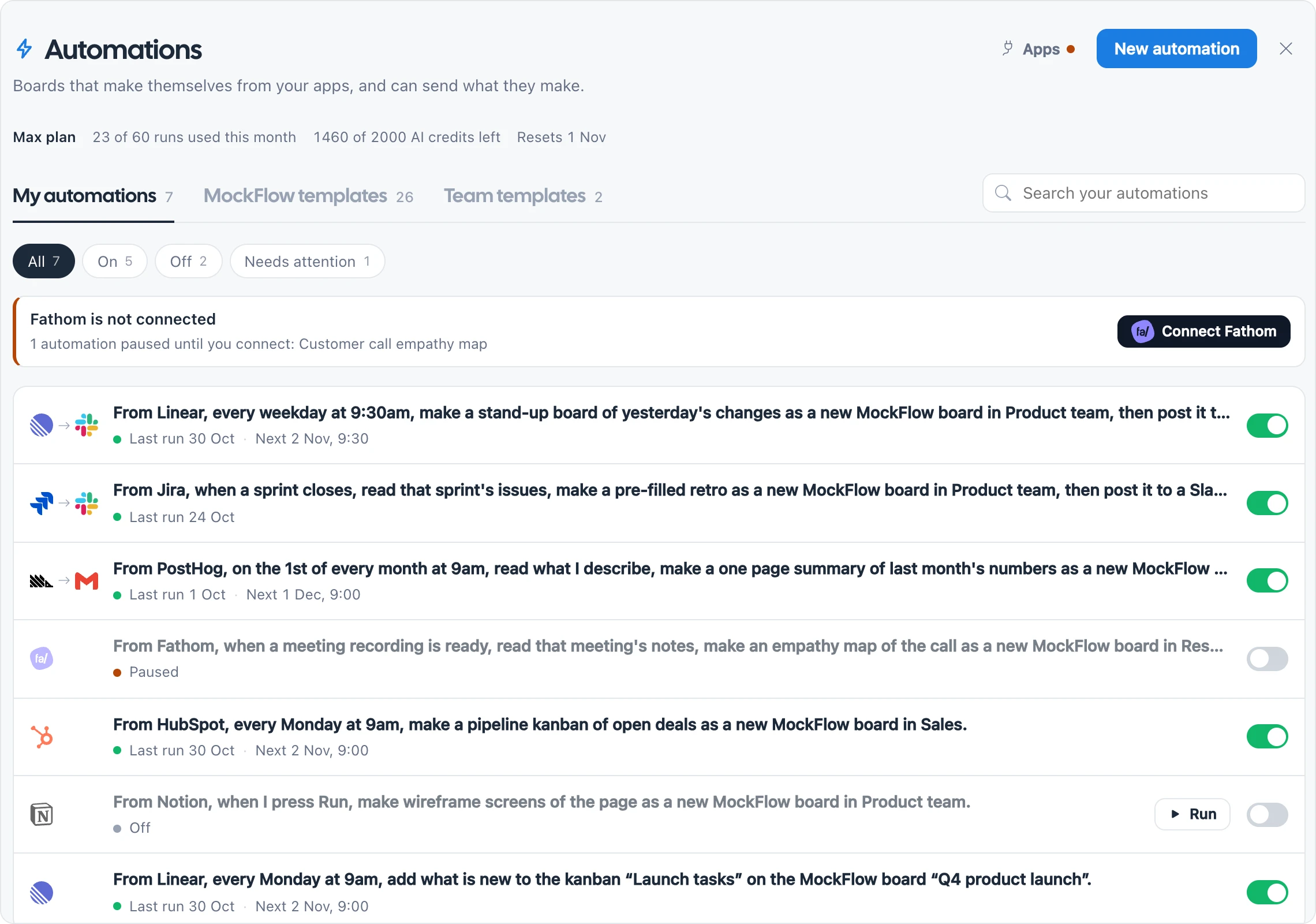
What an automation is made of
Every automation reads as one sentence, and each part of the sentence is a choice you make:
Part | What you choose | Example |
|---|---|---|
From | The app it reads, if any | Zoom |
When | What starts a run | When a cloud recording is ready |
Read | What to read from the app | The meeting transcript |
Make | What kind of board or component it makes | A Multiboard: decisions, follow ups and a mind map of topics |
How | Whether AI makes it or records are added as they are | AI makes it |
Where | A new board each run, or one you already have | A new board in the Product space |
Then | What happens after, if anything | Post it to a Slack channel |
So a finished automation reads like: From Zoom, when a cloud recording is ready, read the transcript, make a Multiboard of the meeting with AI in the Product space, then post it to a Slack channel.
What teams use automations for
Teams use automations wherever the same board gets made again and again: a meeting board after every call, a retro at the end of every sprint, a stand-up every morning, a metrics report every month, a welcome board for every new member. See Automation use cases for scenarios grouped by business meetings, agencies, startups, remote teams, enterprise, education and freelancers.
Browse ready-made automations in the automation templates catalog.
Where to find automations
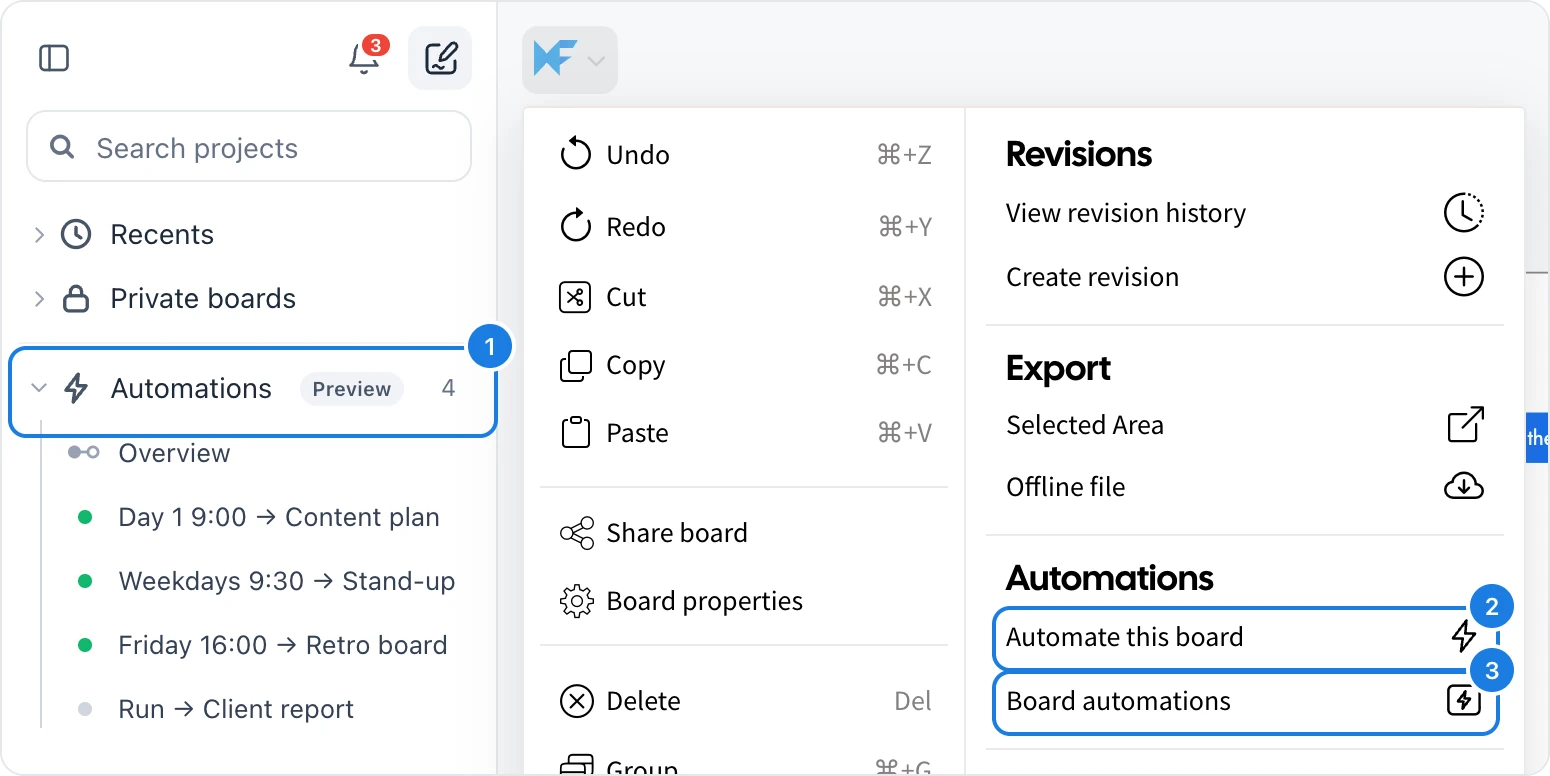
Automations live in the workspace sidebar. The Automations group (1) lists each of your automations with a dot that shows whether it is on and a short label such as Weekdays 9:30 → Stand-up. Click Overview to open the Automations page, click an automation to open it, or click + next to the group to start a new automation.
From a board, open the main menu and use its Automations section:
Automate this board (2) starts an automation that adds to the board you are on.
Board automations (3) lists the automations that add to or update this board.
The Automations group carries a Preview label while the feature is still being refined. Automations are available in the current MockFlow workspace with the sidebar. See the workspace sidebar.
Who can use automations
Automations are part of the Max plan. On Basic and Plus you can open the Automations page, look through the templates and build an automation to see how it works, but it cannot be saved or run until you upgrade. See Automation plans and limits.