
The workspace sidebar
Find your way around the workspace sidebar, where you open boards, organize spaces, check notifications and manage your account.
The workspace sidebar is where you find and organize everything you make in MockFlow, the visual canvas for people, teams and agents. It sits on the left of the board editor, so you can switch boards, open a space or start something new without leaving the canvas.
Parts of the workspace sidebar
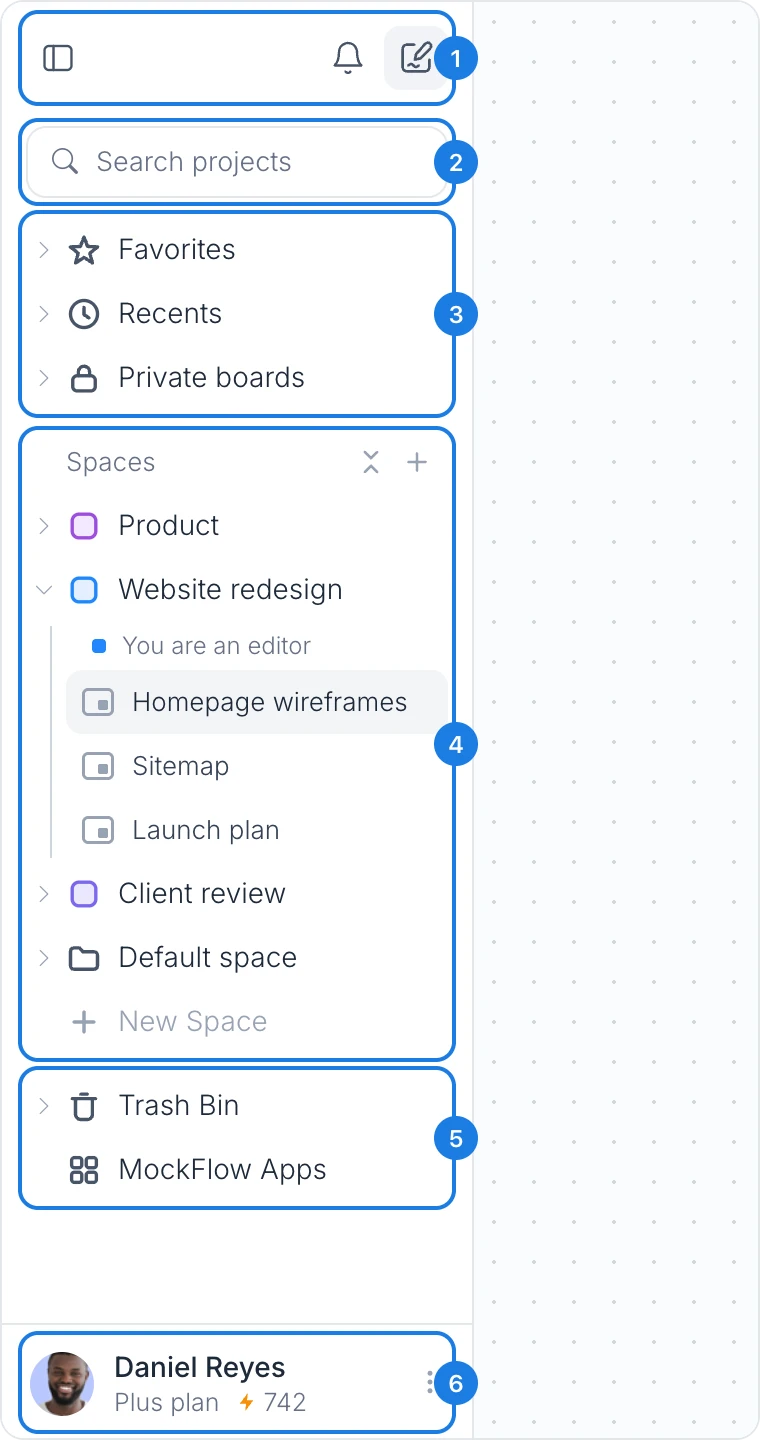
# | Part | What it does |
|---|---|---|
1 | Header | Close the sidebar, open Notifications, or create a board with New board. |
2 | Search projects | Filter the sidebar by board and space names. |
3 | Favorites, Recents and Private boards | Reach your starred boards, recently updated boards and your own boards. |
4 | Spaces | Open the spaces you own or belong to, and create new ones. |
5 | Trash Bin and MockFlow Apps | Restore deleted boards and spaces, and get MockFlow for other tools. |
6 | Account footer | See your plan and AI credits, and open the account menu. |
Create a board and check notifications
The header at the top of the sidebar (1) holds three buttons:
Close sidebar hides the sidebar to give the canvas more room. To bring it back, click the small tab on the left edge of the window.
Notifications lists updates from the people you work with, such as new comments, meetings, and boards or spaces shared with you. Click a notification to go straight to it.
New board creates a blank board and opens it with the How do you want to start? panel. See Start your first board.
When a teammate starts a meeting or a live presentation on another board you can open, a row such as Maya started a meeting appears in the sidebar with the board's name. Click Join to open the board and join, or Dismiss to hide the row.
Search your boards and spaces
Type in Search projects (2) to filter the sidebar as you type. Boards and spaces whose names match stay in view, and the groups that hold them open. When nothing matches, the sidebar shows No matching projects. Clear the box to see everything again. See Find and open your boards for more ways to get back to your work.
Favorites, Recents and Private boards
The first three groups (3) are personal to you:
Favorites lists the boards you have starred. It appears once you add your first board: open the board's More options menu and choose Add to favorites.
Recents lists the boards updated most recently in your Private boards and spaces, so you can return to work in progress in one click.
Private boards holds boards that only you can see. MockFlow creates it the first time you add a board to it.
A board can appear in more than one group at once, for example in Favorites, Recents and its space.
Spaces
A space keeps the boards of one team, client or project together, and everyone you invite to a space gets access to everything in it. The Spaces list (4) shows the spaces you own and the spaces others have shared with you.
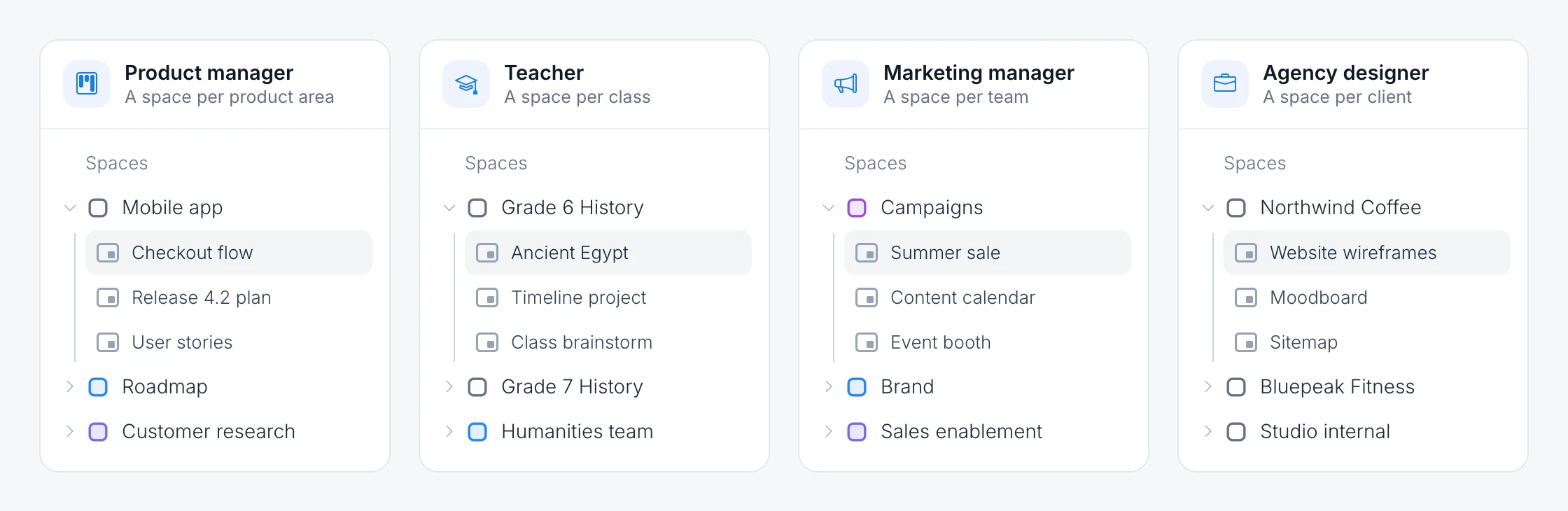
How you divide work into spaces depends on how you work. A product manager might keep a space for each product area, a teacher one for each class, a marketing manager one for each team, and an agency designer one for each client.
Click a space to open it and see its boards. Each board opens on the canvas when you click it.
Inside a shared space, a line such as You are an editor shows your role. The color of the space icon also shows your role: admin, editor or reviewer.
Default space appears when you have boards outside any space, such as a board someone shared with you directly.
Use New Space to create a space, and the collapse button beside the Spaces label to close every open space at once.
Each space has a settings menu, where admins can share it, rename it and see its activity.
The Basic plan includes one space of your own in addition to Private boards. Plus and Max include unlimited spaces. See MockFlow pricing for details.
Restore from Trash Bin
Trash Bin (5) lists the boards and spaces you have deleted, with a Restore button to bring each one back and Delete forever to remove it for good. Items in Trash are deleted automatically after 30 days. Restoring from Trash is not available on the Basic plan, where deleting a board is permanent.
Your plan, AI credits and account menu
The footer at the bottom of the sidebar shows your name, your plan and the AI credits you have left. AI credits are spent when you generate with AI, from wireframes and flowcharts to images, video, audio and 3D, and your allowance renews every month.
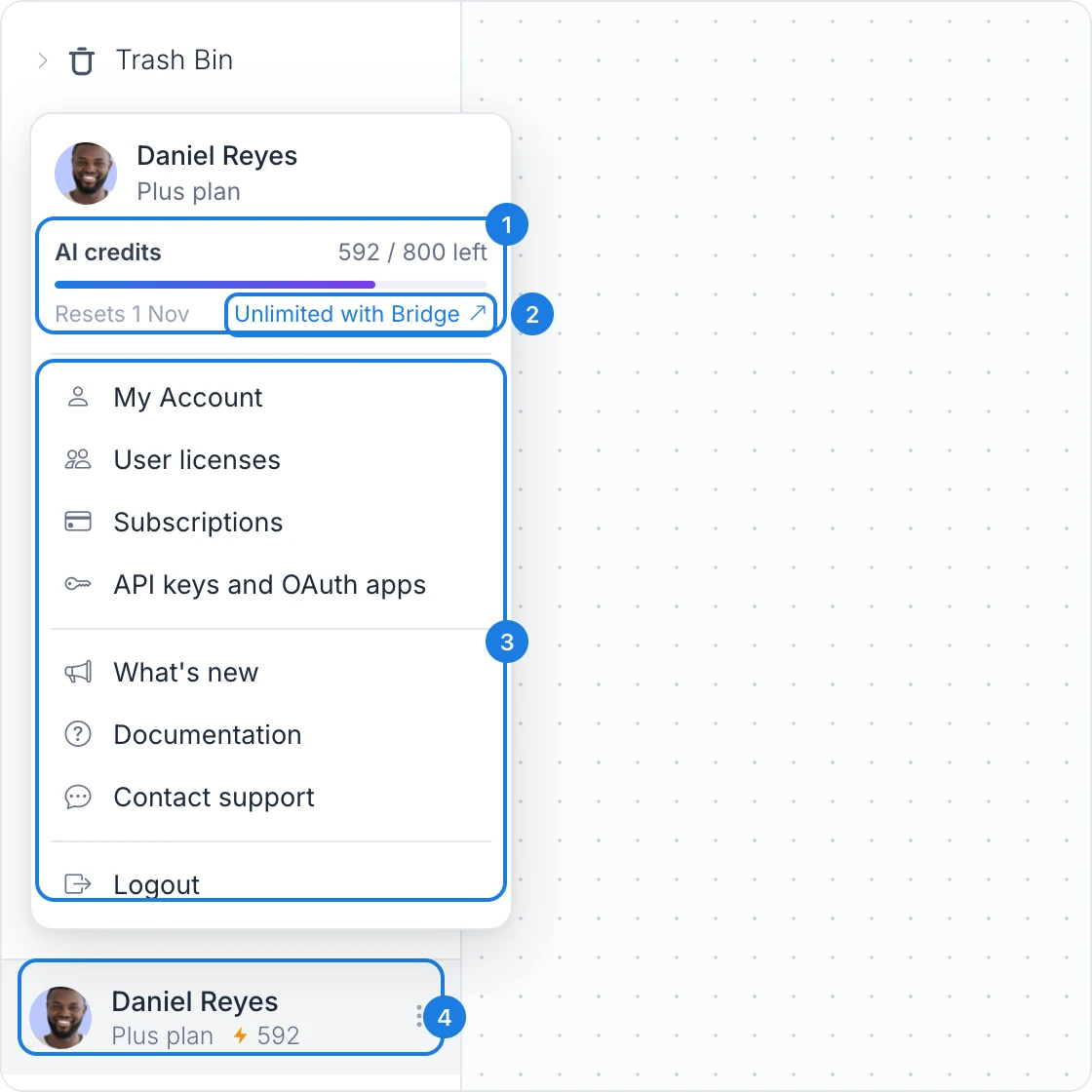
Click your name in the footer (4) to open the account menu:
AI credits (1) shows how many credits are left out of your monthly allowance, and the date they reset.
Unlimited with Bridge (2) explains how to run board AI on your own AI agent, such as Claude Code or Codex, so generating does not spend credits.
The menu items (3) open My Account, User licenses, Subscriptions, API keys and OAuth apps, What's new, Documentation, Contact support and Switch to old layout, with Logout at the bottom. Switch to old layout returns you to the previous dashboard, and a banner there brings you back. It is not shown for accounts created from October 2026, which start on the new layout.
On the Basic plan and during a trial, an Upgrade card above the footer links to the plans, with unlimited projects, premium features and priority support.