
Edit mode and Play mode
How the two board modes work: arrange items in Edit mode, use interactive items and move around freely in Play mode, and open one item full screen in Focus mode.
A MockFlow board holds items you arrange and items you use. A sticky note or a shape only needs to be placed and styled. A checklist, a poll or an embedded video also has to work: you tick a task, cast a vote or press play. The board has two modes so that a click always does what you expect: Edit mode to select and arrange, and Play mode to interact and move around.
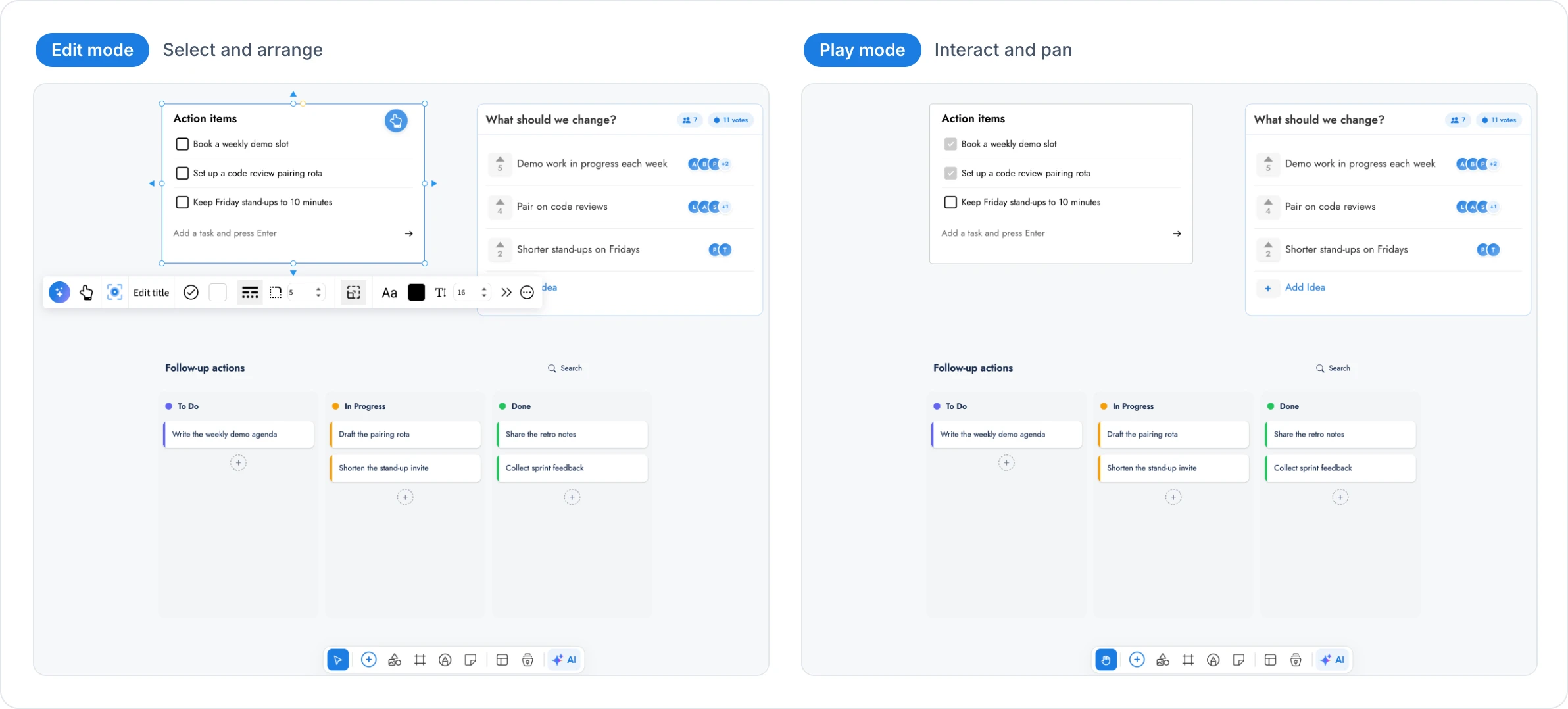
The picture shows the same sprint retro board in each mode.
What interactive items are
An interactive item is an item on the board that you can use, not only look at. Interactive items include, for example:
Checklists where you tick tasks as they are done
Polls, Upvote ideas and Spinning Wheel for team decisions
Kanban boards, calendars and timelines for planning
Embeds of videos, web pages, documents and designs from other tools
Maps, spreadsheets and mind maps you can scroll, search or expand
Artifacts, small apps and games built with AI that everyone on the board uses together
New interactive items are added to the library regularly. Each one has two sides: as a board item you move, resize and style it, and as a tool you use what is inside it. The two modes decide which side a click reaches.
Switch between Edit mode and Play mode
The mode picker is the first button in the tool bar at the bottom of the board. It shows the mode you are in.
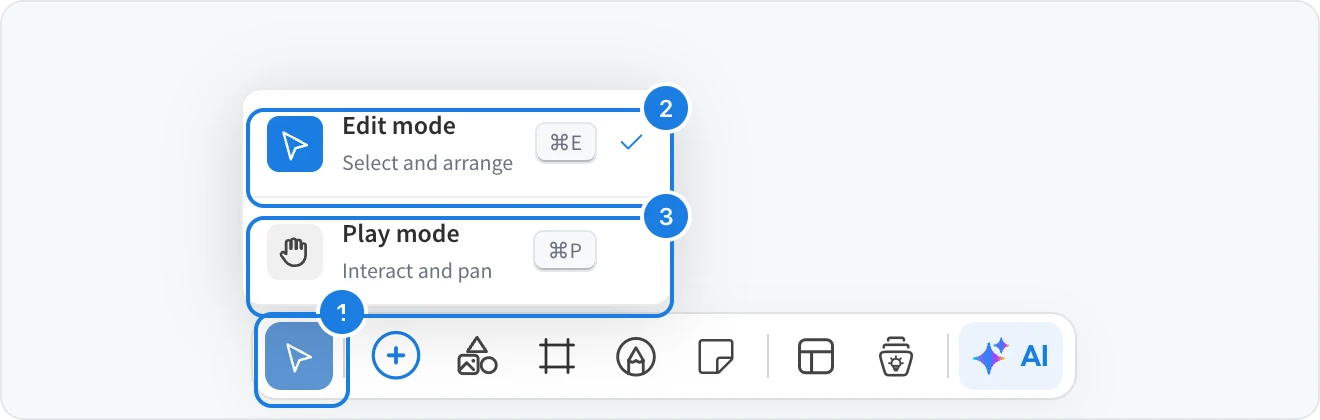
Point to the mode button (1) at the left end of the tool bar. A menu opens above it.
Click Edit mode (2), described as Select and arrange, or Play mode (3), described as Interact and pan. A tick marks the current mode.
You can also switch with the keyboard: Ctrl+E (⌘E on Mac) for Edit mode and Ctrl+P (⌘P on Mac) for Play mode.
Edit mode and Play mode compared
Edit mode | Play mode | |
|---|---|---|
Best for | Building and arranging the board | Using the board, presenting it or reviewing it |
Click an item | Selects it, with resize handles and its toolbar | Uses it: tick a task, vote, play a video |
Drag an item | Moves it | Stays in place; dragging works inside the item, for example on a kanban card |
Drag the empty canvas | Draws a selection box | Pans the board |
Links on items | Opened with Open Link in the item's toolbar | Followed with a click on the item |
Right-click menu | Available | Not shown |
Tool bar | Available | Available; new items arrive ready to use |
What happens when you switch to Play mode

When you switch to Play mode:
The current selection is cleared, and item toolbars and menus close.
Every interactive item becomes live at once, so you can tick, vote, type, scroll and play without selecting anything first.
Links work. An item with a web link opens the page, and an item with an internal link takes you to the item it points to.
Dragging an empty part of the canvas pans the board, so you can move around without picking anything up by accident.
When you return to Edit mode, the items you had selected before are selected again, so you can carry on where you left off.
Play mode is a good choice for a workshop or a review. Participants can vote, tick tasks and watch videos without moving items out of place.
Use one item without leaving Edit mode
While you build a board, you often need to work inside a single item, for example to add tasks to a checklist or cards to a kanban board. You can do that without switching modes.
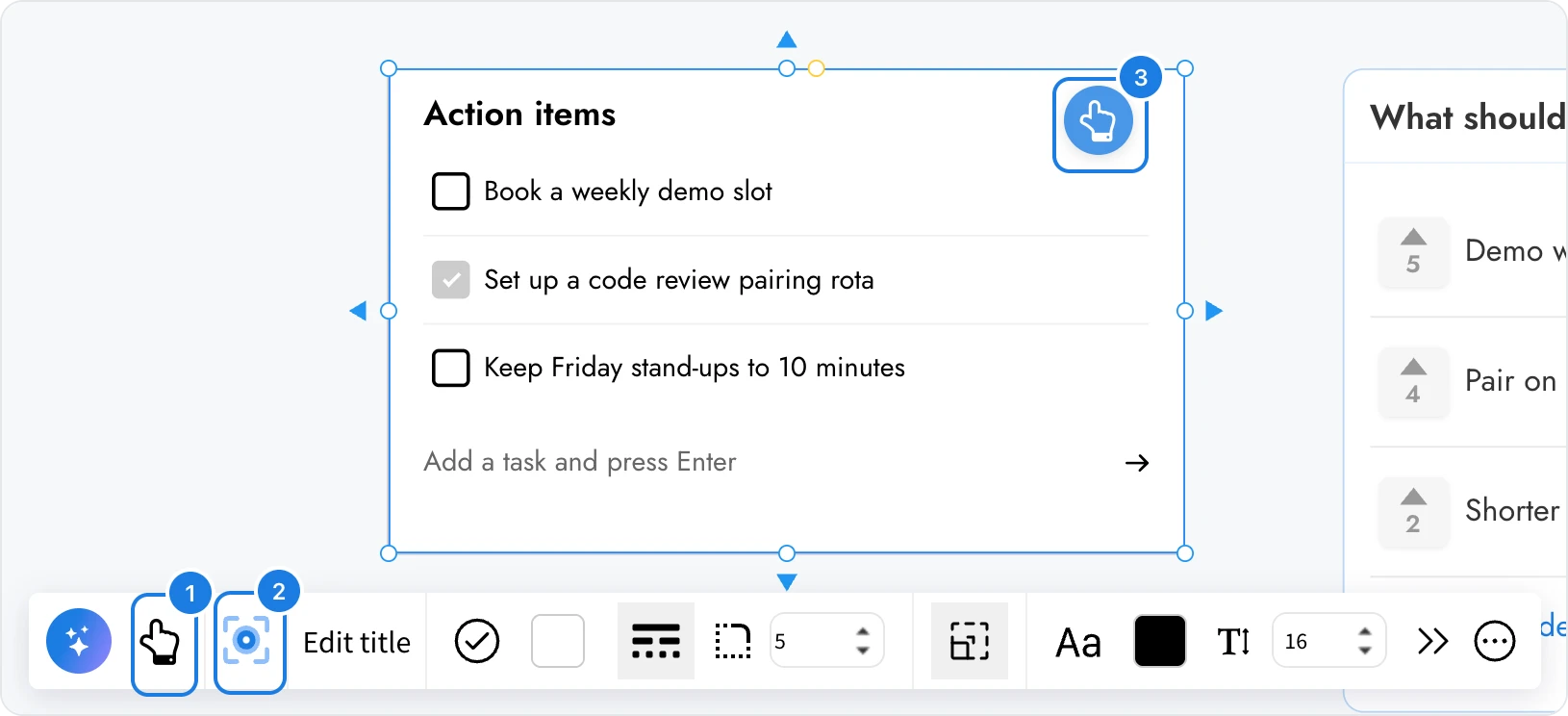
Click the item to select it. Its toolbar appears above it.
Click Interact with Component (1), the hand button in the toolbar, or the round hand button (3) at the top right of the selected item. The selection box disappears and the item works as it does in Play mode.
When you are done, click an empty part of the canvas. The item becomes a normal board item again.
Open an item full screen with Focus mode
Focus mode enlarges one item to fill the window and hides the rest of the editor, so you can read a document, plan in a kanban board or present an embed without distractions.
Select the item.
Click Enter Focus Mode in its toolbar, the button next to Interact with Component (2 in the picture above).
Work in the item. To leave Focus mode, click the close button (1) at the top right of the window.
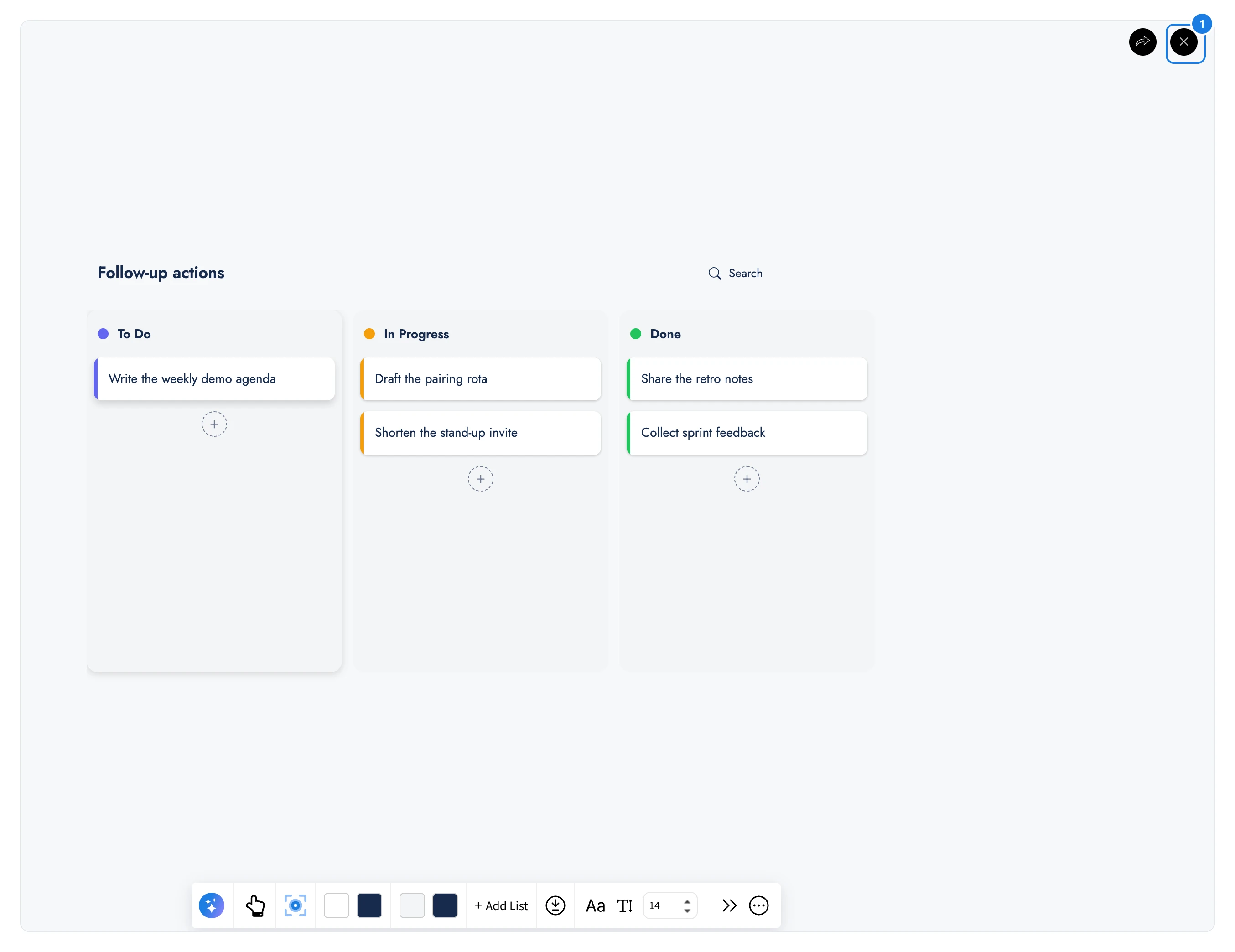
Focus mode is available on items that benefit from more space, such as checklists, kanban boards, documents, spreadsheets, mind maps, wireframes, embeds and artifacts. It is not available while someone is presenting the board with Live Present.
Step through linked items with the arrow keys
When items carry internal links, the board can work like a slideshow. With nothing selected, press the Right arrow key to follow the internal link of the item nearest the middle of your view, and press the Left arrow key to go back. Sections are a common choice for these stops, for example one section per agenda topic in a meeting or one per lesson in a course.