
Plan a story or video with a storyboard
Plan an ad, a video, a comic or a lesson frame by frame with the Storyboard component: generate frames and pictures with AI, import a script, add shot details and export.
A storyboard shows a story as a row of frames, each with a picture and a note of what happens. The Storyboard component lays one out on your MockFlow board for a video ad, a product demo, a short film, a comic, a user journey or a school project, right beside the script, moodboard and plan that go with it.
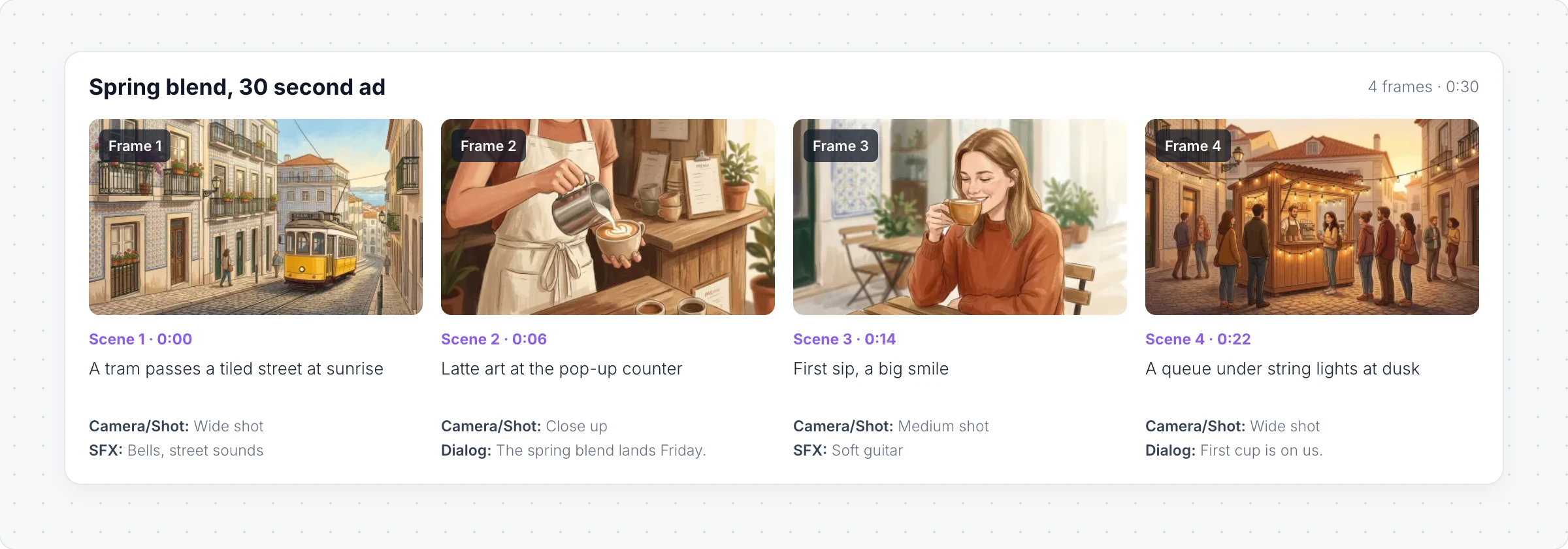
Generate a storyboard with AI
Click Add anything (the plus button) in the toolbar at the bottom of the board and choose Storyboard.
With the storyboard selected, click the AI button on the left of its toolbar and choose Generate new.
Describe the story, for example "A 30 second ad for a spring coffee blend at a Lisbon pop-up, four scenes", and click Generate. Turn on Gen Images to draw a picture for each frame.
Modify with AI changes the storyboard with a prompt, and Convert to turns it into another kind of item, such as a document or a timeline.
Work with frames, scenes and characters
Click Interact with Component (the hand button) to open the storyboard.
Add Frame adds a frame, and Add Cover adds a title frame at the start. Each frame can have its picture generated with AI, uploaded or replaced.
Scenes and Characters describe the places and the cast once, so AI pictures can keep them the same from frame to frame.
Custom Fields add details to each frame, such as Duration, Dialog, SFX, Camera/Shot and Location, or fields of your own.
Frame Numbering sets how frames are numbered, such as by scene.
Set a brand guide and art style
Brand Guide in the toolbar sets the colors and the Art Style for AI pictures: Sketch, Realistic, Anime, Comic, Minimalist or Watercolor. Every new picture follows it, so the storyboard looks like one piece.
Import a script
Import Script turns a script into frames. Paste the text, upload a file (TXT, Fountain or Final Draft FDX) or start from an example, then choose to make a frame Per Scene, Per Action/Beat or Per Dialogue.
Export a storyboard
Export Storyboard downloads it as PDF, CSV, JSON, Plain Text, Markdown or Fountain, or as the frame Images.
The Storyboard component is available on every plan. Generating frames and pictures with AI uses AI credits. Premium image models are not available on the Basic plan. See MockFlow pricing.