
Brainstorm on a whiteboard frame
Run a brainstorm, retro or SWOT in a Whiteboard frame on your MockFlow board: generate it with AI, add notes, tags, sections, text and images, and export it.
The Whiteboard frame is an area of the board set up for a brainstorm. It holds notes, tags, sections, text and pictures, so a workshop exercise such as a SWOT, a retro or an idea session stays together and moves as one. A board can hold several, one for each exercise or team.
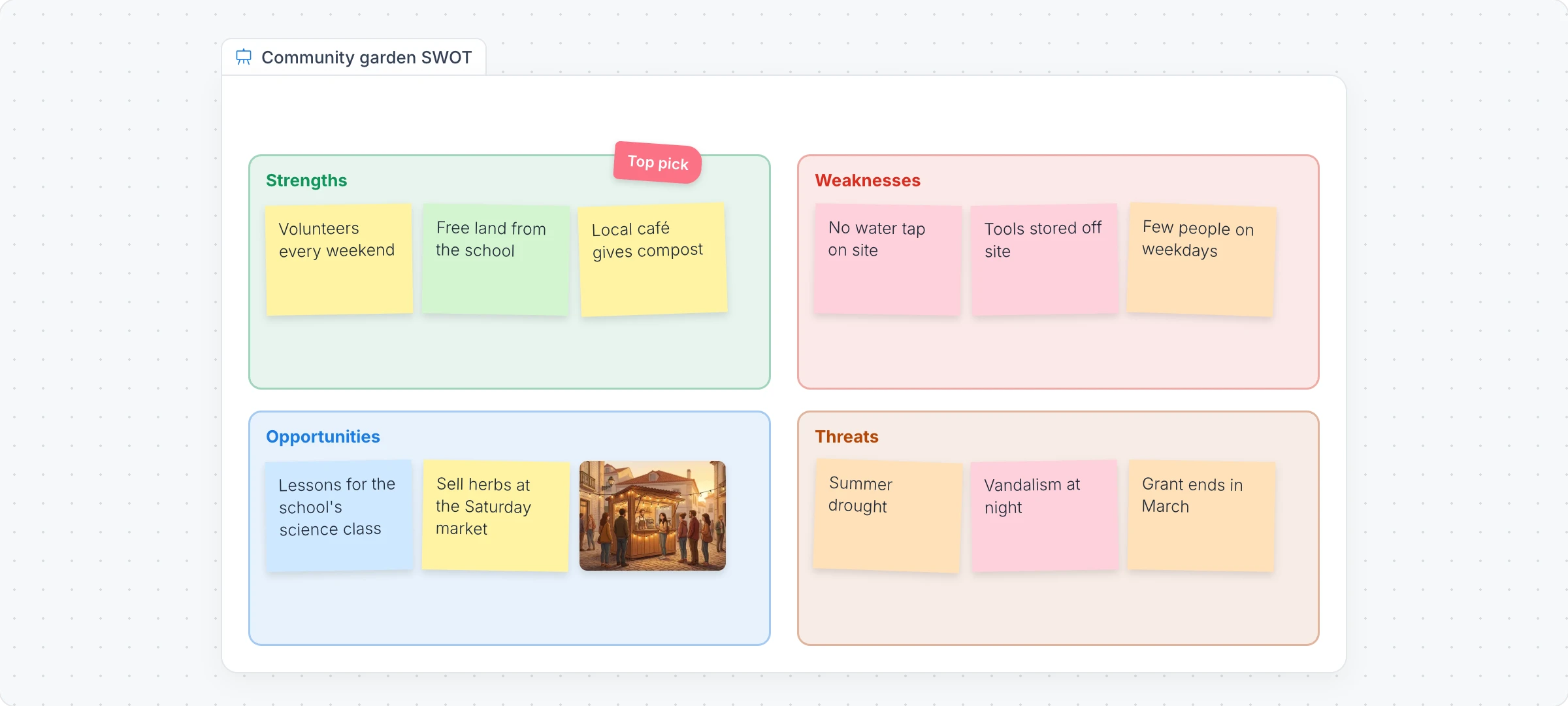
Generate a whiteboard with AI
Click Frames in the toolbar at the bottom of the board and choose Whiteboard.
With the frame selected, click Generate whiteboard with AI in its toolbar and choose Generate whiteboard.
Pick a starting point from Whiteboard type, such as brainstorm ideas, a SWOT analysis, a sprint retrospective or a workshop agenda, finish the prompt, for example "Create a SWOT analysis for our community garden", and click Generate.
Turn on Gen Images to add AI pictures for the visual references. Modify with AI adds ideas, regroups notes or changes the layout with a prompt.
Add notes, sections and pictures
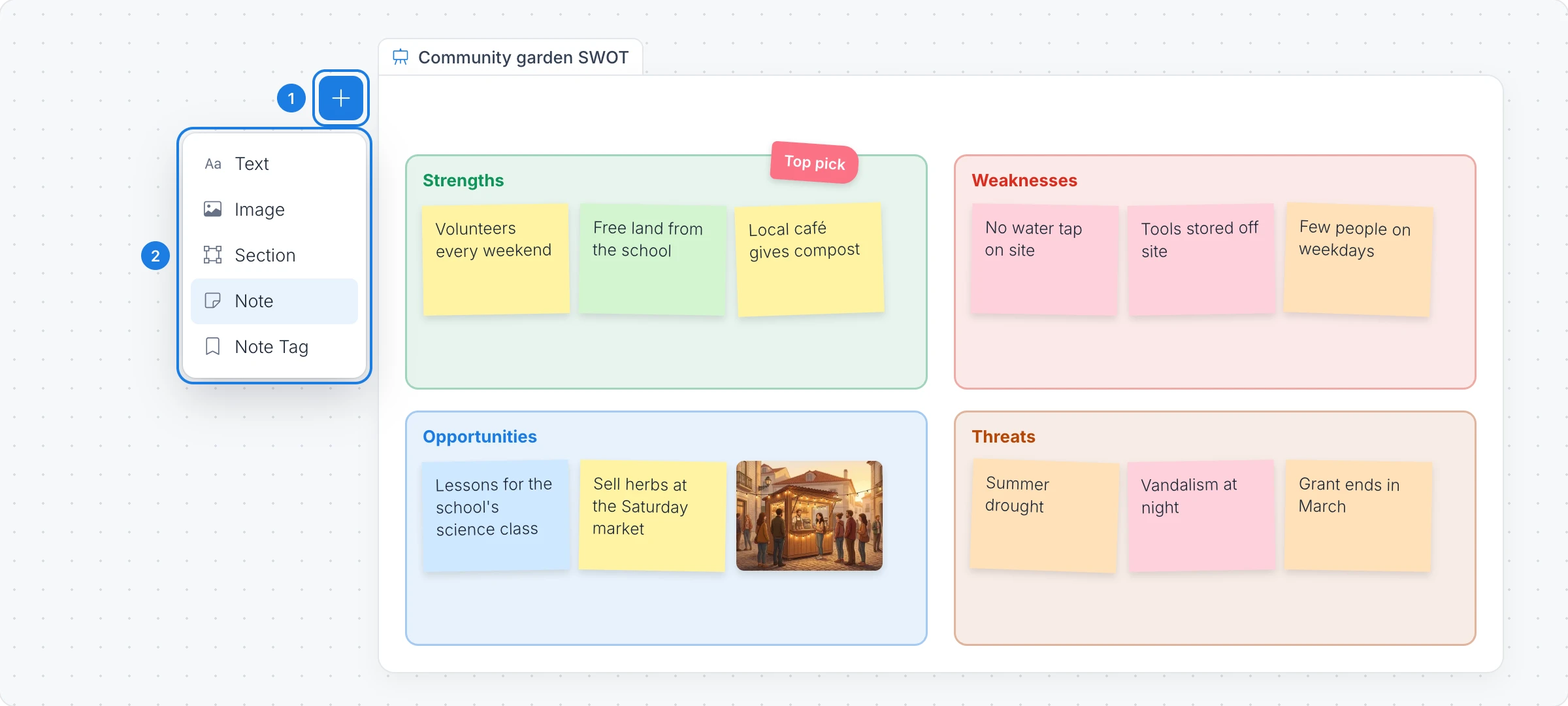
Click the add button (Drag to add Whiteboard Component) on the frame.
Drag an item into the whiteboard:
Note: a sticky note for one idea.
Note Tag: a small flag to mark a favorite or a decision.
Section: an area with a title, to group notes by theme.
Text and Image: headings, instructions and pictures.
Everyone on the board can add and move notes at the same time, so a whole team can brainstorm in one frame.
Export a whiteboard
Export Whiteboard in the toolbar downloads the frame as an image. Tick Export 2x Quality for a sharper picture, then click Download. Toggle Background Transparent and Border color change how the frame looks on the board.
The Whiteboard frame is available on every plan. Generating with AI, and pictures made with Gen Images, use AI credits. See MockFlow pricing.