
Share a board with people
Invite teammates, clients and stakeholders to a board, choose their role, manage who has access and link to one item.
Sharing brings other people onto your board in MockFlow, the visual canvas for people, teams and agents. Everyone you invite works on the same board in real time, with a role that sets what they can do. You share from the Share button at the top right of the board editor.
Invite people to a board
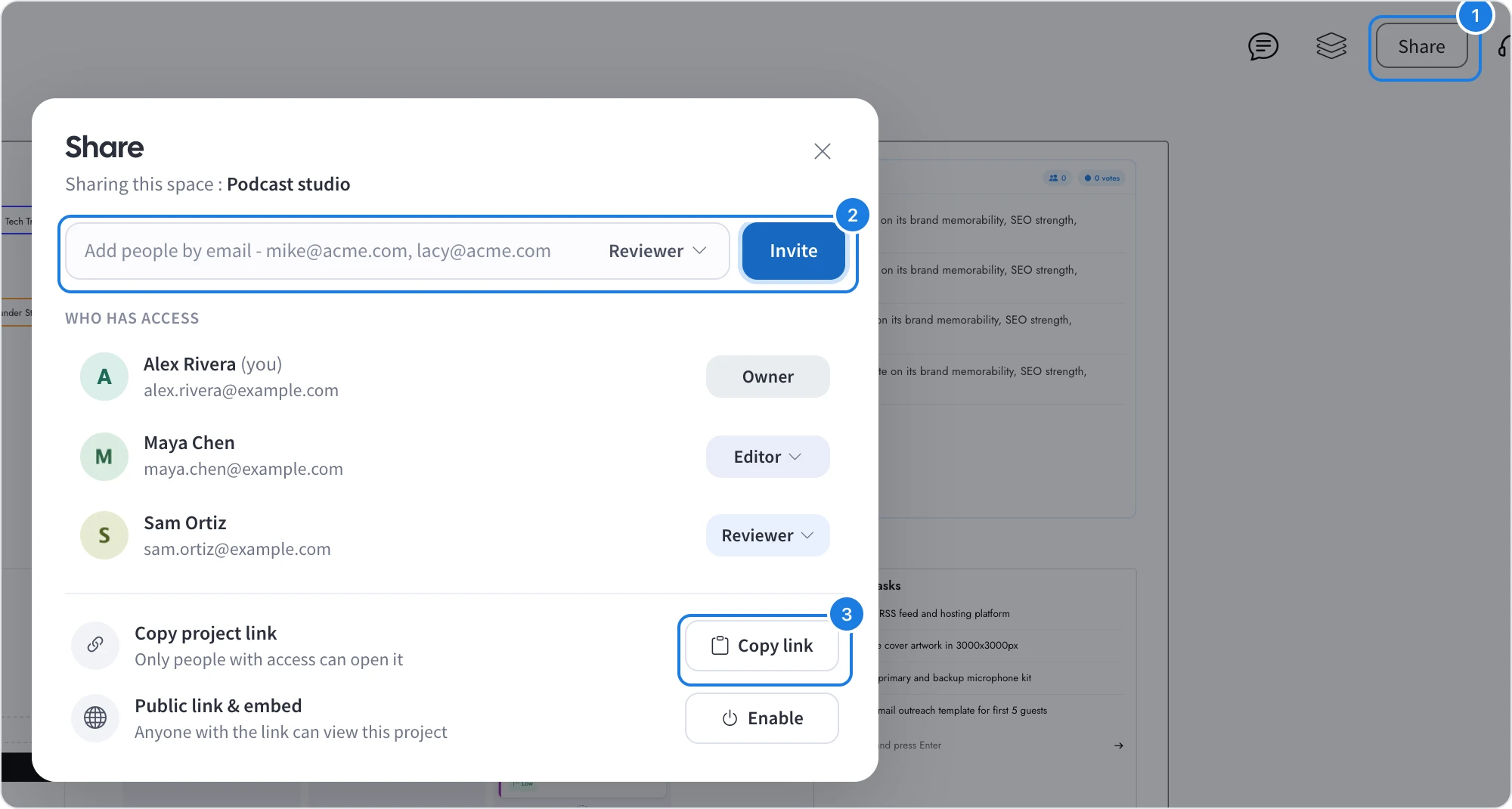
Open the board and click Share (1) at the top right.
Type one or more email addresses in the invite field, separated by commas (2). People you have worked with before are suggested as you type.
Choose a role from the menu beside the field: Reviewer, Editor or Admin.
Click Invite.
Each person receives an email invitation and appears under Who has access. Only the owner and admins can invite people. Editors see a Team button in place of Share, which lists the board's members.
Copy a link for members
To point a teammate to the board, click Copy link beside Copy project link (3). Only people with access can open this link, so it is safe to post in a team chat, an email or a ticket. To let people outside your team view the board without an invitation, create a public link instead, as described in Share a board with a public link.
What sharing a board in a space does
A board lives in a space, and the Share panel names it at the top, for example Sharing this space : Podcast studio. Inviting someone from a board in a team space adds them to the whole space, so they can open every board in it, now and in the future. This keeps a team's work together instead of sharing board by board. For more on spaces, see Invite people to a space.
A board in Default space is shared on its own, and the panel shows Sharing this project. Boards in Private boards are yours alone: they show a Private tag instead of Share. To share one, move it to a team space first.
Choose a role
Role | What they can do |
|---|---|
Reviewer | View in real time, add feedback and export |
Editor | Everything a reviewer can do, plus edit in real time |
Admin | Full rights, including renaming and sharing |
Pricing is per editor. Reviewers are free and unlimited on paid plans, so clients and stakeholders can follow the work and comment without using a seat. If you manage your team's licenses and invite an editor or admin who has no license yet, MockFlow offers to assign one of your vacant licenses to them.
Change a role or remove someone
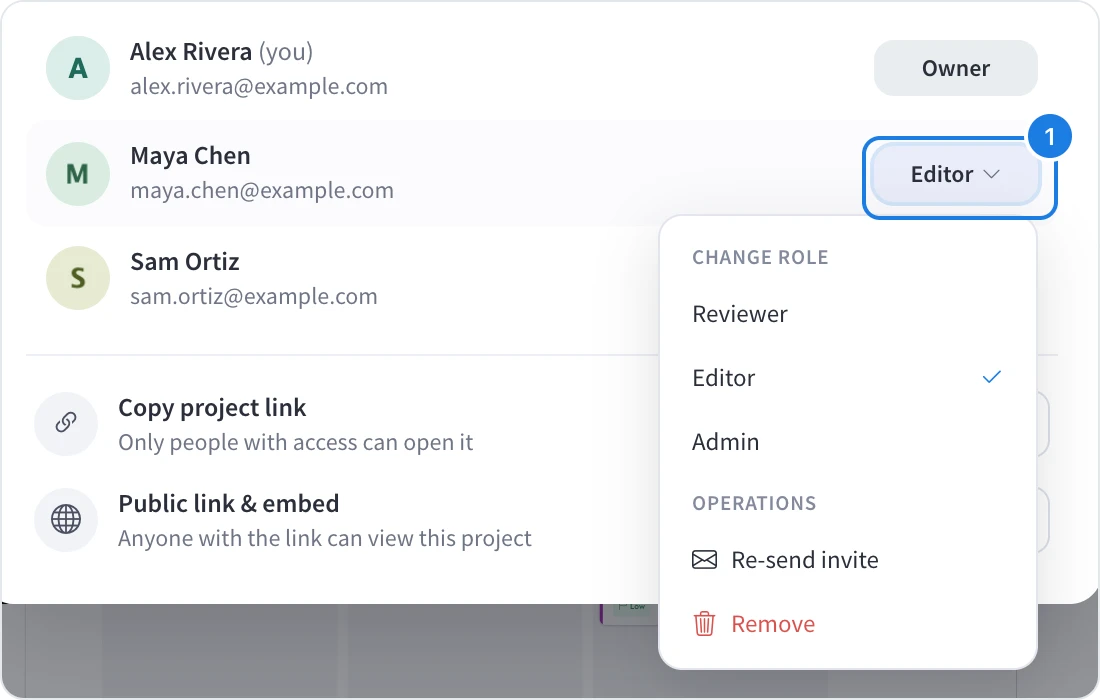
In Who has access, click a person's role (1) to open their menu:
Change role: pick Reviewer, Editor or Admin. The new role applies straight away.
Re-send invite: send the email invitation again, for example if it was missed.
Remove: take the person off the board. In a team space, this removes them from the space.
Share a link to one item on the board
Some items can open on their own in focus mode, which fills the screen with that item: idea boards for voting, polls, documents, videos, prototypes and tree diagrams such as site maps. A link to focus mode takes people straight to that item, for example to ask the team to vote on name ideas.
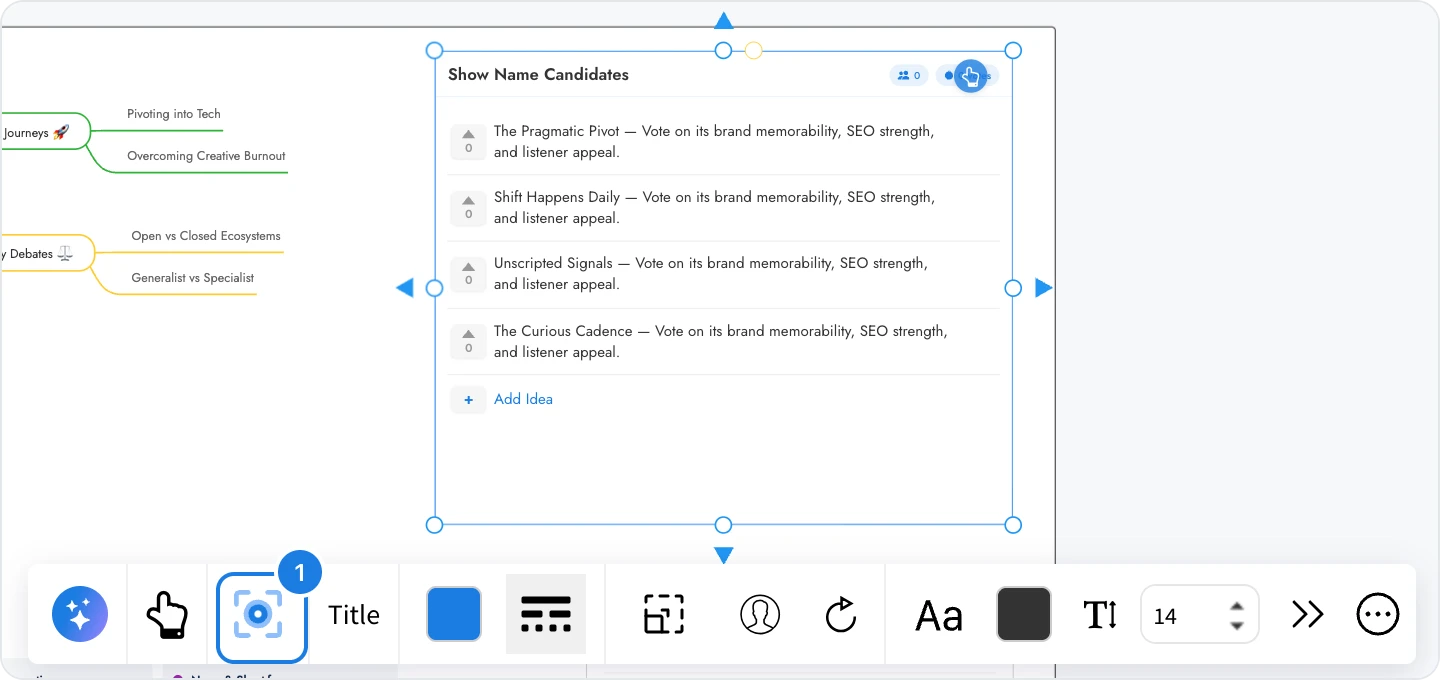
Select the item and click Enter Focus Mode (1) in its toolbar.
Click the share arrow (1) at the top right. The link is copied to your clipboard.
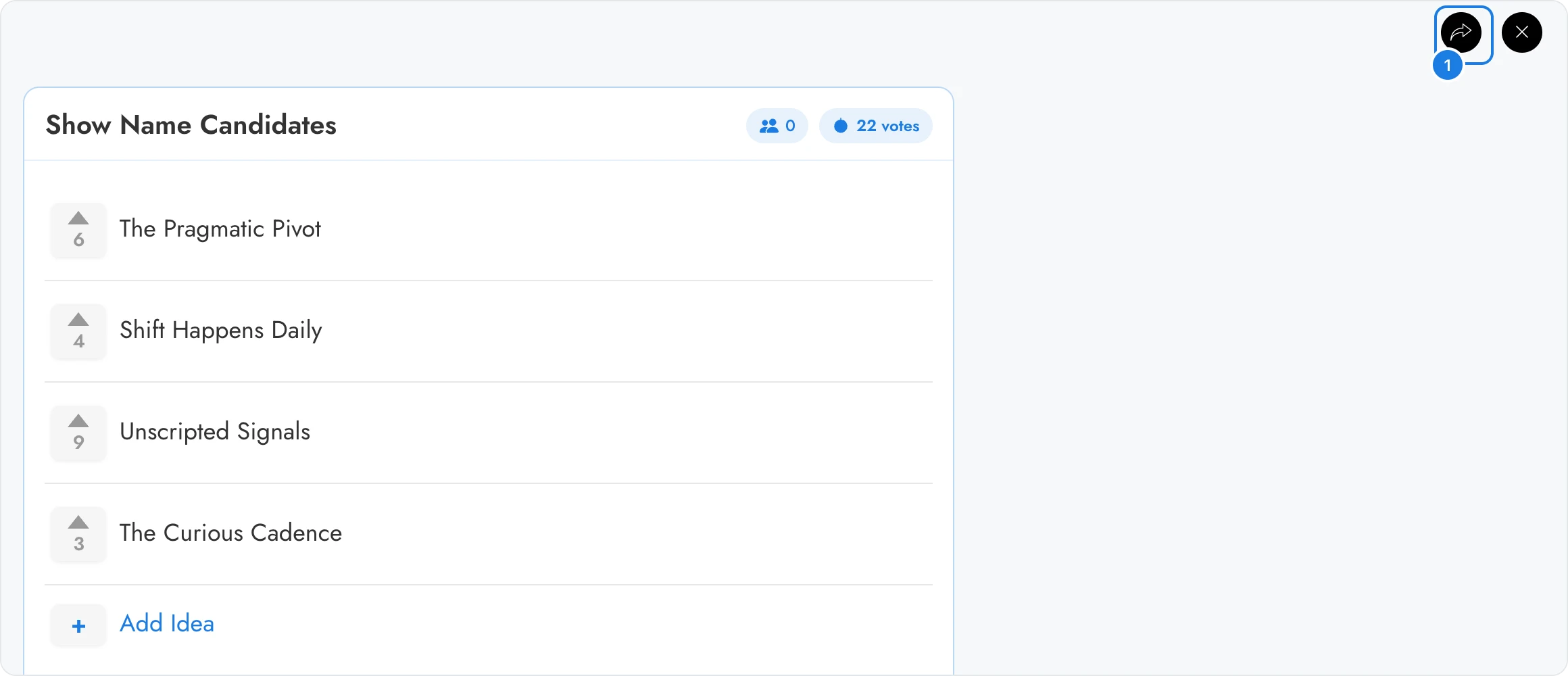
Anyone with access to the board can open the link. The board opens with that item in focus.
What is not available on the Basic plan
On the Basic plan, you can invite people only as reviewers, and a space can have up to 5 reviewers. Editor and admin roles, unlimited reviewers and many other features, such as live presentation mode and secure view links, are available on Plus and Max. See MockFlow pricing for details.