
Comment on a board
Pin a comment to the exact spot on a board, mention a teammate with @, reply in a thread and find every comment on the board.
Comments in MockFlow are pinned to the exact place they are about: a field on a wireframe, a card on a kanban, a step in a flowchart. Feedback stays next to the work, and everyone on the board sees new comments and replies as they are posted. Reviewers can comment too, so clients and stakeholders can give feedback without editing anything.

Add a comment
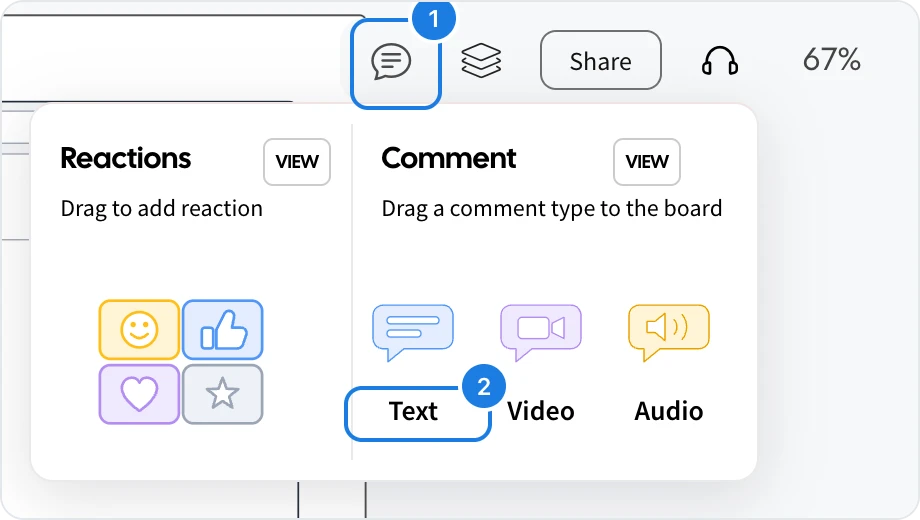
Click the comment icon at the top right (1).
Drag Text (2) onto the spot you want to comment on, such as a plan on a pricing wireframe, a kanban card or a step in a flowchart. You can also click Text to place the comment in the middle of your view and then move it.
Type your comment and click the send button.
A comment pin stays on the board at that spot. Everyone with access to the board sees it straight away.
Mention someone in a comment
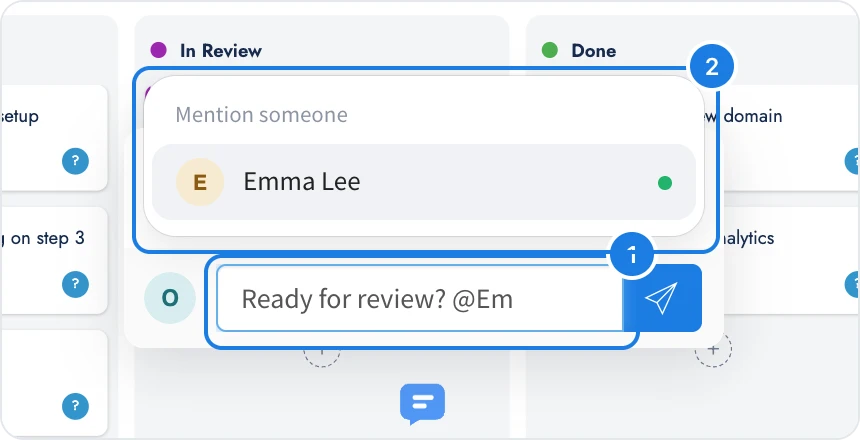
To ask a specific person for feedback, type @ in the comment field (1) and pick their name from the Mention someone list (2). When you post the comment, the person you mention gets a notification. Clicking it opens the board with that comment thread open, so they can reply straight away.
Reply to a comment
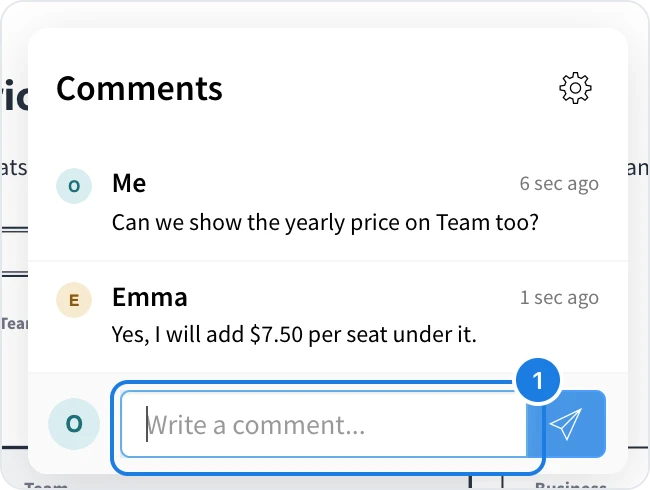
Click a comment pin to open its thread. Type in the field at the bottom (1) and press Enter or click send. Replies appear for everyone in order, with each person's name and the time.
See every comment on a board
Click the comment icon at the top right, then View next to Comment. The list shows every comment on the board. Click one to go to it.
Delete a comment
Open the thread and delete your comment from it. The board's Owner and Admins can delete any comment.
To choose whether you get an email when someone comments, see Choose which emails you get.